How to Use an M.2 SSD as External Storage on Windows
An M.2 SSD can make fast portable storage, but the connector shape does not reveal whether it uses SATA or NVMe. Choose an enclosure that matches the drive's protocol, size, and power requirements before connecting it to Windows.
Check Compatibility and Existing Data
Read the SSD label and model specification for SATA or NVMe, length such as 2230 or 2280, and keying. Confirm the enclosure supports that protocol and length, then use a suitable USB-C or USB-A port and cable. The USB connection can limit throughput below the SSD's internal rating.
If the SSD came from another PC, it may contain boot, recovery, or encrypted partitions. Do not click Initialize or Format merely because Windows asks. First decide whether the old files or a bootable image must be retained. A full backup to another disk is the safest starting point.
Install and Identify the External Drive
Step 1. Power down the enclosure as instructed, fit the SSD without forcing the connector, secure it with the correct standoff, and attach any supplied thermal pad as the enclosure manual directs.
Step 2. Connect the enclosure directly to the Windows PC. Open Disk Management and identify the new disk by model and capacity. If it does not appear, try another cable or port and verify SATA/NVMe compatibility before assuming the SSD is dead.
Step 3. For an existing formatted volume, assign a free drive letter only if needed, then copy a small test file and reopen it. If BitLocker is enabled, unlock it with the authorized key; formatting is not a password-recovery method.
Prepare a Blank or Expendable SSD
Only after confirming there is no data to retain, initialize a truly blank drive in Disk Management if Windows requires it. GPT is the usual choice for modern Windows data disks; check any older device's compatibility first.
Step 1. In Qiling Disk Master's Disk management view, select the unallocated area on the correct external SSD and choose Create.
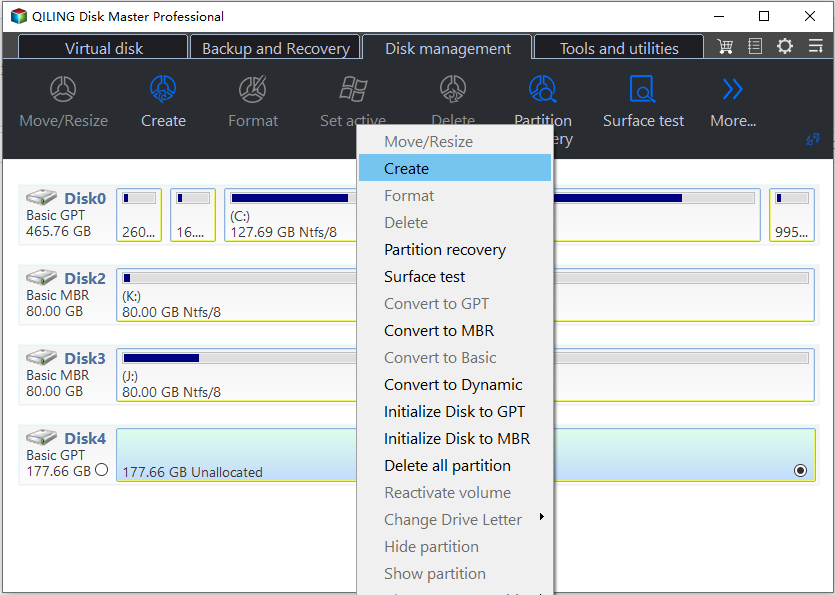
Step 2. Choose a size, label, and file system. Use NTFS for Windows-only use and exFAT when regular cross-platform exchange is required. Review the disk number and capacity in the creation dialog.
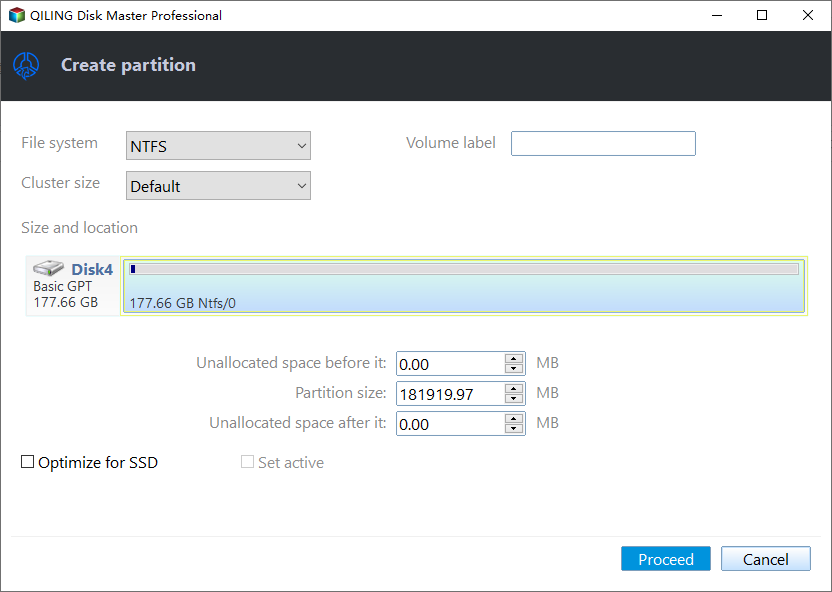
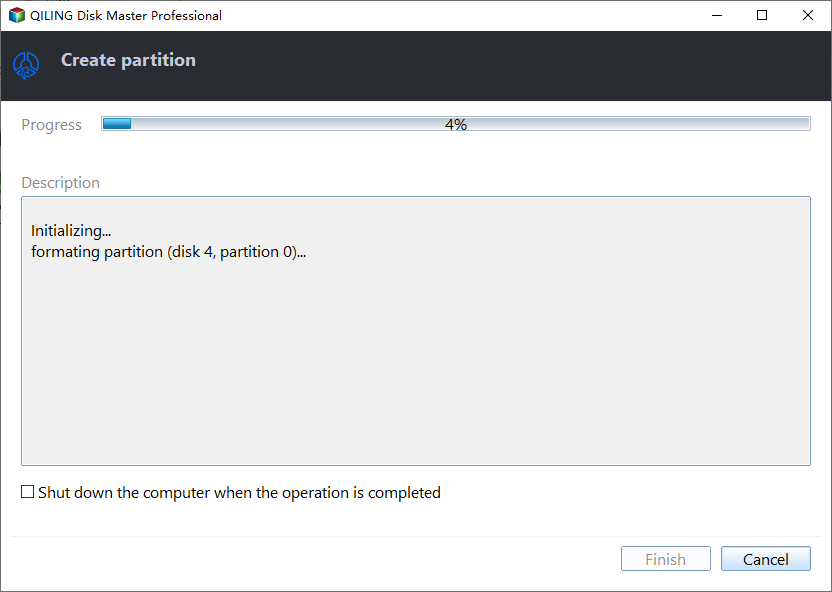
Step 3. Click Proceed to create and format that partition. Wait for completion, then confirm the volume appears in File Explorer and a test file can be written and read back.
Use It Reliably
Eject the drive through Windows before unplugging it, especially after large transfers. Keep a second copy of important files; an external SSD is not a backup merely because it is portable. If it disconnects under load, check cable, power, enclosure heat, and USB controller before changing the file system.
Conclusion
Match the enclosure to the actual M.2 protocol, preserve any old data, and create a new partition only on a verified blank or expendable SSD.
Related Articles
- Test M.2 SSD Speed
Understand USB enclosure limits. - Use the D: Drive in Windows
Organize files on a separate data volume.
Products
Articles & Tutorials
- Data Recovery
- Data Backup
- File Recovery
- File Backup
- System Backup and Restore
- Disk and Partition Clone
- Technical articles
- Mobile articles
- Disk Master Help
- Windows Data Recovery Tutorials
- Windows Secure Delete Tutorials
- Windows Partition Management Tutorials
- Windows File Backup and Restore Tutorials
- Windows System Backup and Restore Tutorials
- Windows Disk Backup and Restore Tutorials
- Windows Clone Tutorials