Use M.2 SSD as External Storage on Windows
An old M.2 SSD can become a fast external drive if you put it in the right USB enclosure. The key is matching the enclosure to the SSD type and preparing the drive correctly in Windows.
Check the M.2 SSD Type
- NVMe M.2 SSDs need an NVMe USB enclosure.
- SATA M.2 SSDs need a SATA M.2 enclosure.
- The notch on the connector helps identify the type, but model lookup is safer.
- Use a USB 3.2 or USB-C port for better speed.
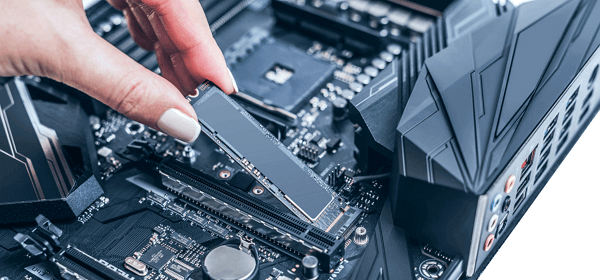
Set Up the SSD in Windows
- Install the SSD into the enclosure and connect it to the PC.
- Open Disk Management.
- If the disk is new, initialize it as GPT for modern Windows systems.
- Create a new simple volume and choose NTFS or exFAT.
- Assign a drive letter and test file copy speed.
Use Qiling Disk Master to Format or Clone to the External SSD
If you want the external M.2 SSD to store a system image, clone a data disk, or reuse an old drive safely, Qiling Disk Master can prepare the layout and preview changes.
Step 1. Open Qiling Disk Master and confirm the external SSD is detected.
Step 2. Create, format, resize, or clone partitions according to your storage plan.

Step 3. Click Proceed and wait for the operation to finish.
Conclusion
Using an M.2 SSD externally is practical for backups, file transfer, and portable storage. Match the enclosure correctly, format the SSD safely, and recover old data before reusing it.
Related Articles
Products
Articles & Tutorials
- Data Recovery
- Data Backup
- File Recovery
- File Backup
- System Backup and Restore
- Disk and Partition Clone
- Technical articles
- Mobile articles
- Disk Master Help
- Windows Data Recovery Tutorials
- Windows Secure Delete Tutorials
- Windows Partition Management Tutorials
- Windows File Backup and Restore Tutorials
- Windows System Backup and Restore Tutorials
- Windows Disk Backup and Restore Tutorials
- Windows Clone Tutorials