Why Rainbow Six Siege Takes So Long to Load on Windows
Slow loading can come from the storage drive, but it can also reflect a game update, file verification, network or server delay, antivirus scanning, or a memory shortage. Separate local loading from matchmaking time before buying a new SSD.
Find where the delay occurs
Step 1. Time three stages separately: launcher start, arrival at the main menu, and loading into a match. A long matchmaking queue is not a disk-speed test.
Step 2. Open Task Manager during the slow stage. On Performance, check the game drive's active time, CPU, and memory usage. Sustained disk saturation with low throughput can indicate a slow or unhealthy drive.
Step 3. Identify whether the game is installed on an HDD, SATA SSD, or NVMe SSD. Check free space and avoid filling the drive to capacity.
Step 4. Check the game's current service status and update history. If delays began after a patch, compare with another game on the same drive.
Fix software and file problems
Restart Windows and the launcher, install pending game and graphics updates, and use the launcher's file-integrity check. Close large downloads, backup jobs, and other disk-heavy tasks before retesting. If antivirus scanning is implicated, check its logs and use only a narrow, trusted exception if your security policy permits one. Do not disable protection wholesale.
If Windows memory is nearly full, close background applications. Swapping heavily to disk makes an otherwise fast SSD feel slow. A network pause before joining a match calls for connection diagnostics, not cloning.
Decide whether storage needs attention
An HDD-to-SSD move commonly helps asset loading because SSDs have much lower access latency. A move between two healthy SSDs may bring a smaller, game-dependent improvement. First check drive health, temperature, and available space. If the drive reports SMART warnings, back up your files before stressing it with benchmarks.
Check the game drive with Qiling Disk Master Pro
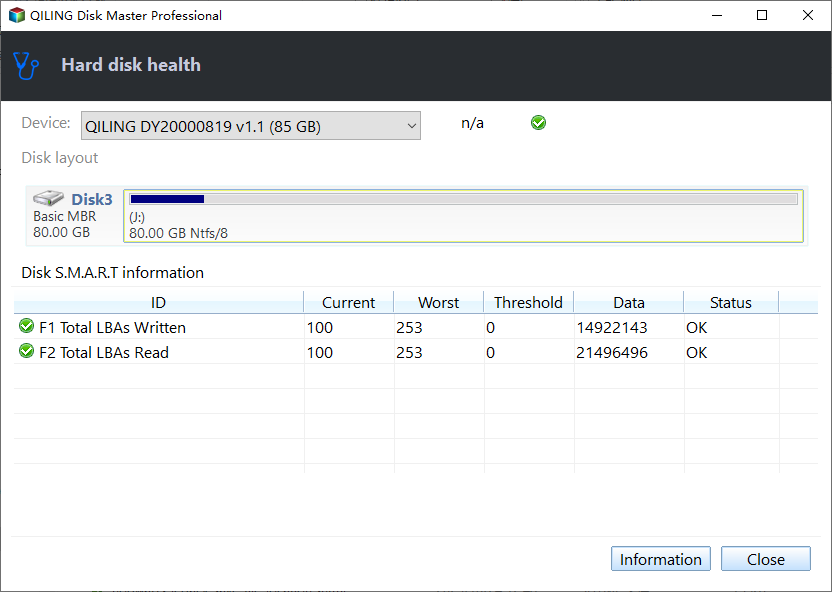
When Task Manager shows sustained activity on the game drive during local loading, open Tools and utilities > Disk health in Qiling Disk Master Pro. Choose the same physical drive by model and capacity and review its available S.M.A.R.T. indicators. A warning is a reason to back up saves and replace the drive; a healthy reading does not prove that a match queue or launcher delay is a storage problem.
When replacing the game drive, you can reinstall the game cleanly or clone the entire disk if it also contains Windows and applications. Verify the target's capacity, keep the old disk intact, and confirm the game launches from the new location. A clone will not solve server queues or corrupted online profiles.
Retest the same scenario
Measure loading at the same game version, map, and connection conditions. Record the launcher, menu, and match times separately. If only match entry remains slow, check network and game services rather than repeatedly changing storage settings.
Related Articles
- SSD Speed for Gaming
Compare the benefits of HDD and SSD game storage. - SSD Freezes
Investigate storage stalls before a replacement.
Products
Articles & Tutorials
- Data Recovery
- Data Backup
- File Recovery
- File Backup
- System Backup and Restore
- Disk and Partition Clone
- Technical articles
- Mobile articles
- Disk Master Help
- Windows Data Recovery Tutorials
- Windows Secure Delete Tutorials
- Windows Partition Management Tutorials
- Windows File Backup and Restore Tutorials
- Windows System Backup and Restore Tutorials
- Windows Disk Backup and Restore Tutorials
- Windows Clone Tutorials