Windows 11 24H2 Keeps 8.63 GB of Update Files You Cannot Delete
Quick Navigation:
- Where the 8.63 GB Comes From
- Why Disk Cleanup Does Not Remove It
- Reclaim the Space with Servicing Tools
- Give the Space Back to C with Qiling
- Frequently Asked Questions
After upgrading to Windows 11 24H2, the Storage page can report roughly 8.63 GB of temporary files that does not shrink when you clean it. The figure is real, but it is not a leak, and deleting the folders by hand is not the way to remove it.
Where the 8.63 GB Comes From
A feature update replaces a large part of the operating system. The old build is kept in Windows.old for about ten days so you can roll back, and the replaced components are kept in the component store under C:\Windows\WinSxS so that the update can still be uninstalled.
The 8.63 GB figure comes from the Windows Update Cleanup category in that report, which is why the same number appears in Settings and in Disk Cleanup. It varies with the edition, the installed drivers, and the size of the component store, so a different machine can show 6 GB or 11 GB and be in exactly the same state.
The reported size also counts files that are hard-linked into more than one place. That inflates the total without changing the amount of disk space you could actually free, which is why the number feels larger than the space it appears to recover.
Why Disk Cleanup Does Not Remove It
Disk Cleanup passes the work to the same servicing task that maintains the component store. It reports success even when little is removed, because most of the retained data is still required in case Windows has to roll an update back.
Part of the total is also reserved for servicing. Reserved storage holds space aside so that updates can download and install without the user having to free room first, and Windows returns that space in its own time rather than on demand.
Deleting WinSxS or the contents of SoftwareDistribution by hand is not supported. The first can leave the installation unable to service itself, and the second forces a re-download and can break updates that are already staged.
Reclaim the Space with Servicing Tools
Note: Dism ships with Windows. It is not part of Qiling Disk Master, which is covered later in this guide.
Start with an analysis instead of a cleanup. Dism /Online /Cleanup-Image /AnalyzeComponentStore separates the actual size of the store from the part that can be reclaimed, which is usually much smaller than the figure shown in Settings.
Then run Dism /Online /Cleanup-Image /StartComponentCleanup. It removes superseded components once their grace period has passed. Adding /ResetBase removes the ability to uninstall updates that are already installed, so skip that switch if you may still want to go back.
For the previous installation, use Settings > System > Recovery or the Previous Windows installation(s) entry in Disk Cleanup, but only after you are sure the new build works with your software. Removing it ends the rollback option immediately.
If the drive is simply too small for the operating system to breathe, plan for roughly 20 to 25 GB of free space before the next feature update rather than cleaning up after it has already failed.
Give the Space Back to C with Qiling
Cleaning removes data; it does not change the partition map. When C is short because the disk was split with too little room for Windows and the free space sits on another partition, Qiling Disk Master moves that space to C without reinstalling anything.
Step 1. Select the System Disk
Open the program and confirm which disk holds C. Compare the disk number and capacity with Disk Management; a second disk of the same size is the most common reason the wrong volume gets resized.
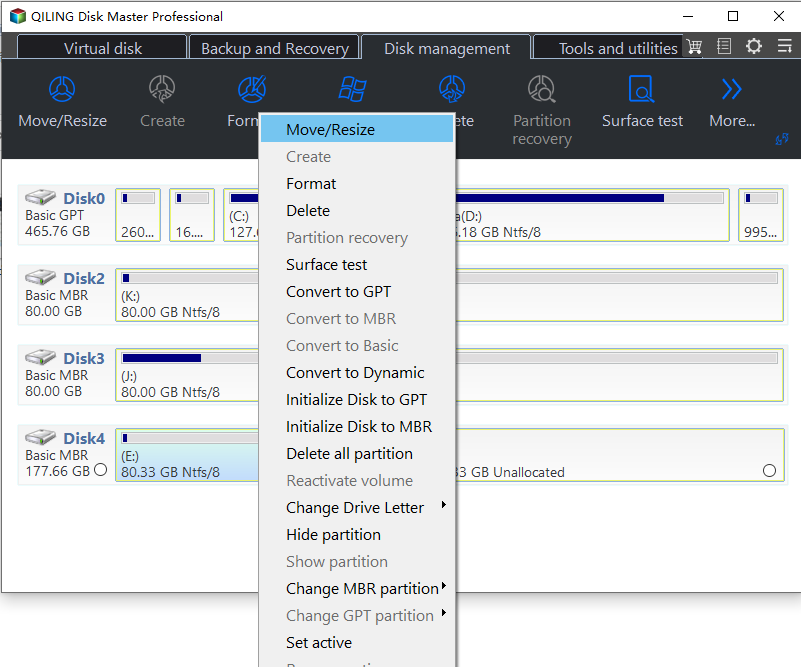
Step 2. Extend C Into the Free Space
Right-click C and choose Resize Partition. If the unallocated space is not adjacent, shrink the partition in front of it first and move that partition aside, then extend C into the space that is now next to it.
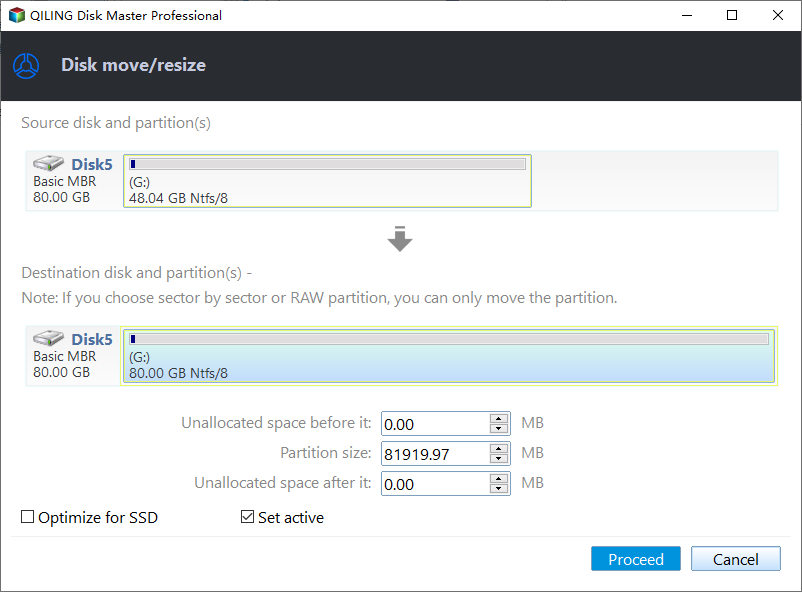
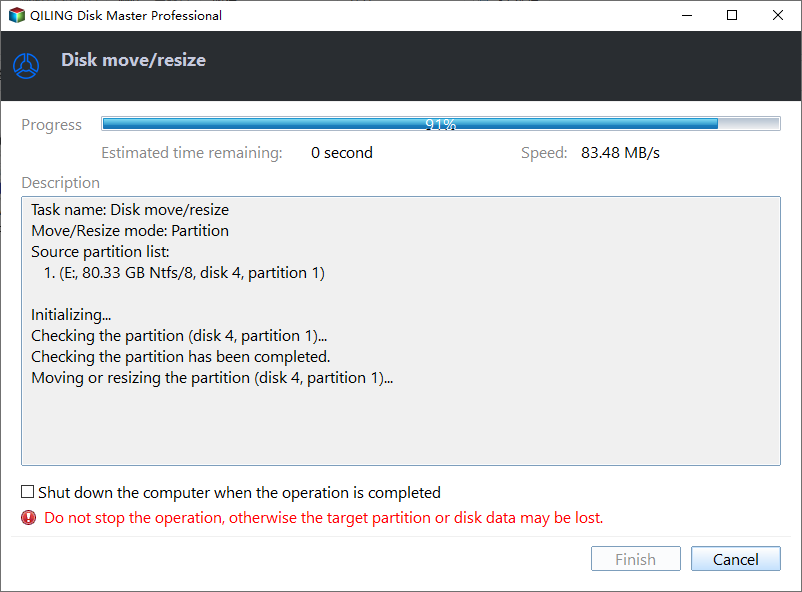
Step 3. Preview, Proceed, and Check
Review the preview, click Proceed, and let the machine restart if the system volume is involved. After the reboot, confirm the new size in Settings and check that Windows Update can still download.
Frequently Asked Questions
Is the 8.63 GB a bug or a leak?
It is retained update data, not a leak. Windows keeps it so the update can be uninstalled, and the reported size overstates what can actually be freed.
Will the number come back after the next update?
Yes, in some form. Each cumulative update that replaces components adds to the store until cleanup removes the superseded copies.
Can I delete the WinSxS folder?
No. Use the DISM cleanup commands instead; deleting the folder by hand can leave the installation unable to apply future updates.
Does cleaning affect my personal files?
The cleanup categories used here touch system files and previous installations. Personal files are removed only by the categories that name downloads or the recycle bin.
If a cleanup went too far and files disappeared, read recover files lost after the Windows 11 24H2 update.
Related Articles
- Recover Files Lost After the Windows 11 24H2 Update
- Windows 11 24H2 Problems and How to Fix Them
- Recover Data From a Laptop That Won't Boot
Products
Articles & Tutorials
- Data Recovery
- Data Backup
- File Recovery
- File Backup
- System Backup and Restore
- Disk and Partition Clone
- Technical articles
- Mobile articles
- Disk Master Help
- Windows Data Recovery Tutorials
- Windows Secure Delete Tutorials
- Windows Partition Management Tutorials
- Windows File Backup and Restore Tutorials
- Windows System Backup and Restore Tutorials
- Windows Disk Backup and Restore Tutorials
- Windows Clone Tutorials