Windows Server 2025 Partition Management Guide
Quick Navigation:
- What Server 2025 Changes for Disks
- Read the Layout Before You Touch It
- Extend, Shrink, and Convert Volumes
- Manage Partitions with Qiling
- Frequently Asked Questions
Windows Server 2025 keeps the familiar Disk Management and diskpart tools, but larger volumes, ReFS data disks, and NVMe layouts expose their limits quickly. The workflow below shows how to read a layout, change a volume safely, and what to do when a built-in option is unavailable.
What Server 2025 Changes for Disks
Server 2025 is built on the same code base as Windows 11 version 24H2, so the storage stack is closer to a modern client than to Server 2012. Disk Management, diskpart, and the Disk and Volumes views in Server Manager are still present and still work the same way for basic operations.
What has changed is the default layout. New installations create GPT disks with an EFI system partition, a Microsoft reserved partition, and often a recovery partition ahead of the system volume. A disk prepared this way cannot be treated like an old MBR disk, and the extra partitions frequently sit exactly where you want unallocated space to be.
ReFS remains available for data volumes and now accepts volumes created by newer releases only, which matters when you move a disk between servers. For the system volume, NTFS is still the practical choice, and the same rule applies as on the client: a volume can only be extended into free space that touches its end.
Read the Layout Before You Touch It
Open Server Manager, go to File and Storage Services > Volumes > Disks, and note the disk number, the partition table type, and the position of any unallocated space. Disk Management shows the same map in a more compact form, and list disk plus list partition in diskpart gives the precise offsets when a layout is unclear.
Identify the system, boot, and recovery partitions before you change anything. A recovery partition is small, often 500 MB to 1 GB, and sits at the end of the disk; deleting it removes the Windows Recovery Environment until it is recreated. Never remove the EFI system partition on a GPT boot disk.
Confirm that a recent backup exists and that you know which disk is which by size and model, not by drive letter alone. Letters move between reboots on servers with several volumes, while disk numbers and capacities stay stable.
Extend, Shrink, and Convert Volumes
To extend a volume in Disk Management, right-click it and choose Extend Volume. The wizard only works when unallocated space begins immediately after the volume, so a recovery partition in between blocks the operation. Shrinking has its own limit: Windows cannot move certain files, and the amount of space it offers can be far less than the free space reported by the volume.
Converting a disk from MBR to GPT is a separate job. An MBR disk cannot address more than 2 TB, which is why large arrays are partitioned as GPT from the start. The MBR2GPT tool can convert a system disk without reinstalling, but it requires UEFI firmware, a backup, and a reboot; converting a data disk still means recreating the partitions unless a third-party tool performs the conversion in place.
On a production server, treat every storage change as a change request. Check whether the volume holds shares, database files, or virtual machines, and schedule the work for a window when those services can be paused. A volume that is in use forces a reboot before the change can complete.
Manage Partitions with Qiling Disk Master
Qiling Disk Master covers the cases where the built-in wizard refuses to continue: moving unallocated space that sits before a volume, sliding a partition aside, or merging free space from a neighbouring one. It works on the volume map rather than through a fixed wizard, so the pending layout is visible before anything is written.
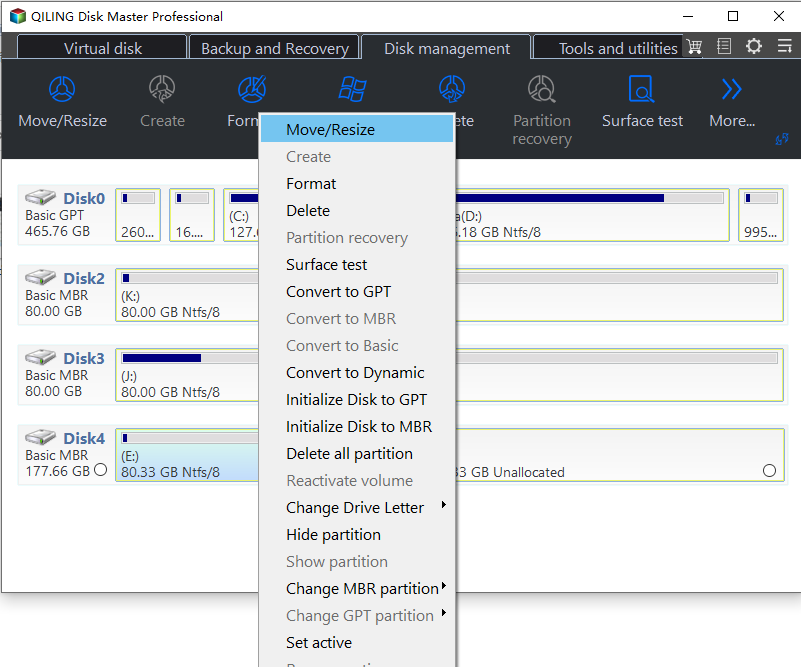
Step 1. Select the Server Disk
Open the program, right-click the disk that holds the volume, and confirm the disk number and capacity against Server Manager. On a server with several similar disks, the capacity comparison is the only reliable way to avoid working on the wrong device.
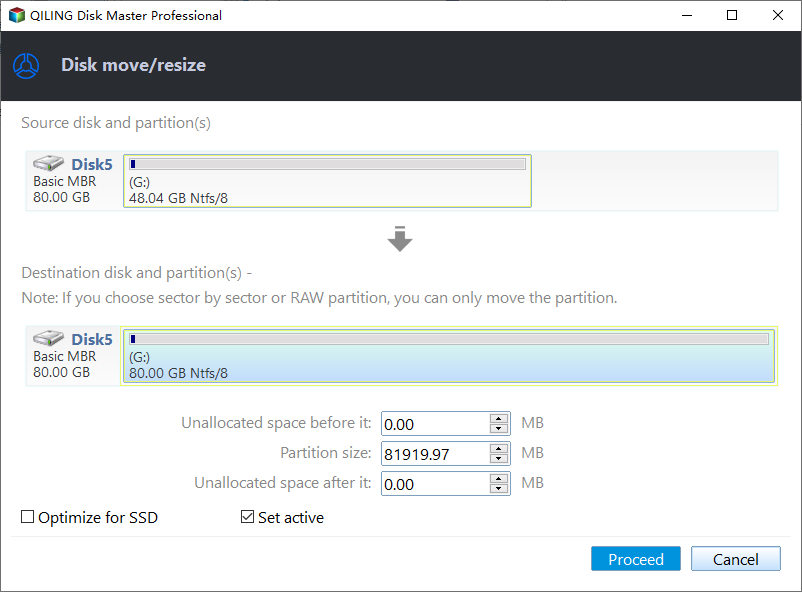
Step 2. Extend or Shrink the Volume
Right-click the volume and choose Resize Partition. Drag the end handle into the unallocated space to extend, or toward the start of the volume to shrink. If the free space is not adjacent, move the partition that blocks it first, then extend.
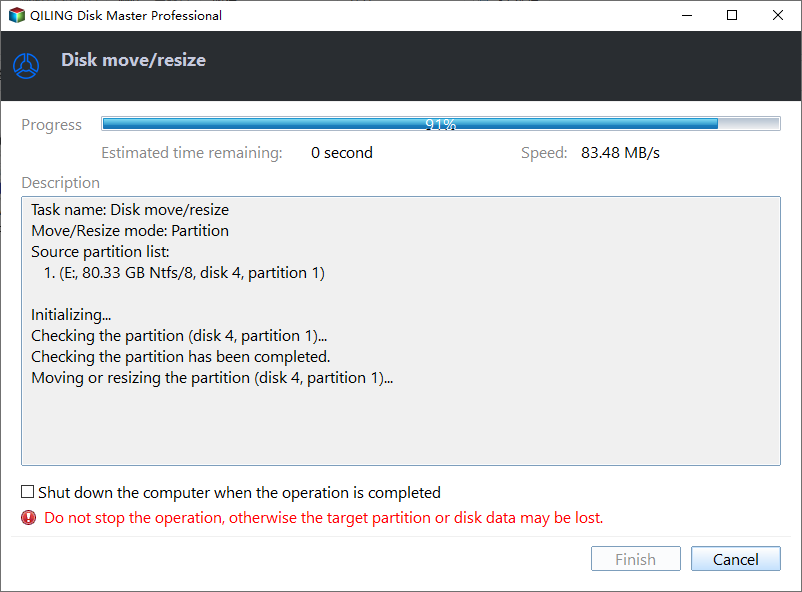
Step 3. Preview and Proceed
Review the pending operations list before you commit. If the volume is in use, the program will schedule the change for a restart, so plan the reboot rather than triggering it during business hours. After the reboot, confirm the new size in Server Manager.
Frequently Asked Questions
Does Disk Management still exist in Server 2025?
Yes. It is unchanged for basic tasks, and diskpart remains the command-line equivalent. Neither tool can move a partition or use non-adjacent free space.
Can I extend a volume without rebooting?
Sometimes. A data volume with no open handles can grow immediately, while the system volume usually needs a restart because files on it are always in use.
Is GPT required in Server 2025?
No, but it is required for any disk larger than 2 TB and is the default for new installations. It also pairs with UEFI firmware, which modern servers expect.
Should data disks use ReFS or NTFS?
ReFS suits large volumes that benefit from integrity streams and automatic metadata repair. NTFS remains the safer choice when the disk may be moved to an older server or a client that cannot mount a newer ReFS version.
For the general procedure behind these wizards, see Windows partition management tutorials.
Related Articles
- Windows Partition Management Tutorials
- Unable to Extend C Drive
- Extend a Virtual Disk in Windows Server 2025
- Fix an Offline or Read-Only Disk in Windows Server 2025
Products
Articles & Tutorials
- Data Recovery
- Data Backup
- File Recovery
- File Backup
- System Backup and Restore
- Disk and Partition Clone
- Technical articles
- Mobile articles
- Disk Master Help
- Windows Data Recovery Tutorials
- Windows Secure Delete Tutorials
- Windows Partition Management Tutorials
- Windows File Backup and Restore Tutorials
- Windows System Backup and Restore Tutorials
- Windows Disk Backup and Restore Tutorials
- Windows Clone Tutorials