Extend a Virtual Disk in Windows Server 2025
Quick Navigation:
- Two Steps: Disk Then Volume
- Expand the VHDX in Hyper-V
- Extend the Volume in Windows
- When Extend Is Greyed Out
- Frequently Asked Questions
A virtual machine does not notice extra space by itself. Expanding a VHDX only makes the virtual disk larger; the partition inside Windows keeps its old size until you extend it. Both steps are required, and the second one has rules of its own.
Two Steps: Disk Then Volume
The hypervisor and the guest operating system maintain separate views of the same storage. In Hyper-V, the VHDX file defines how much space the virtual disk can present. In Windows Server 2025, the partition table inside that disk defines the volumes. Resizing at one layer leaves the other unchanged.
That is why Disk Management can show unallocated space that cannot be used yet, or a volume that refuses to extend even though the disk was expanded. Checking both layers first, and noting the controller type the disk is attached to, avoids most of the confusion in the sections below.
The order is always the same: expand the virtual disk, rescan it in the guest, then extend the volume. Doing the volume step first is impossible, and rescanning before the VHDX is expanded finds nothing.
Expand the VHDX in Hyper-V
Open Hyper-V Manager, select the virtual machine, and open its settings. Under the SCSI controller, choose the hard drive and click Edit, then pick Expand and enter the new size. The virtual disk file cannot be smaller than its current size, and the new value must exceed it.
A disk attached to a SCSI controller can usually be expanded while the virtual machine is running, and the guest will detect the new size after a rescan. A disk on an IDE controller has no such support, and the older generation of virtual machines may require a shutdown. If the machine has checkpoints, remove them first or the edit will be refused.
Leave enough free space on the host volume that stores the VHDX. A dynamically expanding disk grows as the guest writes to it, so a full host disk turns an easy maintenance task into an outage.
Extend the Volume in Windows
Inside the guest, open Disk Management and choose Action > Rescan Disks, or run diskpart and type rescan. The disk now shows unallocated space at its end. Right-click the volume, choose Extend Volume, and accept the full amount, or a smaller figure if you want to keep spare space for another partition.
When the wizard is available, the operation finishes online. When it is greyed out, the cause is almost always the position of the unallocated space: it must start immediately after the volume, and a recovery or system partition in between blocks it. The other common cause is an MBR disk that has already reached its 2 TB limit.
After the volume grows, check the applications that use it. Databases, mail servers, and backup targets often have their own size settings and alert thresholds, and those need updating before the new space becomes useful.
When Extend Is Greyed Out
Qiling Disk Master works on the partition map directly, so it can move the blocking partition, merge adjacent free space, or extend into space that the built-in wizard will not touch. The pending layout is shown before anything is written, which matters on a production virtual machine.
Step 1. Select the Virtual Disk
In the guest, open the program and select the disk that was expanded in Hyper-V. Confirm the capacity against Disk Management; the unallocated space should already be visible at the end of the disk map.
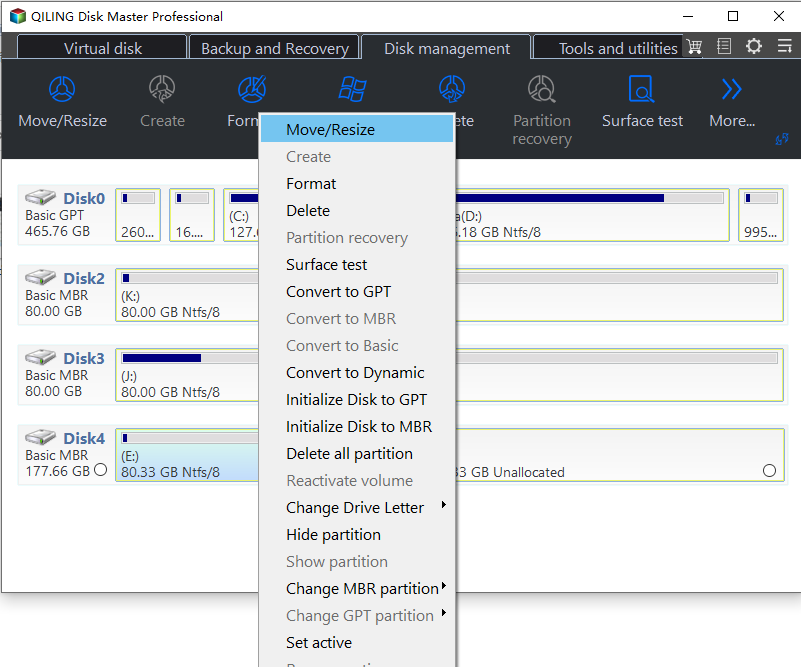
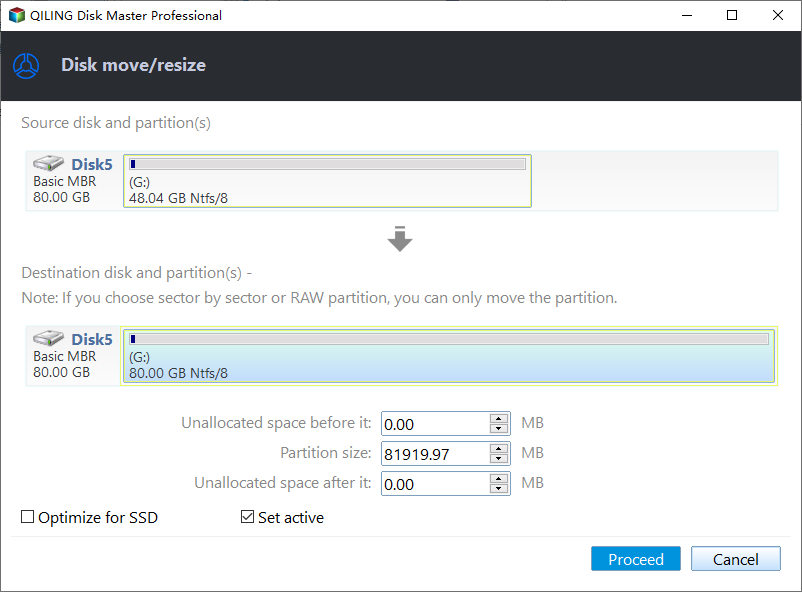
Step 2. Extend the Volume
Right-click the system or data volume and choose Resize Partition. Drag the end handle into the unallocated space. If a small partition sits between the volume and the free space, move that partition first, then extend.
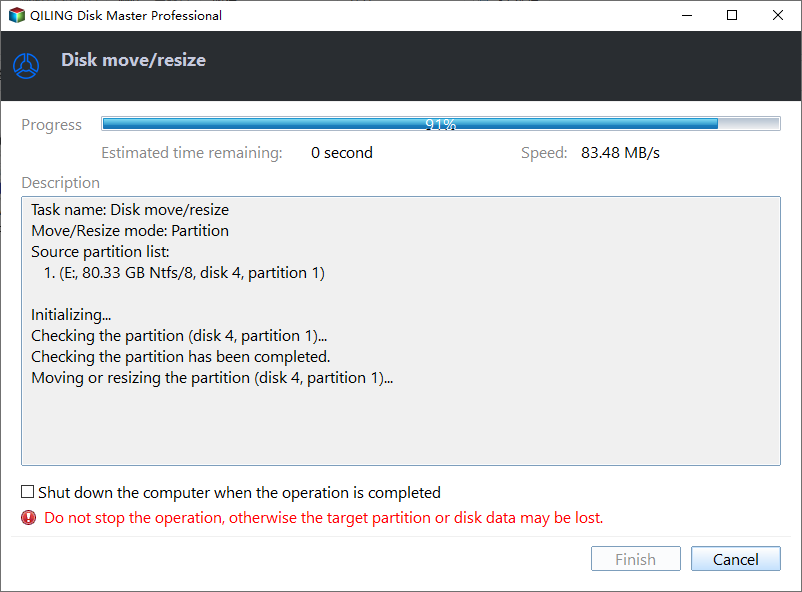
Step 3. Preview and Proceed
Check the operation list, then click Proceed. A change to the system volume usually requires a restart, so schedule it in the maintenance window and confirm the new size after the machine comes back.
Frequently Asked Questions
Why does the guest still show the old size?
The VHDX was expanded but the guest has not rescanned the disk. Run Rescan Disks in Disk Management, then extend the volume.
Can I shrink a virtual disk?
You can shrink the volume inside the guest and then compact the VHDX, but the two operations are separate and the disk must have unused space before compaction is worthwhile.
Does the virtual machine need to be off?
Not always. SCSI-attached VHDX files can be expanded online on current Hyper-V versions. Older configurations and checkpointed disks may require a shutdown.
Is there a 2 TB limit?
Only on MBR disks. A GPT disk, which is the default for generation 2 virtual machines, has no practical limit at this scale.
For the same problem on the previous release, see extend VM partition on Windows Server 2022 when greyed out.
Related Articles
- Extend VM Partition When Greyed Out
- Resize Partition Access Is Denied
- Windows Server 2025 Partition Management Guide
- Fix an Offline or Read-Only Disk in Windows Server 2025
Products
Articles & Tutorials
- Data Recovery
- Data Backup
- File Recovery
- File Backup
- System Backup and Restore
- Disk and Partition Clone
- Technical articles
- Mobile articles
- Disk Master Help
- Windows Data Recovery Tutorials
- Windows Secure Delete Tutorials
- Windows Partition Management Tutorials
- Windows File Backup and Restore Tutorials
- Windows System Backup and Restore Tutorials
- Windows Disk Backup and Restore Tutorials
- Windows Clone Tutorials