Fix an Offline or Read-Only Disk in Windows Server 2025
Quick Navigation:
- Why a Server Disk Goes Offline
- Read the State Before You Change It
- Bring the Disk Online and Clear Read-Only
- Repair the Layout with Qiling
- Frequently Asked Questions
A disk on Windows Server 2025 can drop offline because of the default SAN policy, and a volume can turn read-only after a write failure or a failed array. Both states look alarming, but the order of the checks decides whether the data survives the fix.
Why a Server Disk Goes Offline
Server editions treat newly detected external disks differently from a desktop. The default SAN policy leaves shared and external disks offline, so two servers cannot write to the same LUN at the same time. That is why a disk that works on a workstation appears as Offline the first time it is attached to a server.
The policy is visible with Get-StorageSetting, and the usual values are OfflineShared, OfflineInternal, and OfflineAll. A change applies to disks that arrive after the change, not to disks that are already present, so an existing disk still has to be brought online by hand.
Read-only has different causes. A LUN can be presented read-only by the array or by a multipath driver, a disk can carry the read-only attribute set in diskpart, and NTFS can mark a volume read-only after repeated write errors, as deliberate protection against further damage.
Read the State Before You Change It
Note: The commands in this section are built into Windows PowerShell. They are not features of Qiling Disk Master, which is covered later with its own graphical steps.
Open an elevated PowerShell session and run three commands in turn. Get-Disk lists every disk with its number, OperationalStatus, and IsReadOnly flag. Get-Partition lists the partitions on that disk with their type, offset, and size. Get-Volume lists each volume with its drive letter, file system, HealthStatus, and remaining space. Record the disk number, whether IsReadOnly is true, and whether the volume is healthy. Disk Management and Server Manager show the same facts, but the PowerShell output is easier to compare between checks.
Check the System event log for storage errors around the time the disk changed state. A failed write, a bad block, or a device reset usually appears before the volume became read-only, and that order tells you the volume was protected rather than locked by policy.
If the disk is presented over iSCSI or Fibre Channel, confirm on the array that the LUN is mapped read-write to this host only. Clearing a flag inside Windows cannot fix a LUN that the storage itself has set read-only.
Bring the Disk Online and Clear Read-Only
For an offline disk, right-click it in Disk Management and choose Online, or run Set-Disk -Number 1 -IsOffline $false. For the read-only attribute, use Set-Disk -Number 1 -IsReadOnly $false, or select the disk in diskpart and run attributes disk clear readonly.
If the volume returns read-only after a reboot, stop clearing the flag and treat it as a hardware or file system problem. Confirm that a backup exists, then check the volume for errors before writing to it. A failing drive or a failing cable will keep setting the same flag.
Never clear read-only on a volume that holds the only copy of production data without copying it off first. The read-only state is sometimes the last warning before a controller stops responding.
If the volume is intact but the partitions no longer line up with the space that is available, the commands above will not help. That is a layout problem, and it needs a tool that can redraw the map.
Repair the Layout with Qiling Disk Master
Qiling Disk Master works on the disk map rather than through fixed wizards, and its disk tools show disk-level attributes such as write protection so you can confirm the state before changing anything. It cannot override a LUN that the array has locked, but it can rebuild a damaged layout, reuse unallocated space, and resize a volume once the disk is writable again.
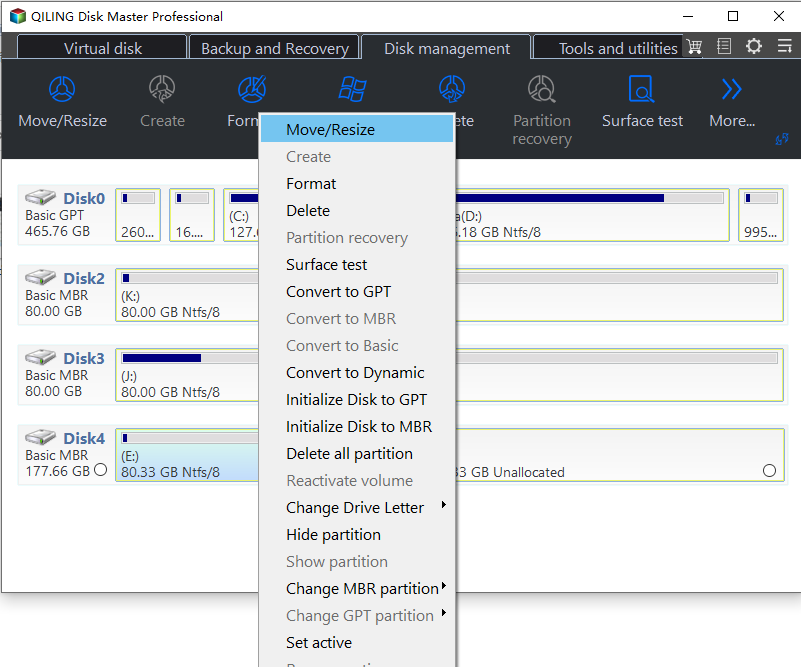
Step 1. Select the Disk
Open the program and right-click the disk that holds the affected volume. Compare the disk number, model, and capacity with what Server Manager shows under File and Storage Services > Volumes > Disks; on a server with identical drives, capacity and model are the only reliable identifiers.
Step 2. Remove Write Protection
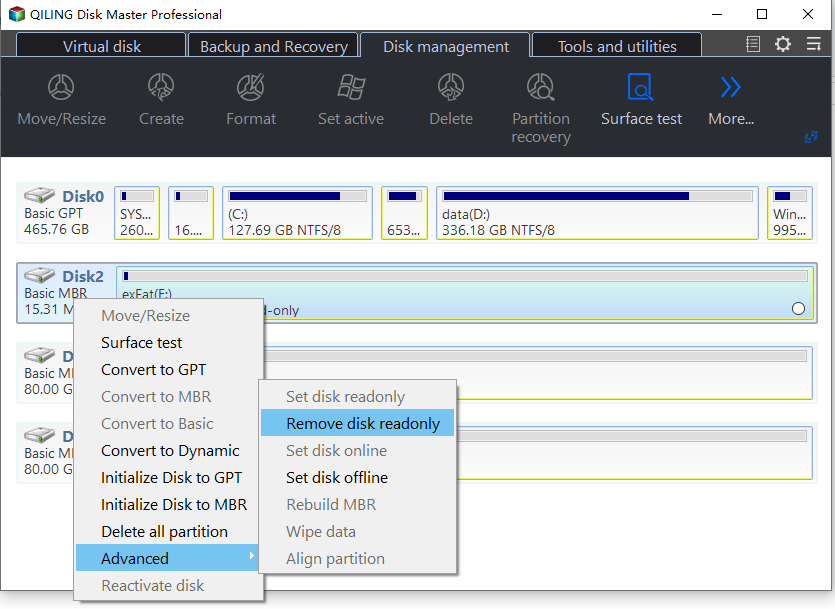
Open the disk tools and clear the write-protection attribute if it is still set. If the program reports that the disk is still read-only, the flag is being set outside Windows, so return to the event log and the array before you continue.
Step 3. Resize and Proceed
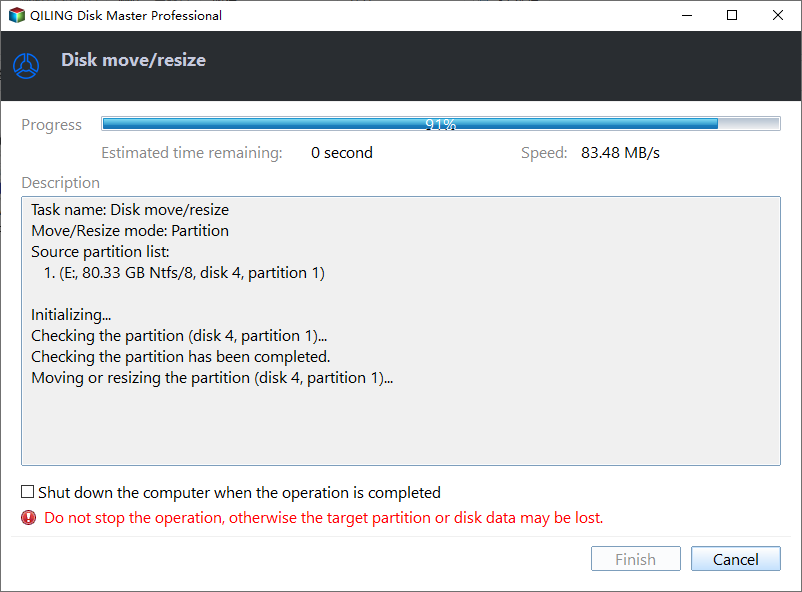
Resize the volume into the free space, or rebuild the partition if the table was damaged, then review the preview and click Proceed. A volume that is in use is scheduled for a restart, so plan the reboot instead of triggering it during business hours.
Frequently Asked Questions
Is an offline disk the same as a failed disk?
No. An offline disk is usually a policy state; a failed disk reports errors or disappears from the controller. Compare the event log and SMART values before you assume the worst.
Can I change the SAN policy for good?
Yes, with Set-StorageSetting -NewDiskPolicy OnlineAll. Do that only on a host that has exclusive access to its disks, because the policy exists to protect shared arrays.
Why does the volume go read-only after a power loss?
Windows marks a volume read-only when it detects damage it cannot repair safely. Copy the data off first, then run a check on the volume.
Does bringing a disk online change any data?
The operation only changes the disk state. Data changes only when you write to the volume or run a repair tool against it.
If the read-only flag returns after every reboot, read how to check a drive for failure with SMART before you attempt another write.
Related Articles
- Disk Offline Due to Signature Collision in Windows 11
- External SSD Read-Only After Unsafe Removal
- Extend a Cluster Shared Volume Without Taking It Offline
- Windows Server 2025 Partition Management Guide
Products
Articles & Tutorials
- Data Recovery
- Data Backup
- File Recovery
- File Backup
- System Backup and Restore
- Disk and Partition Clone
- Technical articles
- Mobile articles
- Disk Master Help
- Windows Data Recovery Tutorials
- Windows Secure Delete Tutorials
- Windows Partition Management Tutorials
- Windows File Backup and Restore Tutorials
- Windows System Backup and Restore Tutorials
- Windows Disk Backup and Restore Tutorials
- Windows Clone Tutorials