Extend a Cluster Shared Volume Without Taking It Offline
Quick Navigation:
- How a CSV Differs From a Normal Volume
- Grow the LUN First
- Extend From the Owning Node
- Resize Outside the Cluster with Qiling
- Frequently Asked Questions
A Cluster Shared Volume is one file system that every node mounts at the same time, so the usual rule of taking a disk offline does not apply. The order of operations matters more than the commands.
How a CSV Differs From a Normal Volume
A CSV is a single NTFS or ReFS volume on shared storage that every node sees under C:\ClusterStorage\Volume1 and so on. There is no drive letter, no single owner for file I/O, and no safe way to dismount it from one node while the others keep using it.
I/O is direct when a node owns the blocks and redirected through the coordinating node when metadata has to be coordinated. That is why a change made on a node that does not own the disk can leave the volume in a state the cluster cannot reconcile.
Two limits follow from the design. A clustered disk must use GPT, and a CSV can be extended but cannot be shrunk. Plan for growth, because there is no supported path back to a smaller volume.
Grow the LUN First
Note: The commands in this section are built into Windows PowerShell and are not part of Qiling Disk Master. They are listed for reference only; the graphical steps come later.
Start on the storage array, not in Windows. Expand the LUN or volume that backs the cluster disk and leave the existing data in place. Most arrays extend in place; a few require a new LUN, and that changes the plan entirely.
Then rescan from one node. In Failover Cluster Manager use Storage > Disks > Refresh, or run Update-HostStorageCache in PowerShell. Confirm that the disk shows the new size and that the cluster resource is still Online before you touch the partition.
If the disk reports a new size but the cluster still shows the old one, the rescan did not reach the cluster service. Repeat the refresh from the node that currently owns the disk rather than from a passive node.
Extend From the Owning Node
Sign in to the node that owns the disk resource. In an elevated session, run Get-Disk to read the disk number and its total size, then run Get-Partition -DiskNumber 1 to see where the existing partition ends. Add the partition Offset to its Size: when the total disk size is larger by exactly the space you just added, that unallocated block sits directly after the partition and the volume can be extended.
Extend with diskpart by selecting the volume and running extend, or with PowerShell by calling Resize-Partition against the partition number. Do not create a second partition on the new space; a CSV uses the whole disk.
Verify from every node. Get-ClusterSharedVolume should still report the volume as Online, and the folder under C:\ClusterStorage should report the new capacity after a refresh. If one node shows the old size, restart the cluster service on that node rather than on the owner.
Schedule the work outside a backup window. A CSV in redirected access because a backup is running will not accept the change cleanly.
Resize Outside the Cluster with Qiling Disk Master
Qiling Disk Master is not cluster-aware and cannot extend a volume that the cluster is using. Its place in this workflow is before a disk joins the cluster or after it has been removed for maintenance: preparing the layout on a single server, reclaiming space from a volume that is too small, or rebuilding a disk whose partition table no longer matches the LUN.
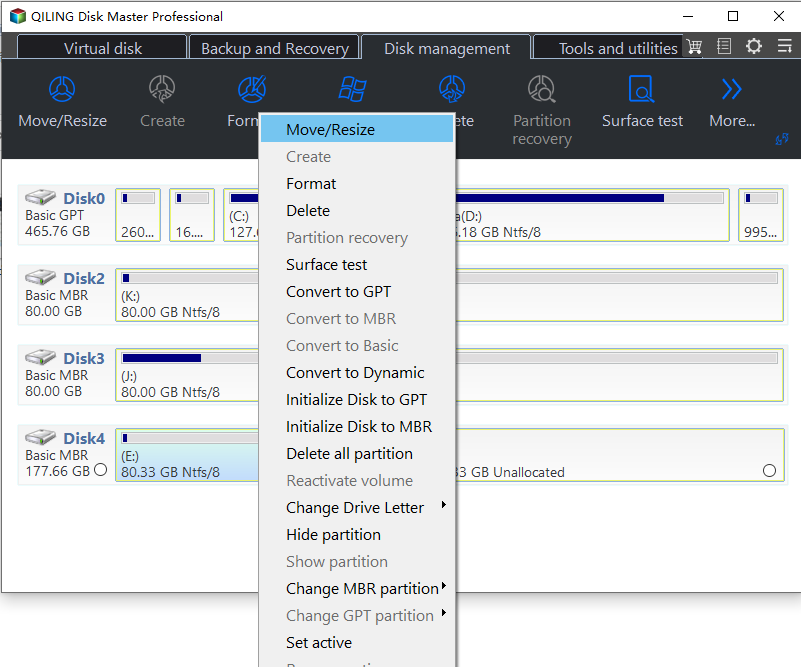
Step 1. Select the Disk
Work on a server that has exclusive access to the disk, never on a node that is still a cluster member. Right-click the disk and confirm the number and capacity against the value shown in Server Manager.
Step 2. Set the New Size
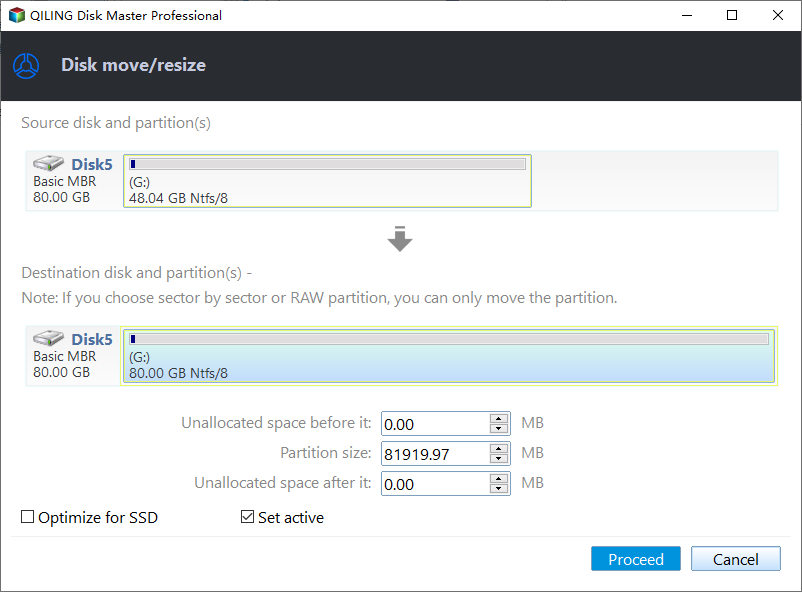
Right-click the volume and choose Resize Partition, then drag the end handle into the unallocated space. Leave a small margin if the disk will be added back to a cluster, because cluster metadata is written at the start of the volume.
Step 3. Preview and Proceed
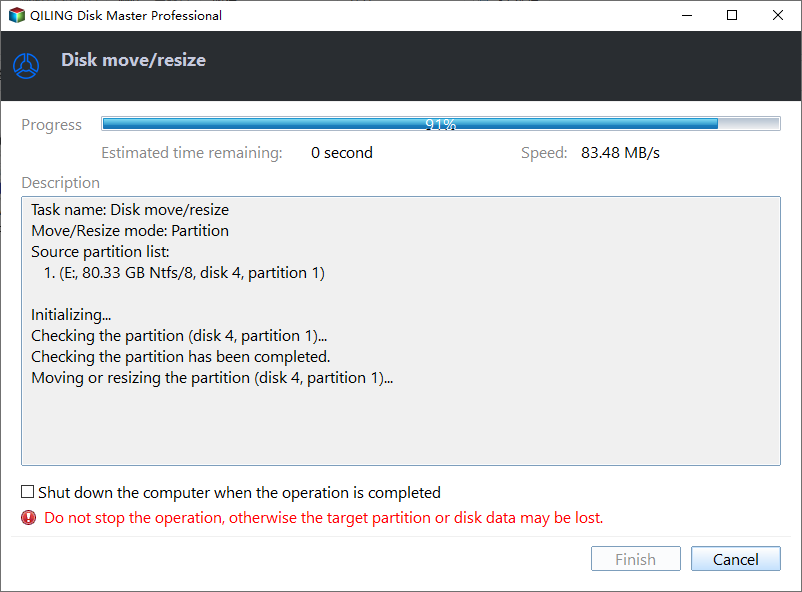
Check the preview, click Proceed, and confirm the result in Disk Management. Only after the layout is correct should the disk be added back through Failover Cluster Manager under Storage > Disks > Add Disk.
Frequently Asked Questions
Can a CSV be shrunk?
No. Shrinking a Cluster Shared Volume is not supported. The only way back is to move the data to a smaller volume and remove the original.
Do I have to take the disk offline to extend it?
Not if the LUN was grown and the partition can be extended in place. The volume stays online, but file I/O may pause briefly while the metadata is updated.
Why does one node show the old size?
Its storage cache has not refreshed. Restart the cluster service on that node, not on the owner, and check the size again.
Can a CSV use ReFS?
Yes, on current Server releases. Format the volume before it joins the cluster, because the file system cannot be changed afterwards without removing the disk.
For the general procedure on a single server, see Windows Server 2025 partition management.
Related Articles
- Extend a Virtual Disk in Windows Server 2025
- Windows Server 2025 Partition Management Guide
- Fix an Offline or Read-Only Disk in Windows Server 2025
- Partition and Format a Disk on Windows Server Core
Products
Articles & Tutorials
- Data Recovery
- Data Backup
- File Recovery
- File Backup
- System Backup and Restore
- Disk and Partition Clone
- Technical articles
- Mobile articles
- Disk Master Help
- Windows Data Recovery Tutorials
- Windows Secure Delete Tutorials
- Windows Partition Management Tutorials
- Windows File Backup and Restore Tutorials
- Windows System Backup and Restore Tutorials
- Windows Disk Backup and Restore Tutorials
- Windows Clone Tutorials