Windows Update Left the PC With No Bootable OS
Quick Navigation:
- What the Failed Update Left Behind
- Read the Partition Layout
- Restore the Boot Entry
- Copy Data Before Reinstalling
- Frequently Asked Questions
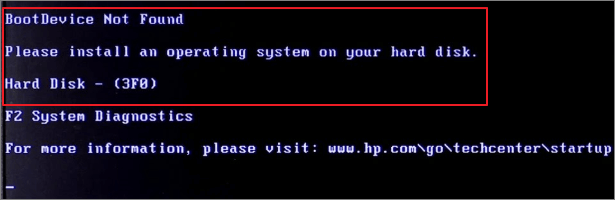
A message saying there is no bootable operating system is the firmware speaking, not Windows. It means the boot entry it was given leads nowhere: the loader is missing, the partition it names is gone, or the disk that holds it is no longer the first device. The data on the disk is often still there, and it is worth reading the layout before anyone suggests a clean install.
What the Failed Update Left Behind
An update that fails during the staging or the first restart can end in several states. The Windows volume is intact but the boot configuration points at a folder that was renamed or removed, the EFI system partition has been recreated without its files, or the recovery partition took the space the boot files needed.
The firmware message appears in all three cases because the same check fails: no valid loader is found on any device in the boot order. It says nothing about the state of the Windows volume, which may be complete and readable.
A second failure mode is a partition that lost its flags. If the system partition is no longer marked as active on an MBR disk, or the EFI partition lost its type identifier, the firmware skips it even when every file is present.
Read the Partition Layout
Start from the firmware setup and confirm the disk is detected, then boot a recovery environment and look at the layout. You need to know whether the Windows volume still exists, how much data it holds, and which partition should carry the boot files.
On a GPT disk the boot files live in a FAT32 EFI partition of about 100 MB; on an MBR disk they live in the active System Reserved or Windows partition. If that partition is missing, the repair is a boot rebuild; if the Windows volume is missing, the repair is data recovery.
Note any volume without a letter. A Windows volume that lost its letter still holds the user folders, and reading it from another system is the quickest way to confirm the data is intact before you plan anything else.
Restore the Boot Entry
From the recovery environment, run a startup repair first. It tries to rebuild the loader and the configuration automatically and often succeeds when the partition layout is unchanged and only the files were lost.
If the automatic repair does not help, rebuild the boot configuration from a command prompt in the recovery environment and create the firmware entry again. These are Windows recovery tools, separate from any partition manager, and they should be used before a reinstall is considered.
When the rebuild reports that no Windows installation was found, check that the Windows volume is online and has a letter in the recovery environment. A volume that cannot be mounted points to file system damage, and the next step is a read-only check of that volume rather than another rebuild.
Copy Data Before Reinstalling
Reinstalling is the reliable fix when the system volume is damaged, but it is also the step that costs the most if it is taken too early. Qiling Disk Master reads the disk map without mounting the system, so an old Windows volume and its user folders can be located and given a letter before any repair is attempted.
Step 1. Check What the Disk Still Holds
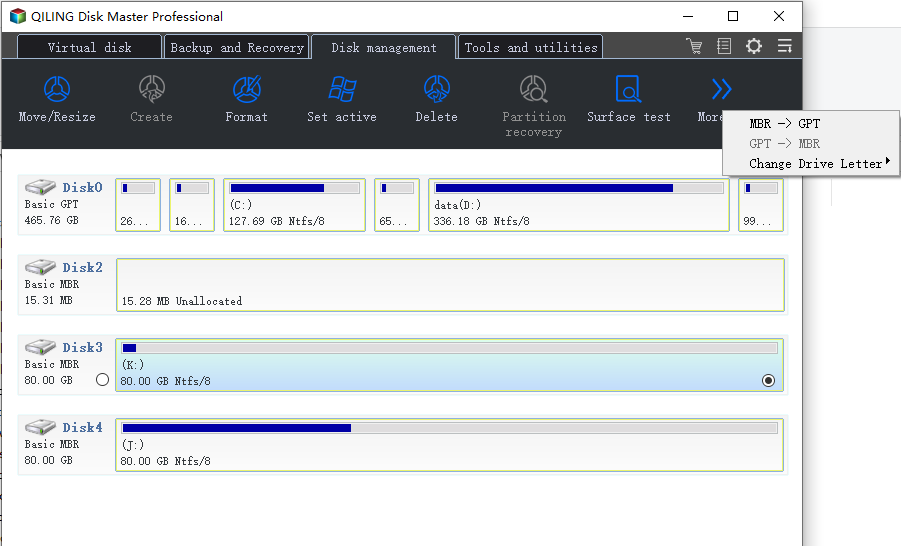
Run the program from a working PC with the disk attached through a USB adapter, or from bootable media. Match the disk by capacity, then check whether the Windows volume is still listed with its original size and file system.

Step 2. Assign a Temporary Letter and Copy the Files
Right-click the volume that holds the user folders, or open the More menu, and choose Change Drive Letter. Pick a free letter such as Z and click OK. The letter is applied immediately, with no separate apply step, so keep the volume readable and copy the user folders to another disk before you change anything else.
Once the copy is complete, remove the temporary letter and continue with the boot repair or the reinstall. The extra letter is only a reading aid, and it should not stay on a system volume.
Frequently Asked Questions
Does "no bootable OS" mean the disk has failed?
Not usually. It means no valid loader was found. A disk that is detected in the firmware and shows its partitions is normally readable.
Can a failed update delete the Windows partition?
It happens, but it is rare. More often the partition is present and only the boot files or the flags were lost.
Should I reinstall first and look for files later?
No. Copy the user folders out first. A reinstall can overwrite the old volume, and recovery afterwards is harder than a copy made now.
If the volume shows as unallocated instead of losing only its letter, see a partition that became unallocated after an update.
Related Articles
- Partition Lost After the 25H2 Update
- Recover Files After a Disk Check
- Cloned Drive Shows as RAW
- Back Up Before a Feature Update
- All Options Grayed Out in Disk Management
Products
Articles & Tutorials
- Data Recovery
- Data Backup
- File Recovery
- File Backup
- System Backup and Restore
- Disk and Partition Clone
- Technical articles
- Mobile articles
- Disk Master Help
- Windows Data Recovery Tutorials
- Windows Secure Delete Tutorials
- Windows Partition Management Tutorials
- Windows File Backup and Restore Tutorials
- Windows System Backup and Restore Tutorials
- Windows Disk Backup and Restore Tutorials
- Windows Clone Tutorials