2 Ways to Backup Windows 7 PC
Quick Navigation:
- Part 1. How to Backup Computer in Windows 7 Effectively
- Step 1: Install and Run the Windows 7 backup Software
- Step 2: Select the Backup Option
- Step 3: Backup Completion
- Part 2: How to Backup Windows 7 Computer Manually
To protect your important data on a Windows 7 PC, regular backups are essential. While data loss cannot always be avoided, backing up your computer greatly reduces the risk. Below are two reliable methods to backup your Windows 7 computer — choose the one that fits your needs best.
Part 1. How to Backup Computer in Windows 7 Effectively
For users seeking a reliable Windows 7 backup solution, QILING Disk Master is highly recommended. This software simplifies backing up files, the entire system, and individual drives. With QILING Disk Master, you can protect your disks, partitions, files, and system, giving you peace of mind against data loss.
Your Reliable Windows 7 Computer Backup Software
- File backup: Select specific files or folders to backup, giving you flexibility in choosing what data to protect.
- Drive backup: Create an exact copy of your entire drive, including all files, settings, and applications. This is similar to cloning a HDD to an SSD in Windows 7, but with more flexibility and options.
- System backup: Create a full system image backup of your Windows 7 installation from the operating system partition or the entire drive. This produces a complete snapshot of your system, including all installed applications, settings, and files.
- In addition to Windows 7, it also supports Windows 10, 8, and XP, allowing you to protect your data across multiple Windows versions.
To start using QILING Disk Master for Windows 7 backup, download the software from its official website and install it on your system. Once installed, you can access its features and begin the backup process.
Step 1: Install and Run the Windows 7 backup Software
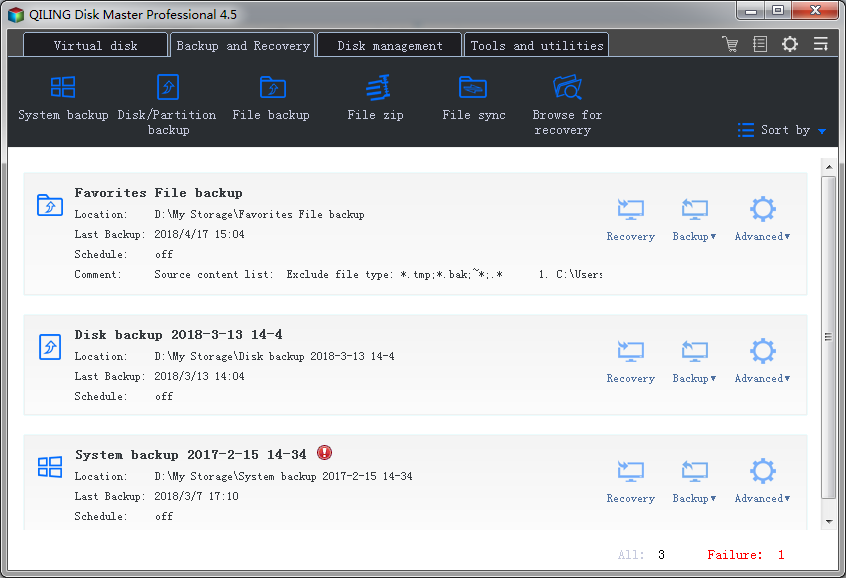
Once you have installed QILING Disk Master, launch it on your computer. The main window displays three primary options: File Backup, Drive Backup, and System Backup, guiding you to select the backup type you need.
Step 2: Select the Backup Option
As you can see, there are three backup options available.
To back up files in Windows 7, follow the below steps.
To back up files, choose the "File Backup" option. If you want to back up data from portable storage devices, connect the device to your computer first so you can access its contents and select the files you need.
To initiate the backup, select the files or folders you want to back up and click the "Proceed" button.
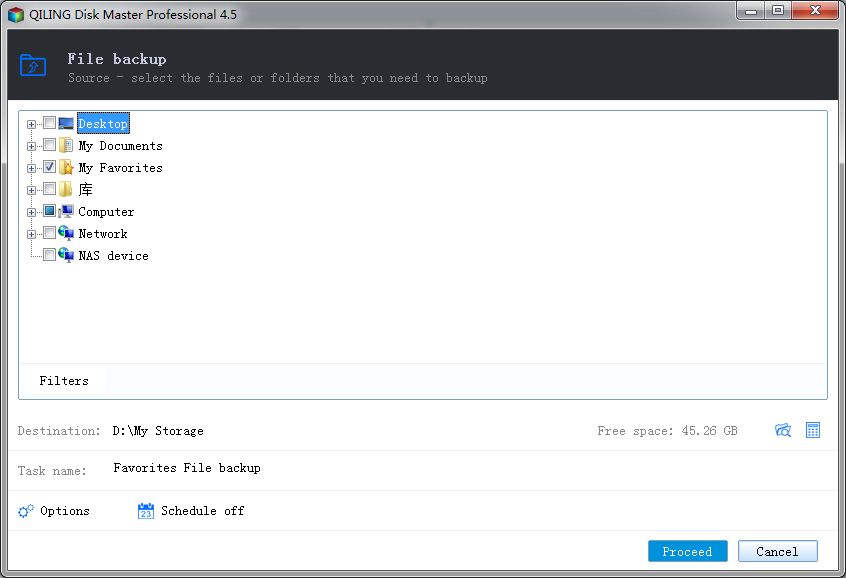
To backup a Windows 7 hard drive, follow these steps:
Select "Disk/Partition Backup" and choose the drive you want to backup.
Next, choose between automatic backup and sector-by-sector backup. Then click the "Proceed" button.
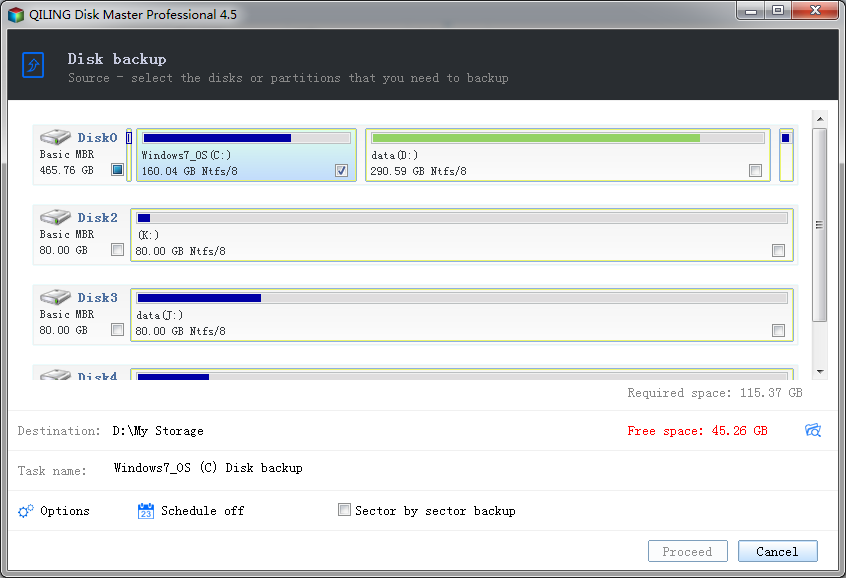
After the backup is complete, you will see options to manage your drive backup file.
To back up the system on a Windows 7 PC:
Select "System Backup". If you want to back up to an external hard drive, connect the drive to your computer first.
Set your backup destination path, and choose between automatic or sector-by-sector backup. Once done, click the "Proceed" button.
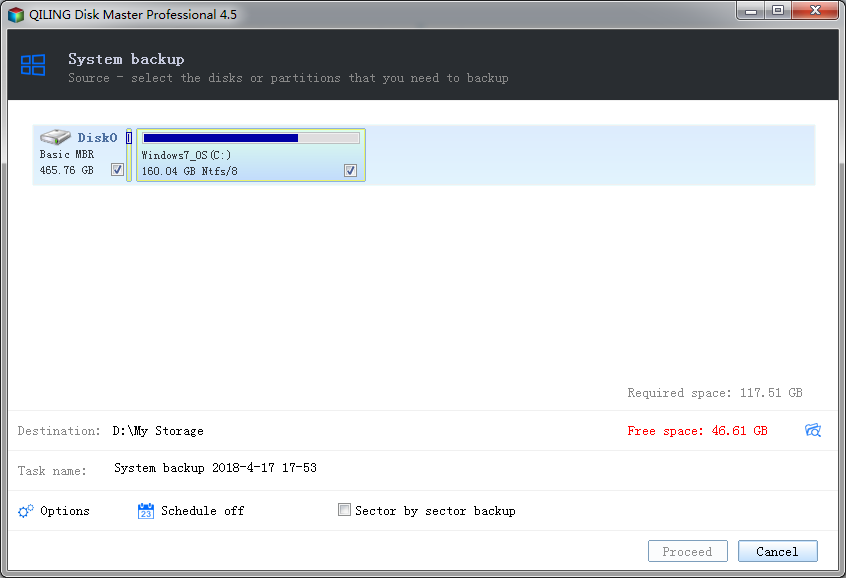
After completing your system backup, you can customize preferences for your backup file to fine-tune settings according to your needs.
Step 3: Backup Completion
Once you've started the backup with QILING Disk Master, let the software finish the task. The time required depends on the size of your data and your system speed.
QILING Disk Master offers several key benefits for Windows 7 backup:
- Easy, straightforward, and fast backup process.
- Multiple backup modes with scheduling functionality.
- Supports full, incremental, and differential backups.
- Allows you to restore your computer from a created backup file in just a few simple steps.
QILING Disk Master is a comprehensive solution for backing up your system, drive, or applications on Windows 7. Its advanced features and user-friendly interface help protect your valuable data and ensure business continuity.
Part 2: How to Backup Windows 7 Computer Manually
Windows 7 includes a built-in Backup and Restore feature that provides a reliable way to protect your data without installing extra software.
Backing up your Windows 7 PC manually involves creating a system image, disk image, or file backup. Follow the steps below:
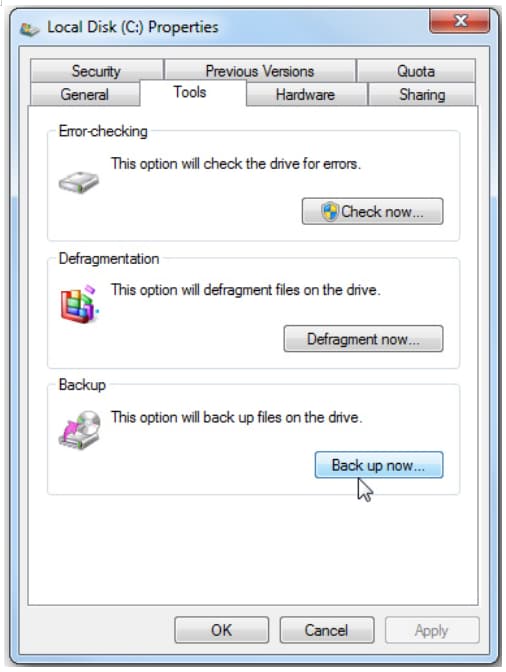
Step 1: Select your local drive and right-click on it to select "Properties". Next, click the "Tools" tab and click the "Back up now" button.
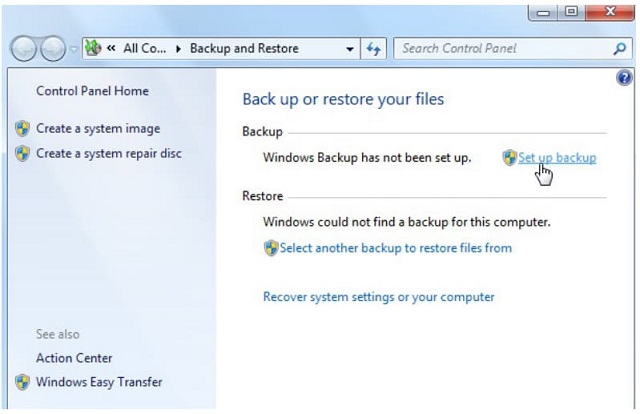
Step 2: In the "Back up or restore your files" window, click the "Set up backup" link to set up a backup.
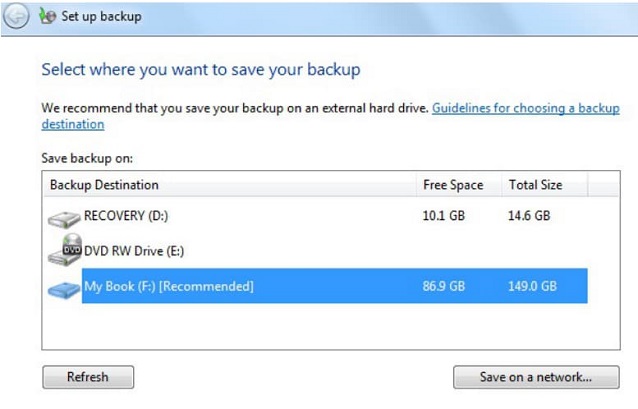
Step 3: Next, select a network or drive where you want to store the backup. Windows will suggest a drive, but you can choose the one that suits you best. Keep in mind that you will need a password if saving to a network location.
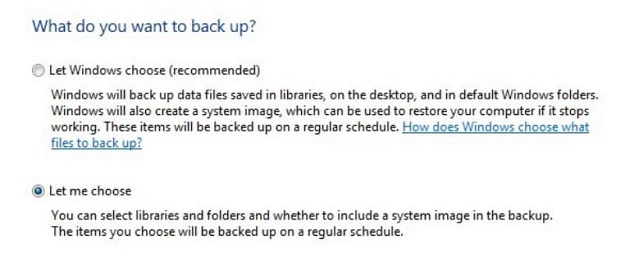
Step 4: After choosing the backup location, select which files and folders to backup. You can let Windows decide for you or choose manually.
Step 5: Select the files and folders to back up. Make sure to check the box labeled "Include a system image of a local drive".
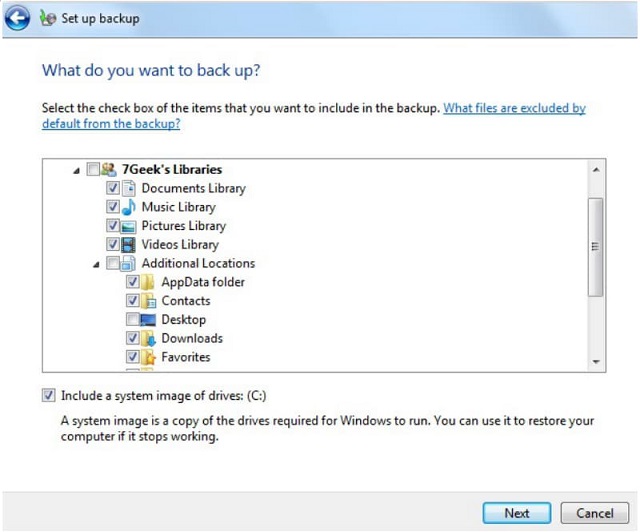
Step 6: Review your backup settings to ensure everything is properly configured and all desired files and folders are included.
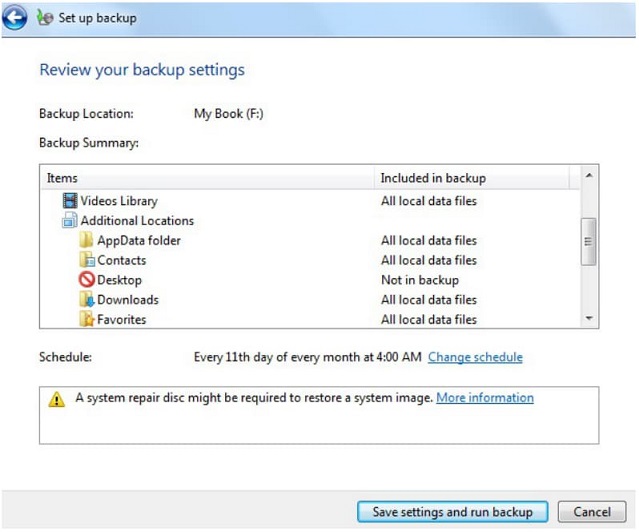
Step 7: Next, you can set the times and days the backup takes place.
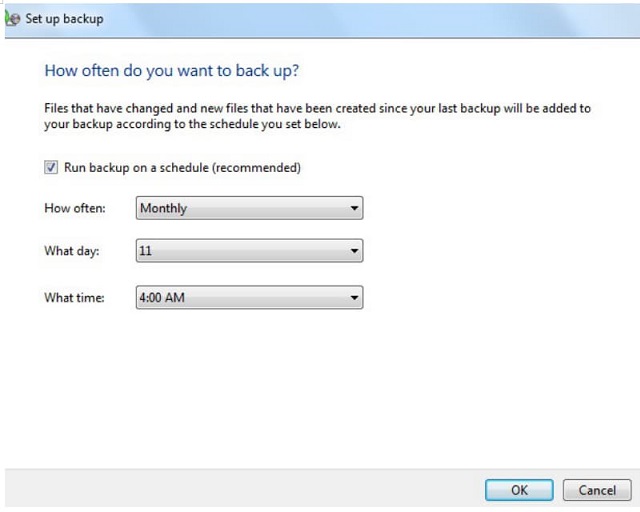
Step 8: Save your backup settings and begin the backup.
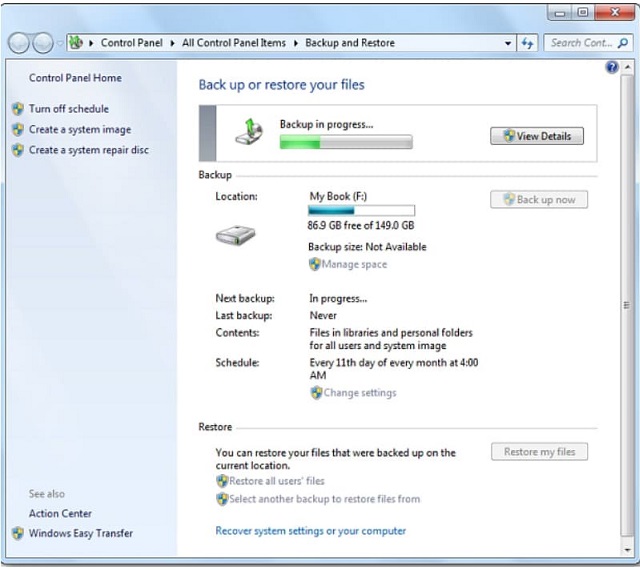
Step 9: To check your backup progress, click the "View Details" button.
Step 10: After the backup completes, you'll have two backup files and one image folder to review.
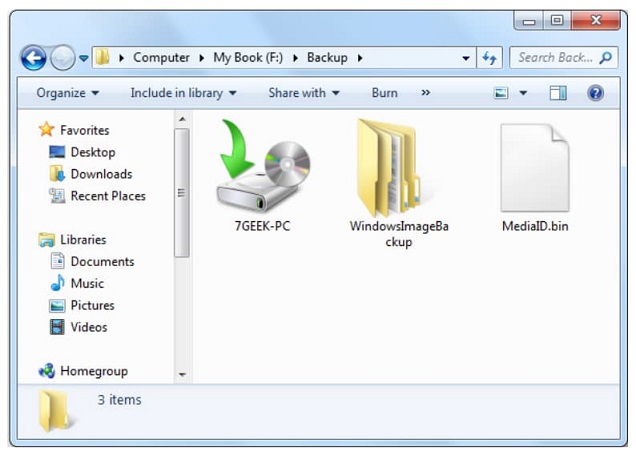
To manage backup size or restore files, simply double-click on your backup file.
Pros:
- No need to install additional software.
- You can track the Windows 7 backup progress.
- Full control over what gets backed up.
Cons:
- Lengthy and time-consuming Windows 7 backup process.
- No automatic backup scheduling option.
Related Articles
- How to Fix "This Copy of Windows Is Not Genuine" [2020]
- How to Recover Photos from Leica Camera
- Ace Data Recovery Services Near Me in Houston, TX | Top 10
How to find the best data recovery services near me in Houston? You can learn ten ace data recovery services in Houston, TX, in this guide. You'll get detailed information after reading this guide. - Full Guide to Move Games to Another Drive or A New Computer Without Reinstallation
Can you transfer games from one drive to another drive? Do you know how to move games from C drive to D drive or transfer games to a new computer without reinstallation. - Error: Google Docs Didn't Save My Work _ How to Recover Unsaved Changes to Google Docs
If Google Docs didn't save your work. If your changes didn't auto-save. you can try to recover them. Follow our advice to potentially reappear unsaved changes. - Google Drive Files Not Showing Up on PC/Phone/Mac [Fixed]
Uploading files and documents to Google Drive may not always result in them being displayed immediately. Various factors can contribute to this issue, and several solutions have been proposed to resolve it.
Products
Articles & Tutorials
- Data Recovery
- Data Backup
- File Recovery
- File Backup
- System Backup and Restore
- Disk and Partition Clone
- Technical articles
- Mobile articles
- Disk Master Help
- Windows Data Recovery Tutorials
- Windows Secure Delete Tutorials
- Windows Partition Management Tutorials
- Windows File Backup and Restore Tutorials
- Windows System Backup and Restore Tutorials
- Windows Disk Backup and Restore Tutorials
- Windows Clone Tutorials