2 Ways to Permanently Delete Files on Windows 7
Quick Navigation:
- Part 1. What happens while deleting files in Windows 7
- Part 2. How secure delete ways works
- Part 3. How to permanently delete files in Windows 7 with SDelete
- Part 4. How to permanently delete files on Windows 7
If you're looking to permanently delete files from your Windows 7 64-bit PC, you've found a helpful guide. Here are two proven methods, along with helpful tips to ensure your files are completely erased.
Permanently deleting files in Windows 7 is not as simple as you might think. Files don't disappear forever even after you empty the Recycle Bin. It's important to permanently delete files on Windows 7 if you don't want anyone to recover them, or if you plan to resell or donate your computer. Many data recovery programs can easily restore deleted files. This article covers everything you need to know about permanently deleting files on Windows 7.
Part 1. What happens while deleting files in Windows 7
When you delete a file in Windows 7, it's not immediately erased. Instead, it's moved to the Recycle Bin, where it remains until the Bin is emptied. This means that even after deletion, the file can still be recovered using data recovery software.
Part 2. How Secure Delete Works
Secure delete tools work by overwriting the deleted file's data on the hard drive with random patterns, making it impossible to recover. Simply deleting a file only removes its reference pointer — the actual data remains on the disk until it gets overwritten by new data. Secure deletion ensures the original data is permanently destroyed.
Part 3. How to permanently delete files in Windows 7 with SDelete
To ensure deleted files cannot be recovered, Microsoft developed SDelete — a command-line utility that securely deletes files, directories, and wipes free space on a logical disk. Follow these steps to permanently delete files on Windows 7 using SDelete.
Step 1. Create a new folder on your hard disk to save the SDelete utility. Next, download SDelete and save it to the folder. Remember the file path, as you will need it shortly.
Step 2. Click the Start menu, type "cmd" in the Windows Search box, and press Enter. Then, navigate to the SDelete folder. For example, if it is saved at C:\cmdtools, type cd C:\cmdtools and press Enter.
Step 3. Type SDelete followed by the file path you want to delete, then press Enter. For example, to delete C:\mysecuredata.txt, type SDelete c:\mysecuredata.txt and press Enter.
Step 4. When the deletion finishes, you will receive confirmation that the files or directory have been permanently deleted.

Part 4. How to permanently delete files on Windows 7
If you're looking for a user-friendly solution to permanently delete files on Windows 7, QILING File Shredder is an excellent choice. This tool offers a simple and intuitive interface for securely deleting files without worrying about recovery.
Step 1. Download QILING File Shredder on your computer. Double-click the .exe installation file to install it. It's fully compatible with Windows 7.
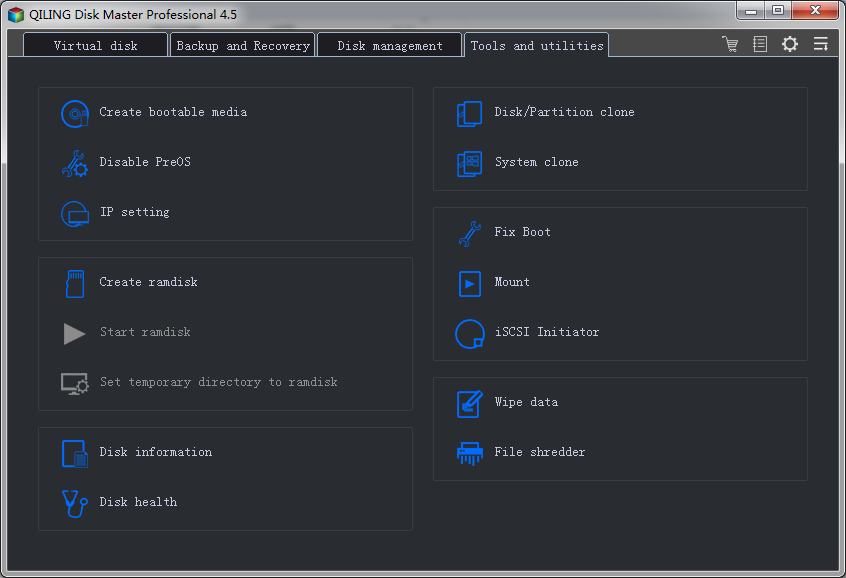
Step 2. In the main window, click the "Tools and utilities" tab, then click "File shredder" to select the files or folders you want to permanently delete.
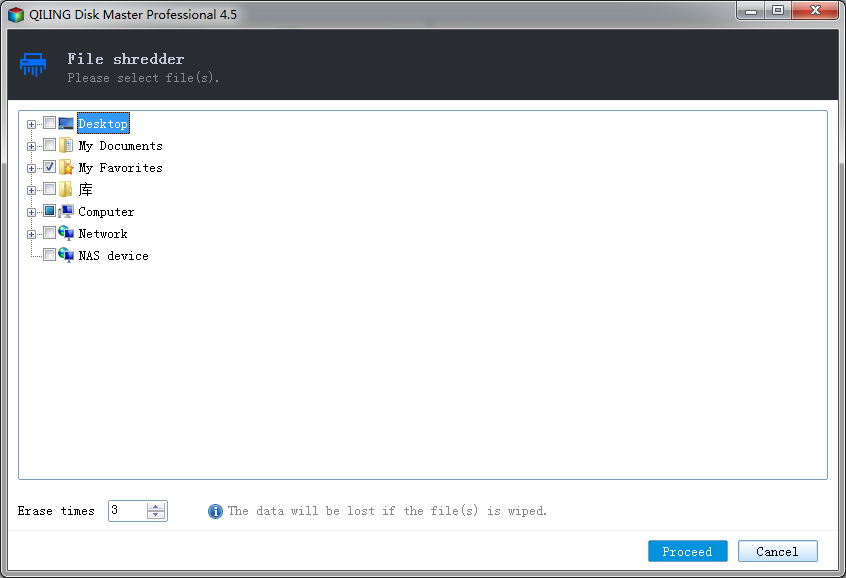
Step 3. Navigate to the file path or directory to select the files or folders to delete. Note that directories are collapsed by default — click the "+" icon next to each directory to expand them. You can also choose how many times the software overwrites the files (default is 3 times).
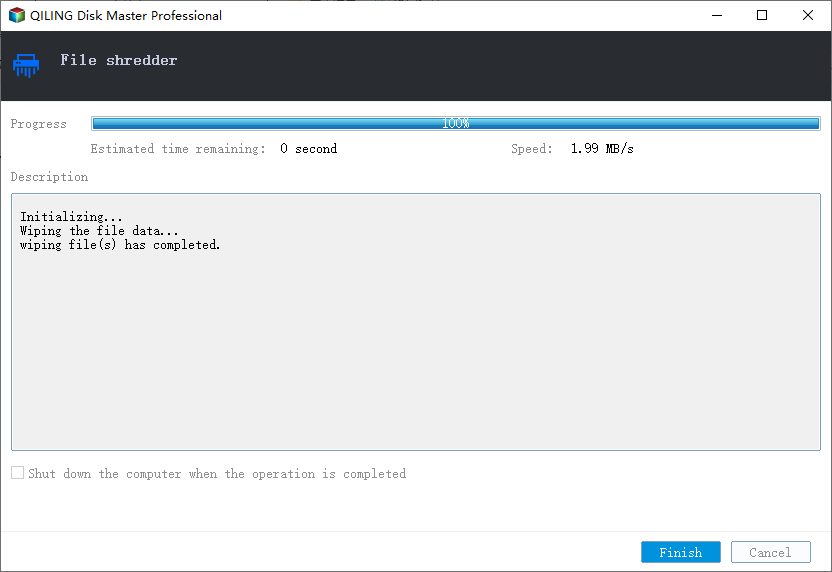
Step 4. Let the software complete the shredding process. A progress bar shows you when the operation is finished.
Related Articles
- How to Delete Files on Flash Drive Permanently
- How to Permanently Deleted Files in Windows 10
- How to Permanently Delete Files from Hard Drive
- How to Recover Data after Diskpart Clean
If you have also faced data loss due to Diskpart clean and you want to recover data from a Diskpart clean command, then you have found a helpful guide. With the help of this article, you will learn the best method of data recovery after Diskpartclean free. - Data Recovery Software Free Download Full Version with Crack (Version 15.2)
Stop searching for data recovery software full version with crack, serial key, keygen, license code, or serial number. Instead, you can free download Deep Data Recovery full version and get a license code to fully restore all your lost files. - Fix Hard Disk Not Detected/Recognized on Windows 10
When a hard drive, external hard drive, or SSD is not detected or showing up, there are steps you can take to resolve the issue. For a full guide on how to troubleshoot and fix the problem, you can refer to the provided information.
Products
Articles & Tutorials
- Data Recovery
- Data Backup
- File Recovery
- File Backup
- System Backup and Restore
- Disk and Partition Clone
- Technical articles
- Mobile articles
- Disk Master Help
- Windows Data Recovery Tutorials
- Windows Secure Delete Tutorials
- Windows Partition Management Tutorials
- Windows File Backup and Restore Tutorials
- Windows System Backup and Restore Tutorials
- Windows Disk Backup and Restore Tutorials
- Windows Clone Tutorials