3 Ways to Delete Files in Windows PC
Quick Navigation:
- Part 1. Use QILING File Shredder
- Part 2. Try Windows force delete files method
- Part 3. Use Microsoft's SDelete command line utility
- Tips for how to make sure files are permanently deleted
Many users ask how to permanently delete files on a Windows computer. The solutions generally fall into two categories: using a professional third-party tool or using built-in Windows utilities. Unfortunately, there is no way to permanently delete files on Windows manually without any tool — unless you physically destroy the hard drive. Below I introduce 3 reliable ways to permanently erase data on a Windows PC, plus tips for verifying the deletion was successful.
Part 1. Use QILING File Shredder
There are many file deletion tools for Windows. Finding an easy-to-use and professional one can be challenging. I recommend QILING File Shredder — a standalone tool designed specifically for secure file deletion. Its interface is simple and clean. After installing it on your computer, you can easily select and erase files or folders. Here are the steps:
Step 1. Download the QILING File Shredder installation package on your computer. Run the .exe file to install it. It is virus-free and fully compatible with almost all versions of Windows.
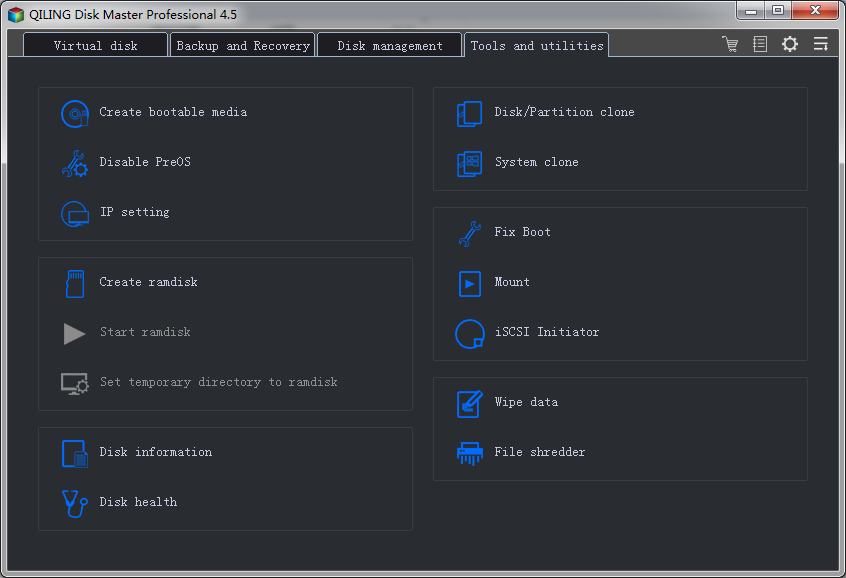
Step 2. Launch QILING File Shredder and click the "Tools and utilities" tab, then select "File shredder" to start the file deletion process.
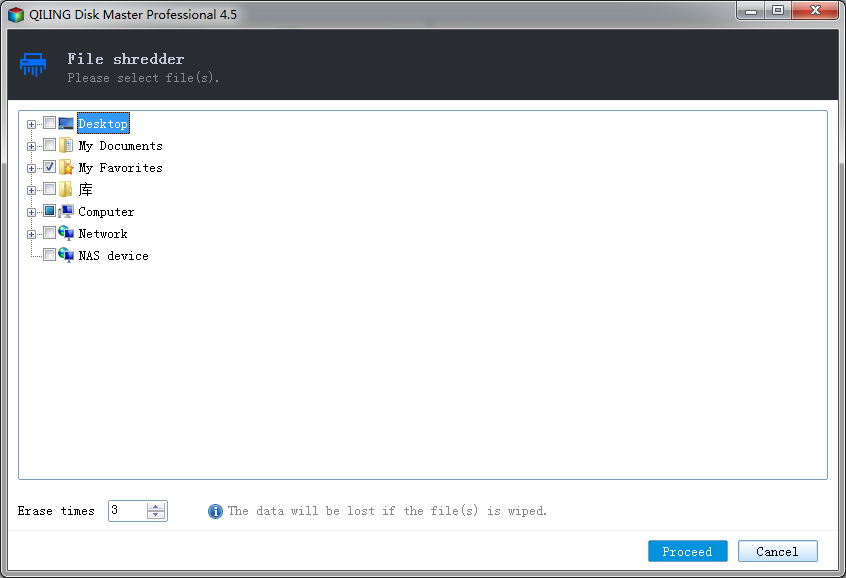
Step 3. Navigate to the file path or directory on your Windows computer to select the files or folders to remove. Directories are collapsed by default — click the "+" icon to expand them. You can set how many times the software overwrites the files (default is 3 times). Click "Proceed" to let the software do the rest.
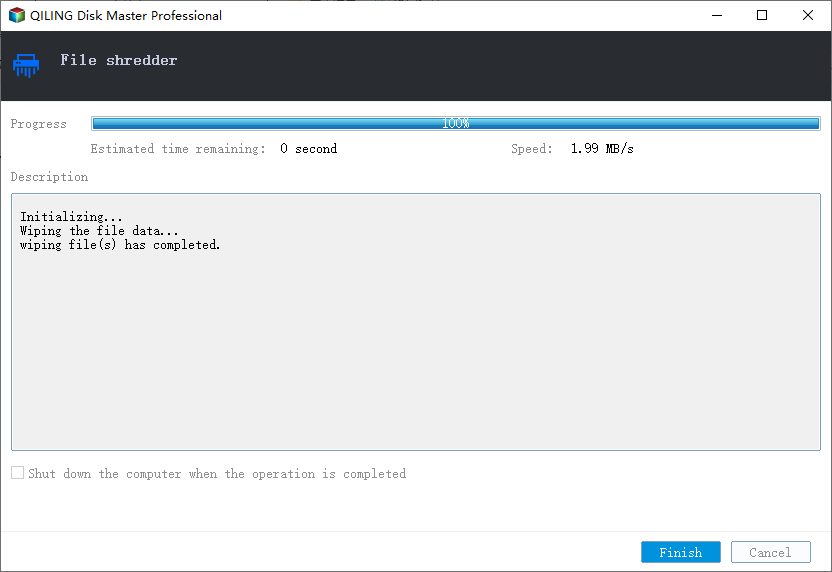
Step 4. Once you have started the deletion process, QILING File Shredder handles the rest. The process is typically quick, taking only a few seconds to complete.
Part 2. Try Windows force delete files method
If you're comfortable using the Windows command line, you can use the built-in `del` command to force delete files. Here's how:
Step 1. Click the "Start" menu at the bottom left.
Step 2. In the search box, type "cmd" and press the "Enter" key.
Step 3. Type del /f followed by the filename(s) you want to permanently delete. If you want to delete multiple files at once, use commas to separate each filename. Press "Enter" to confirm the deletion.
Part 3. Use Microsoft's SDelete command line utility
SDelete is a free command-line utility developed by Microsoft for permanently removing files from a Windows PC. Before using it, download and save the tool on your computer, then follow the steps below.
Step 1. Click the "Start" menu, type "cmd" in the search box, and press Enter.
Step 2. Navigate to the folder where SDelete is saved. For example, if the tool is in C:\filedeletiontool, type cd C:\filedeletiontool and press Enter.
Step 3. Type SDelete followed by the file path you want to delete. For example, to delete C:\mysecuredata.txt, type SDelete c:\mysecuredata.txt and press Enter.
When the deletion finishes, you will receive a confirmation message in the window.
Tips for how to make sure files are permanently deleted
To verify that deleted files are permanently erased, you can test the result using data recovery software like Deep Data Recovery. Use the scanning feature to search your computer for deleted files. If the software cannot find the permanently deleted files, it means they have been successfully erased.
Related Articles
- How to Delete Files Permanently Using Command-Line
- Top 10 File Deleter to Permanently Deleted Files in Windows 10
- 2 Ways to Permanently Delete Files in Windows 7
- How to Recover Data after Diskpart Clean
If you have also faced data loss due to Diskpart clean and you want to recover data from a Diskpart clean command, then you have found a helpful guide. With the help of this article, you will learn the best method of data recovery after Diskpartclean free. - Fix USB Access Denied Without Data Loss
If you're experiencing a “USB access denied” error when trying to access saved data on an internal/external hard disk, USB flash drive, pen drive, SD card, or file folder, this guide includes can help. - Top 6 Best Hard Drive Data Recovery Services
If you've lost files or documents from your hard drive, consider using one of the top six hard drive data recovery services mentioned in this article. To enhance the efficiency of data recovery, it's recommended to try Qiling data recovery software, which outperforms its counterparts in many ways.
Products
Articles & Tutorials
- Data Recovery
- Data Backup
- File Recovery
- File Backup
- System Backup and Restore
- Disk and Partition Clone
- Technical articles
- Mobile articles
- Disk Master Help
- Windows Data Recovery Tutorials
- Windows Secure Delete Tutorials
- Windows Partition Management Tutorials
- Windows File Backup and Restore Tutorials
- Windows System Backup and Restore Tutorials
- Windows Disk Backup and Restore Tutorials
- Windows Clone Tutorials