4 Ways to Recover Deleted Files in Windows 8
Quick Navigation:
- Part 1. How to recover deleted files from recycle bin in Windows 8
- Part 2. Restore deleted files in Windows 8 by using the backup and restore in Windows 8
- Part 3. How to retrieve deleted files on Windows 8 by restoring the previous version
- Part 4. Most efficient way to recover deleted files on Windows 8 by using Deep Data Recovery
- Guide for how to recover deleted files Windows 8 by using Deep Data Recovery
If you have accidentally deleted files on your computer running Windows 8 or 8.1, don't worry! You can recover deleted files using four different methods. These methods include both manual and software-based approaches, explained below.
Part 1. How to recover deleted files from recycle bin in Windows 8
The Recycle Bin is the first place to check when you accidentally delete files. If you haven't emptied it yet, your files are likely still there.
Step 1: Open the Recycle Bin by double-clicking its icon on the desktop.
Step 2: Browse through the deleted files and locate the ones you want to recover.
Step 3: Select the file(s), right-click, and choose "Restore" to recover deleted files in Windows 8.
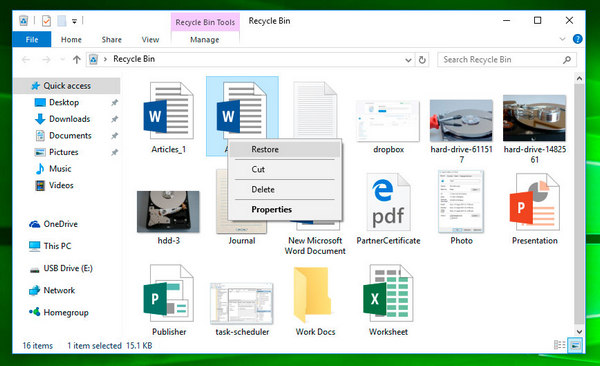
Step 4: All restored files will be returned to their original locations.
Part 2. Restore deleted files in Windows 8 by using the backup and restore in Windows 8
The Backup and Restore feature in Windows 8 is useful only if you have previously enabled it and created backups. When activated, Windows 8 automatically creates backups at scheduled intervals. You can store backups externally to keep them secure. This guide is only helpful if you already have a backup to restore from.
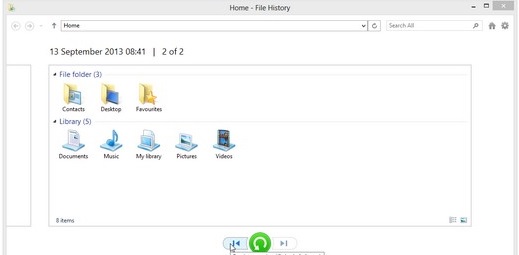
Step 1: Open the search charm, type "Backup" in Settings, and select "Restore Your Files with File History".
Step 2: A new window opens displaying your available backups.
Step 3: Choose the preferred backup file, browse its contents, and select the folder or files you want to restore to their original location.
Step 4: After selecting the file(s), click the green restore button at the bottom to begin the restoration process.
Part 3. How to retrieve deleted files on Windows 8 by restoring the previous version
This method helps you recover deleted files in Windows 8 by restoring a previous version. It only works if you have the backup feature enabled.
Step 1: Press the Start button and click Computer.
Step 2: Navigate to the folder that contained the deleted file, right-click it, and select "Restore previous versions".
Step 3: You'll see a list of available file versions, including saved copies and restore points. Select the version you want to restore by browsing the list.
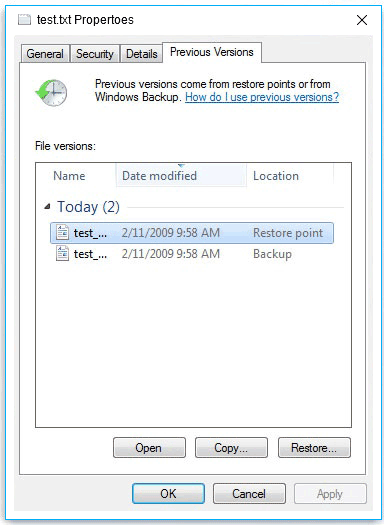
Step 4: Choose the file or folder you want to restore. For example, if you deleted a file yesterday, select the backup from two days ago, click it, and drag it to your desktop or another folder.
Part 4. Most efficient way to recover deleted files on Windows 8 by using Deep Data Recovery
Deep Data Recovery is a powerful program designed to recover deleted files on your Windows 8 computer. It reliably retrieves lost data from various storage devices, including hard drives, memory cards, and the Recycle Bin.
Your Safe & Effective Windows 8 File Recovery Tool
- Recovers deleted files on Windows 8/8.1 due to permanent deletion, emptied Recycle Bin, Shift+Del, formatting, and other causes.
- Fully recovers deleted files from hard disks, partitions, external hard drives, USB drives, SD cards, and memory cards under Windows 8/8.1.
- Recovers Word, Excel, PowerPoint, PDF, pictures, videos, music, and other file types in Windows 10.
Guide for how to recover deleted files Windows 8 by using Deep Data Recovery
Step 1: Download Deep Data Recovery from the official site and complete the installation on your PC. When you launch the application, you will see the main interface.
Step 2: By default, all file categories are selected for recovery. This is helpful if you're unsure which file type you need. If you know the specific file format, you can select only that category. For example, to recover documents, uncheck "All File Types" and check only "Documents", then click "Fast Scan".

Note: You can choose different search modes based on where and why the data was lost.
Step 3: The program displays the available partitions on your hard disk, along with their sizes and file formats. Select the location of the deleted file and click "Scan" to begin.

Step 4: After the scan completes, you can view all recoverable files from the selected partition. Files are organized by format. Select the desired files or folders and click "Recover" to restore them to their original location.

Tip: If the deleted files are not found or cannot be opened, click the "Deep Scan" option for a more thorough scan. Deep Scan takes longer but can find more deleted files. Once complete, select the files you need and click "Recover" to restore them.
Conclusion
Of the four methods for recovering deleted files in Windows 8, Deep Data Recovery is the most effective option. It performs a complete recovery of multiple file formats and helps retrieve everything you lost accidentally.
Its best feature is the ability to recover data from any device, including hard disks, external storage devices, USB flash drives, SD cards, and camcorders.
Related Articles
- How to Recover Deleted Videos from PC
- Your PC Ran into a Problem and Needs to Restart Windows 8 – Fix It
- How to Recover Deleted Photos from Windows 8 Computer
- How to Recover Data after Diskpart Clean
If you have also faced data loss due to Diskpart clean and you want to recover data from a Diskpart clean command, then you have found a helpful guide. With the help of this article, you will learn the best method of data recovery after Diskpartclean free. - [SOLVED] Hard Drive/External Hard Drive Only Shows Half Capacity
Many reasons would result in hard drive showing partial capacity, like a half(1tb ssd only showing 500gb). If your hard drive only showing partial capacity, so you can get 6 fixes to how to restore hard drive full capacity. - Fix Hard Disk Not Detected/Recognized on Windows 10
If your hard drive, external hard drive, or SSD is not detected or showing up, there are steps you can take to resolve the issue. A full guide is available to help with the not recognized error on these devices.
Products
Articles & Tutorials
- Data Recovery
- Data Backup
- File Recovery
- File Backup
- System Backup and Restore
- Disk and Partition Clone
- Technical articles
- Mobile articles
- Disk Master Help
- Windows Data Recovery Tutorials
- Windows Secure Delete Tutorials
- Windows Partition Management Tutorials
- Windows File Backup and Restore Tutorials
- Windows System Backup and Restore Tutorials
- Windows Disk Backup and Restore Tutorials
- Windows Clone Tutorials