Fix Hard Disk Not Detected/Recognized on Windows 10
Hard Disk Not Detected on Windows 10
Hard drives store a computer's operating system, programs, and personal files, but are prone to errors and problems.
A common issue with external hard drives is when they are not detected by the computer. This can be due to several reasons, including a faulty USB port, a malfunctioning external hard drive, or a compatibility issue between the drive and the computer's operating system. In such cases, the computer may not recognize the external hard drive, preventing it from being accessed or used.
- Hard Drive Not Detected in BIOS
- Hard Drive Not Detected in Disk Management
- Hard Drive Not Detected in This PC
Hard Drive Not Detected in BIOS
The BIOS, or Basic Input Output System, is software stored on a chip on the computer's motherboard, responsible for booting the system and ensuring hardware components are functioning properly. When the computer is turned on, the BIOS loads the operating system from the hard drive and hands over control to it, providing a set of utilities to configure system settings, such as time and date, and change the boot order of drives.
The role of the BIOS has been largely taken over by UEFI, which offers more advanced features and is easier to use. However, the BIOS remains a crucial part of your computer, and being familiar with it can help with troubleshooting. Despite this, there are instances where the BIOS may struggle to recognize a hard disk or USB drive.
If your hard drive is not showing up in BIOS boot options, it won't be visible to Windows either. To resolve this, you'll need to take some manual steps to fix the issue with the hard drive not being detected in BIOS.
Hard Drive Not Detected in Disk Management
If the hard drive doesn't show up in Disk Management, it may also not be visible in the BIOS, which is a system utility that allows you to manage storage drives and partitions on your computer. Disk Management can be used to format drives, create and delete partitions, and assign drive letters, among other tasks. It can also be used to convert between different types of storage drives, resize partitions, and change the file system on a storage drive.
To access Disk Management in Windows, type "disk management" into the search box on the taskbar and select the "Create and format hard disk partitions" result, then check if your hard disk is recognized.
Hard Drive Not Detected in This PC
The "This PC" shortcut on your computer provides quick access to your main folders and drives, allowing you to view and manage your files, create new ones, and access your personal and system folders, which are typically listed by default.
If your hard drive is recognized in the BIOS but not in Windows, it's likely due to a problem that needs to be fixed. Before diving into the solutions, it's essential to understand the possible reasons behind this issue. Once you have a grasp of the potential causes, you can proceed to troubleshoot and resolve the problem. In this post, we'll walk you through the steps to identify and fix the issue, ensuring your hard drive is accessible in both the BIOS and Windows.
Full Guide
If you're experiencing issues with Windows 10 not detecting your hard drive, but it's being recognized by your BIOS, you can try a few troubleshooting steps to resolve the problem. First, ensure that the hard drive is properly connected to the motherboard and that the SATA cable is securely seated.
Why Is Internal/External Hard Disk Not Detected/Recognized
In Windows 10, internal or external hard disks may not be detected or recognized due to several common reasons. These include a faulty hard drive, a loose or corrupted connection, incorrect drive letter assignment, a malfunctioning USB port, or a problem with the disk's firmware. Additionally, outdated or corrupted drivers, a malfunctioning SATA controller, or a power issue can also cause the hard drive to not show up.
Connection problems: First, ensure that the power supply and data cables are securely connected to the drive, as loose or incorrectly attached cables can cause issues with the device's functionality.
Incompatible file system: Make sure the hard drive file system is compatible with your computer or laptop.
Drive letter conflict:If the drive letter for your HDD conflicts with the drive letters of other drives, it will not be recognized.
Outdated hard drive driver: You can try updating the drivers from the Device Manager, or you may need to reinstall them.
Unallocated or not initialized drive:If your drive isn't showing up or is listed as unallocated, it's likely because it's uninitialized, meaning it hasn't been formatted or prepared for use. In this case, the drive won't appear in your computer's file system, making it inaccessible.
Damaged or corrupted hard drive:A hard drive may be damaged or corrupted due to various reasons such as a virus, physical damage, or a bad sector on the disk.
If you're having trouble accessing the contents of a hard disk, try checking the power cord, ensuring the drive is properly connected, and verifying the disk's integrity by running a diagnostic test. Additionally, check for any signs of physical damage or overheating, and consider running a disk cleanup or defragmentation tool.
How to Fix Hard Disk Not Detected on Windows 10
If your hard drive isn't showing up in Windows 10, try checking the connection, formatting it to NTFS, changing the drive letter, updating the disk driver, or initializing the hard drive, and see if any of these solutions resolve the issue.
- Change Disk Connection
- Format Hard Drive to NTFS
- Change Drive Letter
- Update Hard Disk Driver
- Initialize Hard Drive
- Enable Hard Drive in BIOS
Fix 1. Change Disk Connection
If your hard drive can't be recognized due to a loose connection or physical damage, check that all connections to the hard drive are secure and there are no cuts in the wires.
Fix 2. Format Hard Drive to NTFS
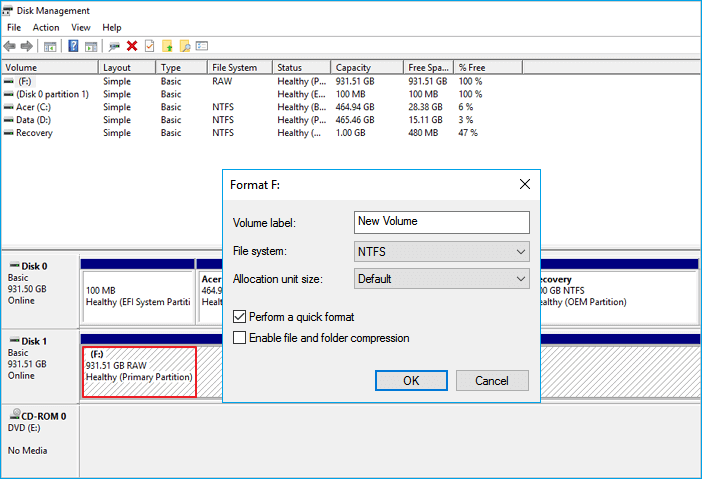
If the hard drive isn't showing up due to an unsupported, RAW, or corrupted file system, you can resolve the issue by changing the file system to NTFS.
Step 1. In Windows 10/8, press the Windows + X keys and click "Disk Management".
Step 2. Find and right-click on your hard drive, and select "Format".
Step 3. To format a drive, set the file system to NTFS, select the "Perform a quick format" option, and click "OK" to initiate the formatting process.
Fix 3. Change Drive Letter
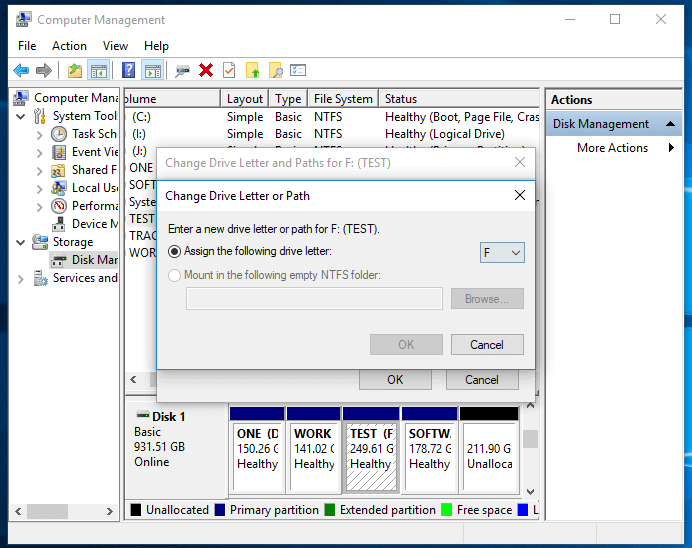
To resolve the issue of a hard drive not being detected in Windows 10 due to another drive with the same letter, change the drive letter in Windows 10. This will allow the hard drive to be recognized by the system.
Step 1. Open Disk Management, right-click the hard drive marked as New Volume or the partition doesn't have a drive letter.
Step 2. Select "Change Drive Letter and Paths" from the context menu. In the new window, click "Change".
Step 3. To assign a new drive letter to your external or internal hard drive, go to "Computer" or "This PC", right-click on the drive you want to change, select "Properties", and then click on the "Change" button under "Drive letter and path". Select the new drive letter from the dropdown menu and click "OK".
Fix 4. Update Hard Disk Driver
This method is for hard drives that appear in Disk Management but are not visible in File Explorer.
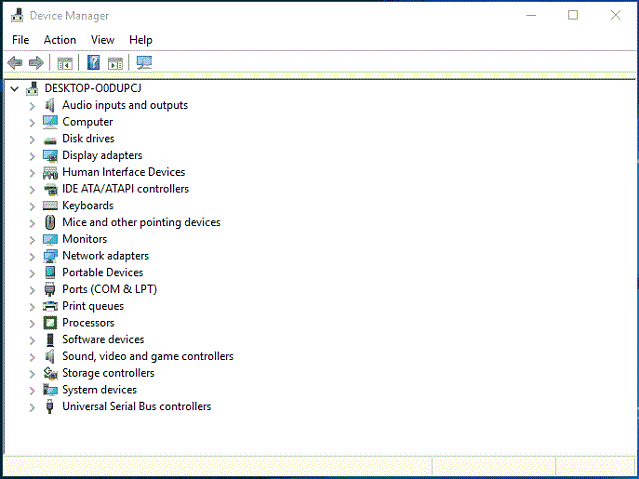
Step 1. Right-click "This PC" and choose "Manage".
Step 2. Click "Device Manager" then expand "Disk drives".
Step 3. To resolve the issue, right-click on the problematic external or internal drive, then select the option to 'Update driver'.
Step 4. Click "Search automatically search for driver software online".
Fix 5. Initialize Hard Drive
When dealing with a brand new hard drive or an unallocated disk, initializing the disk and creating a volume on the new hard drive is the recommended approach. This process involves formatting the disk and assigning a drive letter to it, making it ready for use.
Step 1. Right-click "This PC" (in Windows 10) and choose "Manage".
Step 2. To initialize a new hard disk, go to Disk Management, right-click on the new hard disk, and select the option to initialize the disk. This will prepare the disk for use and make it visible in the Disk Management console.
Step 3. Choose the disk and select MBR or GPT as its partition style, then click "OK" to begin the process.
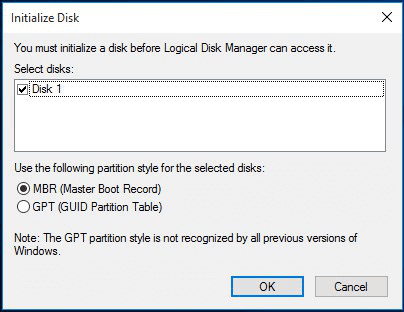
Then, follow the on-screen instructions.
Fix 6. Enable Hard Drive in BIOS
If your hard drive is not showing up, try enabling it in the BIOS settings. This might resolve the issue.
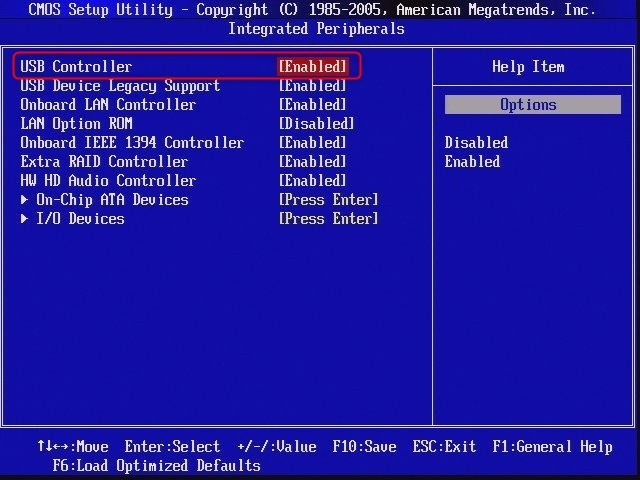
Step 1. To access the BIOS settings, restart your computer and press the designated key (usually F2, F12, or Del) repeatedly until you enter the BIOS setup. This will allow you to configure various settings, including boot order, time and date, and other system settings.
Step 2. To access the integrated peripherals menu, navigate to the "Integrated Peripherals" option using the arrow keys on your keyboard, then press the "Enter" key to select it.
Step 3. To enable the USB controller, select the "USB Controller" option using the arrow keys and change it to "Enabled".
Full Guide
Here, we've collected effective fixes to help you fix the hard drive not showing up in Windows 10.
How to Fix External Hard Disk Not Detected
If your external hard drive is not showing up, it may have simply stopped working, but there are other potential causes, such as compatibility issues with your computer or a faulty connection. First, check that the external hard drive is turned on and properly connected to your computer. If you're still having trouble, consider consulting a professional to troubleshoot the problem. In the meantime, you can try a few tips to troubleshoot the issue on Windows 10/8/7, and if you're a Mac user, fixing an external hard drive not showing up on Mac is also relatively easy.
Case 1. External Hard Drive Not Showing Up
Symptom: The external hard drive is not appearing in This PC, but it is visible in Disk Management, indicating a discrepancy in how the operating system is recognizing the drive. This could be due to a faulty driver, a corrupted file system, or a hardware issue.
To make your external hard drive visible and accessible on your computer, try the following methods. Start by checking the drive's power cord and USB connection to ensure they are properly plugged in. If the drive is not recognized by your computer, try restarting your computer and re-plugging the drive.
Method 1. Connect to a Different Port
If you're having trouble connecting your external hard drive to a different port, try checking the drive's power source, ensuring it's properly seated in the port, and verifying that the port is functioning correctly. You can also try using a different USB port or cable, or resetting the drive by unplugging it and plugging it back in. If none of these steps resolve the issue, it may be worth checking the drive's compatibility with your computer's operating system or seeking further assistance from the manufacturer or a technical support specialist.
- The external hard drive should be unplugged from its current port and then plugged into the desired port.
- If the external hard drive still isn't being detected, try restarting your computer.
- Once your computer is back up and running, replug the external hard drive into the new port.
Method 2. Update the Driver
You may also need to update your external hard drive's drivers, which can typically be done through your computer's Device Manager.
Method 3. Run a Troubleshooter
Windows has a built-in troubleshooter that can help resolve issues with your hard drive, potentially saving you from more serious problems.
- To begin, search for the Command Prompt on your computer. Once you find it, right-click on the first result and select "Run as administrator" from the context menu.
- Type the command: msdt.exe -id DeviceDiagnostic
- Click "Advanced" and select "Apply repairs automatically".
- To view the scan details, click on the "View detailed information" button, which will provide an overview of the scan.
If the external hard drive still isn't working after trying the above steps, it's possible that the drive itself is faulty or damaged. In this case, you may need to contact the manufacturer of the external hard drive for further assistance or to request a replacement.
Full Guide
If your external hard drive can be detected but not opened, try unplugging it and plugging it back in. If that doesn't work, try using a different USB port or cable.
Case 2. WD External Hard Drive Not Recognized
Symptom: A WD external hard drive not being recognized but the light being on typically indicates a connectivity or power issue rather than a hardware failure. It's possible that the drive is not properly connected to the computer or that there's a problem with the USB port or cable.
A WD external hard drive not being recognized is a common issue that can be resolved with a few simple steps.
Step 1. Check the Connection
First, ensure the WD external hard drive is properly plugged into the computer. If it is, try unplugging and plugging it back in to resolve any connectivity issues.
Step 2. Check the WD Hard Drive
If your WD external hard drive is not working, check for physical damage, and if found, replace it.
Step 3. Format the WD Hard Drive
To resolve the issue of a WD external hard drive not being detected, first, ensure it is properly connected to the computer and powered on. If the drive is still not recognized, try restarting the computer. If the issue persists, try using a different USB port or cable.
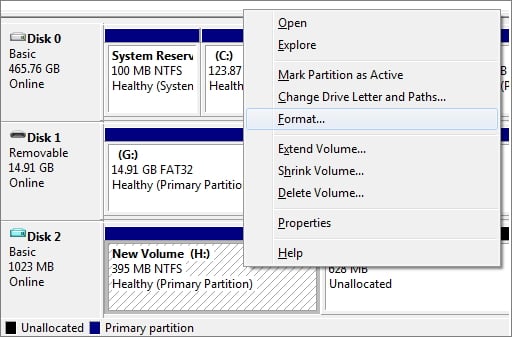
Formatting a WD external hard drive will completely erase all data on the drive, making it essential to back up any important files or data before proceeding with the formatting process.
Full Guide
If your Western Digital (WD) external hard drive is not showing up or working, with the light on, it's likely due to a hardware or software issue. First, try restarting your computer and the external drive.
Case 3. Seagate External Hard Drive Not Working
Symptom: Seagate external hard drive not showing up, not detected, external hard drive light blinking but not working, not recognized in Windows 10, USB not showing up, etc.
Seagate external hard drives, like WD hard drives, can sometimes stop working correctly. One common issue is that the drive is not functioning, which can be frustrating. However, there are a few troubleshooting steps you can try to resolve the problem.
- Try a different USB port on the computer.
- Connect the drive to a different computer.
- If the current cable is damaged, it's best to replace it with a new one to ensure the device functions properly and safely.
- Try a different power outlet. (Desktop Drives)
- If the drive's light is off, it means the power adapter is not connected to power, so you'll need to plug it in to turn it on. If the light is on, it means the drive is receiving power, so the next step would be to check if the drive is recognized by your computer.
Full Guide
If your Seagate external hard drive is not working, this guide provides a step-by-step troubleshooting process to help you resolve the issue. First, check the power cord and cable connections to ensure they are secure and not damaged.
How to Fix SSD Not Detected/Showing Up
A solid-state drive (SSD) is a type of storage that uses flash memory to store data, offering improved durability and performance compared to traditional hard drives. Available in various form factors, including 2.5-inch drives and M.2 drives, SSDs can be used as boot drives or data drives, and are increasingly common in modern laptops and PCs. However, if an SSD is not showing up in Windows 10, follow the solutions below.
Case 1. SSD Not Detected/Showing Up in BIOS
If your SSD isn't showing up in BIOS or Windows, it's likely due to a few common issues. The SSD might not be properly seated in the PCIe slot, or the SATA cable might be loose or damaged.
- The SSD is not properly connected to the motherboard.
- Check your SATA cables and ensure they're properly connected to both the motherboard and the hard drive. This is a common issue that can cause problems with data transfer and storage.
- If the SATA mode is set to the wrong setting in the BIOS, it can cause issues with booting or recognizing storage devices. To resolve this, you would need to enter the BIOS settings, locate the SATA mode setting, and change it to the correct setting, such as AHCI or IDE, depending on the system requirements.
- To resolve the issue, check your BIOS settings and ensure that the SATA mode is set to AHCI (not IDE).
- There's a problem with the motherboard itself.
If the SSD still doesn't appear after trying all the above steps, it's possible that the issue lies with the motherboard. In this case, you may need to reset the BIOS or consider replacing the motherboard. This is a more complex and potentially costly solution, but it may be necessary to resolve the issue.
Full Guide
If your SSD is not showing up in Windows 11/10, try checking the drive connections, disk management, and disk properties. You can also try running a disk check and checking for BIOS updates. If the issue persists, you may need to reinstall Windows or seek further assistance.
Case 2. M.2 Not Showing Up
M.2 drives are a type of solid-state drive (SSD) that is newer and faster than traditional SATA SSDs. However, they can be finicky and may not be compatible with all motherboards, making installation a challenge. If you're experiencing issues with your M.2 drive not showing up in BIOS or Windows, you can try troubleshooting steps to resolve the problem.
Configure Your M.2 SSD
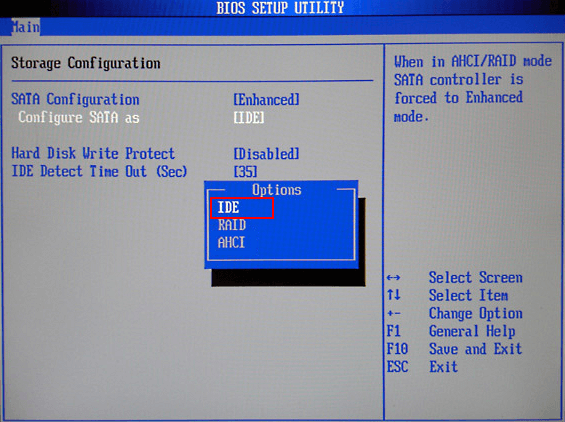
To resolve the issue of the M.2 drive not being recognized, ensure the drive is properly installed in the motherboard. Restart the PC and access the BIOS by pressing F2/Delete. In the BIOS settings, navigate to the "SATA Configuration" section and select "Configure SATA Configuration as IDE". Save the changes and exit the BIOS. This should allow the M.
Use a Different Motherboard
If your M.2 drive is not showing up, you can try using a different M.2 drive or motherboard to see if the issue is with the drive itself or the motherboard. This can help you determine the cause of the problem and potentially fix it.
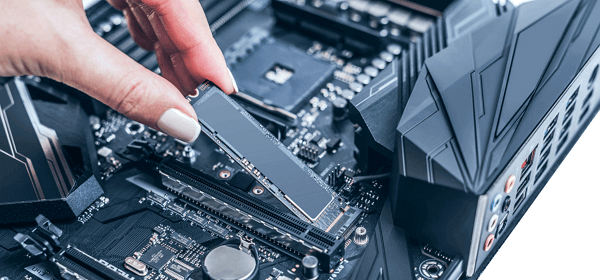
If your M.2 SSD is not appearing in Disk Management, try updating your drivers, running the Hardware and Device Troubleshooter, and assigning a drive letter to resolve the issue.
Full Guide
You can learn the details about how to fix M.2 SSD not showing up in BIOS or Disk Management.
Case 3. NVME Drive Not Showing Up
NVMe is a newer interface for connecting SSDs to computers, offering lower latency, higher data transfer rates, and more efficient CPU resource use compared to the older SATA interface.
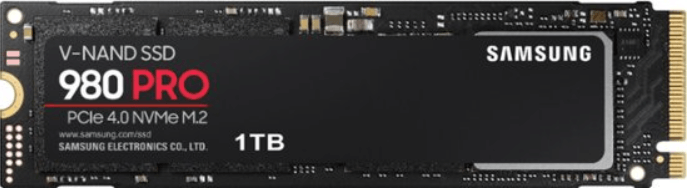
NVME drives may not be compatible with all computers, leading to issues such as undetected devices or generic storage identification. To troubleshoot, users can try updating their BIOS, checking the drive's compatibility with their system, and ensuring the drive is properly seated and connected.
- To ensure successful installation of an NVMe drive, first verify that your motherboard supports NVMe and that the correct BIOS settings are enabled, typically found under advanced options or storage settings.
- You may need to install special drivers or firmware for the computer to properly detect and use an NVME drive.
With a little bit of effort, it's usually possible to get an NVMe drive up and running on most modern computers.
Full Guide
This guide provides you with tried-and-true solutions for fixing NVME SSD not detected errors, offering a straightforward path to resolving the issue.
How to Recover Files from a Hard Drive That's Not Showing Up
When a file is deleted, it's not actually removed from the hard drive. Instead, the computer marks the space as available for new data, leaving the original file in a fragmented state. This means that, in many cases, it's possible to recover lost data, as the file is still present on the drive, albeit in a disorganized form.
1 - Recover Files from a Hard Drive with Data Recovery Software
With the right software, it's often possible to recover lost data, but acting quickly is key, as the file may be overwritten by new data and lost forever if you wait too long.
Qiling hard disk data recovery software allows you to recover data from various devices, including hard drives, external drives, SSDs, USB drives, SD cards, and more, with a simple and user-friendly interface. You can follow the steps provided to recover data from a hard drive that is not showing up, making it a reliable tool for data recovery needs.
Step 1.Launch Deep Data Recovery, select the file types you want to recover, and click "Fast Scan" to initiate the recovery process.

Note: You can choose different search modes based on where and why the data was lost.
Step 2. To recover lost data, select the hard drive where the data was lost and click "Scan" to start the scanning process.

Step 3. When the scan is complete, use the "Filter" or "Search" option to find the lost files. This will allow you to narrow down the results and locate the files that were previously inaccessible.

Step 4. Select the desired HDD files, click "Recover" and save them to a secure location.
2 - Recover Files from a Hard Drive with Data Recovery Services
Data recovery software has limitations, but a data recovery service can provide a more comprehensive solution, especially when physical damage is involved, or when data loss is due to software corruption or virus infection, offering expert assistance and a more complete solution to minimize frustration and expense.
Consult with Qiling data recovery experts for a one-on-one manual recovery service. After a free diagnosis, we could offer the following services.
- To resolve the issues of a corrupted RAID structure, an unbootable Windows OS, and a corrupted virtual disk file, you can try the following steps: Run the built-in Check Disk (chkdsk) utility on the affected drive to scan and repair any logical file system errors. If the issue persists, boot from a Windows installation media and run the built-in System File Checker (sfc) to replace any corrupted system files.
- Recover/repair lost partition and re-partitioned drive
- Unformat hard drive and repair raw drive (BitLocker encrypted drive)
- Fix disks that become GPT-protected partitions
How to Monitor Your Hard Drive's Health
Regularly monitoring your hard drive's health can help prevent unexpected failures and data loss. If you don't keep an eye on your hard drive, it can fail without warning, leaving you without access to your files. Fortunately, there are a few things you can do to stay on top of your hard drive's condition and avoid losing your important data.
Option 1. Run a Regular Scan
Running regular scans of your hard drive using an anti-virus program is crucial to identify and remove potential threats, preventing damage to your hard drive's health.
Option 2. Use the SMART Tool
SMART (Self-Monitoring, Analysis, and Reporting Technology) tool monitors a hard drive's health by tracking factors like disk temperature and error rates. If the SMART tool detects an issue, it typically provides a warning, allowing you to take steps to back up your data before the hard drive fails.
Option 3. Turn to the Manufacturer
The manufacturer will provide an expected lifetime for the disk based on usage frequency, and if you frequently copy large files or have many small files added and deleted, your passes/fails count will decrease faster than usual.
Conclusion
A computer may not detect a hard disk due to various reasons such as improper connection, disk damage, or BIOS settings issues. However, in most cases, the problem can be resolved by simply restarting the computer. If the issue persists, it is recommended to seek professional help.
Related Articles
- Flash Drive Data Recovery Software: Recover Files from a USB or Pen Drive
- How to Recover Deleted Videos on Any Device
- macOS Update Ultimate Guide: How to Update OS on All Models of Mac
- USB Fixes: Troubleshoot/Repair Corrupted USB Erros in 2022 [Full Guide]
- Best HDD Data Recovery Services in San Diego, CA
When you come across data loss, especially data loss from external or internal hard drives, you may turn to professional data recovery services for help. This post selects the information of the top 9 data recovery services in San Diego for your reference. - The Best 7 Data Recovery Services in San Francisco, CA
If you're facing an emergency situation like a broken hard drive, smartphone, or computer that won't boot, you'll need a reliable data recovery service.
Products
Articles & Tutorials
- Data Recovery
- Data Backup
- File Recovery
- File Backup
- System Backup and Restore
- Disk and Partition Clone
- Technical articles
- Mobile articles
- Disk Master Help
- Windows Data Recovery Tutorials
- Windows Secure Delete Tutorials
- Windows Partition Management Tutorials
- Windows File Backup and Restore Tutorials
- Windows System Backup and Restore Tutorials
- Windows Disk Backup and Restore Tutorials
- Windows Clone Tutorials