Unlock BitLocker To Go and Recover Files on Windows
Quick Navigation:
- What BitLocker To Go Encrypts
- Unlock the Drive on Another PC
- Why the Drive Looks Empty or Read-Only
- Recover Files with Qiling
- Frequently Asked Questions
A BitLocker To Go drive stays encrypted until it is unlocked with a password, a smart card, or the 48-digit recovery key. Unlocking restores access to the file system; it does not repair files that were deleted or a volume that was damaged before encryption was suspended.
What BitLocker To Go Encrypts
BitLocker To Go applies to removable drives such as USB flash drives, memory cards, and external hard disks. The entire volume is encrypted, so a card reader or another computer sees a locked container rather than readable files until the key is supplied. Windows can also enforce read-only unlocking for drives written by older systems, which is why some files appear impossible to edit.
Encryption protects data at rest, and it also changes what recovery can do. A scanner needs the decrypted file system, so the drive must be unlocked and, ideally, fully decrypted before any scan. Without a valid password or recovery key there is no practical way to read the data, and no recovery tool can bypass that.
Unlock the Drive on Another PC
Note: manage-bde is a command-line tool included with Windows, not a feature of Qiling Deep Data Recovery.
Connect the drive and open File Explorer. If the password prompt appears, enter the password you set on the original computer. Automatic unlock only works on the machine where it was enabled, so a new PC will always ask for a credential.
If the password is forgotten, choose More options and then Enter recovery key, then type the 48-digit key. Look for it in the Microsoft account that activated the drive, in a work or school account managed by Entra ID or Active Directory, in a printed copy, or in a text file saved when BitLocker was turned on. The key ID shown on the prompt helps you pick the matching key when several are stored.
Command line access is available on Windows Pro and Enterprise. Run manage-bde -status to see the protection state, and manage-bde -unlock X: -RecoveryPassword to unlock drive X with a key. Use these commands only on the drive you identified by letter and capacity, because the same letters change between computers.
Why the Drive Looks Empty or Read-Only
An unlocked drive that shows no files usually has one of three causes: the volume is mounted read-only, the file system was damaged by an unsafe removal, or the files were deleted before the drive was locked. Read-only mode allows browsing but blocks writes, and it is often reported after a BitLocker upgrade or when the drive was used on a system with a different policy.
If the drive shows 0 bytes, RAW, or a prompt to format, stop and do not format it. Formatting destroys the encrypted volume header, and the data becomes far harder, or impossible, to reach. Copy anything that still opens to another disk first, then suspend protection with manage-bde -off X: and wait for full decryption before scanning.
Never decrypt onto the same physical drive, and keep the recovery key until the data is copied somewhere else. Turning BitLocker off does not delete files, but an interrupted decryption can leave the volume half-converted.
Recover Files with Qiling Deep Data Recovery
Qiling Deep Data Recovery can scan a decrypted removable drive for deleted files. It cannot unlock encrypted data, guess a lost key, or recover a wiped volume. Finish unlocking and decryption first, then scan the drive that is now readable by Windows.
Step 1. Choose the Recovery Mode
Open the program. Use USB/SD Scan for a removable drive connected through a card reader or USB port, Recycle Bin Scan if the files were deleted on this PC, Fast Scan for a local disk, or Format Scan if the volume was formatted after unlocking.

Step 2. Select the Unlocked Drive
Select the drive letter that belongs to the unlocked volume, and confirm its capacity in the list. Several removable drives can share similar labels, so check the size and the drive letter shown in File Explorer before scanning.

Step 3. Review Matching Candidates
After the scan, browse the original folder tree and also check the filtered views by file type. Compare names, extensions, and modification dates, and keep more than one candidate when the preview is incomplete.

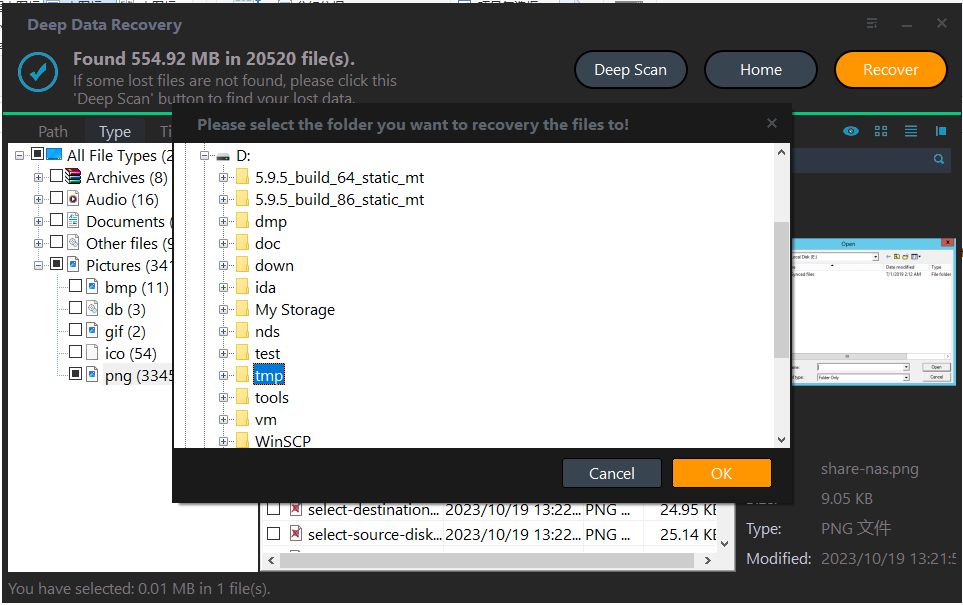
Step 4. Recover to Another Drive
Select the files, click Recover, and save them to an internal disk or a second removable drive. Saving back to the encrypted volume can overwrite the very blocks the scan just located.
Frequently Asked Questions
Can I recover data without the BitLocker recovery key?
No. The encryption is designed to prevent exactly that. Find the key in the account that activated the drive, or contact the organization that manages the device.
Does unlocking the drive decrypt it?
No. Unlocking only provides access for the current session. Use manage-bde -off to decrypt the volume permanently when you plan to scan or copy everything.
Why does the drive open as read-only?
Windows may mount it read-only after an unsafe removal, a policy change, or a file system error. Back up what you can read, then check the volume for errors.
Is it safe to format a locked drive that shows no files?
No. Formatting removes the BitLocker metadata along with the file table. Unlock and decrypt first, or hand the drive to a specialist.
If the volume is already unlocked and only files are missing, continue with recovering files from a BitLocker USB drive after unlock.
Related Articles
- Recover Files From a BitLocker USB Drive After Unlock
- Recover Files From a USB Drive That Shows 0 Bytes
- USB Drive Shows Less Capacity Than It Should
- Recover Files After Formatting a Portable SSD by Mistake
Products
Articles & Tutorials
- Data Recovery
- Data Backup
- File Recovery
- File Backup
- System Backup and Restore
- Disk and Partition Clone
- Technical articles
- Mobile articles
- Disk Master Help
- Windows Data Recovery Tutorials
- Windows Secure Delete Tutorials
- Windows Partition Management Tutorials
- Windows File Backup and Restore Tutorials
- Windows System Backup and Restore Tutorials
- Windows Disk Backup and Restore Tutorials
- Windows Clone Tutorials