Recover Files After Formatting a Portable SSD by Mistake
Quick Navigation:
- What a Format Really Erases
- Stop Using the SSD
- Why SSD Recovery Has Limits
- Recover the Files with Qiling
- Frequently Asked Questions
A quick format on a portable SSD finishes in seconds and leaves most of the old data physically in place. What happens in the next few minutes, before the drive is written to again, decides whether those files can still be read.
What a Format Really Erases
A format in Windows does not erase the NAND flash cells. Quick Format builds a new file system instead: it writes a fresh boot sector, creates a new file table or allocation bitmap, and marks every former cluster as available. The old content stays where it was until something new is written over it.
A full format behaves very differently. It writes zeros across the volume, and on an SSD that write can also trigger TRIM, which tells the controller that the old blocks are no longer needed. Commands such as diskpart clean all and a low-level secure erase also remove the partition table itself, so recovery starts from a much weaker position.
Two details decide the outcome. The first is which format you used, because a quick format leaves far more to work with. The second is what the drive has done since, since every file copied back to the SSD, every thumbnail cache, and every sync job can land on the clusters your files still occupy.
Stop Using the SSD and Look for Copies
Unplug the SSD with Safely Remove Hardware and leave it unplugged until you have a plan. Do not run CHKDSK, do not format it again to fix anything, do not install software onto that drive, and do not let Windows defrag or optimize it. Keep it off a powered USB hub while you decide.
Look for copies before you scan. Documents and photos are often already in OneDrive, Google Drive, or a phone camera roll; the laptop you upgraded from may still hold the same project folder; Windows File History and an older system image may contain the missing set. Copy those first, because they are faster and safer than any scan.
If the drive opens and simply looks empty, confirm that hidden files are visible and note the file system Windows now reports. A drive that shows RAW or a wrong capacity follows a different path, so start with how to recover files from a RAW external SSD instead of the steps below.
Why SSD Recovery Has Limits
SSDs add a complication that hard drives do not have. The controller spreads writes across the NAND for wear leveling, so a file's physical location has no fixed link to its logical address. TRIM adds a second problem: once the operating system reports a block as free, many controllers erase it in the background, and an erased block cannot be carved back.
USB enclosures make this unpredictable. Some pass TRIM through UASP to the SSD, some do not, and some vendors disable it. A drive that was trimmed may return nothing at all, while an identical model that ran without TRIM may return most of its files. That is why two drives formatted the same way can produce different results.
Treat any promise of complete recovery with suspicion. A realistic scan recovers the files whose clusters are still intact, which after a quick format on a lightly used portable SSD can be a large share. Anything overwritten in the meantime is gone.
Recover the Files with Qiling Deep Data Recovery
Qiling Deep Data Recovery scans a formatted volume for deleted directory entries and for known file signatures. It works on drives Windows can see, cannot reverse TRIM, and cannot rebuild a file that now sits under new data. Always write the output to a different physical disk.
Step 1. Choose Format Scan
Open the program and choose the mode that matches what happened, not the type of file you need. Format Scan fits a volume that was created by a format. Use USB/SD Scan when the enclosure reports the SSD as removable storage, Fast Scan only when files were deleted from a volume that still has its original file system, and Recycle Bin Scan when the files were emptied from the bin before the format.

Step 2. Select the Portable SSD
Pick the disk that matches the SSD's capacity and label, and compare it with the sticker or with the entry in Disk Management. Do not select the disk you prepared for recovered files, and be careful with internal drives of a similar size.

Step 3. Review the Candidates
Filter by extension and sort by date, then preview the files that matter. A photo or document that previews correctly is the strongest sign that its clusters are intact. If the first pass finds little, run a deep scan, which takes longer and looks for signatures instead of directory records.

Step 4. Recover to Another Disk
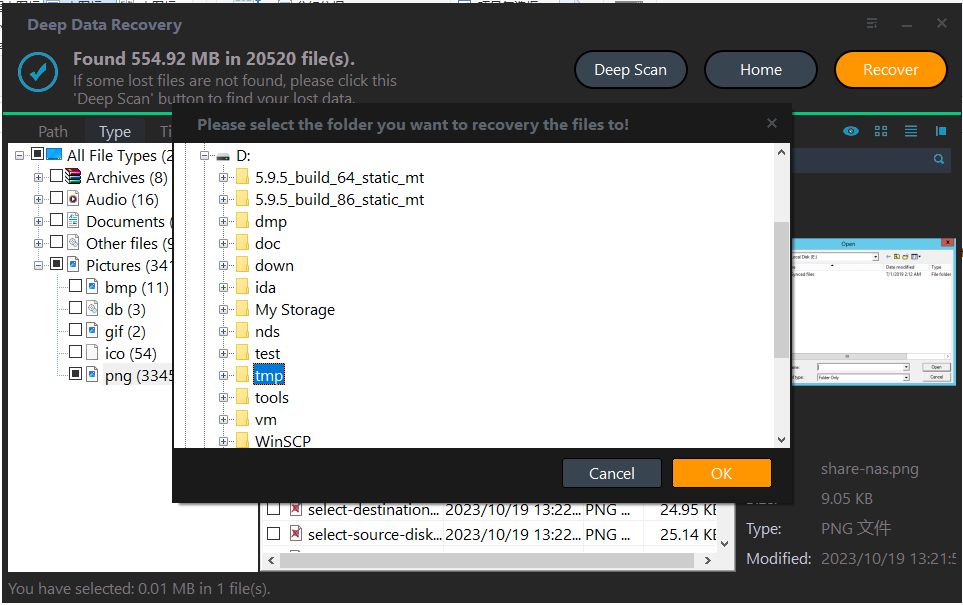
Select the files, click Recover, and save them to an internal drive or a second external disk. Keep that output untouched until you have opened a sample of every type. Where a cloud account holds the same files, compare both copies and keep the better one.
Frequently Asked Questions
Does a quick format destroy the files on an SSD?
No. It replaces the file system, so the files disappear from view, but their data remains until new writes reuse it. Stop using the drive right away to keep those clusters free.
Can files come back after a full format?
Rarely on an SSD. A full format writes zeros and may trim the whole volume, so the controller can erase the cells before any tool reads them. A hard drive handles the same situation far better.
Should I format again to repair the drive?
Not before you recover what you need. A second format overwrites the file system information the scan depends on.
Why do recovered files have generic names?
The directory entries were replaced by the format. Signature-based recovery finds the content but cannot always restore the original name and folder path.
For a broader checklist that also covers deleted folders and other file types, read how to recover deleted files on Windows 11.
Related Articles
- Recover Files From an External SSD on Windows 11
- Recover Files From a RAW External SSD on Windows
- USB Drive Shows Less Capacity Than It Should
- Unlock BitLocker To Go and Recover Files on Windows
Products
Articles & Tutorials
- Data Recovery
- Data Backup
- File Recovery
- File Backup
- System Backup and Restore
- Disk and Partition Clone
- Technical articles
- Mobile articles
- Disk Master Help
- Windows Data Recovery Tutorials
- Windows Secure Delete Tutorials
- Windows Partition Management Tutorials
- Windows File Backup and Restore Tutorials
- Windows System Backup and Restore Tutorials
- Windows Disk Backup and Restore Tutorials
- Windows Clone Tutorials