Recover Deleted Dashcam Videos From an SD Card
Quick Navigation:
- How Dashcams Store Footage
- Stop the Camera and Handle the Card
- Check the Event Folder and App
- Recover Clips with Qiling
- Frequently Asked Questions
A dashcam records in short loop segments and overwrites the oldest clip when the card fills. Once footage is overwritten by loop recording, no tool can bring it back, so the first minutes after a loss decide whether recovery is possible.
How Dashcams Store Footage
Most cameras write one-to-three-minute MP4 or MOV files into a loop folder, and a second folder holds clips locked by the G-sensor or by the emergency button. The card usually uses FAT32 or exFAT, with a directory table that the camera rewrites every time a new segment closes.
That design explains the two common losses. When the card fills, the oldest unlocked segments are deleted at the file table level and their space is reused immediately, so those clips survive only briefly. When power is cut during a write, the open segment and the file table can be left inconsistent, and the camera may then report a card error or ask to format it.
Heat and constant writing also wear cards out. A card that has worked for years in a phone but fails in a dashcam is usually a wear problem, not a software problem, and continued use makes the damage worse.
Stop the Camera and Handle the Card
Stop recording and power the camera down with its own button rather than pulling the cable. Remove the card only after the camera is off, then place it in a USB card reader; the camera's mass-storage mode is slower and sometimes hides the folders you need.
Do not record another trip on that card, do not format it in the camera, and do not let the dashcam's viewer app rewrite the index. If the card holds a clip you may need for an incident report, copy every folder that still opens to a computer first and keep that copy read-only.
If the card is physically damaged, hot to the touch, or not detected by any reader, stop here. Repeated insertion can worsen a failing controller, and a lab is the only sensible next step.
Check the Event Folder and App
Open the locked or event folder before scanning; these clips are protected from loop deletion and often contain the exact moment you need. Check the phone app that pairs with the camera, since many models keep a cached copy of recent events on the phone.
Also look at the backup folder if the camera supports a second card, and at any cloud service the app uses. A clip that exists in two places should be copied out and verified before you attempt anything on the original card.
Recover Clips with Qiling Deep Data Recovery
Qiling Deep Data Recovery can scan a card in a reader for deleted or damaged video files. It cannot recover segments that loop recording has already overwritten, and it cannot rebuild a clip that was never fully written.
Step 1. Choose the Recovery Mode
Open the program. Choose USB/SD Scan for a card in a reader, Format Scan when the camera formatted the card after an error, and Fast Scan only for clips that were deleted from a folder already copied to a local disk.

Step 2. Select the Card
Select the drive letter assigned to the card reader and confirm the capacity against the card label. A dashcam card is often 32 GB to 128 GB, so a much smaller volume means you selected the wrong device.

Step 3. Review Matching Clips
Filter the results by MP4 or MOV and sort by date and time. Dashcam files are named by sequence or timestamp, so the clip before and after the incident helps confirm you chose the right segment. Preview each candidate before selecting it.

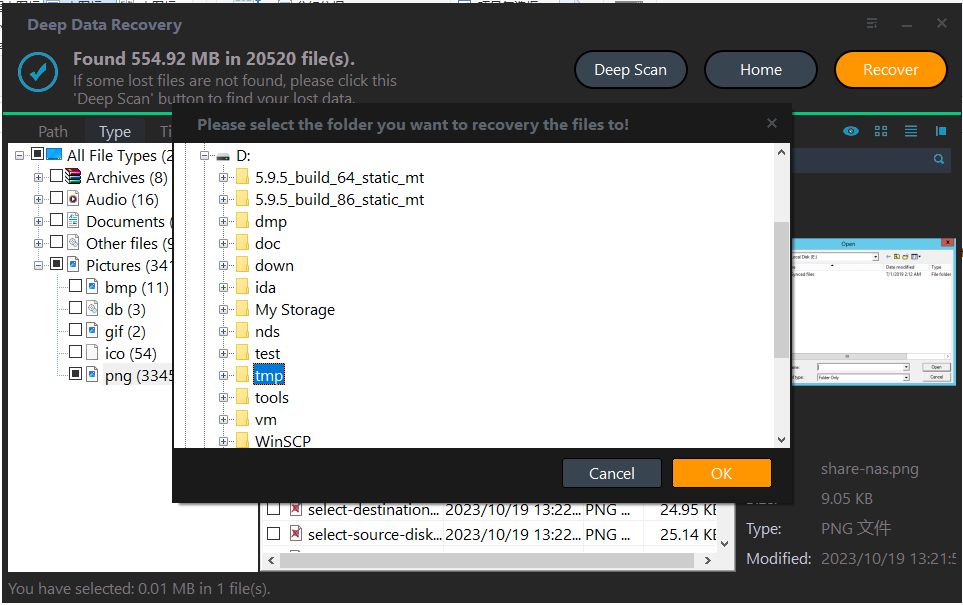
Step 4. Recover to Another Drive
Save the clips to an internal disk or a second card, never back to the card being scanned. Then copy the recovered files to a second location and play each one fully before you rely on it.
Frequently Asked Questions
Can loop-recorded footage be recovered?
Only if it has not been overwritten yet. Loop recording reuses the oldest space first, so stop driving and remove the card immediately.
Why is the last clip corrupted?
Power was cut before the file was closed. Part of the clip may still be recovered, but the final seconds are usually incomplete.
Should I format the card after a card error?
Not before copying or recovering what is on it. Formatting removes the directory entries that recovery depends on.
Which card suits a dashcam?
A high-endurance card rated for continuous writing. Standard cards wear out quickly under daily recording.
If the lost footage came from an action camera instead, see how to recover deleted videos from an SD card on Windows.
Related Articles
- Recover Deleted Videos From an SD Card on Windows
- Recover Videos and Photos From a GoPro
- Camera Memory Card Photo Recovery on Windows
- Recover Files After Formatting a Portable SSD by Mistake
Products
Articles & Tutorials
- Data Recovery
- Data Backup
- File Recovery
- File Backup
- System Backup and Restore
- Disk and Partition Clone
- Technical articles
- Mobile articles
- Disk Master Help
- Windows Data Recovery Tutorials
- Windows Secure Delete Tutorials
- Windows Partition Management Tutorials
- Windows File Backup and Restore Tutorials
- Windows System Backup and Restore Tutorials
- Windows Disk Backup and Restore Tutorials
- Windows Clone Tutorials