Camera Memory Card Photo Recovery on Windows
Quick Navigation:
- Why Photos Disappear From a Card
- Stop Shooting and Copy What Opens
- Check the Camera and Cloud Copies
- Scan the Card with Qiling
- Frequently Asked Questions
A camera card is a small flash drive with a file table that is easy to damage. Photos are usually still on the card after a delete, a format in the camera, or a card error, as long as nothing new has been written over them.
Why Photos Disappear From a Camera Card
Most losses come from four events. Someone deletes images in the camera while reviewing them. The card is formatted in-camera, which clears the directory but not the image data. The card is pulled out, or the battery dies, while the camera is still writing. Or the card controller reports an error and the camera asks to format the card before it can be used.
The file type matters for what you can expect. JPEG files carry their own headers and previews, so a recovered copy usually opens and can be checked at a glance. RAW files such as CR2, CR3, NEF, ARW, and DNG need their full data structure, so partial fragments may preview as blank or refuse to open in the editor.
Cards also have a limited tolerance for repeated repairs. If the camera or a computer has already tried to fix the file system, stop using that card and work from a copy rather than repeating the process.
Stop Shooting and Copy What Opens
Turn the camera off and remove the card. Do not take more photos, do not format it again, and do not use it to store anything else; every new file reduces the chance that old images stay intact. Put the card in a USB card reader instead of connecting the camera by cable, because a reader exposes the card as a plain drive and avoids the camera's own software.
If the card still mounts, copy the folders that open to a computer before scanning. Note the camera model and the approximate date of the lost shots, since recovered files are often grouped by date and by camera-generated names such as IMG_ or DSC.
Set the write-protect switch on a full-size SD card if it has one. That prevents accidental writes while you work, and it keeps the original card untouched for a second scan if the first result is incomplete.
Check the Camera and Cloud Copies
Look in the camera's playback menu, the second card slot, and any card that was used during the same session. Some models keep a copy in an internal buffer or upload selected images to a phone app, and those copies are faster to collect than any scan.
Check the DCIM folder structure for a second folder with a higher number, and check any cloud service that syncs from the camera or phone. If the photos were imported to a computer earlier, look in the imported folder, the Recycle Bin, and the photo application's own trash before scanning the card.
Scan the Card with Qiling Deep Data Recovery
Qiling Deep Data Recovery can scan a card in a card reader for deleted photos and rebuild JPEG and common RAW files. It cannot repair physical damage, recover a card that is not detected at all, or guarantee files that have already been overwritten by new shots.
Step 1. Choose the Recovery Mode
Open the program. Choose USB/SD Scan for a card in a reader, Format Scan when the card was formatted in-camera or by Windows, and Fast Scan only when the photos were deleted from a folder already copied to a local disk.

Step 2. Select the Card
Select the drive letter that the card reader assigned. Confirm the capacity against the card label, especially when several USB drives are connected, and make sure you are not scanning the computer's system disk.

Step 3. Review Matching Photos
Filter the results by JPG, CR2, CR3, NEF, ARW, or DNG, then sort by date to find the shooting session. Open the preview for each candidate and compare it with a known good frame before you select it.

Step 4. Recover to Another Drive
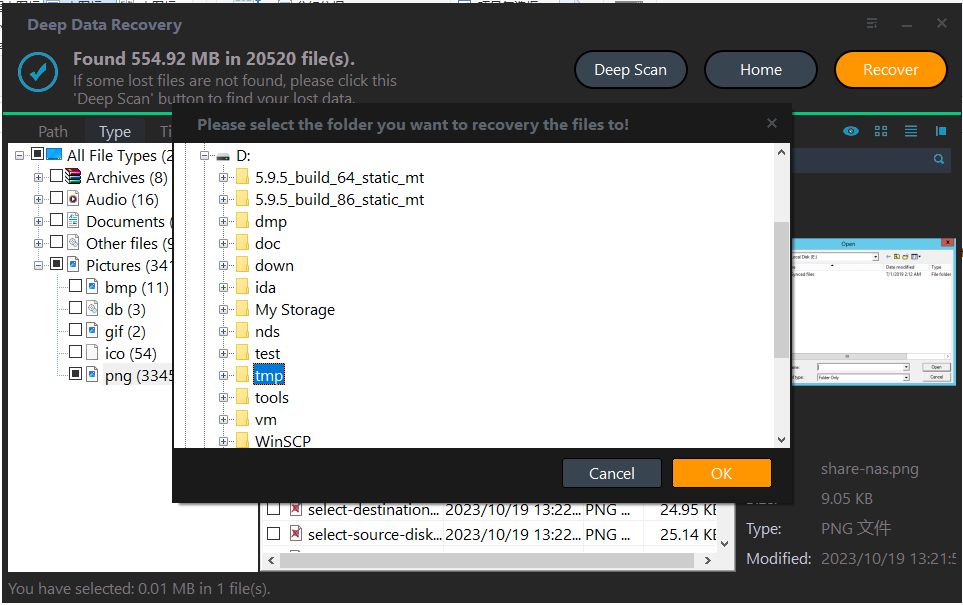
Save the selected photos to an internal disk or a different card, never back to the card being scanned. After recovery, copy the results to a second location, because recovered files have no backup until you make one.
Frequently Asked Questions
Can photos be recovered after formatting the card in the camera?
Usually yes, if no new photos were written afterwards. An in-camera format clears the directory, not the image data.
Why do recovered RAW files look broken?
RAW files depend on a full data block. When part of it was overwritten, the preview may fail even though other photos from the same card recover correctly.
Should I use the camera or a card reader?
Use a card reader. It presents the card as a normal drive and avoids camera software that may write thumbnails or settings to the card.
Can a card that is not detected be recovered?
Not by software alone. A card that no reader recognizes has a hardware or controller fault and needs a specialist.
For more on software choices and format coverage, read SD card photo recovery software for Windows.
Related Articles
- Recover Deleted Camera Photos From a Memory Card
- Recover Files From a Formatted SD Card on Windows
- Recover Deleted Dashcam Videos From an SD Card
- USB Drive Shows Less Capacity Than It Should
Products
Articles & Tutorials
- Data Recovery
- Data Backup
- File Recovery
- File Backup
- System Backup and Restore
- Disk and Partition Clone
- Technical articles
- Mobile articles
- Disk Master Help
- Windows Data Recovery Tutorials
- Windows Secure Delete Tutorials
- Windows Partition Management Tutorials
- Windows File Backup and Restore Tutorials
- Windows System Backup and Restore Tutorials
- Windows Disk Backup and Restore Tutorials
- Windows Clone Tutorials