How to Fix 0x80240fff Windows 10 Update Error
Quick Navigation:
- 3 Ways to Fix 0x80240fff Windows 10 Update Error
- Method #1: Pause Windows 10 Update
- Method #2: Download and Install the Latest Windows 10 with Media Creation Tool
- Method #3: Use Windows Troubleshooter to Fix 0x80240fff Windows Update Error
- Bonus Tip: Always Back Up Important Files before Windows 10 Update
- How to backup Important Files, Folders, and Hard Drive in Windows 10
Many unexpected reasons may cause the 0x80240fff Windows update error. These include firewall malfunctioning, file system corruption, internet connection issues, damaged Windows update services, or an outdated system. If you use Windows 10 build 10240, you may also encounter this error. While it can be difficult, the issue can be fixed with a few simple tricks. Read on to learn how to resolve the 0x80240fff Windows update error.
3 Ways to Fix 0x80240fff Windows 10 Update Error
Although it can be difficult to deal with the 0x80240fff Windows 10 update error, the good news is that you can fix it by following a few simple methods. In this section, we will look at three different approaches to resolve this issue.
Method #1: Pause Windows 10 Update
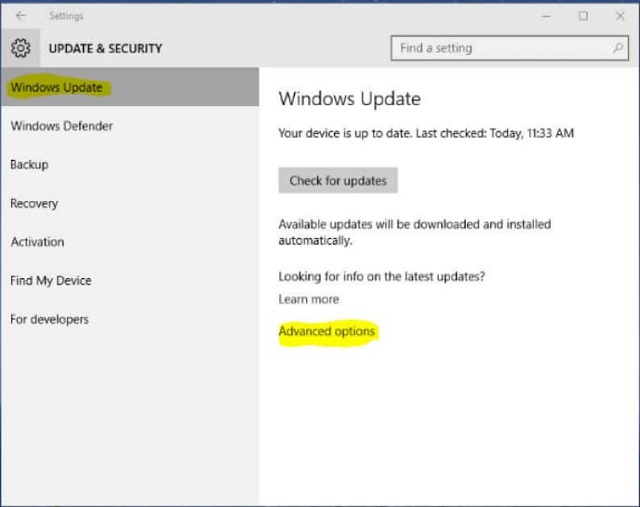
If a new update for Windows 10 is causing the 0x80240fff Windows update error, you can pause the updates to resolve the issue. Here are the detailed steps to pause the updates:
- Step 1: Open the Settings by clicking "Windows Key + I" on the keyboard.
- Step 2: Check the options and select "Update and Security".
- Step 3: Navigate to the right pane and click the "Advanced Options" link.
- Step 4: Check the "Pause Updates" section and select the "Select Date" drop-down arrow.
- Step 5: Choose your preferred date for the update from the list. You can stop the Windows update as long as a month. For some operating systems, you can defer the updates for more than a month. However, if your PC uses Windows 10 Home operating systems, you will be unable to defer the upgrade beyond one month.
Method #2: Download and Install the Latest Windows 10 with Media Creation Tool
If your PC uses an older version of Windows 10 Home, it may be impossible to use the "Pause Updates" option in the Settings application. However, you don't have to worry because you can try another method to resolve the 0x80240fff Windows update error. You can upgrade the operating system by downloading the latest version of the ISO.
- Step 1: Go to the official website of Microsoft and download the Media Creation Tool.
- Step 2: Run the software using the administrator account on your PC.
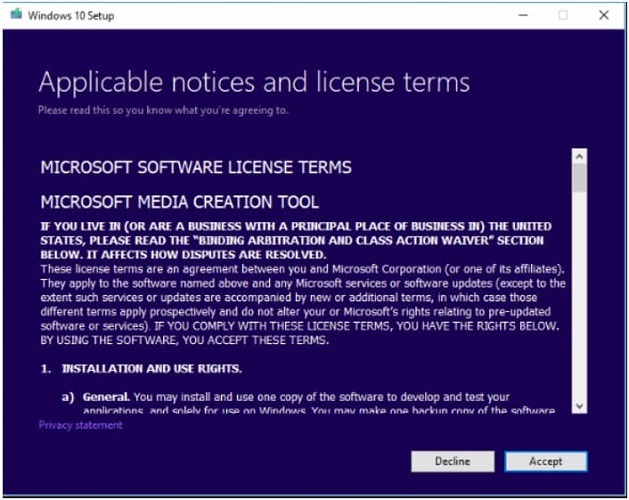
- Step 3: Follow the prompts and select "Accept" on the License Terms page.
- Step 4: Select "Upgrade this PC now" on the next page and click "Next". This will launch the Media Creation Tool to start the download of the Windows 10 latest version.
- Step 5: Remember to select "Keep personal files and apps" when prompted to prevent important data from getting deleted.
- Step 6: When you have saved the files and closed all open apps, click the "Install" button. You should note that the download and installation process may take some minutes to complete. Don't turn off your computer until the installation is complete.
Method #3: Use Windows Troubleshooter to Fix 0x80240fff Windows Update Error
If you're experiencing the 0x80240fff Windows 10 update error, you can use the built-in troubleshooter to resolve the problem. Here's how to run the Windows troubleshooter:
- Step 1: Go to the taskbar and click the Windows icon
- Step 2: Locate the Settings app and launch it by clicking the gear icon.
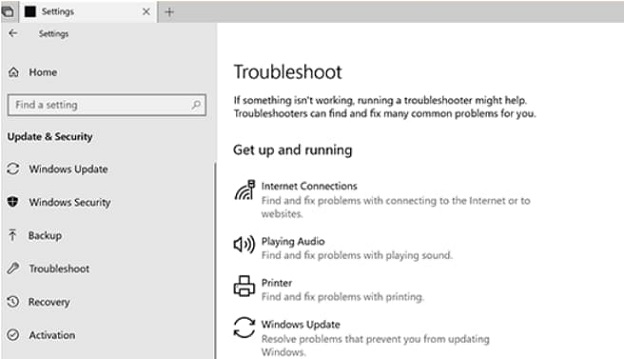
- Step 3: When the Settings window comes up, select "Update and Security" from the menu list.
- Step 4: Navigate to the left-pane menu and click "Troubleshoot".
- Step 5: Go to the right-pane menu and click "Windows Update"
- Step 6: Click the "Run the Troubleshooter" button. Allow the troubleshooter to resolve the 0x80240fff Windows update issues on its own. If it recommends other actions, follow them to completely fix the issue.
The 0x80240fff Windows 10 update error can be resolved using the three methods outlined above. Choose the one that best fits your situation.
Bonus Tip: Always Back Up Important Files before Windows 10 Update
When updating Windows 10, it's essential to be prepared for any potential issues that may arise. One of the most significant concerns is data loss due to system update failure. To prevent this, it's crucial to back up your important files, data, and tools before initiating the update process.
In today's digital age, data protection is more crucial than ever. With the QILING Disk Master Professional, you can safeguard your files, data, disks, partitions, and operating system from potential disasters. This powerful tool allows you to restore all your data quickly and easily in case of a system failure.
How to backup Important Files, Folders, and Hard Drive in Windows 10
The QILING Disk Master software is designed to provide a seamless backup experience for your PC. With its user-friendly interface and in-built navigation, you can easily backup your data, drive, and system. Here's a step-by-step guide to help you backup your data using this software:
Step 1: Click on "Backup and Recovery" tab from the software. You can choose "Disk/Partition backup", "System Backup", or "File Backup" to backup files on Windows 10 and other OS.
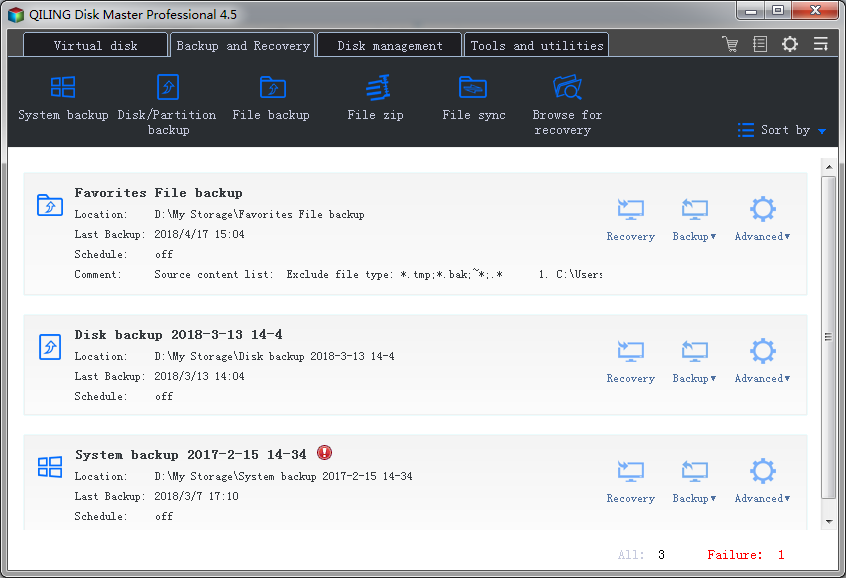
Step 2: Select the file, system, or drive that you want to backup. When you are done, click the "Proceed" button. This may take some seconds.
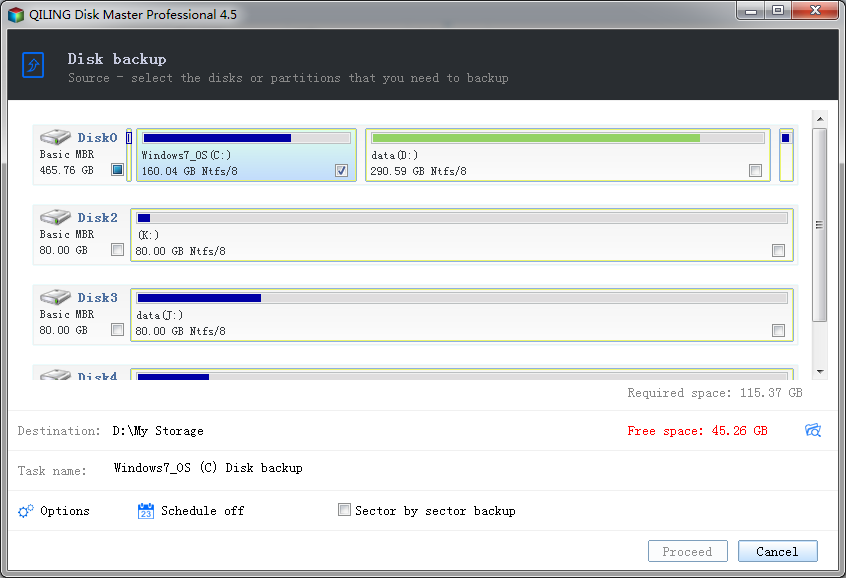
Step 3: After the backup process, you can view the windows and choose the option that you want. You can click the "Recovery" button if you want to recover lost or deleted files. You can also change the backup settings or edit the backup.
Related Articles
- 7 Ways to Fix Windows 10 Keeps Freezing Up Randomly 2021
- Solved Windows 10 Do not Show Hidden Files and Folders 2021
- How to Fix "Get Windows ready don't turn off your Computer" 2021
- How to Recover Deleted/Lost Files from Pen Drive
When you delete files from a pen drive, unlike a computer, they are not moved to the recycle bin and are instead permanently deleted. This means that you have no way to recover them unless you use a data recovery tool, which is what this article shows you how to do. - Minecraft Free Download and Minecraft Data Recovery Windows 10/11
How to download Minecraft game on PC for free? Get the detailed instructions to download Minecraft for free on Windows 10 or Windows 11. You can use a professional hard drive recovery to restore your lost Minecraft game data. - How to Fix Missing DLL Files in Windows 10/8/7 [2022 Full Guide]
To fix missing DLL files in Windows 10, you can run the SFC and DISM scanner to identify and replace corrupted system files, use a file recovery tool to retrieve deleted DLL files, manually download the missing DLL files from a trusted source, or reinstall the application that requires the DLL file.
Products
Articles & Tutorials
- Data Recovery
- Data Backup
- File Recovery
- File Backup
- System Backup and Restore
- Disk and Partition Clone
- Technical articles
- Mobile articles
- Disk Master Help
- Windows Data Recovery Tutorials
- Windows Secure Delete Tutorials
- Windows Partition Management Tutorials
- Windows File Backup and Restore Tutorials
- Windows System Backup and Restore Tutorials
- Windows Disk Backup and Restore Tutorials
- Windows Clone Tutorials