Recover Files From .CHK Files in the FOUND.000 Folder
Quick Navigation:
- Why chkdsk Turns Files Into .CHK
- Stop Writing Before You Touch FOUND.000
- Confirm What chkdsk Did With Windows Tools
- Scan the Volume With Qiling Data Recovery
- Frequently Asked Questions
You ran chkdsk because a drive was acting up, and it came back with a folder full of names like FILE0000.CHK. Your documents, photos, and spreadsheets are gone from their old paths, and the space they used is now filled with files that Windows does not know how to open. The content is often still there. What chkdsk lost was the directory that pointed at it.
This guide explains what a .CHK file really is, how to tell which type of file each one holds, and how a scan can rebuild the original names and folders instead of leaving you with a pile of numbered blobs.
Why chkdsk Turns Files Into .CHK
chkdsk repairs the index that a file system uses to describe itself: directory entries, allocation tables, and the records that tie a name to a set of clusters. When a repair pass finds clusters that are marked in use but no longer belong to any valid name, it cannot invent the missing path. Instead it copies those clusters into a folder at the root of the volume, names the result FILE0000.CHK, FILE0001.CHK, and so on, and releases the space for the original entry.
The folder is called FOUND.000, and later passes create FOUND.001, FOUND.002 and more. The number in the name is a sequence, not a hint: FILE0042.CHK tells you nothing about what is inside it. The file has no extension that Windows recognizes, so a double click asks which program should open it, and the wrong choice shows gibberish or an empty window.
The good news is that the data clusters were copied, not rewritten. A .CHK file holds the original bytes of the file, which means the content can be identified by its header, renamed to the right extension, and opened. The bad news is that the name, the folder, the timestamps, and any alternate data streams were stored in the entry chkdsk discarded, and those do not come back from the .CHK file itself.
There is a second case that looks the same but is worse. When a repair truncates a cross-linked chain, several files may end up sharing clusters, and chkdsk keeps one of them while the others are cut short. The .CHK copies then contain the same data at a smaller size. Sizes are worth comparing before you assume a .CHK file is complete.
Stop Writing Before You Touch FOUND.000
Do not delete FOUND.000 to reclaim space, and do not run another repair pass to clean up the result. A second pass can truncate more chains and overwrite the .CHK files it created earlier, because they are ordinary files now and the volume has less free space than before. Leave the folder exactly as it is until every candidate has been copied somewhere else.
Copy the whole folder, including the hidden system attribute, to another disk before you experiment. Opening a .CHK file in a viewer does not change it, but saving it from the wrong program does, and one mistaken save can destroy the only copy of a document. Work only on the copies from that point on.
Identify each file by its first bytes rather than by its name. A JPEG starts with FF D8 FF, a PNG with 89 50 4E 47, a PDF with the characters %PDF, a ZIP-based file such as docx or xlsx with PK, an older Office document with D0 CF 11 E0, and a RIFF-based audio or video file with RIFF. Rename a copy with the matching extension and try to open it; a successful open confirms the guess, and a failure costs nothing because the original is untouched.
Keep the drive itself quiet while you work. Do not defragment it, do not install software on it, and do not let indexing or backups write to it. Those writes take free clusters, and any cluster that once held a lost file is exactly the space a later scan needs.
Confirm What chkdsk Did With Windows Tools
Before scanning, read the record of what the repair actually changed. Open Event Viewer and look under Windows Logs, Application, for entries from the source Chkdsk or Wininit; the text lists the stages, the errors found, and how many files were moved into FOUND.000. In File Explorer, enable Hidden items and protected operating system files to see FOUND.000, which is marked as a system folder and is hidden by default.
Note: chkdsk, manage-bde, cipher, and PowerShell all ship with Microsoft Windows. They are not features of Qiling Disk Master, and the recovery steps later on this page do not call them. They are described here only so you can read the drive's state and understand what the repair pass already did to it.
The log answers two questions. First, whether the pass ran in read-only mode or actually made repairs: a scan that only reports errors changes nothing, so the files may still be reachable through their original records. Second, whether more than one FOUND folder exists, which tells you the volume has been repaired more than once and that the older .CHK files may already be truncated.
Check the free space on the volume as well. A repair that ran out of room stops early, and the files it could not copy are still sitting in orphaned clusters. Those clusters are exactly what a deep scan reads best, which makes the scan the more promising route when the log shows an incomplete pass.
Scan the Volume With Qiling Data Recovery
Renaming .CHK files one at a time recovers content without names. Qiling Disk Master includes a disk-level scan engine that reads the file records the repair pass abandoned, so a document can come back under its original name and folder instead of as FILE0042.CHK. The engine also reads unallocated space, where the orphaned clusters of an incomplete repair still live, and it writes nothing until you start the recovery.
Operation 1: Choose the Volume and Scan It
Work from the drive that held the original files, not from the FOUND.000 folder you copied, because the folder holds content while the volume holds the records that name it.
Step 1. Select the volume or its image in the wizard. Pick the drive letter by label and capacity, and confirm the size against what Explorer reports so you do not scan a similar disk. If the drive is unstable, image it first and point the wizard at the image file; the scan then reads a copy and the original can stay powered down.
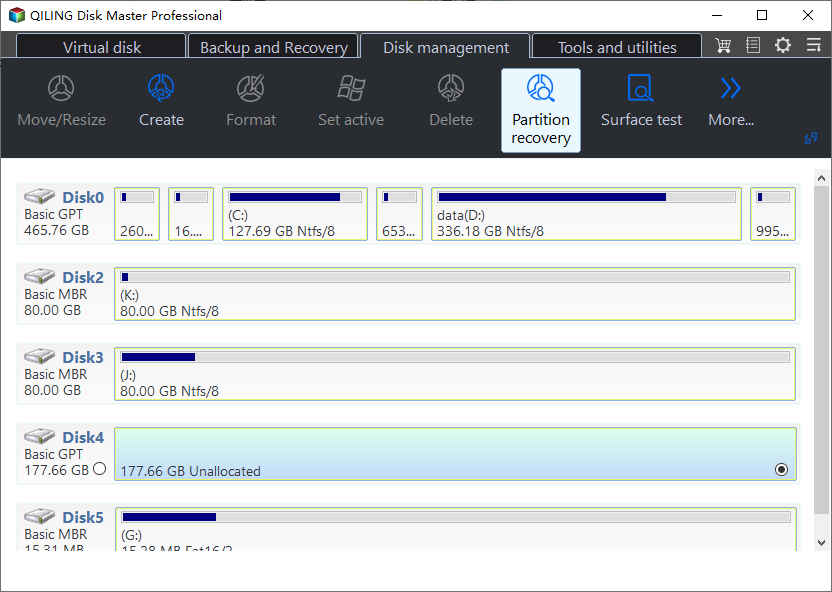
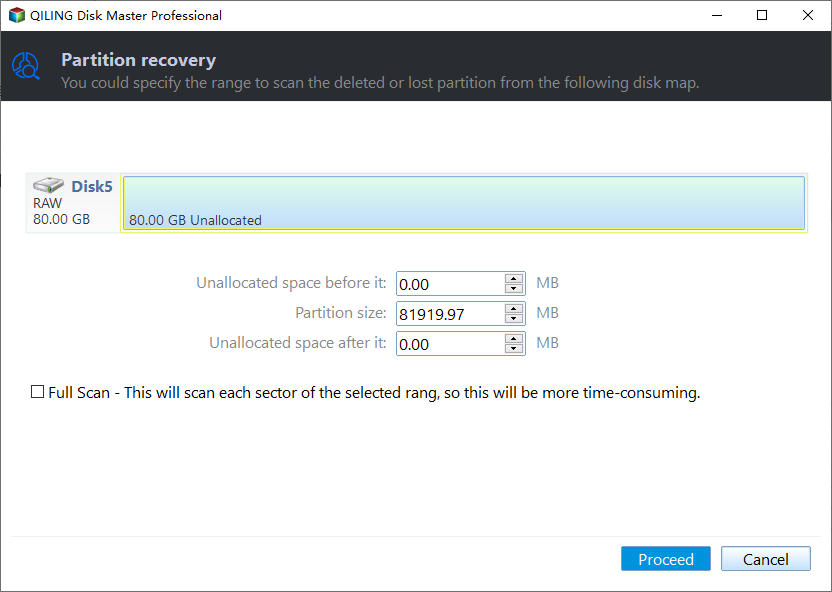
Step 2. Start with a quick scan, then run a deep scan if needed. The quick pass reads the records that survived and usually restores names for files deleted recently. Turn on the deep scan when the repair was severe or the quick pass returns few results, and let it run to completion; it walks every sector, including the unallocated area where the orphaned clusters sit.
Operation 2: Match the Results to Your .CHK Files
Scan results are the shortcut past header guessing: a file that appears with a name, a path, and a preview is worth more than a renamed .CHK copy of the same content.
Step 3. Preview the files, tick the ones you need, and click Recover. Sort by date around the day the drive failed, preview one document and one image to confirm they open, and compare the sizes with the .CHK files you already identified to spot truncated twins. Save to a different physical disk with Recover, never back to the repaired volume, and keep the FOUND.000 copy until the restored files have been opened.
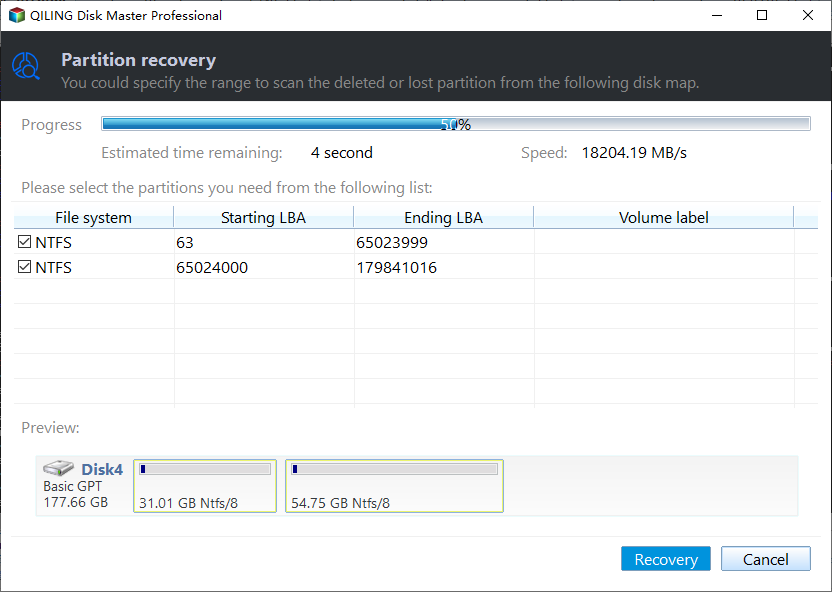
When a file appears in both places, keep the one with the name and the longer size. The .CHK copy is a fallback for content the scan could not match to a record, not a replacement for the record itself.
Frequently Asked Questions
Can I just rename FILE0000.CHK back to its old extension?
You can, and it works when the content is intact and you guess the type correctly. The name inside the file is not stored anywhere, so the extension has to come from the header bytes. Rename a copy, never the original, and expect unnamed files to stay unnamed.
Why did chkdsk create hundreds of .CHK files after a power failure?
A sudden loss of power leaves directory updates half written, so many clusters end up allocated without a valid name. The repair pass saves every such chain it finds, which can produce hundreds of files in one run. Most of them are fragments of system or cache files rather than your documents.
Is it safe to delete FOUND.000 after I recover my files?
Yes, once the restored files open normally and you have confirmed that nothing valuable is left inside. Delete the folder only after that check, keep a copy on another disk for a few weeks, and run a fresh repair pass only when the volume shows new errors.
Related Articles
- Full and Free Solutions for CHK File Recovery
- How to Recover Files From the FOUND.000 Folder
- Recover Files Missing After CHKDSK on Windows 11
- Recover Files Before CHKDSK: A Safer Order
- What Is CHKDSK (Check Disk)?
Products
Articles & Tutorials
- Data Recovery
- Data Backup
- File Recovery
- File Backup
- System Backup and Restore
- Disk and Partition Clone
- Technical articles
- Mobile articles
- Disk Master Help
- Windows Data Recovery Tutorials
- Windows Secure Delete Tutorials
- Windows Partition Management Tutorials
- Windows File Backup and Restore Tutorials
- Windows System Backup and Restore Tutorials
- Windows Disk Backup and Restore Tutorials
- Windows Clone Tutorials