Recover Files After a Failed Windows 10 ESU Upgrade
Quick Navigation:
- What a Failed ESU Upgrade Changes
- Stop the Restart Loop
- Image the Disk, Then Scan the Copy
- Recover with Qiling Deep Data Recovery
- Frequently Asked Questions
The package that enrols a Windows 10 PC in Extended Security Updates installs like any other update, but it replaces a large part of the servicing stack. When it fails halfway, Windows 10 can end up restarting between the logo and the rollback screen, with no desktop and no safe mode. The files on the drive are still there, because the failure happens in the system files that load before your account ever appears. What follows decides whether they stay reachable. This guide explains the failure, why the disk is still worth reading, and how to image it and recover the folders in the order that protects them.
What a Failed ESU Upgrade Changes
An ESU upgrade is more than a patch. It updates the servicing components that install every later update, so a failure in that chain leaves the installation unable to finish the transaction it started. The restart then finds an incomplete state and tries to roll back, and the rollback can fail for the same reason.
The visible result is a loop. The machine shows the logo, restarts, reports that it is restoring the previous version, restarts again, and offers startup repair or a recovery screen. Sometimes Windows 10 shows an error about a missing operating system or a required device that cannot be found.
None of those messages describe the user data. System files, boot files, and the registry are involved, while Desktop, Documents, and Pictures remain in the profile folder on the same volume, readable from any other computer.
Stop the Restart Loop
Hold the power button until the machine stays off. Every cycle writes to the disk, and a loop that runs for an hour changes far more than the update itself did.
Do not reinstall Windows 10 from a USB drive to save time. Setup may rewrite the partition layout, and even a repair install that keeps the files can leave the old profile in a folder that is hard to find and harder to merge.
Do not run startup repair more than once, and do not accept a prompt that offers to format the volume or initialize the disk. Those options are offered because the volume is not booting, not because it is empty.
Image the Disk, Then Scan the Copy
Take a full disk image before the first scan. The ESU failure may be repairable, and the image lets you try a repair later without touching the original again, while any recovery work happens on the copy.
Connect the drive to a working desktop through a spare data cable, or use a USB enclosure for a laptop drive. Keep it connected for the whole job, because a drive that drops off the bus in the middle of a scan has to start over.
If the drive makes noise or reports health warnings, work from the image only and stop reading the original. A drive that is failing needs an image, not a repair, and the copy is what the recovery scan should read.
Recover with Qiling Deep Data Recovery
Qiling Deep Data Recovery can list a Windows 10 profile from a volume that no longer starts, including folders that the failed rollback left partially renamed. Scan first, preview the results, and save only what you have confirmed opens.
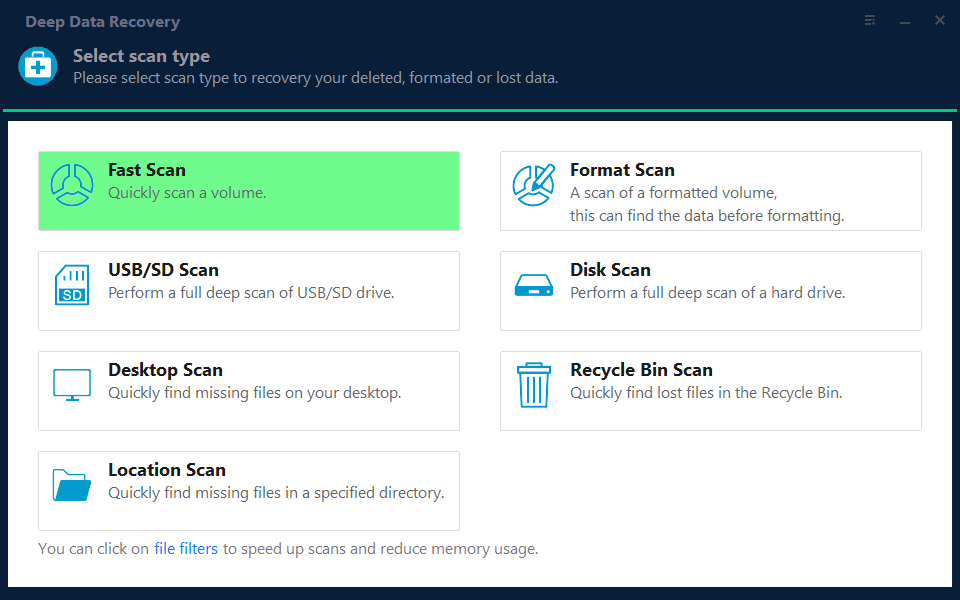
Step 1. Choose the Recovery Mode
Start with Fast Scan when the volume still mounts and the folders are simply missing from Explorer. Use Disk Scan or Format Scan when the volume reports as RAW, or when the ESU rollback left the partition without a readable file system.
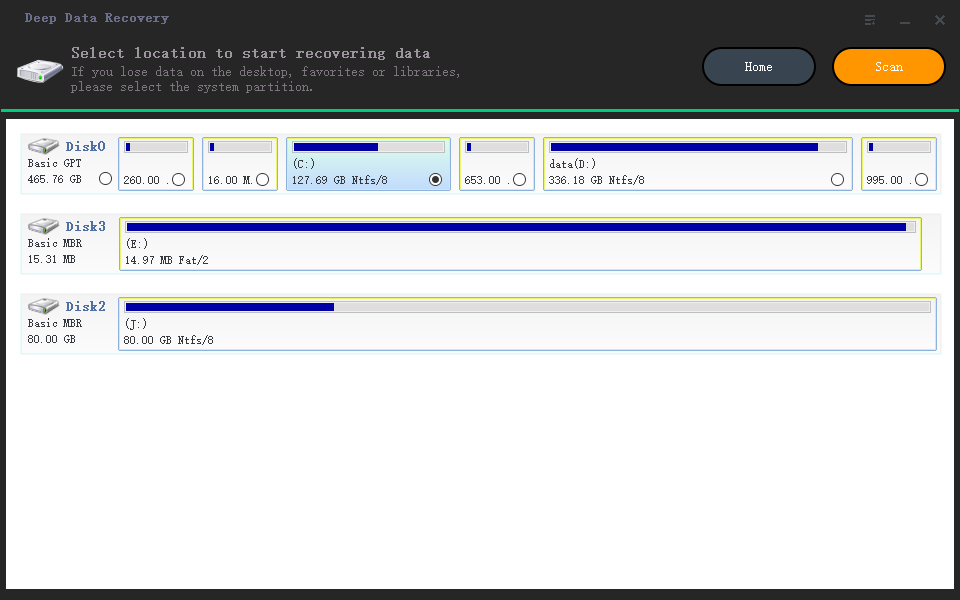
Step 2. Select the Affected Disk
Choose the disk taken from the Windows 10 machine, identified by model and capacity. Keep the working computer and the destination drive out of the selection, so the scan reads one disk and writes to none.
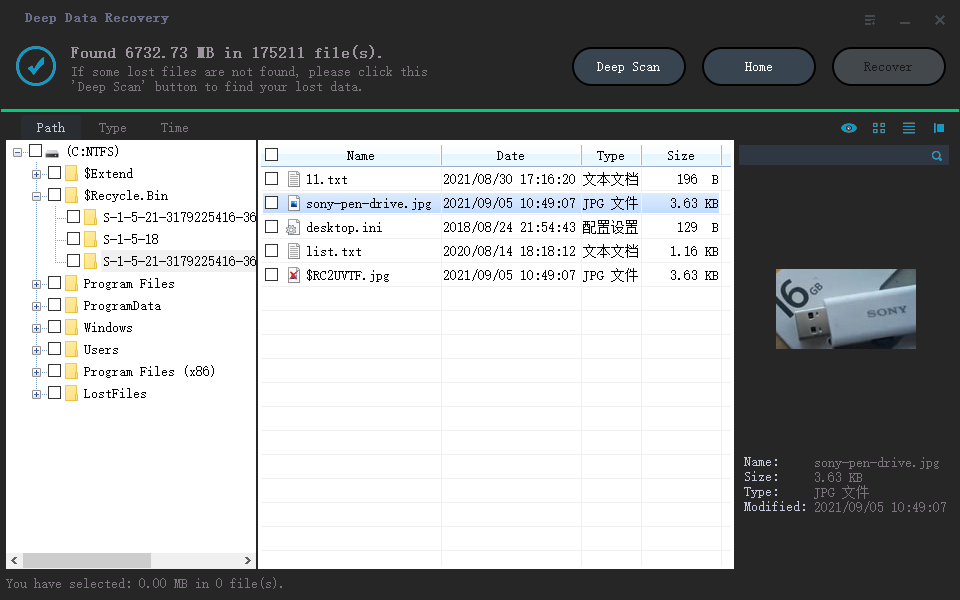
Step 3. Review the Results and Preview
Open the Users folder and find your account name. Preview a document, a photo, and an archive before selecting the batch, and sort by date to separate the files you used last from old copies.
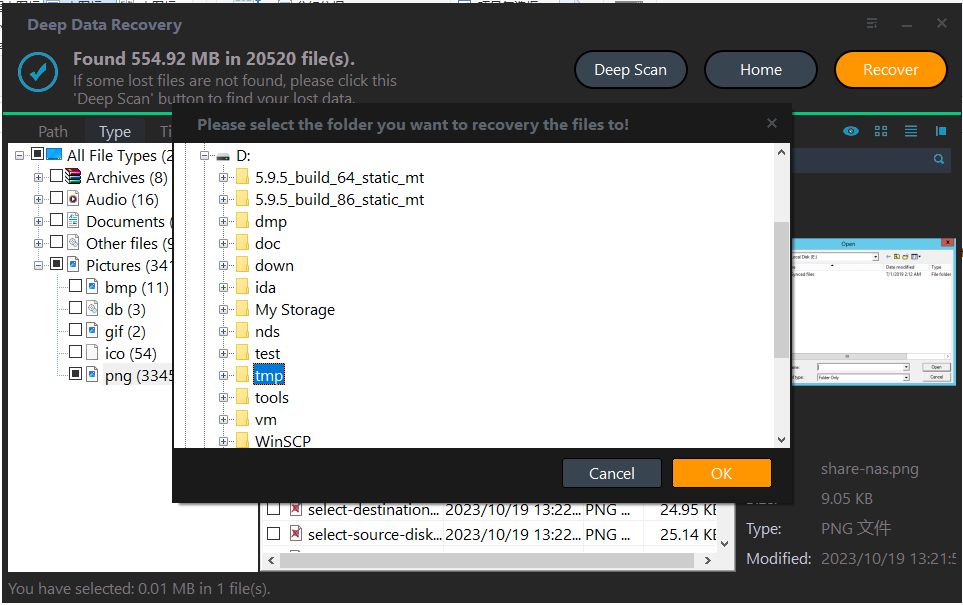
Step 4. Save to a Separate Disk
Send the recovered files to an external drive that holds nothing else you need. Once the folders are safe, the original installation can be repaired, upgraded again, or replaced with a clean Windows 11 install without any risk to the data.
Frequently Asked Questions
Does a failed ESU upgrade delete user files?
No. It fails in the servicing and boot files, and the profile folders stay on the Windows volume. They are lost only if a reinstall, a reset, or a format runs before they are copied.
Can I retry the upgrade after recovering the data?
Yes, from a repaired or rebuilt installation. With the files already saved elsewhere, a second failure costs time instead of data, and a clean install removes the component that caused the first one.
Is it worth repairing Windows 10 at this point?
It can be, if the programs and settings matter. Copy the data first, then decide between a repair and a move to a supported version, because either path writes to the disk.
Related Articles
- Fix the Windows 10 Update Error 0x80240fff
- Recover Files After a Windows 11 Update
- Recover Files After KB5079473
- Recover Files From a RAW External SSD
- Migrate Windows 10 to an SSD Without Data Loss
Products
Articles & Tutorials
- Data Recovery
- Data Backup
- File Recovery
- File Backup
- System Backup and Restore
- Disk and Partition Clone
- Technical articles
- Mobile articles
- Disk Master Help
- Windows Data Recovery Tutorials
- Windows Secure Delete Tutorials
- Windows Partition Management Tutorials
- Windows File Backup and Restore Tutorials
- Windows System Backup and Restore Tutorials
- Windows Disk Backup and Restore Tutorials
- Windows Clone Tutorials