Recover Files After a Windows Reset Deleted Everything
Quick Navigation:
- What Reset This PC Actually Writes
- Stop Using the PC and Image the Disk
- Confirm What the Reset Changed
- Scan the Disk With Qiling Data Recovery
- Frequently Asked Questions
A reset is the one deletion that feels final, because the screen warned you twice and the option said Remove everything. In most cases the files are still on the disk. Windows rebuilt the system volume and gave it a fresh file system, and the old documents were left behind in space that no longer belongs to any file. The reset erased the map, not the land.
This guide explains what the reset writes, which options make recovery impossible, and how to scan the disk for the folders that disappeared.
What Reset This PC Actually Writes
A reset applies a clean Windows image over the system volume. With Keep my files, the user profile is preserved while apps and settings are stripped. With Remove everything, Windows formats the system volume, creates the standard partition layout again, and installs the image into it. Neither option overwrites the whole disk by default, because a format only rewrites the file system structures, not every sector.
A quick format builds a new master file table and marks the previous clusters as free. The old records are gone, but the content those records pointed at stays in place until something writes over it. That is why a reset machine can still hold a complete copy of last month's photo library while Explorer shows an empty drive: the bytes are in unallocated space, waiting to be reused.
Two details decide how much comes back. The first is the clean drive option: when it is selected, Windows writes over the whole volume, and the content is gone for good. The second is the hardware. On an SSD, Windows sends TRIM for the blocks the new file system does not use, and the controller may clear them within minutes, so the recovery window after a reset on an SSD is measured in hours rather than weeks.
The layout can change as well. A reset may resize the recovery partition or move the EFI partition, and data that sat in the old boundaries can end up in an area no current partition covers. That space is not visible in Explorer at all, which is exactly where a disk-level scan has the most to find.
Stop Using the PC and Image the Disk
Do not install recovery software on the reset machine, and do not use it to browse the web while you decide what to do. Every sign-in creates files, every update writes gigabytes, and the browser cache alone can land on top of the folders you want back. If the system is already running, shut it down instead of leaving it idle.
Take the drive out and attach it to another computer, or start the machine from a USB recovery environment so the internal disk is never the system volume. A desktop is easy to open; a laptop with a soldered SSD can be handled with a USB-to-NVMe adapter. The goal is the same in both cases: no process of your own writing to that disk.
Then make a sector-level image of the entire disk, not just the partitions that exist now. The image must include the unallocated areas, because that is where the previous file system and its records still sit. Set the destination on a disk with more free space than the full capacity of the source, verify that the image mounts, and scan the image instead of the original when the drive is old or unstable.
Confirm What the Reset Changed
Read the new layout before you scan, so you know what the reset replaced. Open Disk Management and compare the partition offsets and sizes with what the machine had before: a system partition that starts at the same offset and ends at the same sector means the reset reformatted the volume in place, while a different start sector means the layout was rebuilt and the old file system is now underneath a new one.
Note: PowerShell, chkdsk, manage-bde, and cipher are tools included with Microsoft Windows. They are not part of Qiling Disk Master, and none of the recovery steps later on this page rely on them. They are mentioned here only to help you read the disk's current state. Qiling Disk Master is covered later with its own graphical steps.
A command such as Get-Partition -DiskNumber 0 prints the starting offset and size of each partition, which is easier to compare than a picture. Check whether a Windows.old folder exists at the root of the system drive: with Keep my files it usually survives for ten days and holds the previous profile, while Remove everything leaves no such folder.
The event log records the reset as a setup operation. Look for the setup source around the time you ran it; the entries confirm whether the volume was formatted, whether the clean data option was used, and how long the pass took. A reset that finished in a few minutes did not wipe the disk, while one that ran for hours over a large drive probably wrote over the surface.
Scan the Disk With Qiling Data Recovery
Qiling Disk Master includes a disk-level scan engine that reads below the current file system, so the records of the previous installation can still be found in areas that Windows now reports as unallocated. It lists folders by their old paths when the records survive, and it writes nothing until you start the recovery. The files must be saved to another disk.
Operation 1: Point the Scan at the Whole Disk
A reset leaves the old data under a new layout, so the scan has to start at the physical disk rather than at the volume Windows created.
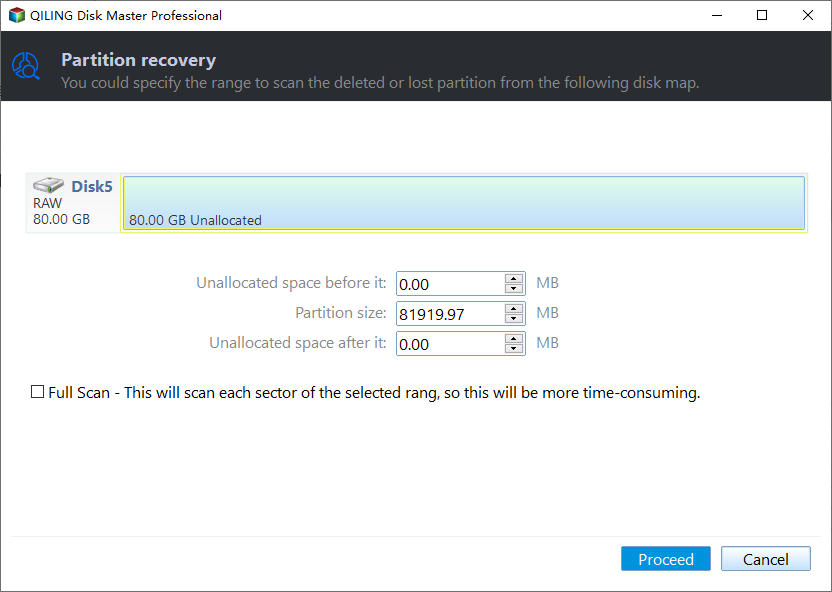
Step 1. Select the physical disk or the image you made. Match the disk by model and capacity, and compare the disk number with Disk Management when two drives look alike. Choose the image file if you already copied the disk, so the original can be disconnected and every pass starts from the same state.
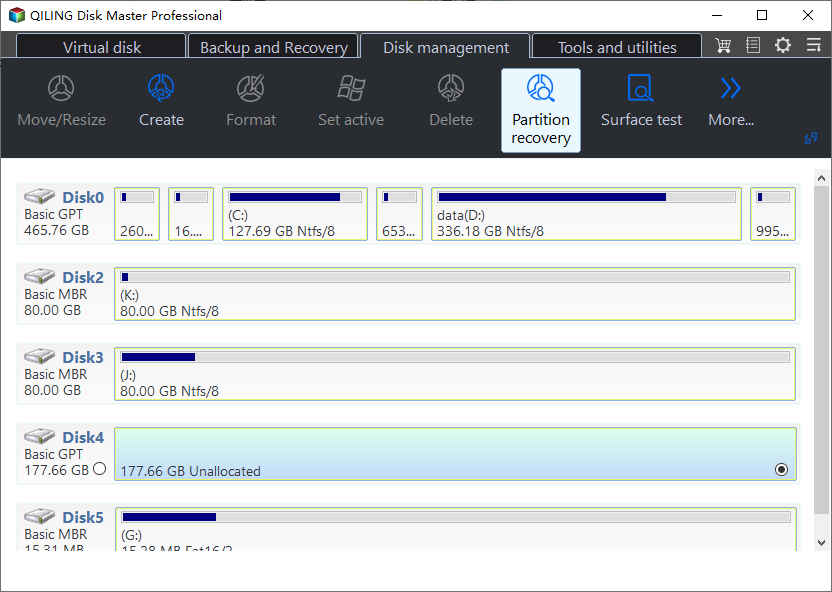
Step 2. Choose a deep scan and let it finish. A quick scan reads only the file system that exists now, which the reset created a few hours ago and which holds nothing of yours. Enable the deep scan and cover the full range of the disk, including the unallocated area, then wait for the pass to reach the end; stopping early hides the folders that sit beyond the current system partition.
Operation 2: Rebuild the Old Folders and Recover
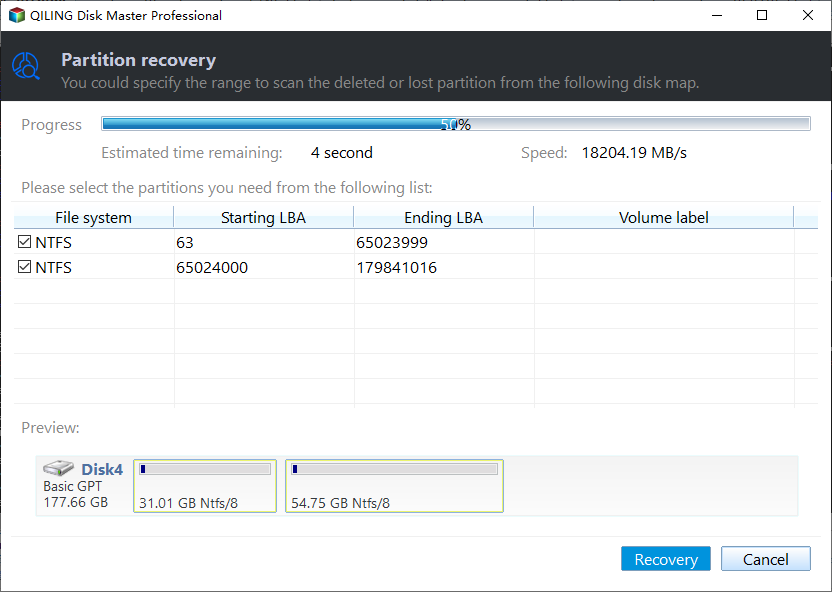
The results are grouped by the volume and path recorded before the reset, which is usually enough to recognise a Desktop or a Documents folder by name.
Step 3. Preview the files, tick the folders you need, and click Recover. Open a document and a photo from different folders to confirm the content is intact, check that file sizes match what you remember, then set the destination to an external disk and click Recover. Do not save anything back to the reset disk, and keep the image until the recovered folders have been opened and copied to a second backup.
Recover the most important folders first rather than the whole list in one pass. A large recovery takes time, and the sooner the critical files are on a healthy disk, the sooner the reset drive can be left alone.
Frequently Asked Questions
Does Reset this PC permanently delete my files?
Only if you choose to clean the drive. A standard reset formats the system volume and installs a fresh copy of Windows, which removes the file records but leaves the content in unallocated space. Recovery is possible until that space is reused, and on an SSD the window is short because of TRIM.
Can I recover anything after Remove everything and clean the drive?
Very little, and usually nothing. The clean option writes over the volume instead of formatting it, so the old clusters are replaced rather than released. Stop using the machine and check whether a backup or a cloud copy exists before you spend money on a scan.
Where did my old user folder go after the reset?
With Keep my files, the previous profile is usually moved into Windows.old for about ten days, and your documents can be copied from there. With Remove everything, the folder is gone from the new installation and only the old records in unallocated space can bring its contents back.
Related Articles
- How to Recover Files After Reset Windows 10
- How to Recover Files After a Factory Reset
- Reset This PC Keep My Files: Where the Files Went
- Recover Files After a Reinstall With BitLocker
- How to Recover Lost Files After System Restore
Products
Articles & Tutorials
- Data Recovery
- Data Backup
- File Recovery
- File Backup
- System Backup and Restore
- Disk and Partition Clone
- Technical articles
- Mobile articles
- Disk Master Help
- Windows Data Recovery Tutorials
- Windows Secure Delete Tutorials
- Windows Partition Management Tutorials
- Windows File Backup and Restore Tutorials
- Windows System Backup and Restore Tutorials
- Windows Disk Backup and Restore Tutorials
- Windows Clone Tutorials