How to Recover a Deleted Folder in Outlook
Quick Navigation:
- Method #1. How to Recover Files from 'Deleted Items' or 'Trash' Folders
- Method #2. How to Recover Deleted Files from Server in Outlook
- Method #3. How to Recover Outlook Data with the .pst and .ost file and Restore Outlook File
- How can you recover a deleted folder in Outlook using a recovery software?
- How to import recovered .pst or .ost file with Outlook
If you've accidentally deleted a folder in Outlook, you can still recover deleted items from the deleted folder. If you've permanently deleted them, you can try using Deep Data Recovery to recover deleted .pst and .ost files from the desktop version of Outlook. Alternatively, you can explore other options within Outlook to restore or retrieve deleted items.
To retrieve a folder from Outlook, you can use one of three methods: the "Recover Deleted Items" feature, which recovers deleted emails and items for up to 30 days; third-party add-ins like Outlook Recovery or Recover Deleted Items, which can recover items after the 30-day limit; or the "Export to PST" feature, which exports emails and items to a PST file that can be imported into a new profile or email client. Once retrieved, the items can be moved into a folder in Outlook. Note that the effectiveness of these methods may vary depending on the Outlook version and deletion circumstances.
Method #1. How to Recover Files from 'Deleted Items' or 'Trash' Folders
If you've accidentally deleted an email message from your Outlook mailbox, you can try using the "Recover Deleted Items" feature to restore the message. To do this, go to the "Deleted Items" folder, and look for the message you want to recover. If it's still there, you can move it back to your inbox.
- Step 1: Click on the "Deleted Items" or "Trash" folder.
- Step 2: Search for the deleted item from here. Right-click on the item to select it.
- Step 3: Select "move" and then click on Other Folder.
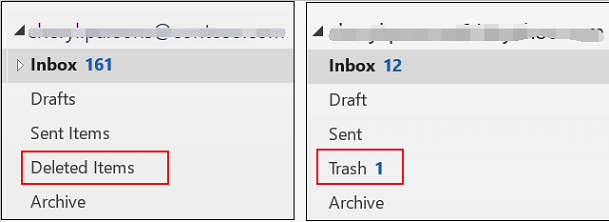
If you can't find the item using the first method, you can try method 2, which may help you locate it.
Method #2. How to Recover Deleted Files from Server in Outlook
Is it possible to recover a deleted folder from Outlook 2016? The answer to this question is yes. Let us have a look at the step-by-step guide on the recovery process from the server.
- Step 1: From Outlook, click on the email folder list and select "Deleted Items" or "Trash" folder.
- Step 2: From the Home tab, click on "Recover Deleted Items from Server". From the menu that appears, select Deleted Items.
- Step 3: Select the item you want to recover. Check the "Restore Selected Items" button and then click "OK".
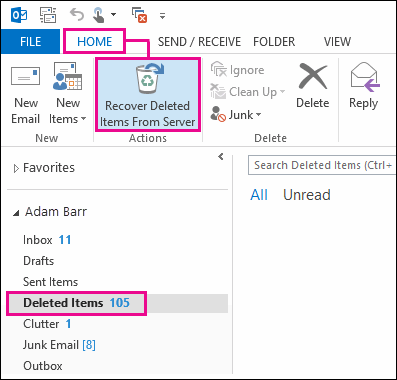
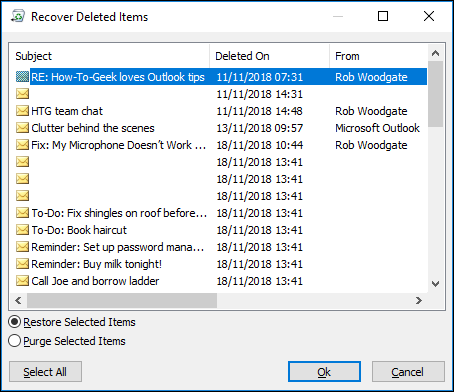
The recovered items are restored to the deleted Items folder and should be moved to a preferred location from there.
Method #3. How to Recover Outlook Data with the .pst and .ost file and Restore Outlook File
The .pst file is a personal storage table used by Microsoft Outlook to store email, contacts, and other data, while the .ost file is an offline storage table used when Outlook is set up to work offline. Both files contain the same type of data, but the .ost file is used for offline access and is updated periodically when the user goes online.
The Outlook Data File (.pst) stores your messages and Outlook items saved on your computer, serving as a backup for your emails, messages, contacts, and more. You can also import email messages, contacts, and other items from another Outlook Data file (.pst), allowing you to recover and restore your messages/emails as long as they're saved in the .pst file.
The Offline Outlook Data file (.OST) differs from the .pst file as it cannot import messages from this folder. Accounts that use .ost files include Microsoft 365, Exchange, and IMAP accounts, which save synchronized copies of mailbox information on your computer. In the event of a lost internet connection, you can only access previously downloaded items, and any new actions like sending an email will be pending until you reconnect your internet.
To recover lost Outlook files, it is recommended to use a specialized data recovery tool such as Deep Data Recovery, which can scan your computer's hard drive for .pst and .ost files that may have been deleted or lost.
How can you recover a deleted folder in Outlook using a recovery software?
Besides using the above methods, you can also use recovery software like Deep Data Recovery to restore deleted items from the deleted items folder in Outlook.
Deep Data Recovery software is a data recovery software that securely and effectively helps recover deleted items from your hard disk. It provides comprehensive recovery of deleted items, making it a handy tool for restoring data.
You can download Deep Data Recovery Software by clicking on this link: download link.
To recover a deleted folder in Outlook, install Deep Data Recovery software, available for various computer types, and follow the installation process. This software can recover both .pst and .ost files from your computer.
Step 1: To recover deleted email files and folders in Outlook on Mac or Windows, open the Deep Data Recovery software, then navigate to the other files folder and click the "Start" button.

Note: You can choose different search modes based on where and why the data was lost.
Step 2: Select the drive to scan, usually located on drive C, where most email data is stored. After selection, click the "Scan" button on the top bar.

Step 3: The software will initiate the scanning process, after which you should wait for it to finish. Once complete, click on Recover to restore the items on your computer, then save the recovered files as .pst or .ost.

You can use the Deep Data Recovery software to restore previously deleted items in Outlook. This process is simple and saves you time, allowing you to recover permanently deleted folders.
How to import recovered .pst or .ost file with Outlook
You can recover a deleted Outlook folder by retrieving a recovered .pst or .ost file, which can then be checked with Outlook for details.
- Step 1: From your Outlook account, click on the File tab.
- Step 2: To access account settings in Outlook, click on the "Open & Export" option from the top menu, then select "Account Settings" from the drop-down menu. If using the newer version of Outlook, click on the "Open Outlook Data File (.pst)" folder instead. This will open the Account Settings tab, where you can manage your account settings.
- Step 3: To access the item you want to retrieve, navigate to the item from the Open Folder Location in the Data files tab.
Related Articles
- GoPro Data Recovery - How to Recover Deleted Files from GoPro
- Toshiba SSD Recovery – Recover Files from Toshiba SSD Drive
- Samsung Data Recovery: Recover Deleted Files from Samsung SD Card
Do you know how to recover deleted files from Samsung SD cards? In this essay, you will learn two methods of how to recover deleted files from Samsung SD cards in Android phones or cameras on Windows. - Two Effective Ways to Clone HDD to SSD Samsung in Windows OS
If you're looking to clone your HDD to a Samsung SSD in Windows 11, 10, 8, or 7, this article provides some expert advice. - How to Repair a Corrupted Hard Disk Without Formatting It in Windows 10/8/7
This guide shows you how to fix a corrupted hard drive in Windows 10/8/7 without formatting it, and also introduce you to a program that can help recover data from your hard drive to a safe place, giving you five ways to do so. - Repair Not Working SanDisk Memory Card without Losing Data
SanDisk memory cards, such as micro SD cards, SDHC, SDXC, and XQD cards, may stop working properly on Android phones, digital cameras, or PCs, making them undetectable, unreadable, or inaccessible.
Products
Articles & Tutorials
- Data Recovery
- Data Backup
- File Recovery
- File Backup
- System Backup and Restore
- Disk and Partition Clone
- Technical articles
- Mobile articles
- Disk Master Help
- Windows Data Recovery Tutorials
- Windows Secure Delete Tutorials
- Windows Partition Management Tutorials
- Windows File Backup and Restore Tutorials
- Windows System Backup and Restore Tutorials
- Windows Disk Backup and Restore Tutorials
- Windows Clone Tutorials