Recovered ZIP Shows a CRC Error: Check the Archive Safely
Quick Navigation:
- Understand the Problem
- Check Before Another Recovery Attempt
- Recover With Qiling Deep Data Recovery
- Verify the Recovered Files
- Frequently Asked Questions
A ZIP that lists filenames but reports a CRC error during extraction has not passed an integrity check. Some members may be usable while others are incomplete. Work on a recovered copy and keep the original source unchanged.
Understand the Problem
An archive's table of contents can survive even when compressed payload data is damaged. Seeing a member list therefore does not mean those documents or photos can be extracted successfully.
A wrong password, a missing volume from a split archive and damaged compressed data require different responses. Read the exact message instead of renaming the ZIP or downloading an unrelated repair utility.
Check Before Another Recovery Attempt
Check 1. Preserve the untouched recovery output
Make a duplicate of the recovered archive on healthy storage. Perform extraction and testing on that copy, never on the source device or the sole recovered file.
Check 2. Test rather than just browse
Open the copy in a trusted archive program and use its Test function if available. Record which members fail and whether the message concerns a password, an absent part or a data error.
Check 3. Check credentials and companion volumes
Use the legitimate archive password. For split archives, locate all required parts from the same set and keep them together on the destination. Do not mix similarly named parts from unrelated backups.
Check 4. Compare alternate copies
Recover other plausible archive candidates into separate folders. Check backups, attachments and original downloads. Extract only successfully verified members into a new destination folder; do not overwrite intact documents with failed extractions.
Recover With Qiling Deep Data Recovery
Qiling Deep Data Recovery offers a visual mode chooser, a source-location screen, file results with supported previews and a separate recovery destination dialog. Use this workflow only when Windows can read the source reliably. It does not bypass encryption or guarantee recovery of overwritten data.
The screenshots are examples from the product interface. Their drive letters, file counts and sample selections are not instructions to choose the same disks on your computer. The download is not a promise of unlimited free recovery; check the current edition and license terms.
Step 1. Prepare the Source and a Separate Destination
Stop routine use of the affected device. Check independent backups first, then connect a healthy destination with adequate free space. Download and install Qiling on healthy storage, not the volume holding the missing files. If the system disk is affected, consider another suitable computer or specialist assistance to limit background writes.
Step 2. Choose the Scan Mode for the Original Loss
Use the mode appropriate to the archive's original loss. Fast Scan may find a recently deleted ZIP with its records intact; Format Scan is relevant after formatting. Neither mode guarantees repair of damaged compressed content.

Step 3. Select the Original Source and Start the Scan
Select the original volume and click Scan. If the archive was on a USB device, verify its capacity and stability before proceeding.

Step 4. Inspect Results and Preview Suitable Candidates
Inspect likely ZIP candidates by size and available path. An archive need not have a visual preview to be worth testing; select plausible complete versions and any required split parts.

Step 5. Recover to Healthy Independent Storage
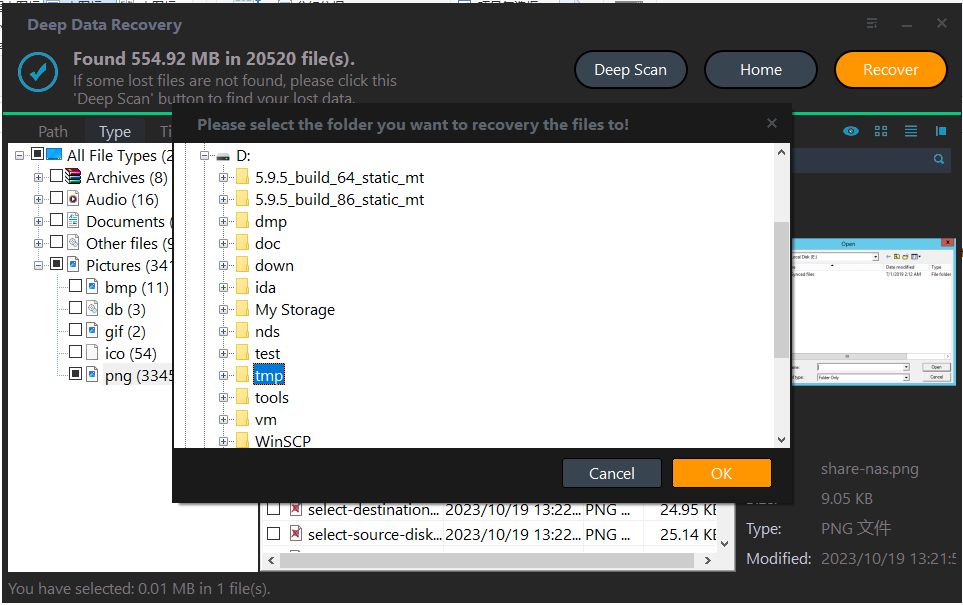
Click Recover, choose a separate physical destination and confirm with OK. Put each candidate set in its own folder to avoid mixing archive versions.
In the destination dialog, choose the intended folder and confirm with OK. Wait for the selected export to finish without disconnecting either device. If an error occurs, record it and keep any incomplete output separate rather than assuming the batch succeeded.
Verify the Recovered Files
Test the recovered archive, then open important extracted files in their normal applications. A member that extracts without an error should still be checked for expected content.
If every candidate fails in the same place, some source content may be missing. Keep any intact members and seek a better original rather than expecting CRC values to reconstruct lost bytes.
Stop condition: Do not apply binary patches or repair tools to the only recovered archive. Preserve the original output and work on duplicates.
Frequently Asked Questions
Does a CRC error mean every file in the ZIP is lost?
Not necessarily. Some members can be intact. Test and extract to a new folder, then verify the important outputs.
Will changing ZIP to RAR repair it?
No. Renaming the extension does not change the compressed data or supply missing parts.
Can a correct password fix all CRC errors?
No. Credentials only address password-related failures. Damaged or overwritten compressed bytes need a different intact copy.
Technical References
Related Articles
- Cannot Preview Files in Data Recovery Software: Next Steps
A missing preview does not always mean a file is lost. Check file type, size and a recovered sample before judging Qiling recovery results. - Recovered Files Have the Wrong Size: How to Check Them
Learn why recovery results can show zero-byte, oversized or truncated files. Compare candidates and validate safe copies before trusting a size label. - Recover Deleted ZIP Files on Windows 11
Products
Articles & Tutorials
- Data Recovery
- Data Backup
- File Recovery
- File Backup
- System Backup and Restore
- Disk and Partition Clone
- Technical articles
- Mobile articles
- Disk Master Help
- Windows Data Recovery Tutorials
- Windows Secure Delete Tutorials
- Windows Partition Management Tutorials
- Windows File Backup and Restore Tutorials
- Windows System Backup and Restore Tutorials
- Windows Disk Backup and Restore Tutorials
- Windows Clone Tutorials