Recycle Bin Emptied Itself on Windows 11
Quick Navigation:
- What Cleared the Bin
- Check Storage Sense and Policy
- Stop Using the Drive
- Scan and Recover
- Frequently Asked Questions
An empty Recycle Bin that nobody emptied is usually the work of a scheduled cleanup rather than a fault. Storage Sense removes bin contents after a set number of days, and a low disk warning can trigger the same cleanup early. The files are still on the volume until their sectors are reused, so what happens in the next few minutes decides whether they come back.
What Cleared the Bin
Storage Sense is the most common cause. It runs on a schedule, deletes files that have sat in the Recycle Bin for the configured period, and reports the freed space in the storage settings page.
Low disk conditions and the cleanup recommendations in Settings can also remove bin contents, and so can a policy that forbids keeping deleted files at all, which makes deletions permanent from the start.
Third-party cleaners and a repaired or reset user profile produce the same result. If the bin emptied right after a cleanup tool ran or after a Windows update, the cause is usually one of those rather than the file system.
Check Storage Sense and Policy
Open Settings, go to System, then Storage, and open Storage Sense. Read the deletion period for the Recycle Bin and set it to Never while you work on the recovery, so that a second cleanup does not touch anything else.
Look at the cleanup recommendations page as well. Files scheduled there are removed without a prompt, and the list shows what the last run deleted.
On a managed computer, check the policy that controls whether deleted files go to the bin at all. If it is enabled, every delete is permanent and nothing will be found in the bin afterwards, even though the data may still be recoverable from the volume.
Stop Using the Drive
Stop writing to the system drive: no downloads, no installations, no large copies, and no new documents saved to the desktop. Every write can take the space where the deleted files still sit.
Do not run a disk cleanup, a defragmentation, or an optimisation pass. All three move data around the volume and reduce the chance of a complete recovery.
On a solid-state drive, the trim command may already have marked the blocks as free, so time matters more than usual. Run the recovery tool from another disk and save the results there as well.
Scan and Recover
Qiling Deep Data Recovery reads the file records left on the volume after the bin was cleared and lists deleted files with their original names and folders. Install it on another drive so that the system disk stays untouched.
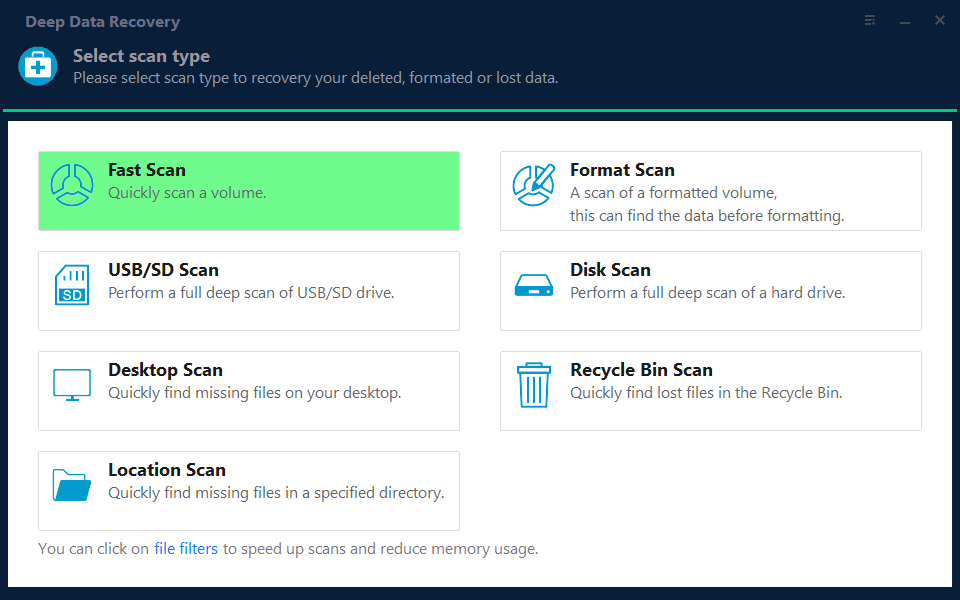
Step 1. Select the Recovery Mode
Fast Scan is enough for files deleted in the last few days by a cleanup run. Choose the deeper scan when the bin was cleared weeks ago or when the volume has been used heavily since.
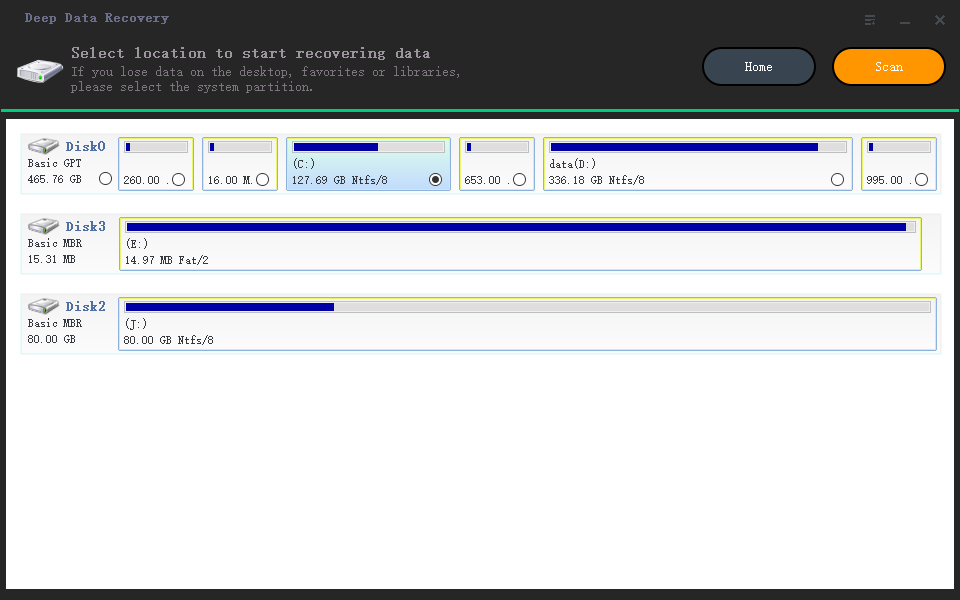
Step 2. Choose the Location
Select the drive that held the deleted files, usually the system volume. If the bin collected items from several drives, scan each of them separately and keep the results apart.
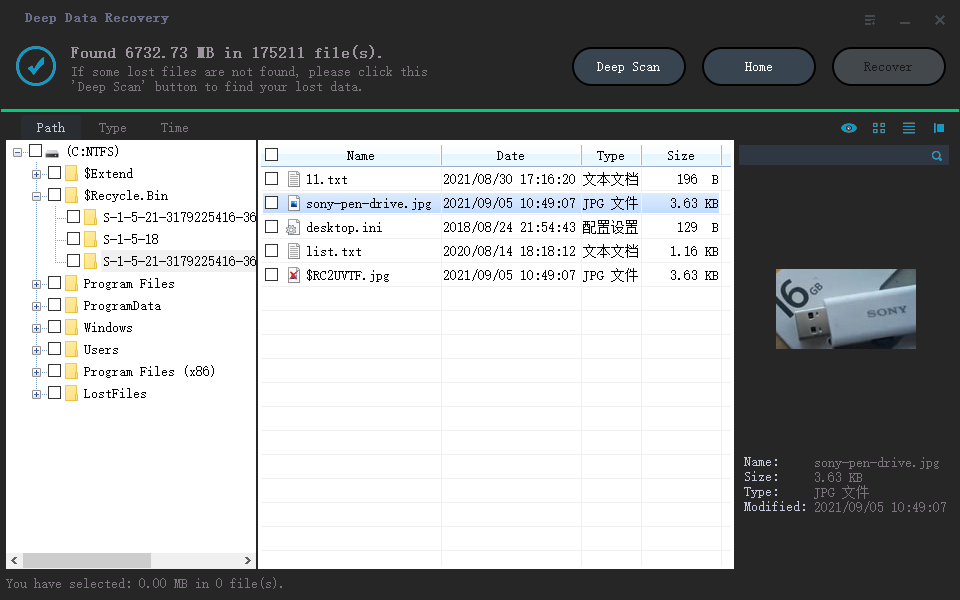
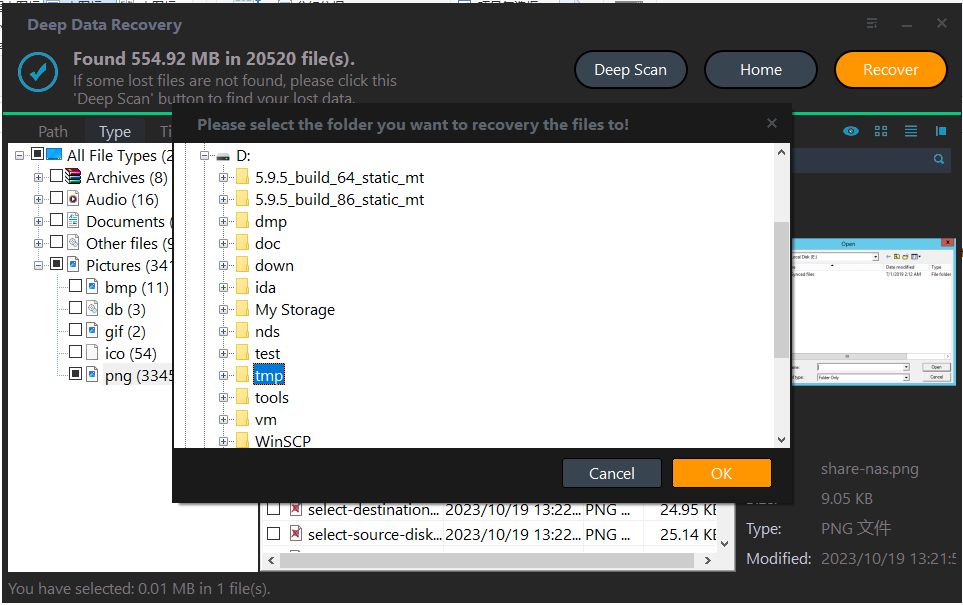
Step 3. Scan and Save to Another Drive
Switch to the deleted files view, sort by date to match the cleanup run, and preview a document before you select it. Save the output to an external disk and leave the original volume alone until the recovery is verified.
Frequently Asked Questions
Does emptying the Recycle Bin erase the file from the disk?
No. It removes the entry that pointed at the data. The content stays in place until another file is written over those sectors.
Why did Storage Sense run without a warning?
It is designed to run in the background on a schedule. The deletion period and the last run are listed on its settings page, so the date can be matched to the missing files.
Can files be recovered after a cleanup tool overwrote them?
Only partially. Files whose sectors have been reused cannot be rebuilt, but others from the same batch are often still intact and can be recovered in one scan.
Related Articles
- Recover Files After Storage Sense Cleans Downloads
- Recover Files Before Running CHKDSK
- Recover Deleted Files From a Storage Spaces Volume
- Recover Files After CHKDSK on Windows 11
- Recover Files From a RAW External SSD
Products
Articles & Tutorials
- Data Recovery
- Data Backup
- File Recovery
- File Backup
- System Backup and Restore
- Disk and Partition Clone
- Technical articles
- Mobile articles
- Disk Master Help
- Windows Data Recovery Tutorials
- Windows Secure Delete Tutorials
- Windows Partition Management Tutorials
- Windows File Backup and Restore Tutorials
- Windows System Backup and Restore Tutorials
- Windows Disk Backup and Restore Tutorials
- Windows Clone Tutorials