Recover Deleted VMFS Datastore Files on VMware ESXi
Quick Navigation:
- What a Datastore Loss Means
- Stop the VM and Preserve the LUN
- Restore From Snapshots or Backups
- Recover Guest Files with Qiling
- Frequently Asked Questions
A VMFS datastore is a cluster file system shared by ESXi hosts, and Windows cannot read it directly. The safe route is to restore the virtual machine from a snapshot or backup, or to recover files from inside the guest operating system.
What a VMFS Datastore Loss Actually Means
Three different failures are usually described the same way. In the first, a file was deleted inside the guest operating system, and the virtual machine still runs normally. In the second, a .vmdk or another file was removed from the datastore browser, so the VM cannot power on or loses a disk. In the third, the VMFS volume or its partition table is damaged, and the whole datastore appears inaccessible.
Each case has a different recovery path. A deleted guest file is the easiest: the guest file system still holds the metadata, and any Windows recovery tool can scan it. A deleted datastore file requires VMFS-aware recovery or a backup. A damaged volume should be handled from the storage side before anything else is attempted.
Deleted files inside a virtual disk also include files that were stored on a raw device mapping or a thin-provisioned disk. Note which disk holds the data before you change anything, and do not delete snapshots to free space while investigating.
Stop the Virtual Machine and Preserve the LUN
Power off the affected virtual machine as soon as the loss is noticed, and place the ESXi host in maintenance mode if the datastore is shared. Every write from a running VM, a snapshot merge, or a storage vMotion can overwrite the blocks that still hold the deleted file.
Do not create new files on the datastore, do not consolidate snapshots, and do not reformat the volume. If the datastore is presented over iSCSI or Fibre Channel, consider unpresenting the LUN from other hosts until the copy is secured.
Take a full clone or a block-level copy of the LUN before any recovery attempt. Working from a copy protects the original and lets you repeat a scan without risk. Keep the ESXi host logs, and note the exact time of the deletion, because timestamps help identify the right candidate later.
Restore From Snapshots or a VM Backup First
A snapshot taken before the deletion returns the whole VM to that point, but it also discards every change made since. Restore it to a new location or a cloned VM when possible, then copy out the files you need instead of replacing the production VM.
If the environment uses image-based backups, restore only the affected virtual disk and attach it as a second disk. Mount the backup at the guest level rather than overwriting the live VM. When the backup contains the deleted .vmdk, this is faster and safer than any file-level scan.
Only continue to the scanning method when no snapshot or backup contains the data, or when the lost item is a single file inside the guest.
Recover Guest Files with Qiling Deep Data Recovery
Qiling Deep Data Recovery runs inside Windows, so it can read a virtual disk once that disk is visible to a Windows guest. It cannot read a VMFS volume directly, cannot recover a deleted .vmdk from the datastore, and cannot recover data that has been overwritten. For datastore-level loss, use VMware-aware recovery or a backup.
Step 1. Choose the Recovery Mode
Inside the recovery virtual machine, open the program. Use Fast Scan for a recent deletion, Recycle Bin Scan if the file was emptied from the bin, USB/SD Scan for a disk attached through a USB adapter, or Format Scan when the guest volume was formatted.

Step 2. Select the Attached Virtual Disk
Attach the affected .vmdk to a separate Windows recovery VM as a second disk, then select that disk in the program. Confirm its capacity matches the original guest disk so you do not scan the recovery VM's own system volume.

Step 3. Review Matching Candidates
Filter by extension and sort by date around the time of the deletion. Compare folder paths, names, and sizes before selecting anything. If the disk is large, keep the scan window open and use the search box rather than scrolling the full tree.

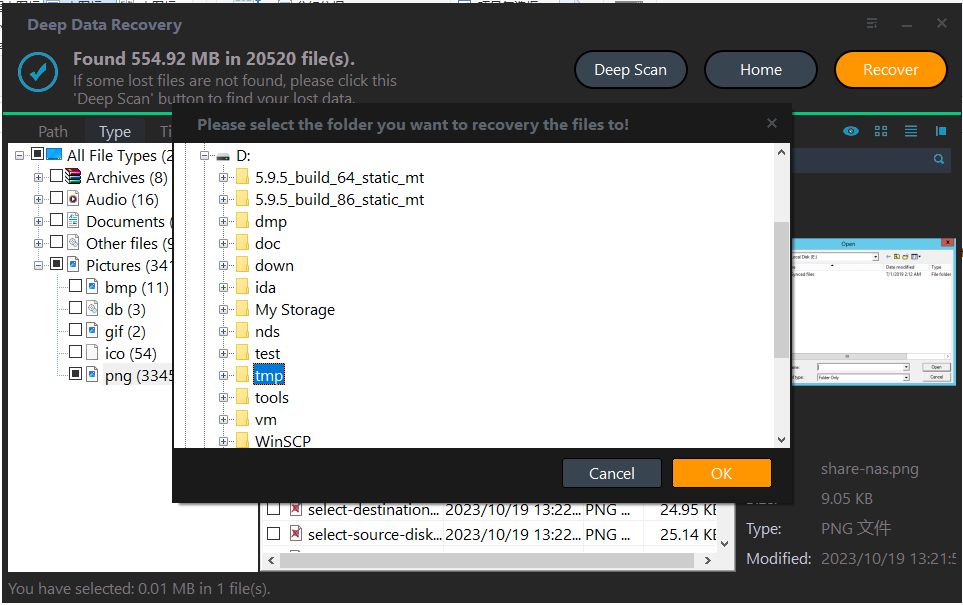
Step 4. Recover to a Separate Disk
Save the selected files to a different virtual disk attached to the recovery VM, never back to the scanned disk. Power off the recovery VM before removing that disk, then copy the results to the host or to the production guest through a controlled path.
Frequently Asked Questions
Can Windows open a VMFS datastore directly?
No. VMFS is a VMware cluster file system, and Windows has no native driver for it. Attach the virtual disk to a guest instead, or use a VMFS-aware recovery product.
Is a deleted VMDK recoverable after a snapshot merge?
Rarely, because the merge rewrites the disk chain. Check backup repositories and storage snapshots before attempting any scan.
Should the original VM stay powered off?
Yes, until the data is secured. Booting the guest or resuming a backup job writes new blocks to the same datastore.
Can thin provisioning hide deleted data?
It can return freed blocks to the array, which may erase them. Stop the VM quickly and avoid storage-level reclamation during recovery.
If the missing item is a whole virtual disk rather than a file inside the guest, read how to recover a deleted VMware VMDK virtual disk.
Related Articles
- Recover a Deleted VMware VMDK Virtual Disk on Windows
- Recover a Deleted VirtualBox VDI Disk on Windows
- Recover Deleted Files From a ReFS Partition
- Recover Data From a Laptop That Won't Boot
Products
Articles & Tutorials
- Data Recovery
- Data Backup
- File Recovery
- File Backup
- System Backup and Restore
- Disk and Partition Clone
- Technical articles
- Mobile articles
- Disk Master Help
- Windows Data Recovery Tutorials
- Windows Secure Delete Tutorials
- Windows Partition Management Tutorials
- Windows File Backup and Restore Tutorials
- Windows System Backup and Restore Tutorials
- Windows Disk Backup and Restore Tutorials
- Windows Clone Tutorials