Recover Deleted Files From a ReFS Partition
Quick Navigation:
- Where Deleted Files Go on ReFS
- Built-in Options to Try First
- Prepare the Volume for a Scan
- Recover the Files with Qiling
- Frequently Asked Questions
Resilient File System (ReFS) protects metadata with checksums and has no CHKDSK, so deletion and damage behave differently than on NTFS. A deleted file can still be recovered, but only while its clusters remain untouched.
Where Deleted Files Go on ReFS
ReFS stores directories and file records in checksummed B+ trees. When you delete a file, its record is removed from the tree and the clusters it used are marked free. The content itself is not erased, so a scan can still read it as long as nothing new has claimed that space.
The checksums change how failures look. NTFS tends to expose one bad record at a time, while ReFS may drop an entire branch of the tree when metadata fails verification, which is why a folder can vanish instead of a single file. ReFS repairs such damage when the volume is mounted, but that repair protects the file system, not your deleted data.
ReFS also supports block cloning, where a copy shares clusters with its source until one of them is modified. Deleting one of those files does not free the shared blocks, and recovering the other may return content that belongs to either version. Check both files before you rely on a result.
Windows 11 adds a second common case: a Dev Drive is a ReFS volume tuned for developer workloads. It follows the same rules, so the steps below apply to it as well.
Built-in Options to Try First
Emptying the Recycle Bin is not the only way files disappear, and not every deletion needs a scan. Open the Recycle Bin on that volume first, since Windows keeps a separate bin per volume and restores are instant. Then check Properties > Previous Versions; if System Protection or a scheduled shadow copy ran on the volume, an earlier snapshot may hold the folder exactly as it was.
ReFSUtil is often mentioned in the same breath, but it is a salvage tool for a volume that will not mount, not an undelete tool. Running it on a healthy volume does not bring deleted files back and can rewrite metadata you would rather leave alone. Use it only when the volume itself is unreadable, and read what to do when a ReFS volume shows as RAW before you start.
Finally, check any backup that ran before the loss. File History is built around NTFS volumes, so on a ReFS data disk a file-level backup to another drive or a full system image is the practical source. Copy those files out before you touch the original volume.
Prepare the Volume for a Scan
Stop writing to the ReFS volume. Close virtual machines, containers, build jobs, and sync clients that use it, because each of them can allocate clusters and overwrite the data you are trying to read. Do not format the volume and do not delete and re-create it to clear an error.
Confirm the drive letter and capacity in Disk Management, and make sure Windows can mount the volume; a scanner can only read what the operating system exposes. On a server, that may mean attaching the disk to a Windows machine that supports the same ReFS version, since older releases cannot mount newer volumes.
Prepare a separate physical disk for the output. Recovered files must never be written back to the volume being scanned, and ReFS volumes are often large, so allow room for full-size copies.
Recover the Files with Qiling Deep Data Recovery
Qiling Deep Data Recovery scans volumes that Windows can mount, including ReFS, and lists deleted files whose clusters are still intact. It is a recovery tool, not a repair tool: it will not rebuild a damaged ReFS tree, and it cannot read data the volume itself refuses to expose.
Step 1. Choose the Recovery Mode
Use Fast Scan when files were deleted from a ReFS volume that still mounts normally. Choose Format Scan if the volume was reformatted after the loss, and USB/SD Scan when the ReFS disk is attached through an external enclosure. If the volume shows RAW, resolve that first; a scan of an unmounted volume usually returns nothing.

Step 2. Select the ReFS Volume
Select the partition that carries the ReFS label and the expected capacity. Do not pick the disk reserved for recovered files, and on a machine with several similar volumes, confirm the drive letter in Disk Management before you click.

Step 3. Review What Was Found
Filter by extension and sort by date, then preview the files you need. Because block cloning can leave several names pointing at similar content, open each candidate before choosing. If a folder disappeared after metadata damage, run the deeper scan, which looks for signatures rather than directory records.

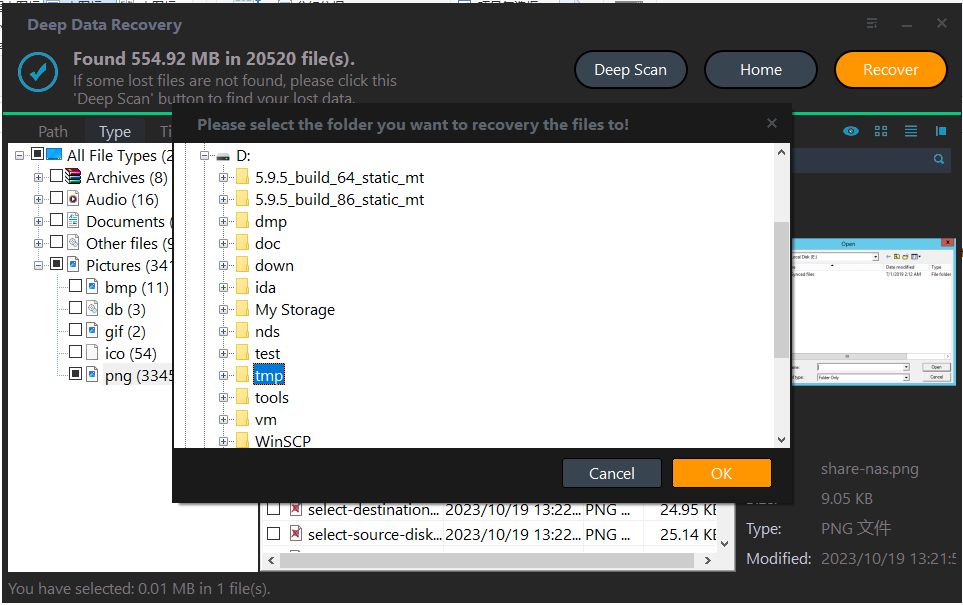
Step 4. Save to Another Disk
Recover the selection to the prepared disk and keep it read-only until you have verified a sample of each type. Only after the files are safe should you consider reformatting or repairing the ReFS volume.
Frequently Asked Questions
Does CHKDSK work on ReFS?
No. ReFS has no CHKDSK equivalent and repairs metadata itself when the volume is mounted. A deleted-file scan is a separate operation and does not conflict with that repair.
Can files be recovered after a ReFS volume was reformatted?
Sometimes. A quick format rebuilds the file system but leaves the old clusters, so a Format Scan has a chance. A full format or a fresh ReFS initialization lowers the odds sharply.
Is a Dev Drive handled differently?
No. A Dev Drive is a ReFS volume with settings tuned for development. Deleted files follow the same rules, and the same recovery steps apply.
Why did a whole folder disappear at once?
ReFS keeps directory records in checksummed trees. When a branch fails verification, the system can drop the whole branch rather than one entry, which is a repair decision and not a sign that the data was erased.
For a comparison of the two file systems before you choose one for a new disk, read ReFS vs NTFS.
Related Articles
- ReFS Data Recovery: How to Get Data Back for ReFS
- REFS Volume Showing as RAW: 4 Fixes Without Data Loss
- Recover Deleted VMFS Datastore Files on VMware ESXi
- Recover Files After Formatting a Portable SSD by Mistake
Products
Articles & Tutorials
- Data Recovery
- Data Backup
- File Recovery
- File Backup
- System Backup and Restore
- Disk and Partition Clone
- Technical articles
- Mobile articles
- Disk Master Help
- Windows Data Recovery Tutorials
- Windows Secure Delete Tutorials
- Windows Partition Management Tutorials
- Windows File Backup and Restore Tutorials
- Windows System Backup and Restore Tutorials
- Windows Disk Backup and Restore Tutorials
- Windows Clone Tutorials