Windows File Recovery Cannot Create a Destination Folder
Quick Navigation:
- Understand the Problem
- Check Before Another Recovery Attempt
- Recover With Qiling Deep Data Recovery
- Verify the Recovered Files
- Frequently Asked Questions
If Windows File Recovery cannot create its output folder, the scan may not have reached the missing files at all. Check the destination first. Do not respond to an output-path error by formatting or repairing the source.
Understand the Problem
A recovery command has a source and a destination with different jobs. The source is where the missing data lived; the destination receives new files. A missing letter, locked destination or unwritable folder can prevent output even when the source is readable.
A visual recovery application can simplify selecting those locations, but the same physical requirements still apply. Qiling cannot write to a full, disconnected or write-protected destination merely because it uses a folder dialog.
Check Before Another Recovery Attempt
Check 1. Read the full error and command
Record the command and message without exposing private filenames. Confirm you have not reversed the source and destination. Use the installed Winfr help to verify syntax rather than copying an unexplained command from a different version.
Check 2. Check the intended destination in Explorer
Open its current drive letter, inspect free space and confirm that a normal folder is accessible. For an organization-managed device, ask for an approved writable location instead of changing broad security permissions.
Check 3. Verify the destination is independent
Use a healthy separate physical disk rather than another folder on the affected source. If the destination needs encryption credentials, unlock it legitimately. Cancel any format prompt for a disk that contains needed files.
Check 4. Make one controlled retry or choose a visual workflow
After correcting an actual path or access problem, retry with a new output location according to Winfr's installed help. If you prefer Qiling, select the source and destination explicitly using the illustrated workflow below.
Recover With Qiling Deep Data Recovery
Qiling Deep Data Recovery offers a visual mode chooser, a source-location screen, file results with supported previews and a separate recovery destination dialog. Use this workflow only when Windows can read the source reliably. It does not bypass encryption or guarantee recovery of overwritten data.
The screenshots are examples from the product interface. Their drive letters, file counts and sample selections are not instructions to choose the same disks on your computer. The download is not a promise of unlimited free recovery; check the current edition and license terms.
Step 1. Prepare the Source and a Separate Destination
Stop routine use of the affected device. Check independent backups first, then connect a healthy destination with adequate free space. Download and install Qiling on healthy storage, not the volume holding the missing files. If the system disk is affected, consider another suitable computer or specialist assistance to limit background writes.
Step 2. Choose the Scan Mode for the Original Loss
In Qiling, choose Fast Scan for recent deletion from a healthy volume. Use Format Scan only after formatting and USB/SD Scan for relevant removable-media loss. Winfr's own mode names are different.

Step 3. Select the Original Source and Start the Scan
Select the original disk where files went missing, not the disk whose output folder failed. Click Scan only after confirming the identities of both devices.

Step 4. Inspect Results and Preview Suitable Candidates
Inspect the results, preview supported candidates and tick a small test set. Changing recovery programs is not evidence that more data will be recoverable.

Step 5. Recover to Healthy Independent Storage
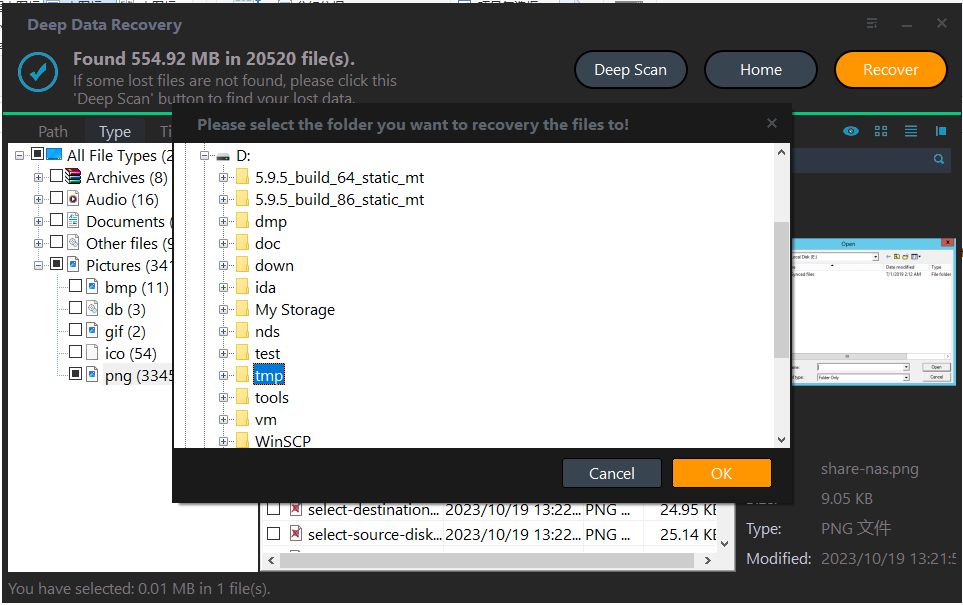
Click Recover, browse to a fresh folder on the healthy independent disk and click OK. If output still fails, note the exact message and check that destination rather than repeatedly scanning the source.
In the destination dialog, choose the intended folder and confirm with OK. Wait for the selected export to finish without disconnecting either device. If an error occurs, record it and keep any incomplete output separate rather than assuming the batch succeeded.
Verify the Recovered Files
Open the recovered samples and confirm the output path is on the intended disk. Then export the remaining priority files in sensible batches.
Keep the command error notes separate from recovery results. Resolving a folder error fixes output access, not missing or overwritten source content.
Stop condition: Do not disable security broadly, take ownership of the entire source, or format either disk as a generic response to an output-folder error.
Frequently Asked Questions
Does this error prove the deleted files are unrecoverable?
No. It can describe a destination problem before meaningful recovery occurs.
Should I use the Desktop as a temporary destination?
Not if Desktop is on the affected source volume. Choose independent healthy storage instead.
Will switching to Qiling fix a full destination?
No. You still need sufficient space and legitimate write access. The visual chooser only makes location selection clearer.
Technical References
Related Articles
- Data Recovery Destination Disk Full: Save Important Files First
Handle a full recovery destination without writing to the source. Plan capacity, recover in batches and verify saved files before continuing. - Winfr Is Not Recognized on Windows 11: Check the App First
Check whether Windows File Recovery is installed and launches correctly. Compare a visual Qiling workflow without confusing command errors with data loss. - Microsoft's Windows File Recovery Tool Full Review - Qiling
Products
Articles & Tutorials
- Data Recovery
- Data Backup
- File Recovery
- File Backup
- System Backup and Restore
- Disk and Partition Clone
- Technical articles
- Mobile articles
- Disk Master Help
- Windows Data Recovery Tutorials
- Windows Secure Delete Tutorials
- Windows Partition Management Tutorials
- Windows File Backup and Restore Tutorials
- Windows System Backup and Restore Tutorials
- Windows Disk Backup and Restore Tutorials
- Windows Clone Tutorials