Word Recovery for Unsaved, Deleted, and Corrupted Word Documents [Professional Guide]
Losing work in Microsoft Word can be frustrating, especially when it's a significant project or essential document. It's a setback that can waste hours of work and cause stress.
Fortunately, lost or deleted Word files can often be recovered. This article provides guidance on recovering unsaved, deleted, and corrupted Word files, as well as specific advice on data loss and damage in different scenarios, with step-by-step guides to help remedy these issues.
Recover Unsaved Word Documents
Word documents may not be saved correctly due to various reasons, such as forgetting to save a document, a crash in Word, or incompatibility issues with the software.
User Case. Accidentally Closed Word Without Saving
The biggest problem with not saving a file is forgetting to save it, which can lead to lost work and wasted time.
Unfortunately, it's not possible to recover an unsaved Microsoft Word file. When you close a Word document without saving it, the changes are lost and cannot be recovered.accidentally closed without saving. Any tips for recovering it?"

Fix 1. Recover Unsaved Word Document in Windows 10
If you've accidentally closed a Microsoft Word document without saving it, there are a few methods you can try to recover your work. First, check if Word has automatically saved a version of your document in the "Recent Documents" list. If not, you can try to open the "Recovery" section in Word, which may allow you to recover your document. Additionally, you can also try to open the "Temp" folder in your user directory, where Word may have saved a temporary copy of your document.
Check Recent Documents
Check Document Recovery. In Word, go to "File > Open > Recent Documents". If your unsaved document is listed here, you can click on it to open it and then save it. If not, try using the built-in autosave feature to recover your document. You can also try searching for the document on your computer and looking for any temporary files that may have been created.
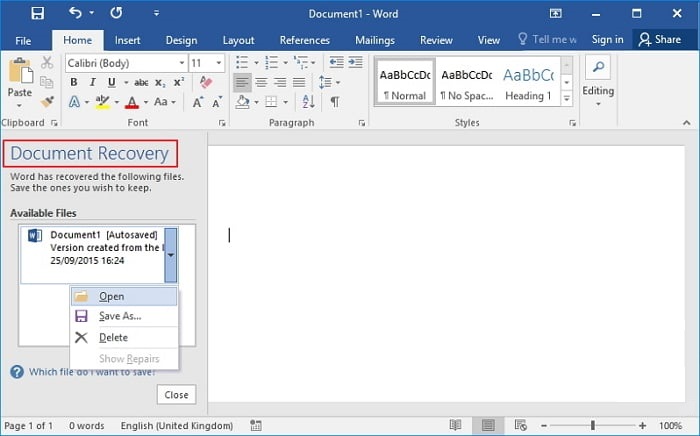
Look for a Temporary File
To access a Word document that won't open, try searching for a temporary file with the same name as the original document but with a .tmp extension. Once found, rename the .tmp file to have a .docx extension, and Word should be able to open it.
If you've tried the two methods mentioned earlier and still can't find your unsaved document, don't worry. You might be able to recover your files using the Manage Document tool, which is embedded in Microsoft Word.
If you've accidentally closed Word without saving your document, you can try to recover it by checking the Recent Documents list in Word or looking for a temporary file with a .tmp extension in the folder where you were working on the document. You can also try to recover the document from the Windows Recent Files folder.
Do You Know?
To prevent file loss in the future, save your work frequently, and take advantage of Word's autosave feature, which can automatically save your documents at set intervals, and avoid turning off or adjusting the autosave frequency.
Fix 2. Recover Unsaved Word Document Mac
Mac users have various methods to recover unsaved Word documents, including using Time Machine, iCloud, or third-party services, which provide options to retrieve lost work.
If you don't have any of those things set up, you can still recover your unsaved Word document on a Mac by using the "Recent Documents" feature in Microsoft Word, checking the "AutoRecover" files in your user library, and searching for unsaved documents in the "Documents" folder. Additionally, you can also try using a third-party recovery tool or checking with your IT department if you're using a company-owned Mac.
Full Guide:
To recover an unsaved Word document on a Mac, follow the furthering tutorial on the topic, which provides step-by-step instructions on how to retrieve the lost document.
Recover Deleted or Lost Word with Data Recovery Software
Many people get frustrated with losing Word documents due to two main reasons: losing unsaved data and accidental deletion.
User Case. Accidentally Deleted a Word
Users may accidentally delete a Word document, such as when they intended to delete another file but clicked on the wrong one, or when moving files and mistakenly dragged the Word document into the trash.
If you've deleted a Word document, don't panic! First, check your Recycle Bin to see if the file is still there. If it is, you can restore it to its original location. If not, you can try using a data recovery program to scan your hard drive for the deleted file.
Recover Lost/Deleted Word Documents in Full Ways
Deleted Word documents can be recovered, whether they were deleted permanently or are in the Recycle Bin, using data recovery software like Deep Data Recovery to scan the hard drive for the file.
If a document was stored on a cloud service like Google Drive or Dropbox, an older version might be recovered from the service's history. If the document was completely removed, customer support would need to be contacted for assistance.
We provide a comprehensive guide on restoring deleted Word documents, offering various methods to help you recover your lost files. If you're facing this issue, one of these approaches might just do the trick. To avoid such problems in the future, it's also a good idea to regularly back up your important files, ensuring you can recover them if they're ever lost or deleted.
Full Guide:
If your Word document has gone missing, don't panic! There are 5 easy ways to recover deleted or lost Word documents.
Repair Corrupted or Damaged Word Documents
Word document corruption occurs when issues arise within the content or formatting of a Word document, such as the document appearing blank when opened, or problems with the Word program itself, such as crashing or freezing. These issues can be categorized into two types: content or formatting problems within the document, and program-related problems with Word. Common scenarios include missing text, garbled formatting, and application crashes.
Case 1. Word Found Unreadable Content Error
When opening a Word file, some users may encounter an error message stating "Word found unreadable content in XXXX file. Do you want to recover the contents of this document? If you trust the source of this document, click Yes".
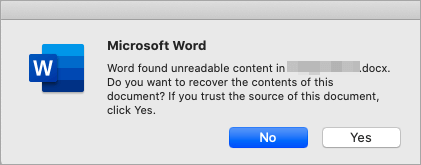
This issue may be caused by various reasons such as virus attacks, file conversion, or sudden power failure, and even using Word's open and repair feature may not resolve the issue.
Case 2. Microsoft Office Has Stopped Working
If Microsoft Word is freezing or not responding, try closing other resource-intensive programs, restarting the application, or checking for any updates. You can also try resetting the application or reinstalling it if the issue persists. If the problem continues, consider seeking help from Microsoft support or a professional.
If your Microsoft Word documents are frequently becoming corrupted, there are a few potential solutions you can try. One approach is to close and restart the program, as this can sometimes resolve the issue. If the problem persists, you may want to try checking for any Windows updates, as outdated software can sometimes cause compatibility issues.
Fix 1. Use Word Text Recovery Converter
If you've lost important Word documents due to a software crash or other unforeseen circumstance, you may be able to recover the text using a Word text recovery converter.
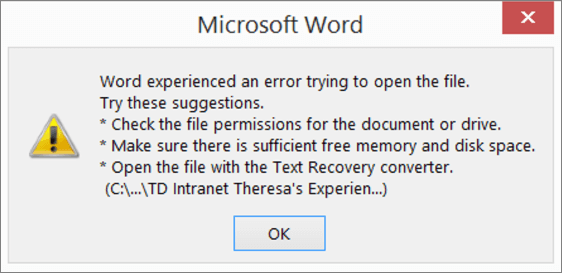
The damaged Word document can be opened using a converter, which will attempt to repair the document and extract the text. This process is usually successful, allowing the user to save the document.
If the damage to the document is too severe, the converter may not be able to recover all of the text, and you may only be able to recover partial text or fragments. However, it's still worth trying to recover what you can using the Word text recovery converter.
Fix 2. Repair Corrupted Word File Online
If your Word file has become corrupted, you can try using an online document repair tool to fix it quickly and easily. Simply select a secure and reliable tool, follow the simple steps, and you may be able to recover your file.
To repair a corrupt Word file, go to the website of an online repair service such as Word Recovery Toolbox, upload your file, and let the site scan and attempt to repair it.
If the repair service is successful, you can download the repaired file to your computer. If not, you may need to try a different repair service.
Full guide:
How to repair corrupted Word files online (including selection criteria).
Fix 3. Repair Corrupted Word Documents with Word Repair Software
If you've tried the previous methods and failed to recover corrupted Word files, you can use professional Word repair software like Qiling file repair tool to help you fix damaged documents.
Corrupted Word repair software can help fix issues like missing text and incorrect formatting in documents, allowing you to repair them without having to start over from scratch.
When selecting a Word repair tool, ensure it's compatible with your Word version and consider a tool that offers a free trial to test before purchasing.
Here, we have a dedicated article on the best Word repair tools on Windows and Mac. You can use these programs to identify and repair a damaged document in Word 2007 and later versions.
Full guide:
Learn complete instructions on the best 10 Word repair tools.
Conclusion
If you've accidentally closed Microsoft Word without saving your work, you can try checking for a recent file backup to restore your work. If that's not available, you can use Word's auto-recovery feature to recover unsaved changes to open documents. This feature is designed to recover work in case Word crashes or is closed improperly.
To recover deleted or permanently lost files, use data recovery software. If a Word document is corrupted, find a suitable repair tool and follow its instructions to fix the damaged file.
Related Articles
- Data Recovery Software for Windows 10/Mac/iPhone/Android
- [2022] Recover Deleted Files on Mac with Expert Approved Guide
- Everything You Need to Know About Shortcut Virus
- Hard Drive Recovery| Recover Files from a Hard Disk
- How to Backup Data from Corrupted SD Card
Do you want to learn how to a backup corrupted SD card? Go through this post and get to know about the most reliable way to backup important data from corrupted SD cards with ease. - Moser Baer Pen Drive Recovery Tool - Recover Lost/Delete Files
Moser Baer pen drive recovery tool helps you recover deleted or lost files from moser baer on Windows or Mac, including photos, videos, documents and more.
Products
Articles & Tutorials
- Data Recovery
- Data Backup
- File Recovery
- File Backup
- System Backup and Restore
- Disk and Partition Clone
- Technical articles
- Mobile articles
- Disk Master Help
- Windows Data Recovery Tutorials
- Windows Secure Delete Tutorials
- Windows Partition Management Tutorials
- Windows File Backup and Restore Tutorials
- Windows System Backup and Restore Tutorials
- Windows Disk Backup and Restore Tutorials
- Windows Clone Tutorials