Fix Elden Ring Stuck on Loading Screen
Are you a die-hard fan of Elden Ring and having trouble with it getting stuck on the loading screen on PC, PS4, or Xbox? Don't worry, this guide is here to help you resolve the issue effectively. Whether you have been playing for hours or just starting out, we have can help with the best solutions to get you back to exploring the Lands Between in no time. Let's get started and get your Elden Ring experience back on track!
4 Ways to Fix Elden Ring Stuck on Loading Screen
When playing Elden Ring, some users may encounter issues with the console turning on and off, often related to the game's download files. This can make accessing the game even more complicated. A frustrating experience can occur when launching the game, only to have the loading screen freeze. To resolve this, try the following solutions.
| Workable Solutions | Step-by-step Troubleshooting |
|---|---|
| 1. Check the Drivers | You can directly download it from the OEM website and update it. The installer will...Full steps |
| 2. Verify Your Install | Open Steam, and go to the Library. Select the game, and click on the Properties section...Full steps |
| 3. Change the Launch Option | Go to the Elden Ring Properties menu and select the General tab option from there...Full steps |
| 4. Reinstall Elden Ring | Open Steam, and go to Library where all the games are available...Full steps |
Elden Ring Stuck on Loading Screen
You would probably feel frustrated and annoyed if Elden Ring is not responding and has stuck on the loading screen.
The error is quite frustrating and prevents access to the game. To make the concept clearer, let's consider an example. If a user tries to access a game but gets an error message, it's like trying to open a locked door - the game is inaccessible until the issue is resolved.
You launch the game. Everything was fine until you hit the continue button to go further with the game. You get stuck at the loading screen. The bar shows 100% filling, you can scroll through the tips, but nothing is happening there.
You've tried letting the game sit for a bit, creating a new character, and even reinstalling it, but it still won't open the main file. The issue persists despite your efforts to troubleshoot the problem.
It is a clear case of the Elden Ring stuck on the loading screen.
Fix Elden Ring Stuck on Loading Screen on PS4/XBOX
The process of uninstalling and reinstalling Elden Ring on a PS4 can resolve issues where the game has become stuck. To do this, navigate to the PS4's home screen, select the "Settings" icon, and choose "System". From there, select "Storage" and then "System Storage" or "Extended Storage", depending on where the game is stored.
Step 1. To delete Elden Ring from your PlayStation, access the main screen, highlight the game you want to delete, and press the Options button on your controller.
Step 2.To delete your game, select "Delete" from the menu on the right side of your screen and confirm by choosing "OK".
Step 3. To reinstall Elden Ring, go to the "Library" section and click on "Purchased". Locate Elden Ring in the list and select it. Then, click on the "Download" button to start the download process again.
How to Fix Elden Ring Stuck on Loading Screen on a PC
Many PC users are frustrated by their inability to access the Elden Ring game, a situation that can be very annoying. If you're experiencing this issue, don't worry, as we have detailed solutions below to help you resolve the problem and get back to enjoying your favorite game.
Fix 1. Check and Update the Drivers
The issue of Elden Ring stopping on the loading screen is often caused by outdated or corrupted graphic drivers. To resolve this, exit the game and check the graphic drivers for any updates or issues.
You can download the latest drivers directly from the OEM website, and the installer will inform you if they are up-to-date.
Fix 2. Verify Your Install
Installing the Elden Ring can sometimes cause freezing issues, especially if not installed correctly. To quickly resolve this problem, double-check the installation of the Elden Ring and ensure it is enabled properly.
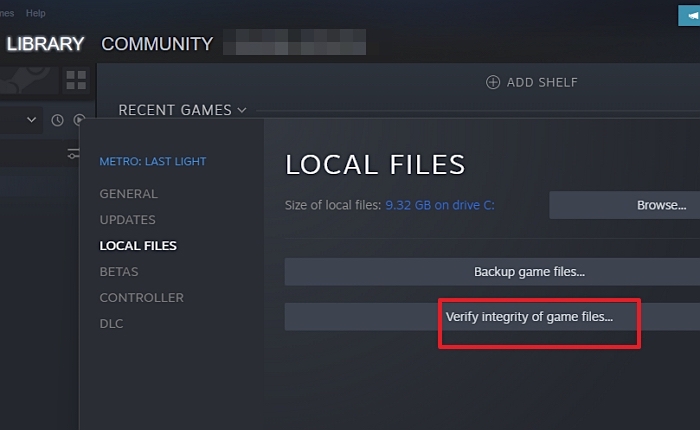
Step 1. To access the game's properties, open Steam, navigate to the Library, select the game, and right-click on it to open the context menu. From the menu, click on the "Properties" section. This will allow you to view and edit the game's settings, as well as access other related options.
Step 2. Now open the "Local Files" tab option to go further with the process and verify the game file integrity.
Step 3. To resolve the issue, simply restart your computer, then navigate to the Windows Update section and check for updates. If the problem persists, you can try resetting the Windows Update components or running the System File Checker (SFC) tool to scan and replace corrupted system files.
Fix 3. Change Elden Ring's Launch Option
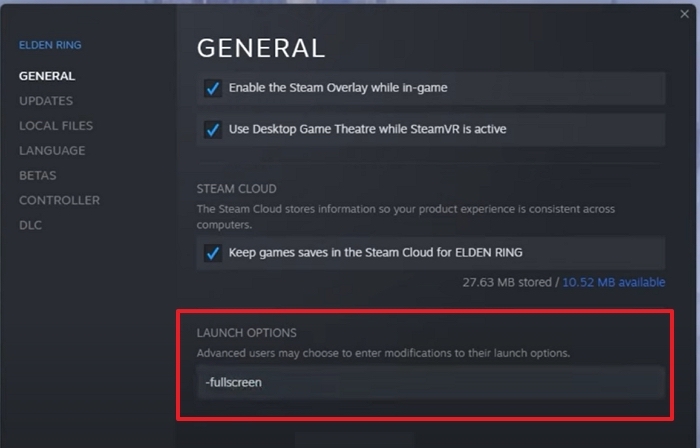
To resolve Elden Ring's stocking issue, try switching to Fullscreen mode instead of launching it in Windows mode, which can take too much time. This simple solution can help you enjoy effortless gaming. To do this, you can easily switch to Fullscreen mode.
- To access the Elden Ring Properties menu, go to the game's Properties menu and select the General tab option from there.
- To enable smooth access to Elden Ring on your device, you must enter the full screen in the Launch Options text box.
Fix 4. Reinstall Elden Ring
Suppose you have tried all of the above solutions we have provided you and are still facing this annoying issue consistently. In that case, you can quickly resolve it by reinstalling the Elden Ring on your device, and for enabling the same, the things you have to do are.
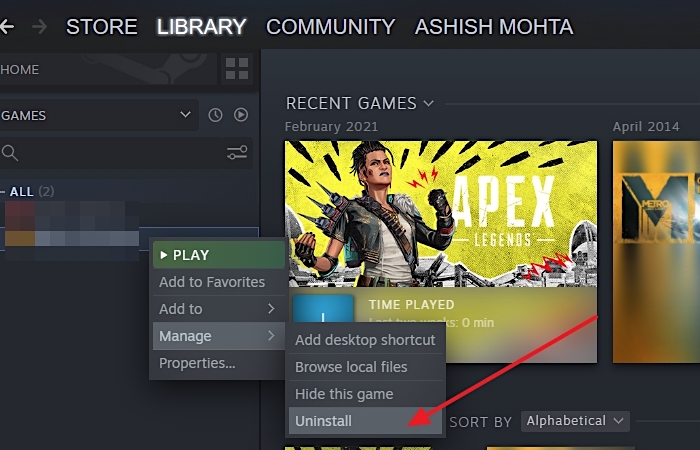
Step 1. Open Steam, go to the Library where all your games are available.
Step 2. Right-click on the game, and then select "Manage" and choose "Uninstall".
Step 3. Let the process complete, and then you can restart the PC once to finish.
Step 4. To remove the game, go to Library, click on the game, and select the "Uninstall" button. Then, go back to Library, click on the game, and select the "Download" button to redownload the game.
While cloud syncing and other methods work well, they can lead to data loss if not functioning properly, resulting in lost game progress. To mitigate this, it's essential to have recovery software on hand to retrieve lost files.
Part 4. How to Recover Lost Elden Ring Game Progress
If you've saved your Elden Ring game progress on your local drive and it's now lost, you can use Deep Data Recovery Free to recover it. This free software can help restore lost and deleted files.
The software allows you to locate, copy, and restore the game file to its original location, thereby recovering the game's progress.
Qiling Free Data Recovery Software
- Recover deleted files from USB drives, SD cards, and other storage devices with the right tools and techniques. Use data recovery software like Deep Data Recovery or Disk Drill to scan the device and retrieve lost files.
- Recover game data from System crashes or OS reinstallation
- Bring back files from accidental quick or a full format.
- Scan inaccessible drive where the game was installed.
Step 1. Run Deep Data Recovery. Select file types and click "Fast Scan" to start.

Note: You can choose different search modes based on where and why the data was lost.
Step 2. To recover lost files, choose the drive where the files were lost and start scanning. This software can recover data from various devices, including hard drives, solid-state drives, USB drives, SD cards, pen drives, and camera storage.

Step 3. You can browse the full scan results and choose the file type you need by clicking on the file type filter. Qiling data recovery software supports over 1000 file types, including photos, videos, documents, emails, audio files, and more.

Step 4. Select the files you want to preview. Click "Recover" and set a storage location to save the recovered data.
Conclusion
If your Elden Ring game is stuck on the loading screen on PC/PS4/XBOX, try the solutions provided above to get back to seamless gaming. If you've accidentally lost or deleted the game files, you can still recover them using a reliable data recovery tool, which can effectively recover different file formats.
Related Articles
- SD/Memory Card Recovery Software Free Download
- The Best SSD Data Recovery Software for SSD Data/File Recovery
- Top 6 Best Hard Drive Data Recovery Services
- Btrfs Recovery Software: Recover Deleted/Lost Files from Btrfs Drives Synology/QNAP
- How to Clone HDD to SSD in Windows 7
If you need to migrate OS or data from a Windows 7 HDD to SSD. The best choice is to use the Qiling Disk cloning software. It provides the simplest and easiest way to clone HDD to SSD in Windows 7. - Samsung Disk Clone Software - 2 Ways to Clone Samsung Disk
How to perform Samsung hard drive clone? Go through the guide to learn two different ways to clone Samsung disk without much hassle.
Products
Articles & Tutorials
- Data Recovery
- Data Backup
- File Recovery
- File Backup
- System Backup and Restore
- Disk and Partition Clone
- Technical articles
- Mobile articles
- Disk Master Help
- Windows Data Recovery Tutorials
- Windows Secure Delete Tutorials
- Windows Partition Management Tutorials
- Windows File Backup and Restore Tutorials
- Windows System Backup and Restore Tutorials
- Windows Disk Backup and Restore Tutorials
- Windows Clone Tutorials