How to Fix Mac Migration Assistant Stuck or Frozen
For users who need to move from an old Mac to a new Mac, the best choice is to migrate over a wifi connection or wired connection using Migration Assistant, but not all users can complete the transfer job successfully.
User story - Apple Migration Assistant stuck at one minute
You have been stuck on the migration process for 15 hours and it is still showing "Less than a minute remaining" on your iMac, which is unusual. One possible fix is to try restarting the Migration Assistant on both devices. If that does not work, try canceling the migration and starting it again. You can also try using a wired Ethernet connection instead of Wi-Fi for more stability, or restarting your router and modem. If the issue persists, contact Apple Support for further assistance.
Different Migration Assistant stuck scenarios
Users report that Migration Assistant gets stuck during startup, at the end, or midway, with various messages indicating a remaining time of 20+ hours, less than a minute, or searching for source, applications, and documents to transfer, or preparing transfer user documents or other computers.
Simple steps to fix Migration Assistant stuck and frozen
If your Migration Assistant is stuck, try restarting your Mac, checking for any software updates, and ensuring that your Mac is set to the correct time and date. Also, verify that your Apple ID is correct and that your Mac is connected to the internet.
1. Try to use Target Disk Mode on the old Mac.
2. Unplugging and re-inserting the Ethernet cable between the two machines allowed the migration process to resume, re-sync, and eventually complete for some users.
3. Try to migrate everything except Applications, and then manually reinstall those you want on the new Mac.
4. To troubleshoot issues on your Mac computer, run a hardware diagnostics test. This can be done by clicking on the Apple logo in the top left corner, selecting "About This Mac", and then clicking on "System Report".
5. If you have a backup from a time machine, you can try to migrate from it. This will allow you to restore your data and settings from a previous point in time, which can be helpful if you're experiencing issues with your current setup.
Try reliable Migration Assistant alternative to fix stuck issue
If you're experiencing issues with Migration Assistant, such as it getting stuck, you may want to consider using Qiling Mac backup software to clone the disk from one Mac to another, providing an easy and practical solution to the problem.
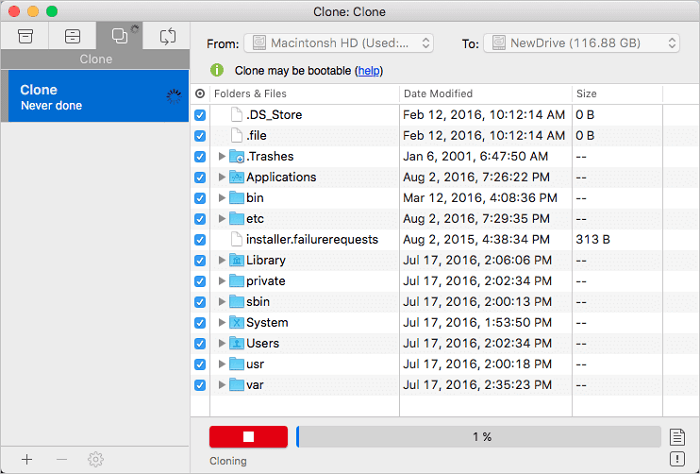
1. To clone a Mac, connect the new Mac to the old machine and launch Qiling Mac cloning software, which will guide you through the process of creating an exact replica of the old Mac's operating system, settings, and data on the new Mac.
2. In the From drop-down list, select the old Mac disk that you want to clone.
3. In the To drop-down list, select the new Mac hard drive as the destination disk where you want to save the duplicate.
4. Set up the disk cloning properties, allowing you to exclude specific files or folders if needed.
5. Finally, click the Start button to execute the cloning operation.
Related Articles
- Create A Bootable Clone to Upgrade Mac HDD/SSD to A Bigger Disk
- 3 Ways to Backup Mac Mail
- 2 Methods to Change iTunes Backup Location on Mac
- How to Clone USB Drive on Mac
- NTFS Partition Recovery - How to Recover NTFS Partition
Accidents can happen, but with the right tools, you can recover your NTFS partition without losing data. This article provides a guide on how to do so in Windows 10/8/7/Vista/XP, and recommends using free Qiling NTFS partition recovery software to restore deleted or lost NTFS drives. - How to Recover Overwritten or Replaced Photos, Excel, Word files
How to recover overwritten/replaced photos, excel, word files from hard drives or external storage devices like SD Card? The article lists detailed steps to guide you to complete overwritten file recovery.
Products
Articles & Tutorials
- Data Recovery
- Data Backup
- File Recovery
- File Backup
- System Backup and Restore
- Disk and Partition Clone
- Technical articles
- Mobile articles
- Disk Master Help
- Windows Data Recovery Tutorials
- Windows Secure Delete Tutorials
- Windows Partition Management Tutorials
- Windows File Backup and Restore Tutorials
- Windows System Backup and Restore Tutorials
- Windows Disk Backup and Restore Tutorials
- Windows Clone Tutorials