Fix 'Photos Cannot Preview or Open' Error in Windows 10/8/7
Why Are My JPG Photos Not Opening
You can try using a third-party image viewer or editor like IrfanView, XnView, or Adobe Photoshop to open and potentially repair the JPG photo. Alternatively, you can also try using online tools or photo repair software like Deep Data Recovery, Photo Repair, or Recover My Photos to see if they can help recover the image. If the issue persists, it's possible that the photo is corrupted beyond repair.
I have some photos saved in Pictures folder in Windows 10 and these are all .JPG or .JPEG formats. This morning, I tried to use the Photos App to open these photos, I failed. It didn't open in another image viewer either. Does anyone know why are my JPG photos not opening and how to fix this error?"
The issue of photos not opening or previewing is a common problem that persists. This issue is often caused by a corrupt or damaged image file, which can be due to various reasons such as a virus, a faulty storage device, or a corrupted image format. Additionally, some image viewers or applications may not be able to open or preview certain types of image files, such as those with unusual file extensions or formats.
Here is a list of reasons why photos not opening:
- 1. Photos are corrupted or damaged
- 2. Photo format is not supported
- 3. Photo viewer is outdated
- 4. Mobile phone photos are encrypted
Check Photo States and Find Right Solutions
If you're struggling to view certain photos, you're not alone. The states of un-openable photos can be frustrating, but there is a solution, we've can help. To identify the issue, you can follow a simple process to make all your photos available for viewing and reuse again.
- If photos are corrupted or damaged, you'll need a reliable photo recovery software with repair feature to help.
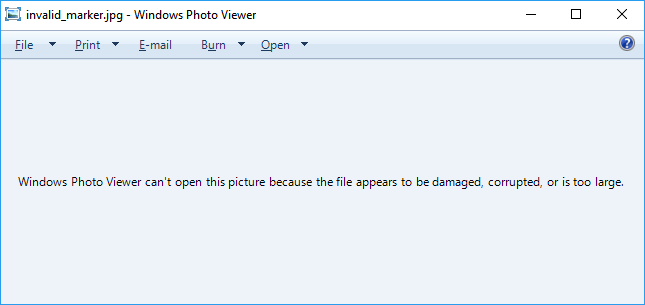
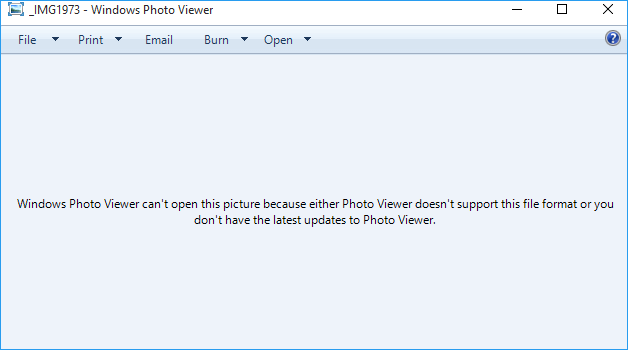
- If file formats are not supported or the Photo Viewer is outdated, you can convert photo format or update Windows Photo Viewer to resolve this issue.
- Tip
- If you have photos transferred from a mobile phone that can't be viewed nor opened by Photos Viewer, you can try removing the photo encryption by using Method 4 to help.
Method 1. Repair Corrupted, Damaged Photos with Photo Recovery Software
Searching online for photo repair software or picture repair tools yields numerous results, with some claiming to be 100% free and others promising to repair multiple image formats.
Most image repair tools only support repairing corrupted pictures with JPG, JPEG, GIF, formats saved on computer or external storage devices.
The Qiling R&D team has added a new feature to Deep Data Recovery, making it more like a photo repair tool, allowing users to restore lost and corrupted pictures.
- Important
- Photo Repair supports repairing corrupted photos and pictures on Windows 10/8/7/XP/Vista and Windows Server operating systems.
- The software is designed to repair damaged images on various storage devices, including Windows PC/Laptop hard drives, solid-state drives, external hard drives, USB drives, SD cards, and memory cards.
- It supports restoring and repairing lost or corrupted graphics during the scanning process.
- The tool currently supports repairing JPG and JPEG picture files, with other formats to be added in future updates.
The process is the same as the file recovery procedure:
Step 1. Launch Qiling data recovery software, select the desired file types, and click "Fast Scan" to initiate the recovery process.

Note: You can choose different search modes based on where and why the data was lost.
Step 2. Select a hard drive that contains broken photo files and click "Scan" to initiate the recovery process.

Step 3. To find corrupted photos, select the "Pictures" option, which shows you images in various formats such as JPEG, JPG, PNG, and BMP, among others. Alternatively, you can use the "Search files or folders" feature in the top right corner to search for specific files.

Step 4. Double-click on a damaged picture to repair and preview the file, then click "Recover" to save the images to a different location.
When the recovery process is complete, save the repaired pictures to a secure location on your PC. You can then open them with your photo viewer application.
Method 2. Change and Convert Photos' Formats
If a photo viewer application warns that it doesn't support a picture format, you can change the photo's extension to JPEG, TIFF, or PNG, etc. to open it.
Step 1. Locate and right-click the specific photos or pictures that were not openable, select "Rename".
Step 2. Change the photo extension to .jpg, .jpeg, .png, or .tiff, etc.

You can use a photo recovery software to scan your SD card, retrieve the deleted photos, and save them to your PC. This way, you can restore your lost photos and use them again.
Method 3. Update Photos Viewer
If your photo viewer app is outdated, check for and install the latest update to fix the issue and view photos again.
If you're a Windows Photo Viewer user, you'll want to install the latest update to ensure you have the most up-to-date features and security patches. To do this, go to the Microsoft website and download the latest version of Windows Photo Viewer, which is now part of the Windows Essentials suite.
Step 1. Go to Settings, click "Update & Security" and then go to Windows Update.
Step 2. If the Photo Viewer icon appears after checking the Windows update, check the box next to Photo Viewer.
Step 3. Click "Install Updates" to install the latest update.
When installing the application, you may need to restart your PC. After restarting, you should be able to use the application to open photos again.
Method 4. Remove Encryption in Images
If you're unable to open photos transferred from your mobile phone to your computer, it's likely due to encryption. The encryption process on your mobile device may have added a layer of protection that prevents the photos from being accessed on your computer.
To view photos on a computer from a mobile phone, you typically need to remove the encryption that protects them, allowing you to access and use them on your computer.
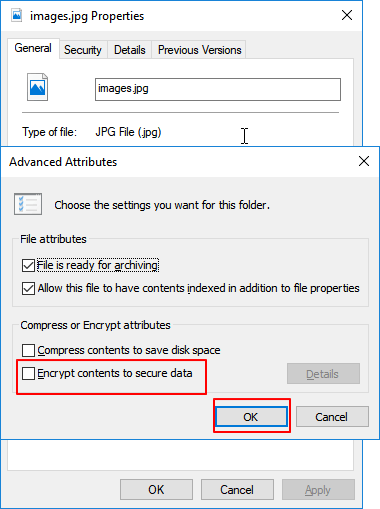
Step 1. Right-click on photos, select "Properties".
Step 2. Go to the General tab, click "Advanced".
Step 3. Uncheck the box of "Encrypt Contents to Secure Data".and click "OK" to confirm.
The solutions provided on this page can help resolve the issue of photos not being able to view or open, making it possible to effectively address the problem.
To keep your cherished memories safe, consider backing up all your valuable photos to a secure storage device. This way, if you accidentally lose any photos, you can immediately restore them from the backup, preserving your warm memories.
Don't worry if you've lost photos without a backup, as Deep Data Recovery can restore them within three simple steps.
Related Articles
- HDD Unallocated Space Data Recovery
- Missing File Headers? We Can Resolve the Header Missing Case
- [Solved] Seagate External Hard Drive Beeping and Not Recognized? Get Complete Guide
- Raw Drive Recovery: How to Recover Data from RAW Drive with Ease
- How to Recover Unsaved/Deleted/Lost Visio Files
If you've lost a Visio file. You can recover unsaved, temporary, or deleted Visio files using various methods. If you've lost an unsaved file. you can try checking the AutoRecover folder, which stores temporary files. - How to Recover Deleted Videos from Nikon Camera
If you understand how a storage memory card works, you can recover deleted videos from a Nikon camera by using the knowledge to identify and access the deleted files.
Products
Articles & Tutorials
- Data Recovery
- Data Backup
- File Recovery
- File Backup
- System Backup and Restore
- Disk and Partition Clone
- Technical articles
- Mobile articles
- Disk Master Help
- Windows Data Recovery Tutorials
- Windows Secure Delete Tutorials
- Windows Partition Management Tutorials
- Windows File Backup and Restore Tutorials
- Windows System Backup and Restore Tutorials
- Windows Disk Backup and Restore Tutorials
- Windows Clone Tutorials