[Solved] Seagate External Hard Drive Beeping and Not Recognized? Get Complete Guide
A user's Seagate portable 500GB hard drive suddenly started beeping and is no longer recognized by their computer, with Disk Management also unable to detect it. The user is seeking a way to recover their data or get the drive working again.
If you're experiencing a strange beeping sound from your Seagate external hard drive, it could indicate that the read/write head or other components are corrupted, potentially resulting in data loss. However, there are 6 troubleshooting methods you can try to resolve the issue, and if that doesn't work, consider seeking professional data recovery services to secure your data.
Hard drive recovery software can help secure data by creating a backup of important files and folders, allowing users to recover them in case of data loss due to hardware or software failure, deletion, or corruption. This software can also protect against ransomware attacks by creating a snapshot of the system before the attack, making it possible to restore the system to a previous state.
Fix 1. Clear the Dust from the Hard Drive
Fix 2. Plug Hard Drive to Another USB Port
Fix 3. Use Command Prompt
Fix 4. Use Different Cable
Fix 5. Plug the Hard Drive into USB Y-cable
Fix 6. Connect Seagate Hard Drive to Another PC (Optional)
Keep Data Safe First: Secure Data with Hard Drive Recovery Software
If your Seagate external hard drive is beeping and not recognized, it's crucial to act quickly to prevent data loss. First, download a professional data recovery software and start the scan process to rescue the deleted files. A useful tool for this purpose is Deep Data Recovery, which can recover files from formatted hard drives, USB flash drives, and other devices.
Take steps to retrieve your data:
Step 1. Connect your external hard drive to your computer using a correct USB cable, then run Deep Data Recovery.
Select the file types and then click the "Fast Scan" button.

Note: You can choose different search modes based on where and why the data was lost.
Step 2.You will see your external disk listed under External drives in the next window, and this software supports popular brands such as WD, Seagate, Toshiba, LaCie, SanDisk, Samsung, and more.
Select the external hard drive and then click the "Scan" button.

Step 3. Once the scan process begins, the software will continuously locate and display lost and deleted data in the scan results, organizing the recovered data in a clear and easily accessible manner. This allows users to quickly find specific files or folders by type or search for them using the exact file name in the search box.

Step 4. You can preview the files found by Deep Data Recovery's scanning algorithms, select the desired files, and then click "Recover". To avoid overwriting the original data, it's recommended to save the recovered files to a different drive than the original Seagate drive.
After data recovery, you can take the following methods to fix Seagate external hard drive beeping and not recognized problem.
Fix 1. Clear the Dust from the Hard Drive
Clean dust from your hard drive by turning off your computer, unplugging it, and using compressed air to gently blow out the dust from the vents and fans. Use a soft brush or cloth to wipe down the internal components and hard drive, and then reassemble the computer. If the beeping sound persists, check for loose connections or faulty hardware.
Step 1. To disconnect the Seagate hard drive from your computer, first, power down your computer. Then, locate the hard drive and disconnect the SATA cable from the motherboard. Next, disable the power cable from the hard drive.
Step 2. To clean out the ports of your computer, hard drive, and cable, use canned air to blow out any debris or dust. This will help ensure that the ports are clear and functioning properly.
Step 3. Reconnect your Seagate hard drive to the computer using the same cable.
Fix 2. Plug Hard Drive to Another USB Port
Your hard drive may beep loudly due to a faulty or damaged USB port, which can be caused by dirt and grime accumulating over time. If you connect the device to a different USB port and the loud noise persists, it could indicate a more serious issue with your hard drive. In this case, you may need to seek professional help to diagnose and repair the problem.
Fix 3. Use Command Prompt
If the above methods are valid, you can use CHKDSK to check the bad sectors on your hard drive and recover any readable information. CHKDSK is a built-in Windows utility that scans the hard drive for errors and can potentially recover data from bad sectors.
Step 1. Connect the hard drive to your computer.
Step 2. To run the Command Prompt as an administrator, type "Command Prompt" on the search box, right-click it, and select "Run as administrator".
Step 3. Type command and press Enter.
Chkdsk X:/r
Note: X represents the letter of your Seagate hard drive.
Step 4. After the checking process is done, reconnect the hard drive to your computer.
Fix 4. Use Different Cable
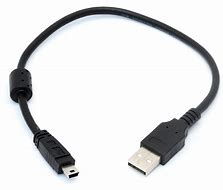
A Seagate hard drive that's beeping and not recognized may be caused by a corrupted cable. To resolve this, try unplugging the cable from the hard drive and replacing it with another cable. Then, reconnect the hard drive to the computer using the new cable, which may resolve the issue.
To verify if the beep is gone and the device is recognized, check if the system recognizes the device after the beep has stopped. This can be done by looking for any system messages or notifications that indicate the device has been successfully installed and recognized.
Fix 5. Plug the Hard Drive into USB Y-cable
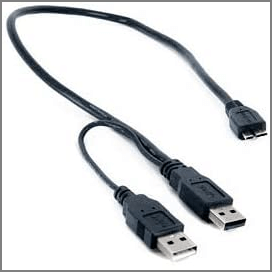
If your hard drive has a beeping sound, it might be due to insufficient power. To resolve this, you can try using a USB Y-cable to ensure it receives power from two USB host sockets. This is a viable solution as it allows the hard drive to draw power from two sources.
Plug the USB Y-cable into the computer.
Fix 6. Connect Seagate Hard Drive to Another PC (Optional)
If the Seagate hard disk still makes noise, you can try connecting it to another computer, and if that doesn't work, consider repairing or replacing it. If your data is stored on the hard drive, you can use data recovery software to secure it.
To Sum Up
If your hard drive is still making noise and not recognized by your computer, We've got 6 fixes to help you troubleshoot the issue. In my experience, fixes 2, 3, and 4 are the most effective. However, if your hard drive has failed, you may lose your data, so be sure to use third-party software to recover any important files. I hope these suggestions are helpful, and if you have any questions or better methods, feel free to contact us via online chat or email at support@idiskhome.com.
Related Articles
- Raw Drive Recovery: How to Recover Data from RAW Drive with Ease
- Windows 10 Recycle Bin Missing, How to Restore Disappeared Recycle Bin
- How to Restore Files from Backup in Windows 10 Step by Step
- Undo ESD-USB | Convert 32GB ESD-USB Hard Drive/External Hard Drive to Normal
- Download Qiling Data Recovery Crack 3.1 [2023 Official]
Deep Data Recovery Crack is software for data recovery tools. It is easier to use the steps of the wizard-style operation. Use it to recover deleted files from memory cards, USB flash drives, or even whole devices. - [SOLVED] How to Recover Audio Files on Windows/Mac/Android/iPhone
There are times that you lose audio files like voice recordings, music and songs. Read this post and recover audio files on Windows/Mac/Android/iPhone with simple steps. Download and run Qiling audio recovery software to get back your recordings, music and songs on any device.
Products
Articles & Tutorials
- Data Recovery
- Data Backup
- File Recovery
- File Backup
- System Backup and Restore
- Disk and Partition Clone
- Technical articles
- Mobile articles
- Disk Master Help
- Windows Data Recovery Tutorials
- Windows Secure Delete Tutorials
- Windows Partition Management Tutorials
- Windows File Backup and Restore Tutorials
- Windows System Backup and Restore Tutorials
- Windows Disk Backup and Restore Tutorials
- Windows Clone Tutorials