[SOLVED] How to Recover Audio Files on Windows/Mac/Android/iPhone
Audio files are a crucial part of many businesses, serving beyond the entertainment industry. They are used for recording customer service interactions, remote meetings, and presentations with accompanying audio tracks, requiring constant availability.
Losing audio files can be frustrating, but recovering them is simpler than you think! Whether you're a Windows, Mac, Android, or iPhone user, you can easily retrieve missing audio files, regardless of how old or obscure they may be. With the right solutions, you can recover your lost audio files and get back to enjoying your music, podcasts, or other audio content.
Why Do You Lose Audio Files on Windows/Mac/Android/iPhone
Losing audio files can be frustrating, especially if they contain important audio of events or phone calls. There are several causes for audio file loss, including hardware or software issues, file corruption, or accidental deletion. Additionally, audio files can be lost due to issues with the recording device, such as a dead battery or faulty microphone, or due to issues with the computer or phone's audio system.
- Audio files can become corrupted or damaged over time
- While organizing files you accidentally delete an entire folder
- A factory reset of the device erases all the device data.
- An unexpected break happened when transferring audio files
How to Recover Deleted Audio Files on Windows 11/10/8/7
If you've accidentally deleted an audio file on your Windows computer, there's still hope to recover it. The key is to act quickly, and there are several options available to help you get your audio files back. To recover deleted audio files on Windows 11/10/8/7, follow the steps to retrieve them.
Method 1. Recover Deleted Audio Files from Recycle Bin
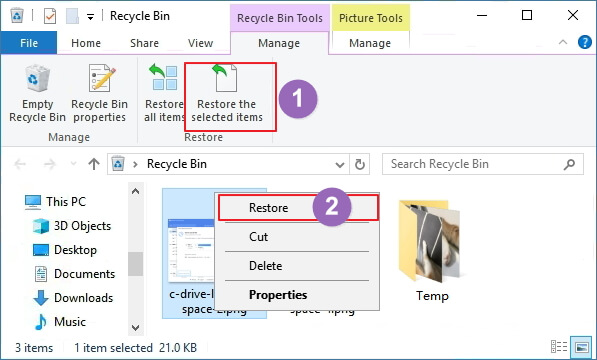
Fortunately, there are steps you can take to recover lost audio files. The most effective way to restore them is by using the Recycle Bin folder, where you can follow specific steps to retrieve the files.
Step 1. To open the Recycle Bin, double-click on its icon on the Desktop.
Step 2. To recover deleted audio files, start by locating and selecting the files that you need to restore.
Step 3. Right-click the selected item and choose "Restore".
Method 2. Recover Deleted Audio Files with Audio Recovery Software
To recover deleted audio files, quick action is crucial as the chances of success diminish over time. If the files are no longer in the Recycle Bin, consider using Deep Data Recovery software, which can help recover deleted files on Windows 11/10/8/7 with ease, offering many useful features.
Qiling Audio Recovery Tool
- This software helps recover lost data from various devices such as hard drives, solid state drives, USB drives, and SD cards.
- You can recover deleted, formatted, or moved data from your device.
- Support is available for recovering lost audio files on Windows 11, 10, 8, 7, and XP through a simple three-step process.
Download this audio recovery software and recover deleted audio files on a Windows PC/laptop.
Step 1. Select the location
To recover lost music, voice recordings, and other audio files, select the location where they were stored and click "Scan".
Step 2. Preview the audio files
The scanning process time for a disk depends on its size, and you can recover files while it's scanning. To preview found audio files, click the "Preview" button after selecting "Audio" in the left panel.
Step 3. Restore lost audio files
Select all found audio files, click "Recover", and choose a safe location to save them, then click "OK" to confirm.
Method 3. Recover Deleted Audio Files from Windows File History
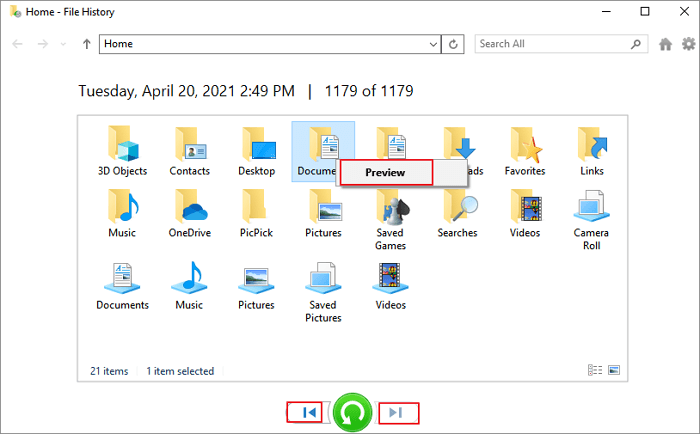
You can also restore Windows audio files using File History, a backup utility that continuously saves personal data files to an external storage device. If you've enabled File History in advance, you can recover deleted audio files by following a few simple steps.
Step 1. Click the Search box and type file history.
Step 2. Click on the "Restore your files from File history" option from the search results to recover your files.
Step 3. To restore your audio files, choose the ones you need to restore and preview them first.
Step 4. Click the green "Restore" button.
How to Recover Deleted Audio Files on Mac (3 Ways)
Recovering deleted audio files on a Mac can be a simple process. Start by checking the Trash, as deleted files are typically stored there. Alternatively, you can use Mac data recovery software or Time Machine to retrieve the lost files. This guide will walk you through the full process.
Method 1. Check Mac Trash for Lost Audio Files
When you delete files on a Mac, they typically go to the Trash, where you can still recover them. This means you can retrieve lost audio files by checking the Trash on your Mac.
Method 2. Recover Deleted Mac Audio Files with Software
Recovering deleted audio files on a Mac can be a challenging task, but Deep Data Recovery for Mac makes it surprisingly easy.
Deep Data Recovery for Mac is a reliable data recovery tool that effectively recovers deleted files on Mac devices. It supports various common file formats and has powerful scanning capabilities, allowing it to quickly locate hidden files in deep partitions, making it easy to find the specific files you need.
Download Qiling Mac data recovery software and follow the steps below to restore lost audio files on Mac.
Step 1. Search for lost files
Select the disk location where the files were lost and click the "Search for lost files" button.
Note: Before attempting data recovery, it's recommended to create a backup of your HDD/SSD by clicking "Disk Backup" in the left sidebar, which will allow you to recover data from the backup if needed, and also enable you to reuse the HDD or SSD.

Step 2. Go through the scanning results
This software will immediately scan your selected disk volume and display pictures, documents, audio, videos, and emails on the left pane, providing a comprehensive view of the contents.

Step 3. Select the file(s) and recover
Click the data to preview, and click the "Recover" button to have them back.

Method 3. Recover Deleted Mac Audio Files from Time Machine
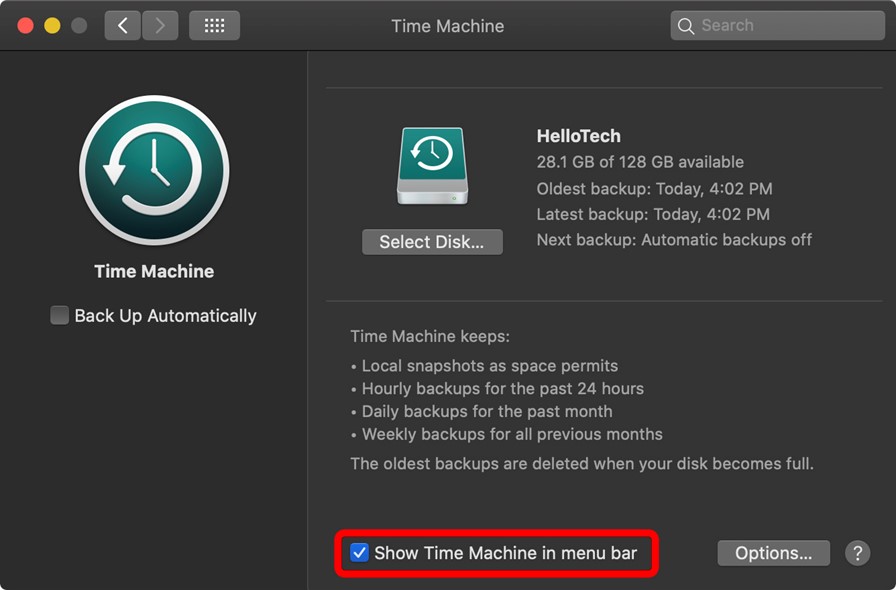
Time Machine, a built-in backup and recovery tool for Mac, is similar to Windows' File History. If you've made a backup with Time Machine, you can follow the steps below to recover deleted audio files.
- To access System Preferences, click the Apple logo located in the top left corner of the screen. From the drop-down menu that appears, select System Preferences.
- Open the Time Machine options by clicking on this icon.
- To ensure that the Show Time Machine in the menu bar option is checked, click on the Apple menu in the top left corner of the screen, select System Preferences, click on Time Machine, check the box next to "Show Time Machine in the menu bar", and click on the "OK" button to save the changes. This will enable the Time Machine menu bar icon, allowing you to easily access Time Machine and manage your backups.
- The Enter Time Machine button allows you to view all previous Time Machine backups, making it easy to select a specific point in time to restore from.
- To recover lost audio files on a Mac, click the Restore button.
How to Recover Deleted Audio Files on Android
Recovering deleted audio files on Android can be a challenging task, but there are several methods to retrieve them.
Use Cloud Drive on Android
Using cloud storage can help recover lost audio files, as it typically stores all data that has been synced and uploaded from the device.
Turn to Android Data Recovery Software
Downloading a reputable recovery app from the Google Play store can help recover lost audio files, as many of these apps provide deep scanning capabilities.
Depending on the type of file system used by Android devices, multiple recovery options exist to recover deleted audio files from Samsung.
How to Recover Deleted Audio Files on iPhone
Recovering deleted files on iPhone doesn't have to be a stressful task. Depending on the version of iOS you are running, there are several options available that can help recover lost audio files, allowing you to recover memories or important meetings that were seemingly lost forever.
If you're using a newer version of iOS, you may be able to recover your file directly from the "Recently Deleted" album in your Photos app.
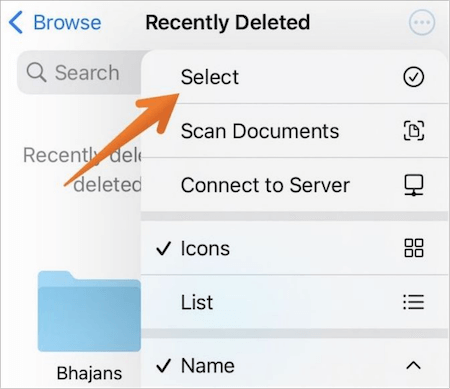
If recovering your audio files doesn't work, Qiling MobiSaver is available for download, providing a convenient and stress-free recovery process.
- Connect your device to your PC
- Let the software scan for lost data on iPhone
- Select the format type and recover any data that was previously deleted
If the data on an iPhone has not been overwritten, it may be possible to recover deleted or forgotten audio files using specialized software or services that can scan the device's storage for recoverable data. This process can be complex and may require technical expertise, but it can potentially recover lost audio files.
Conclusion
Recovering deleted audio files can be a challenge, but success rates vary depending on the device they were lost from, with some platforms offering more options for data recovery than others.
Make sure to back up your files regularly to avoid a situation where audio recovery is necessary, but if you do find yourself in such a predicament, knowing these tips and tricks can help reduce stress and make the process smoother.
Audio Recovery FAQs
The questions and answers are below. If you still have problems, read the questions and answers to get additional help.
1. How do I recover permanently deleted Voice Memos?
To recover deleted Voice Memos, go to the Recently Deleted folder, where deleted Voice Memos are stored for a limited time before being permanently deleted. This allows you to easily retrieve them if needed.
- Open the Voice Memos app on your iPhone
- To access the Recently Deleted folder, simply scroll down and tap on it.
- Find the voice memos you wish to recover
- Click Recover recording
2. Can I recover an audio recording?
You can retrieve deleted voice and call recordings from your Android phone or iPhone, and also restore deleted audio files on Windows and Mac using Qiling data recovery software.
3. Why did my audio files disappear?
Here is the list of the reasons:
- The storage device is corrupted
- Accidentally deleted your files
- Interrupt file transfer
For deleted recordings on a Windows 11 PC, recovering deleted audio files covers source folders, backup copies, and playback checks.
For missing digital-audio-workstation sessions, follow the format-specific steps for a deleted Ableton Live ALS set or Cubase CPR project, not only the steps for exported audio.
Related Articles
- Run Deep Data Recovery from WinPE Bootable Disk
- Detailed Guide | How to Recover Deleted Videos from DJI
- Recover Data from a Dead Hard Drive and Repair the Corrupted Disk
- How to Repair Corrupt RAW Photos on Windows PC🖼️
- How to Recover JPEG from SD Card
You can easily recover JPEG files from an SD card, regardless of the situation - whether they were deleted, the memory card was formatted, or it became corrupt. Follow the SD card JPEG recovery process to retrieve your lost files. - How to Recover MOV Files from SD Card/Formatted SD Card
Whether you want to recover deleted or lost MOV files from SD card, check out the guidelines for how to recover MOV files from SD card due to deletion or SD card format.
Products
Articles & Tutorials
- Data Recovery
- Data Backup
- File Recovery
- File Backup
- System Backup and Restore
- Disk and Partition Clone
- Technical articles
- Mobile articles
- Disk Master Help
- Windows Data Recovery Tutorials
- Windows Secure Delete Tutorials
- Windows Partition Management Tutorials
- Windows File Backup and Restore Tutorials
- Windows System Backup and Restore Tutorials
- Windows Disk Backup and Restore Tutorials
- Windows Clone Tutorials