[Unsaved & Deleted] How to Make Photoshop File Recovery
How to Recover Unsaved/Deleted Photoshop Files
If you've accidentally closed Photoshop without saving or experienced a program crash, or if you've deleted your Photoshop files due to wrong deletion, hard drive formatting, or other reasons, you're not alone. Fortunately, there are ways to recover your unsaved or deleted Photoshop files. This page will guide you through the process of recovering Photoshop files from two different aspects, providing you with solutions to your problems.
| Workable Solutions | Step-by-step Troubleshooting |
|---|---|
| Fix 1. Recover Lost PSD Files | Download and open the Deep Data Recovery. When you open it, you can...Full steps |
| Fix 2. Restore from AutoSave | Launch Adobe Photoshop CC, click "Edit " and select "Preference" to find "File Handling"...Full steps |
| Fix 3. Restore from Temp Folder | Go to C:/Users/UserName/AppData/Local/Temp/. Open Temp folder...Full steps |
Solution 1. How to Recover Deleted or Lost PSD Files
If you want to recover deleted or lost PSD files from your computer or external hard drive, Deep Data Recovery is a must-have tool. It offers a user-friendly graphical user interface that guides you through the recovery process with just a few clicks, making it easy to recover deleted files.
Qiling PhotoShop Recovery Tool
- Recover lost or deleted photos, documents, audio, music, emails, PS files, and Adobe files effectively.
- Support data recovery for a wide variety of file types, including images (.png, .jpg), documents (.doc), videos (.mp4, .mkv), and executable files (.exe), as well as pdf and many more, totaling 1000 different types of files.
- Data recovery services can help recover lost data due to sudden deletion, formatting, hard drive corruption, virus attacks, and system crashes, providing a solution for various situations where data is at risk of being lost.
Step 1. Select file types and click "Fast Scan" to start
Launch Deep Data Recovery, select the types of files you want to recover, and click "Fast Scan" to begin the recovery process.

Note: You can choose different search modes based on where and why the data was lost.
Step 2. Select a location and start scanning
Launch Deep Data Recovery, hover on the partition/drive where the deleted files were stored, then click "Scan" to find lost files.

Step 3. Select the files you want to recover
When the scan is complete, select the files you want to recover from the list. You can use the filter to show only specific file types. If you remember the file name, you can also search for it in the search box, which is the quickest way to find the desired file.

Step 4. Preview and recover deletedfiles
Preview the recoverable files, select the desired ones, and click "Recover" to save them at a new storage location.
When Photoshop crashes or closes unexpectedly due to human error or software issues, you may lose unsaved PSD files. However, if you're using Photoshop CS5/CS6 or later versions, the program will automatically reopen the previous PSD file, allowing you to continue working on it. If the cache files become corrupted or overwritten, the file may not open, but you can attempt to recover the unsaved Photoshop file.
You can recover unsaved Photoshop files using two methods, but be aware that third-party data recovery software claims are likely false, as such tools can only recover previously saved files that were later deleted from local storage devices.
Solution 2. Restore Unsaved Photoshop Files from AutoSave
To recover a Photoshop file from the AutoRecover folder, first enable the AutoSave feature, which can be found by going to Edit > Preferences > File in Photoshop CC5 or CS 6, then checking if the "AutoSave" option is turned on. This will enable the feature to automatically save your work at set intervals. Once enabled, Photoshop will automatically save your work in the AutoRecover folder, allowing you to recover your file if you encounter any issues or crashes.
To check if the "Automatic save recovery information every * minute" is enabled in Adobe Photoshop CC, go to the "Edit" tab, select "Preference", and find "File Handling" - it should be marked like the screenshot below.
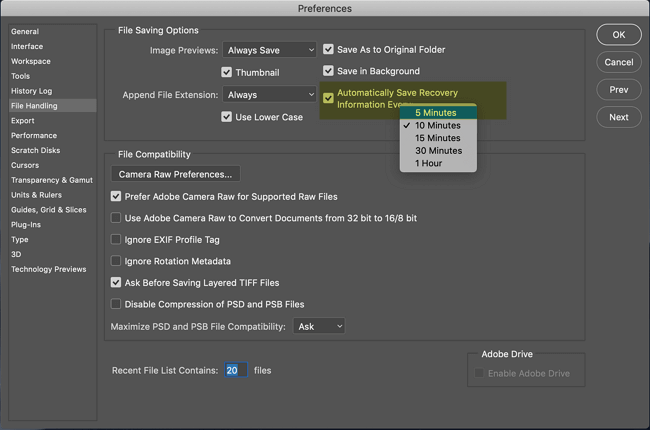
If you have set up AutoSave in Photoshop, you can recover an unsaved PSD or PSB file from the AutoRecover folder after a software failure or accidental closure, using the backed-up files.
Path for Photoshop AutoRecover: C:/Users/UserName/AppData/Roaming/Adobe Photoshop (CS6 or CC)/AutoRecover
Solution 3. Restore UnsavedPhotoshop File from Temp Folder
When you are working on Photoshop files, the application uses the Temp folder to save your work in progress. These files exist in the Temp folder, acting as a backup when Photoshop crashes. Follow the steps below to recover Photoshop files.
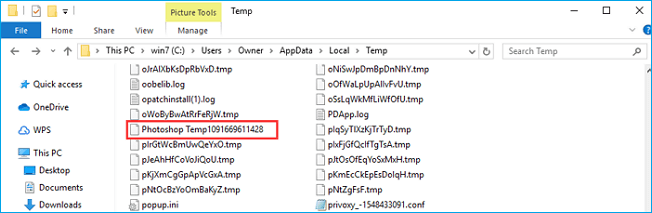
Step 1.Go to C:/Users/UserName/AppData/Local/Temp/.
Step 2. To find the PSD or PSB files, open the Temp folder on your computer. This folder is usually located in the C:\Users\Username\AppData\Local\Temp directory.
Step 3. To recover a partially saved Photoshop file, you can rename the file extension from .tmp to .psd, .psb, or .pbb. This allows Photoshop to recognize the file as a complete PSD file and attempt to recover the unsaved work.
If you accidentally closed Photoshop without saving your work, there are a few methods to recover your unsaved files on a Mac. First, check if the autosave feature is enabled in Photoshop's preferences.
Related Articles
- How to Restore Bookmarks in Chrome [Applied to Recovering Chrome Histories and Favorites]
- How to Recover Unsaved/Lost Excel File 2016/2013/2010/2007
- Fix Cannot Open JPG Files on Windows 10
- Microsoft Has Committed to Right to Repair, What Does It Mean?
- IMO Delete Message Recovery: How to Recover IMO Chat History
If you deleted your chat history in the IMO app, you can try using a third-party IMO chat recovery software to recover the deleted or lost content, including photos, videos, audio, and other media files. - 4 Ways to Recover Kik Messages After Logging Out [iPhone/Android]
If you've logged out of your Kik account and need to view old messages, there are ways to recover them on your iPhone or Android device. Qiling MobiSaver offers a simpler and easier solution, allowing you to access previous data even after logging out.
Products
Articles & Tutorials
- Data Recovery
- Data Backup
- File Recovery
- File Backup
- System Backup and Restore
- Disk and Partition Clone
- Technical articles
- Mobile articles
- Disk Master Help
- Windows Data Recovery Tutorials
- Windows Secure Delete Tutorials
- Windows Partition Management Tutorials
- Windows File Backup and Restore Tutorials
- Windows System Backup and Restore Tutorials
- Windows Disk Backup and Restore Tutorials
- Windows Clone Tutorials