Recover Data from Encrypted (EFS) Hard Drive Partition in Windows
Overview of Recovering Data from EFS Hard Drive
You can access your EFS encrypted hard drive partition on Windows 10 by using the built-in Windows utility called "EFS File Recovery" or by using third-party software such as Deep Data Recovery. Once you've accessed the partition, you can move your photos to an external hard drive or any other location. If you've forgotten the password, you won't be able to access the partition directly, but the recovery software can help you recover the files. You can then copy the recovered files to your new external hard drive. Please note that you may need to reinstall Windows 10 to access the EFS encrypted partition, but this is not recommended unless you're experiencing other issues with your system.
If you're experiencing issues accessing data on an EFS partition or hard drive, don't worry. The good news is that there are solutions to restore data from an encrypted hard drive partition.
If you're having trouble with a Windows installation and need to unlock a hard drive, you can find detailed instructions on the linked page to help you resolve the issue.
1 - Decrypt EFS (encrypted) hard drive partition
To decrypt a Windows HDD, you can either use the built-in Windows utility or a third-party software. The built-in method involves accessing the Windows Recovery Environment and using the built-in decryption tool.
Decrypt Windows hard drive - Option One
Follow these steps to decrypt an EFS-encrypted hard drive partition in Windows 10/8/7:
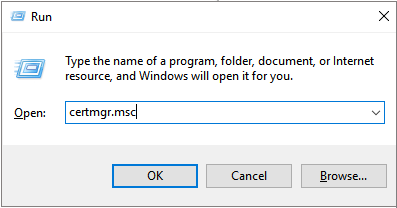
Step 1:To open the Certificate Manager, press the Windows key + R to open the Run dialogue, type "certmgr.msc" and press Enter. This will open the Certificate Manager console, where you can manage certificates and private keys on your system.
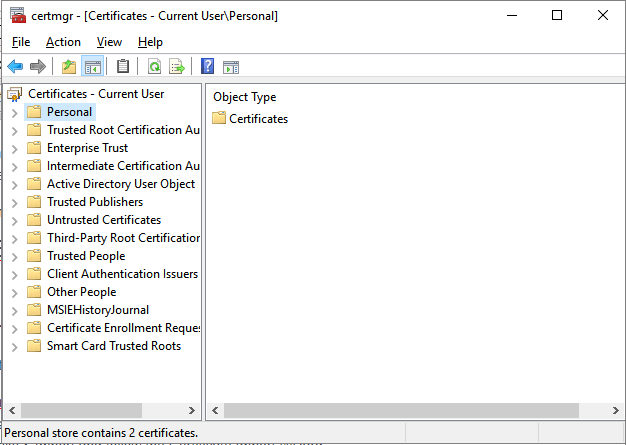
Step 2: Open Certificate Manager. Click on the "Personal" folder in the left pane.
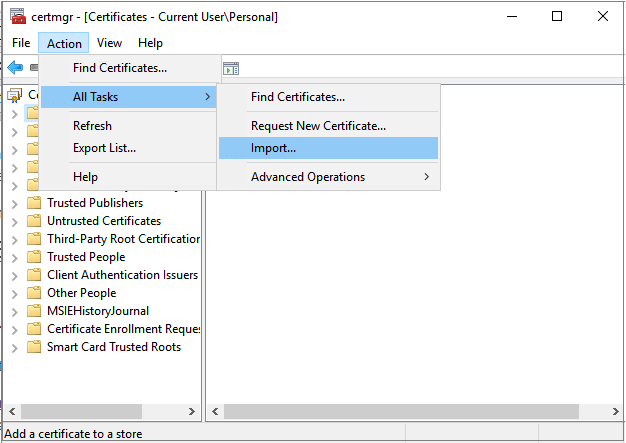
Step 3: To import a certificate, go to Select Action > All Tasks > Import and follow the Certificate Import Wizard.
- To decrypt the hard drive partition, follow the on-screen instructions and use the certificate to access the encrypted data. This will allow you to retrieve and transfer all the data stored on the hard drive partition to your new storage device.
If you don't have a certificate or password to decrypt an EFS (encrypted) hard drive partition in Windows, you can try other methods.
Decrypt Windows hard drive - Option Two
To access the encrypted hard drive, open Diskpart, list the disks, and note the number listed against the encrypted hard drive. Then, select the disk, clean it, create a primary partition, select the partition, make it active, and finally, format the drive with NTFS file system using the quick format option.
For example:
list disk
select disk 1
clean
create partition primary
select partition 1
active
format fs=ntfs quick /override
exit
Decrypt Mac hard drive
Open Terminal and paste the command "sudo chflags 0 /Volumes/*" and hit Return. Enter your admin password and press Return.
After following these steps, you'll be able to decrypt the hard drive on your Mac, allowing you to access your encrypted data again.
If you've forgotten your password, you can erase and decrypt your Mac hard drive by following these steps: First, restart your Mac and immediately hold down the power button until it shuts down. Then, turn it back on and hold down the 'Command (⌘) + R' keys until the Apple logo appears.
1. Launch Terminal and enter: diskutil cs and high return.
2. The Terminal will produce a result comprising of codes in a hierarchy. In the code, copy the alphanumeric code next to the Logical Volume Group.
3. Type: diskutil cs delete XXXX____YYYY___ZZZZ___XYZ and hit Enter.
2 - Restore data from decrypted hard drive partition with software
After decrypting the HDD, you will be able to access and use the previously encrypted data stored on the hard drive partition. If you still cannot access the data, consider using professional data recovery software for assistance.
Deep Data Recovery software can help recover data from a previously encrypted hard drive partition, allowing access to all saved data, and is available for both Windows and Mac operating systems.
Deep Data Recovery can access your data in a previously encrypted hard drive partition without a password or certificate in Windows OS. You can download it for free and follow the steps to restore your data, such as photos, to a new storage device or a safe spot on your PC.
Step 1. Run Deep Data Recovery. Select file types and click "Fast Scan" to start the recovery process.

Note: You can choose different search modes based on where and why the data was lost.
Step 2. Select the drive where you lose your data and click "Scan" to begin the recovery process.

Step 3. When the scan is complete, use the "Filter" or "Search" feature to find the lost files. This will help you locate the files that were previously hidden or deleted.

Step 4. Select the files you want and click "Recover". Then, browse to a secure location to save them.
After successfully recovering data from the encrypted hard drive partition, the next step is to reformat the partition into NTFS, making it reusable and readable again. This process allows you to wipe the existing file system and create a new one, effectively restoring the partition to its original state, free from any encryption or data corruption.
Consult with Qiling Data Recovery Experts for one-on-one manual recovery service, which includes the following services after a FREE diagnosis:
- Repair corrupted RAID structures, unbootable Windows OS, and damaged virtual disk files (.vmdk, .vhd, .vhdx, etc.)
- Recover/repair lost partition and re-partitioned drive.
- Unformat hard drive and repair raw drive(Bitlocker encrypted drive)
- Fix disks that become GPT protected partitions
Related Articles
- How to Fix 'USB Says/Shows No Media in Disk Management' Error
- How to Recover Files from Dead Laptop Hard Drive in Windows 10/8/7
- SanDisk Memory Card Repair Tool Free Download for Windows/Mac
- Pen Drive Recovery 2021 | How to Recover Files from Pen Drive
Restoring files from a corrupted Pen drive is possible, and you can find effective solutions for pen drive recovery by reading on. - Recycle Bin Recovery Software Free Download Full Version
Download the best free Windows recycle bin recovery software to recover permanently deleted files from the recycle bin after emptying, using the shift+del keys, or for large files that were not in the recycle bin.
Products
Articles & Tutorials
- Data Recovery
- Data Backup
- File Recovery
- File Backup
- System Backup and Restore
- Disk and Partition Clone
- Technical articles
- Mobile articles
- Disk Master Help
- Windows Data Recovery Tutorials
- Windows Secure Delete Tutorials
- Windows Partition Management Tutorials
- Windows File Backup and Restore Tutorials
- Windows System Backup and Restore Tutorials
- Windows Disk Backup and Restore Tutorials
- Windows Clone Tutorials