How to Recover Deleted Videos from Android Phone With/Without Computer
"How do I recover permanently deleted videos?"
"How to recover deleted videos from Android phone without computer?"
"How to recover deleted videos from phone memory?"
Videos may get deleted or lost due to various reasons, prompting the need to recover lost files.
- Part 1. Recover Deleted Videos from Android Phone Without Computer
- Part 2. Recover Deleted Videos from Android Phone with Computer
Part 1. How to Recover Deleted Videos from Android Without Computer
If you've deleted videos from your Android phone, there are ways to recover them without a computer, depending on when they were deleted and if you have a backup. Different solutions are available for different scenarios, so you can try one that suits your situation.
Method 1. Restore Deleted Videos on Android Phone from Recently Deleted
You can recover deleted photos and videos from the Recently Deleted folder, which keeps them for a period of time (usually up to 30 days) after they've been deleted from the Gallery app. This gives you a chance to recover them before they're permanently deleted.
If you've deleted items on your Android phone, they will be stored in the Recently Deleted folder. From there, you can easily recover them.
To retrieve deleted videos from an Android phone, navigate to the "Gallery" app, then tap on the "Albums" tab, followed by "Recently Deleted". From there, you can select the deleted videos you want to recover and tap "Restore" to save them back to your gallery.
Step 1. Open the Gallery app and tap "Albums".
Step 2. Scroll down to click "Recently deleted".
Step 3. To recover deleted videos, tap and hold one of the videos you want to recover, then select other items you want to restore.
Step 4. Tap "Restore" to restore the deleted videos and photos.

Method 2. Recover Permanently Deleted Videos on Android with Android Data Recovery App
If you have emptied the Recently Deleted folder or the videos you want to retrieve are deleted more than 30 days ago, these items are permanently deleted from your Android phone. To recover permanently deleted videos from your device, you can use a third-party data recovery app like Deep Data Recovery. This app can scan your device and recover deleted videos, even if they have been permanently deleted.
To recover permanently deleted videos or photos from an Android phone without a computer, you can use the Android data recovery app. This app is capable of recovering deleted or lost photos, videos, contacts, call logs, SMS, and WhatsApp messages from various Android devices.
Therefore, when you need to perform video recovery on your Android phone, it could be a good choice for you.
To recover permanently deleted videos/photos from Android phone:
Step 1. Launch the app on your phone, tap the "START SCAN" button, and begin scanning lost photos and videos.
Step 2. Deleted photos and videos now appear on the screen.
Step 3. To customize settings, tap on the settings icon. This allows you to set preferences for file scanning and display, such as specifying certain file sizes or formats to scan and display.
Step 4. After scanning, select the displayed files and tap on Recover. The recovered photos and videos will be shown, with the eye icon allowing you to view them.
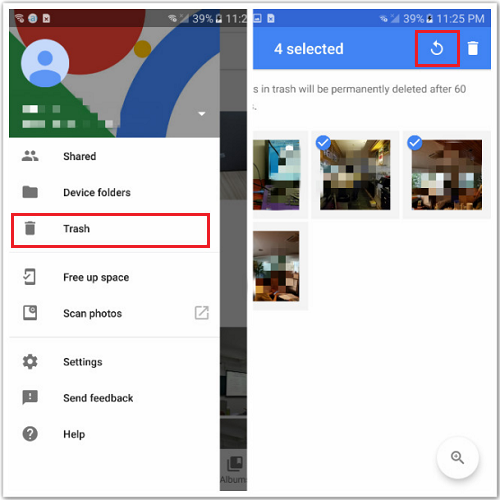
Method 3. Get Back Deleted Videos on Android via Google Photos
If you've uploaded videos and photos from your Android device to the Google Photos app, you can recover them directly from the app without needing a computer.
To recover deleted videos from Android phone without computer:
Step 1. On your Android device, open your Google Photos app.
Step 2. Tap "Menu" at the top left of your screen.
Step 3. Then, tap "Trash."
Step 4. Choose the photos and videos you'd like to recover.
Step 5. Tap on "Restore."
Method 4. Recover deleted videos and photos from Google Drive
If you've backed up your videos and photos to Google Drive, you can restore deleted files directly from Google Drive to your Android device without needing a computer.
Step 1. To access your Google Drive, open the Google Drive webpage or log in to your Google Drive app on your device using the same account you use for backup.
Step 2. Once you've signed in to your Google account, you'll be able to view all the photos and videos you've backed up with Google Drive. This is a convenient way to access and manage your media files from one place.
Step 3. Select the images and videos you wish to restore and download them to your device.
Part 2. How to Recover Deleted Videos from Android Phone with Computer
You can also use desktop software for Android data recovery to recover deleted videos from your phone memory. The Android data recovery tool mentioned, Qiling MobiSaver, offers a desktop program that allows you to perform Android data recovery.
With it installed on your PC, you can recover lost photos, videos, contacts, and other content from an Android phone or tablet due to various reasons.
You can now download Qiling MobiSaver for Android. To recover deleted data from your Android device, you can use Qiling MobiSaver for Android, a data recovery software that can help you retrieve lost files, photos, and other data. First, download and install Qiling MobiSaver for Android on your computer, then follow the prompts to connect your Android device to the computer.
Step 1. Connect your Android device to your computer, then launch Qiling MobiSaver. Click the "Start" button to initiate the process.
Note: To recover data from a rooted Android device, ensure that the phone has been successfully rooted beforehand, as the software can only access and interact with rooted devices.
Step 2. Scan Android phone to find all present and lost data.
Step 3. To recover data from an Android phone, first transfer the data to a PC, then select the desired data to recover, and finally click the "Recover" button to restore the selected data to the PC.
To save photos and videos from your Android phone, you can transfer them to your computer, save a copy as a backup, and then transfer them back to your phone to continue using them again.
The Bottom Line
You can recover deleted videos from an Android phone without a computer or recover permanently deleted videos from your device using the methods mentioned. However, the best way to prevent data loss is to back up your files regularly, and I recommend making a backup of your device now to avoid any potential loss.
Related Articles
- Instagram Recovery - How to See/Recover Deleted Instagram Photos/Pictures
- Best 4 Data Recovery Apps for Android
- How to Retrieve Deleted SMS on Huawei
- Recover Snapchat Photos/Videos from Android Phones
- Fixed: WD External Hard Drive Not Recognized/Working with Light On
If your WD external hard drive is not being recognized by your PC and the light is on. You can try restarting your computer, checking the USB port and cable, updating your drivers, and running a disk check to resolve the issue. - How to Fix WD My Passport Access Denied in Windows 10 and Windows 11
If you're unable to access your WD My Passport external hard drive due to an 'access denied' error, you can try gaining permissions, but if that doesn't work, you can use Qiling hard drive recovery software to retrieve and export your data.
Products
Articles & Tutorials
- Data Recovery
- Data Backup
- File Recovery
- File Backup
- System Backup and Restore
- Disk and Partition Clone
- Technical articles
- Mobile articles
- Disk Master Help
- Windows Data Recovery Tutorials
- Windows Secure Delete Tutorials
- Windows Partition Management Tutorials
- Windows File Backup and Restore Tutorials
- Windows System Backup and Restore Tutorials
- Windows Disk Backup and Restore Tutorials
- Windows Clone Tutorials