Fixed: WD External Hard Drive Not Recognized/Working with Light On
Overview: WD External Hard Drive Not Recognized But the Light is On
Your WD 1TB external hard drive's light is blinking, but it's not being recognized by your PC. You've tried using a new USB cable, but the drive still doesn't show up. I'd recommend trying a few troubleshooting steps: check the drive's power cord and USB connection, ensure the drive is properly seated, and try using a different USB port on your PC. If the issue persists, you may need to reformat the drive or contact WD support for further assistance. To restore saved data, you may need to use data recovery software or contact a professional data recovery service. I can provide more detailed guidance if you need it.
If your WD external hard drive, USB drive, or a similar storage device has a similar problem with the light on but not detectable by your PC. You can try unplugging the drive, waiting for 30 seconds, and then plugging it back in. If that doesn't work, try using a different USB port on your PC, or using a USB extension cable to rule out any issues with the port.
You May Also Be Interested In:
How to Fix Hard Drive Not Showing Up in Windows
If your hard drive isn't showing up in File Explorer or Disk Management, follow these steps to troubleshoot and recover it in Windows 10/8/7 without losing data: check if the drive is connected properly, restart your computer, run a disk check, update your drivers, and if none of these solutions work, consider using a third-party recovery software.
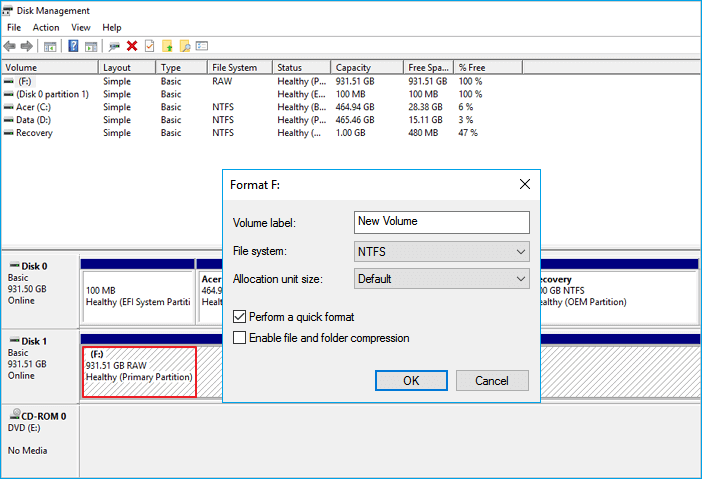
Quick Fixes for WD External Hard Drive Light On But Not Recognized
Here are three options to quickly fix and repair WD external hard drive with the "light on but not recognized" error:
1. Change the USB Port/Cable to Detect WD External Hard Drive
If your WD external hard drive is not being detected or is failing to show up on your PC, try switching the USB port or using a different USB cable to see if it appears on the PC. You can also try connecting it directly to the motherboard to rule out any issues with the USB port.
2. Remove and Clean Up the Virus that Blocks/Stops WD External Hard Drive From Working
When a computer or WD external hard drive is infected with a virus or malware, it can prevent access to saved data and even block the drive from opening on the PC.
In this case, use anti-To remove a virus or malware from your PC or WD external hard drive, disconnect the external drive, boot your computer in Safe Mode, and run a full scan with an anti-virus software. If the virus is on the external drive, use a bootable anti-virus CD or a CMD to remove it.
3. Turn USB Root Hub On to Make WD External Hard Drive Recognizable
- Click Start > Type: devmgmt.msc and hit Enter.
- Open Device Manager > Expand Universal Serial Bus controllers.
- Right-click USB Root Hub > Click Properties > Power Management.
- The device should not be allowed to turn off to save power, so the option to do so should be unchecked.
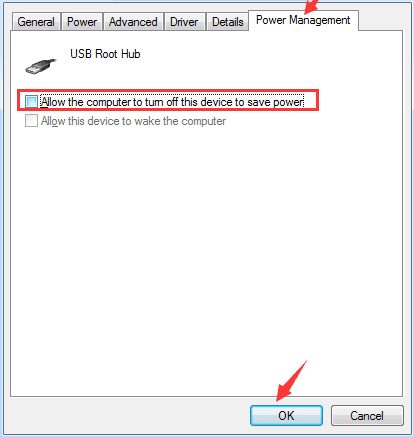
Turn on all USB Root Hubs in the list, reboot the PC, and check if the WD external hard drive appears on your PC.
Advanced Fixes for WD External Hard Drive Light On But Not Recognized
If your WD external hard drive isn't being detected, recognized, or is not working but the light is on, you can fix the issue without losing any data by not formatting your drive. Instead, try unplugging the drive, waiting for 10 seconds, and then plugging it back in.
- Make Unrecognized WD External Hard Drive Detectable on PC
- Restore Data from WD External Hard Drive
- Repair the Light On but Not Working WD External Hard Drive
1. Make Unrecognized WD External Hard Drive Detectable on PC
Here are two methods to potentially make the WD external hard drive detectable on your PC:
Option 1.To make a Western Digital (WD) external hard drive show up, you can change the drive letter to a letter that is not already in use. This can be done by going to "This PC" or "Computer" (Windows), or "Disk Utility" (Mac), and assigning a new drive letter to the external hard drive.
1. Right-click on This PC > Manage > Disk Management.
2. To change the drive letter of your WD external hard drive, right-click on it and select "Change drive letter and path" from the context menu.
3. Assign a new drive letter to your WD external hard drive and save all changes.
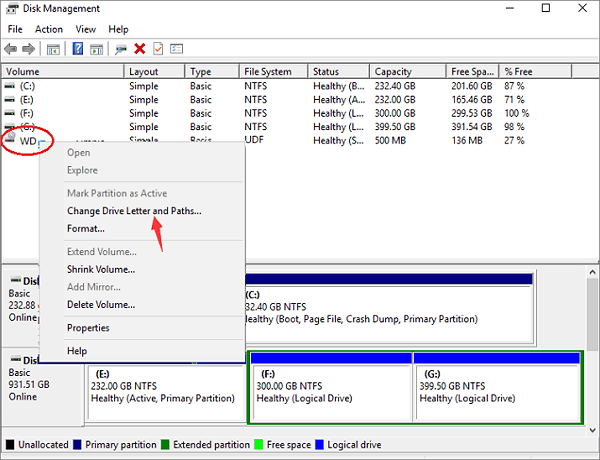
You can now see the WD external hard drive on your PC.
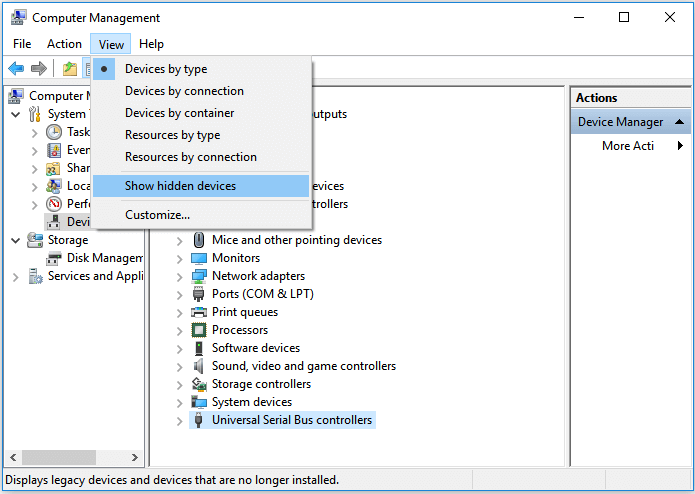
Option 2. If your WD external hard drive is not being recognized by your PC, try the following: Connect the WD external hard drive to your PC. In the Device Manager, click on "View" and then select "Show hidden devices".
1. Click on Start > type devmgmt.msc and hit Enter.
2. To view hidden devices in the Device Manager, click on "View" and then select "Show hidden devices" from the drop-down menu. This will display any devices that are not currently visible in the list.
3. Expand all notes by clicking on the + (plus) symbol.
4. If there are any greyed-out entries, right-click on them and select Uninstall.
5. Reboot your PC.
2. Restore Data from WD Not Working External Hard Drive with the Light On
If you have a valuable WD external hard drive with unrecognized data, you can recover all your saved information using Qiling hard drive recovery software. To do this, simply download the software and follow a few simple steps to get all your data back. This will allow you to restore all your saved data and access it on your PC.
Step 1. Choose and scan the external hard drive
- To recover lost data, download and install Qiling Data Recovery software on your PC or laptop.
- Connect the external hard drive to your computer.
- Run Deep Data Recovery and choose the external drive from External drives list. Then, click scan for lost data.

Step 2. Check the scan results
- Qiling data recovery software will immediately scan the selected drive for all data, including deleted, corrupted, and existing data.
- The Filter feature allows you to quickly locate files of a specific type, such as Pictures, Word, Excel, PDF, videos, emails, and more.

Step 3. Preview and recover data
- double-clicking a file from the scanned results to preview.
- Choose the files you want and click "Recover".
- Select a different drive to save the recovered files instead of the original one.
3. Repair and Fix the Light On but Not Working/Unrecognized WD External Hard Drive
After recovering all lost data, you can attempt to repair your non-working WD external hard drive by following these steps.
Method 1. To repair a non-detectable WD external hard drive, you can try uninstalling the hard drive driver. This can be done by going to the Device Manager, finding the WD external hard drive, right-clicking on it, and selecting "Uninstall device".
1. To open Device Manager, click on Start, type "devmgmt.msc" in the search bar, and press Enter.
2. Right-click on every USB device found in the Universal Serial Bus controllers section, and select Uninstall.
3. Check out whether any device shows up as unrecognized or not:
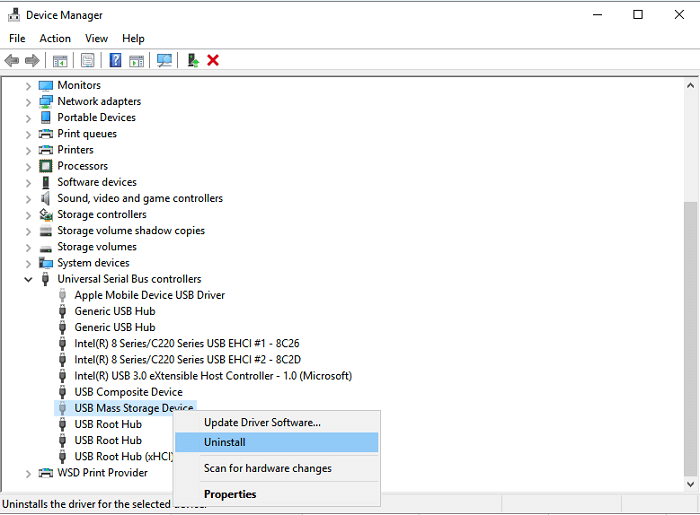
- If your WD external hard drive is showing as unrecognized, go to the Device Manager, delete the driver, and then check if it shows up in My Computer/My PC.
- If it doesn't show up, reboot or restart the PC.
- If the drive shows up but disappears later, repeat the steps and go to Disk Management to change the drive letter and reconnect the PC again.
Method 2. Change registry and format to repair WD external hard drive not recognized/working error
1. Click on "Start" > Type: regedt32 > Click "OK".
2. BACKUP YOUR REGISTRY by going to file and clicking "Export".
3. On the left side, go to: HKEY_LOCAL_MACHINE\SYSTEM\CurrentControlSet\Control\Class\{4D36E967-E325-11CE-BFC1-08002BE10318}.
4. Delete any upper filters or lower filters you see on the right side.
5. Then retry your external hard drive again.
Method 3. Format to repair/reset WD external hard drive
1. Connect the WD external hard drive to your PC, then right-click on "This PC" and select "Manage". From there, click on "Disk Management".
2. To format the WD external hard drive, right-click on it, select "Format volume..." from the context menu, and follow the on-screen instructions to complete the formatting process.
3. To reset the WD external hard drive's letter and file system (NTFS), connect the drive to your computer and open File Explorer. Right-click on the drive, select "Properties", and click on the "Tools" tab.
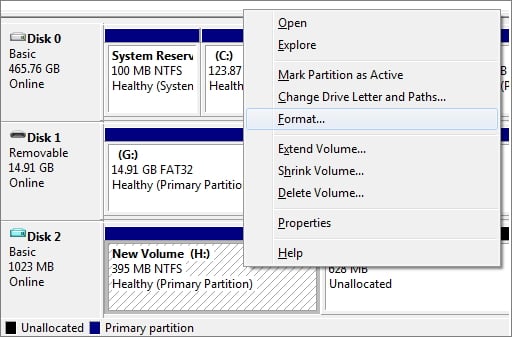
After the WD external hard drive is recognized again, reboot your PC and reconnect the WD external hard drive to the PC. You should be able to use your WD external hard drive to backup files and save data again.
Related Articles
- [Fixed] Drive Is Not Accessible, Access Is Denied in Windows 10/8/7
- Fix/Repair Unallocated External Hard Drive without Losing Data
- Fix An External Hard Drive That's Not Working/Responding/Showing Up
- How to Fix Drive Is Not Accessible in Windows 10/8/7 [Real Fix]
- Discord RTC Connecting Stuck? Troubleshoot This Error Now (7 Ways)
Discord users have been experiencing issues with RTC connections, with the computer getting stuck on connecting. To resolve this issue, effective solutions can be applied. - My Documents and Settings Folder is Not accessible in Windows 10! Fix It Now!
If you're having trouble accessing your Windows 10 Documents and Settings folder, it's an easy fix! Just follow the steps outlined in this article to quickly resolve the issue and gain access to your folder without any hassle.
Products
Articles & Tutorials
- Data Recovery
- Data Backup
- File Recovery
- File Backup
- System Backup and Restore
- Disk and Partition Clone
- Technical articles
- Mobile articles
- Disk Master Help
- Windows Data Recovery Tutorials
- Windows Secure Delete Tutorials
- Windows Partition Management Tutorials
- Windows File Backup and Restore Tutorials
- Windows System Backup and Restore Tutorials
- Windows Disk Backup and Restore Tutorials
- Windows Clone Tutorials