Discord RTC Connecting Stuck? Troubleshoot This Error Now (7 Ways)
[GLITCH] Discord Stuck on "RTC Connecting"
You're experiencing a frustrating situation where you're stuck on an "RTC Connecting" screen and a blank screen glitch, and none of your attempts to resolve the issue are working. Can I help you troubleshoot or find a solution to get you back on track?
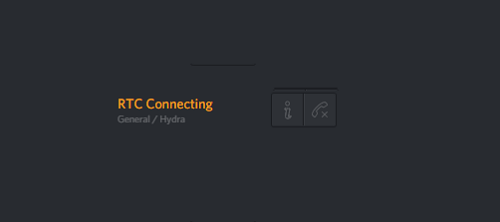
If you've encountered an "RTC connect" error, don't worry - you can find helpful solutions here. For a quick reference, solutions are available to address this issue.
| Workable Solutions | Step-by-step Troubleshooting |
|---|---|
| Fix 1. Restart Discord | Right-click the Start menu or taskbar and select "Task Manager"...Full steps |
| Fix 2. Reboot Your Network | The quickest way to reboot your network is to cut off the power of the router...Full steps |
| Fix 3. Change DNS Servers | Go to "Control Panel > Network and Internet > Network and Sharing Center...Full steps |
| Fix 4. Run Internet Troubleshooter | Go to the Windows Settings app and click "Update and Security"...Full steps |
| Other RTC Connecting Solutions | Disable QoS High Packet Priority > Use a VPN > Turn Off Firewall...Full steps |
What Does RTC Connecting Mean on Discord, How to Fix?
Discord is a free chat app that allows millions of people to communicate with their communities and friends through voice, video, and text chat, available for users aged 13 and above.
Some Discord users experience the "RTC Connecting"/"No route" error, which is usually caused by a network-related issue, such as Discord's inability to connect to a remote server. This can be due to various reasons, including a barrier on the device that perceives Discord as a danger, not aligning with its programming. The common causes of RTC connecting errors include network-related issues.
- The Internet connection is slow or unstable
- WiFi signal is very poor and unstable
- Discord server is offline or missing
- There are DNS network issues
- Your firewall blocks Discord...
If you're experiencing the "Discord stuck on RTC connecting" error, there are several solutions you can try. You may not need to attempt all of them, as they can resolve the issue on their own. Simply work your way down the list until you find the one that works for you.
Fix 1. Restart Discord or Your PC to Fix RTC Connecting
When experiencing the "RTC connecting" error in Discord, try restarting Discord or your PC as a first step. This often resolves connection problems, app freezes, or other issues that aren't related to the Discord platform itself, and many users have found it to be a helpful troubleshooting method.
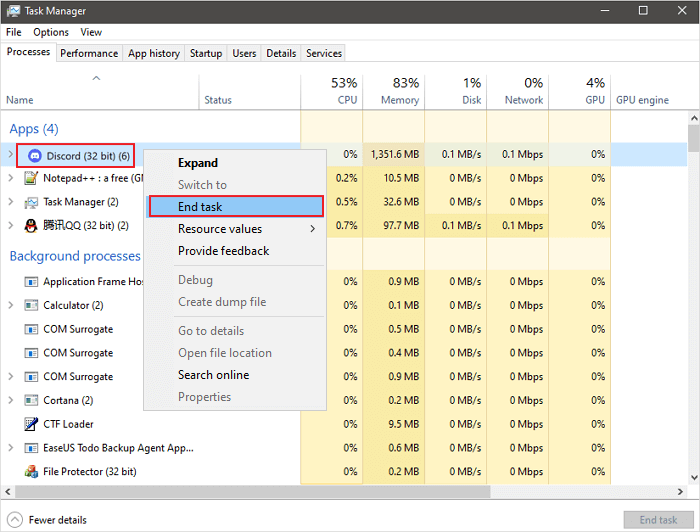
To Restart Discord:
Step 1.Right-click the Start menu or taskbar and select "Task Manager".
Step 2.To close Discord, go to the Task Manager, find the Discord process, right-click it and select End Task.
Step 3.Once the Discord process is closed, you can locate Discord in the Start menu to relaunch it.
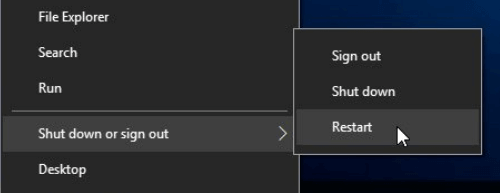
To restart your PC:
Step 1.Click the "Start" icon.
Step 2. Go to "Shut down or sign out > Restart."
To resolve the "RTC connecting" error on Discord, try restarting your router or modem. This can be done by unplugging the power cord, waiting for 30 seconds, and then plugging it back in.
Fix 2. Solve RTC Connecting by Checking and Rebooting Your Network
As mentioned before, Discord RTC connecting error is an internet-related error. Thus, you can fix the error by checking and rebooting your network. Here are the steps to check and reboot your network.
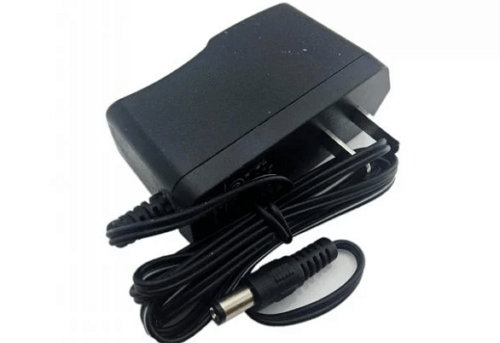
To quickly reboot your network and fix the Discord issue, simply unplug the power cord from your router, wait for 30 seconds, and then plug it back in. This should resolve the problem and allow you to access Discord again.
Fix 3. Change DNS Servers to Fix RTC Connecting
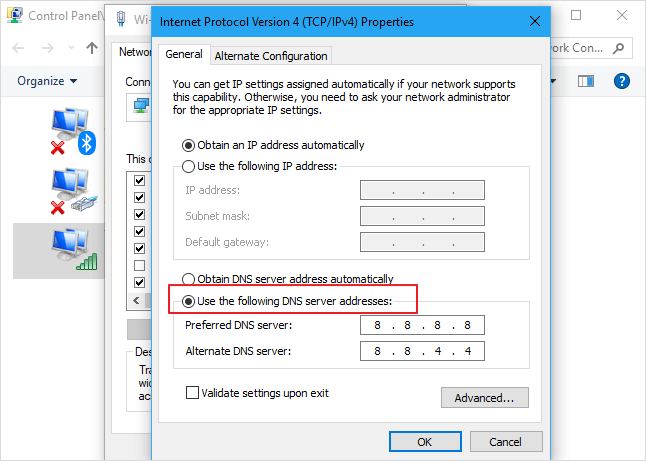
To fix Discord RTC connecting issues by changing DNS servers, follow these steps: Change your DNS servers to Google's public DNS (8.8.8.
Step 1.To change network settings, go to the "Control Panel" and navigate to "Network and Internet" > "Network and Sharing Center". From there, select "Change adapter settings".
Step 2. Right-click the network connection and select "Properties".
Step 3. Select "Internet Protocol Version 4 (TCIP/IPv4)" in the list and click "Properties" to view and modify the settings for IPv4.
Step 4.To change the DNS server settings, select "Use the following DNS server addresses", enter the desired DNS server addresses, and click "OK".
Fix 4. Run the Internet Troubleshooter
The "RTC connecting" error on Discord is a network-related issue. To resolve this, you can run the Internet troubleshooter, which can help identify and fix any connectivity problems. This should help get your Discord connection up and running smoothly again.
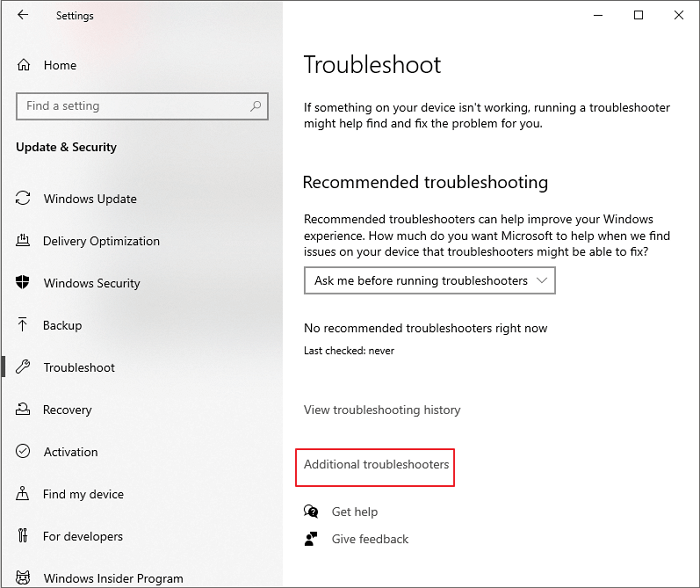
Step 1.Go to the Windows Settings app and click on "Update and Security".
Step 2. To resolve the issue, go to the left sidebar and click on "Troubleshoot", then select "Additional troubleshooters".
Step 3.Click on the "Internet Connections" and click "Run Troubleshooter".
Fix 5. Disable QoS High Packet Priority
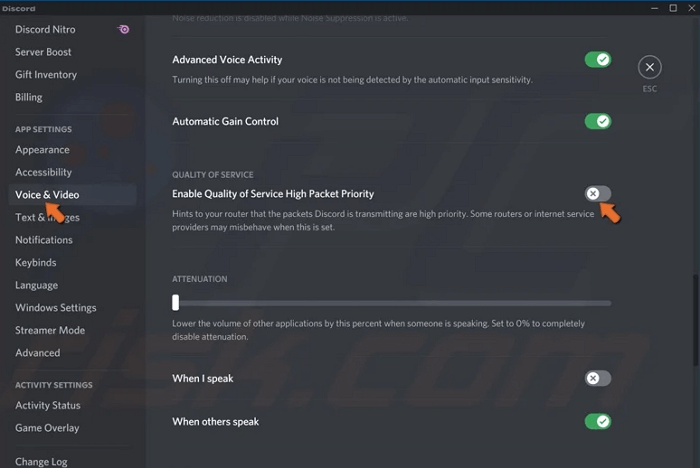
You are going to fix Discord RTC connecting issue by disabling the Quality of Service settings. Here are the steps.
Step 1.Launch Discord and click "Settings" in the bottom-left corner of the window.
Step 2.Click on "Voice and Video" under the App Settings section in the left pane.
Step 3. To disable Quality of Service High Packet Priority, navigate to the settings and toggle off the "Enable Quality of Service High Packet Priority" option.
Step 4.Restart Discord. See if you have resolved the error.
Fix 6. Use a VPN to Fix Discord RTC Connecting Error
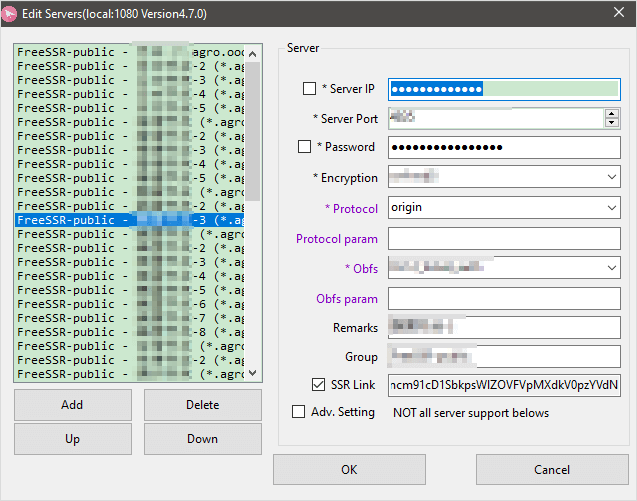
Discord often works on VPNs that transfer data over the internet from your device to your web server. Some recommended VPNs include: the following VPNs.
- ShadowSocks
- CyberGhost VPN
- Ivacy VPN
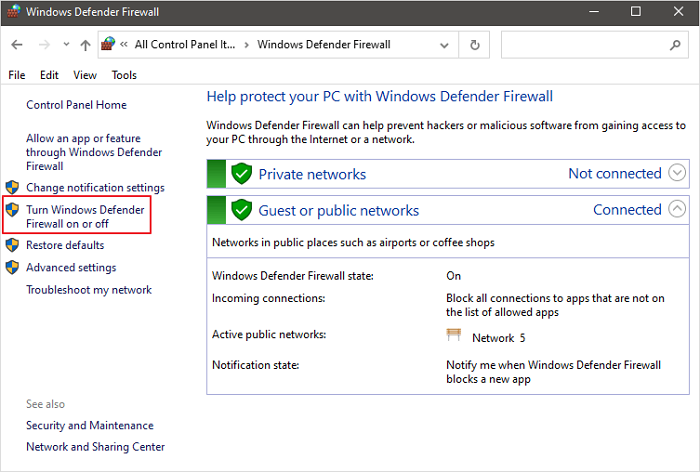
Fix 7. Turn Off Firewall to Fix Discord Stuck on "RTC Connecting"
To fix the "Discord stuck on RTC connecting" issue, disabling Windows Firewall temporarily can resolve the problem as it may be blocking some unharmful traffic, causing the error.
Step 1.Press the Windows key + R combination on your keyboard to open the Run accessory.
Step 2.Type control firewall.cpland hit Enter or click "OK".
Step 3.To turn Windows Defender Firewall on or off, click on the "Turn Windows Defender Firewall on or off" option in the left pane of the Windows Defender Firewall window. This will open the "Windows Defender Firewall" settings window, where you can toggle the firewall on or off for both private and public networks.
Step 4.Select "Turn off Windows Defender Firewall (not recommended)" under the Domain network settings, Private network settings, and Public network settings.
Step 5.Click the "OK" button when you finish.
Bonus Tip: How to Restore Discord Photos/Videos/Data
If you lose Discord data while fixing the "RTC connecting" or "Discord not opening" error, Qiling data recovery software can help. This all-in-one software can recover lost or deleted files, pictures, videos, documents, and more with simple steps, even after formatting, deleting, or system crashes.
To recover your Discord data, download and install the software as soon as possible.
Step 1. Click "Fast Scan" to begin the process

Note: You can choose different search modes based on where and why the data was lost.
Step 2. Select a location and start scanning
Launch Deep Data Recovery, select the partition where data was lost, and click "Scan" to start the recovery process.

Step 3. Filter and preview files
To preview files, use the file format filter on the left or upper right corner to find the files you need, then click the "Preview" button or double-click a file to see its content.

Step 4. Recover lost data or files
To recover lost data, select the file, check the box next to it, and click "Recover" to securely restore it.
Conclusion
To fix Discord "RTC connecting" errors, try restarting your app, updating your audio drivers, or reinstalling Discord. You can also check your internet connection, close other resource-intensive programs, or check for any updates on your operating system. If none of these solutions work, you can try restoring data with Deep Data Recovery software, which can help recover lost data. Just find the one that works for you.
Related Articles
- Does Initializing a Disk Erase Data, Yes or No?
- [Self-Check-and-Repair]: How to Repair External Hard Disk Not Detected in Windows 10
- How to Repair Corrupted PNG/JPEG Files
- How Does An Excel File Get Corrupted? We Discussed Reasons and Fixes Here
- Text Recovery Converter Word | Fix Corrupted Word and Recover Text
The Text Recovery Converter is a tool in Microsoft Word that can recover text from corrupted files. To open it in Word, you can follow the steps to fix and recover text from any file using this feature. - The Add-In Template Is Not Valid in Word? 4 Fixes Here!
The “The add-in template is not valid” error message in Word can be frustrating, but it's usually caused by a corrupted or incompatible add-in template. This issue can occur when you try to open a file, and it's not a problem with the file itself, but rather with the template that's
Products
Articles & Tutorials
- Data Recovery
- Data Backup
- File Recovery
- File Backup
- System Backup and Restore
- Disk and Partition Clone
- Technical articles
- Mobile articles
- Disk Master Help
- Windows Data Recovery Tutorials
- Windows Secure Delete Tutorials
- Windows Partition Management Tutorials
- Windows File Backup and Restore Tutorials
- Windows System Backup and Restore Tutorials
- Windows Disk Backup and Restore Tutorials
- Windows Clone Tutorials