How to Recover Deleted PST File in Outlook 2019/2016/2013/2010
I Accidentally Deleted My .pst File. Can I Retrieve It?
You can try using a data recovery software such as Deep Data Recovery or Qiling file recovery software to scan your computer for deleted files, including the PST file. If the file was not overwritten, the software may be able to recover it. Additionally, you can try checking the Windows Recycle Bin to see if the file was sent there instead of being permanently deleted. If the file is still in the Recycle Bin, you can restore it from there. If not, the data recovery software may be your best bet. Be careful when using data recovery software, as it may also recover other deleted files that you didn't intend to recover. If you're unable to recover the PST file, you may need to contact Microsoft support for further assistance. Please note that recovering a deleted PST file is not always possible, and even if it is, there's no guarantee that all of your data will be recoverable. It's always a good idea to back up your important files regularly to prevent data loss in the future.
A PST (Personal Storage Table) is an automatically created folder file in Microsoft Outlook that stores a user's Outlook data, including emails, tasks, contacts, calendars, events, attachments, and other files on the client's hard disk. However, the PST file can sometimes get deleted or lost due to reasons such as Trojan and Malware virus infection, unintentional deletion, hard drive failure, or operating system crash.
| Workable Solutions | Step-by-step Troubleshooting |
|---|---|
| Method 1. Recover PST File with Software | To recover PST files, download a PST recovery software, select the drive to scan, and then preview and recover the desired files.Full steps |
| Method 2. Recover previous PST file | Open File Explorer > Locate Outlook Files > Choose Restore Previous Versions...Full steps |
If you deleted a PST file, you can try to restore it from the Recycle Bin. If it's permanently deleted or you've emptied the Recycle Bin, you can use a data recovery program to try and recover the file.
The Most Effective Way to Recover Deleted PST File from Hard Drive
The most practical method to recover a deleted PST file for Outlook is using Deep Data Recovery, one of the top file recovery software that can recover lost PST or OST files at a high recovery rate.
This data recovery application can recover not only PST files but also many other types of files, including Word, Excel, PPT, PSD, videos, photos, and audios. It allows you to recover deleted PST files with just a few simple steps, making it easy to get back your lost data.
Step 1. Launch Deep Data Recovery, select the desired file types, and click "Fast Scan" to initiate the recovery process.

Note: You can choose different search modes based on where and why the data was lost.
Step 2. Choose the drive or partition where the lost email files are located, and click "Scan" to initiate the scanning process.

Step 3. The software will start scanning immediately, and you should wait for the process to finish. To quickly find the email files, click "Others" on the left panel, then look for PST files or Outlook files in the file type list.

Step 4. Select the desired email files, click "Recover", and save them to a different location.
How to Import PST files into Outlook
After recovering PST files, you can import them into Outlook to restore all mailbox components, including emails, attachments, contacts, calendar items, journals, notes, and more.
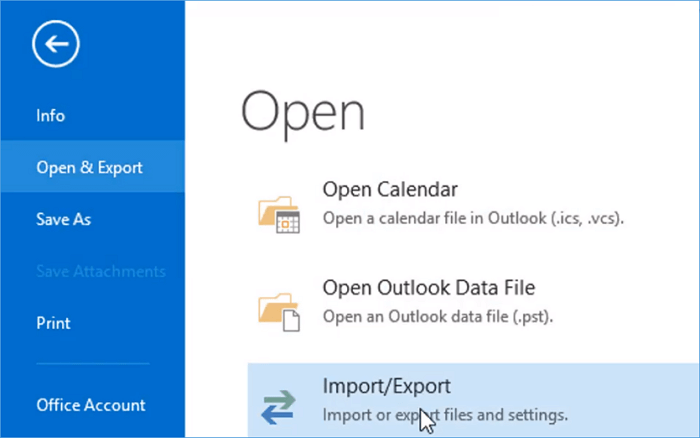
Step 1. To import data into Outlook, start the program, go to "File", then select "Open & Export", followed by "Import/Export" and choose "Import from another program or file", and finally select "Open Outlook Data File".
Step 2. In the navigation pane, drag and drop the emails, contacts, other folders from .pst file to your existing Outlook folders.
- A relevant tutorial you may need: How to restore and repair corrupted PSD files
Recover Deleted PST File from Previous Versions
If you've enabled File History or system backup on your Windows, you can recover deleted PST files from backup and previous versions.
Step 1. Open Windows Explorer.
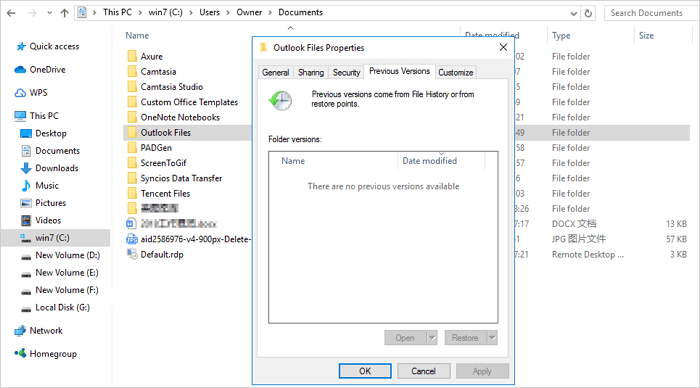
Step 2. Go to the C:\Users\UserName\Documents\Outlook Files.
Step 3. Right-click Outlook Files and choose "Restore Previous Versions". Switch to the "Previous Versions" tab. Then, choose a version to restore.
Final Words
If you've accidentally deleted Outlook PST files, don't compact the PST or save new data, as this may overwrite the deleted files. Instead, try to recover the deleted PST files, either by restoring from a backup if you have one, or by using a file recovery tool like Qiling to retrieve your emails and other content in Outlook. The sooner you make the recovery, the better the chances of successful data recovery.
Helpful Tips to Avoid PST File Loss
To avoid the loss of PST files, you can take the following steps based on the reasons for data loss. If the PST file is corrupted, you can use a PST repair tool to recover the data.
- Regularly back up your important files, such as the PST file, and store them on an external hard drive to ensure their safety and accessibility.
- Scan your system with antivirus software to check and remove virus
- Be careful not to delete files by mistake
- To delete a selected text or object, you can press the "Delete" key or right-click the mouse with the "Delete" option instead of pressing the "Shift+Delete" keys. This will remove the selected item from the document or workspace.
- Do not close Microsoft Outlook abruptly
If the Outlook data file itself was deleted, recovering deleted Outlook PST files distinguishes recoverable PST archives from server-backed mail.
Related Articles
- How to Restore Missing AppData Folder in Windows 10/11
- How to Recover Permanently Deleted Emails from Gmail Account
- How to Fix Folders Turned into Shortcuts
- How to Recover Corrupted Files from a USB Flash Drive
- XLS VS XLSX | What's the Real Difference of .xls VS .xlsx [Full Guide]
What is XLS VS XLSX? What are the differences between .xls VS .xlsx? Can you convert XLS to XLSX or convert XLSX to XLS? You can find all answers here. What's more, you can learn how to recover deleted and repair corrupted XLS and XLSX files with Qiling data recovery software. - Excel File Recovery: How to Recover Deleted XLSX Files Without Effort
This tutorial provides a step-by-step guide on how to recover a deleted XLSX file in three ways. You can recover the file from the Recycle Bin, utilize Qiling's Excel file recovery to retrieve the lost XLSX, or restore the deleted Excel file from previous versions.
Products
Articles & Tutorials
- Data Recovery
- Data Backup
- File Recovery
- File Backup
- System Backup and Restore
- Disk and Partition Clone
- Technical articles
- Mobile articles
- Disk Master Help
- Windows Data Recovery Tutorials
- Windows Secure Delete Tutorials
- Windows Partition Management Tutorials
- Windows File Backup and Restore Tutorials
- Windows System Backup and Restore Tutorials
- Windows Disk Backup and Restore Tutorials
- Windows Clone Tutorials