Excel File Recovery: How to Recover Deleted XLSX Files Without Effort
How to Recover Deleted XLSX File
Losing a Microsoft Excel workbook can be a nightmare, especially if you haven't made a backup. If you've accidentally deleted or lost a .xlsx or .xls file, there are recovery options available.
Data loss in Excel files can occur due to various reasons, including power failure or file system corruption, which can render all documents, including Excel files, inaccessible.
If your .xlsx or .xls files are lost due to various reasons such as accidental deletion, formatting issues, or corrupted files, You can recover your lost Excel files using three simple solutions.
Method 1. Restore Deleted Excel from Recycle Bin
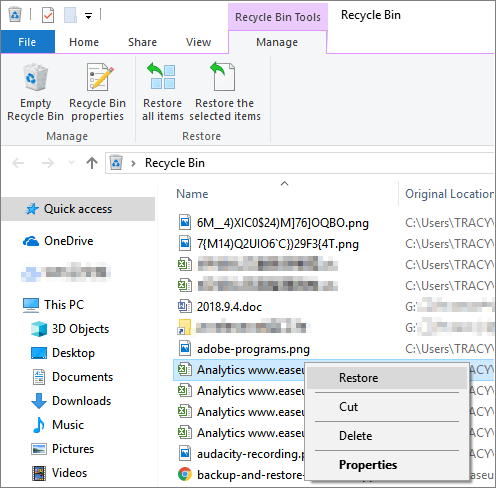
If you've accidentally deleted an Excel file (.xlsx or .xls) and it's landed in the Recycle Bin, you can easily recover it by simply restoring it from the Recycle Bin on your own.
Step 1. To recover a deleted Excel file, you can follow these steps: Open the Recycle Bin, which is usually located on the desktop or can be accessed through the Start menu. Look for the deleted Excel file with the .xlsx or .xls extension and select it.
Step 2. Right-click on lost XLSX/XLS files and select "Restore" to recover deleted Excel files, which will be restored to their original location on your PC.
Method 2. Use Excel File Recovery Software to Recover XLSX File
Deep Data Recovery is a software that specializes in recovering deleted or lost Microsoft Office files, including Word, Excel, and PowerPoint documents.
This professional MS Office Excel file recovery tool has several key features that make it a valuable asset for users. It is designed to recover lost or corrupted Excel files, and can restore them to their original state with ease.
- If you've lost an XLSX or XLS file due to accidental deletion, device formatting, partition loss, or other reasons, there are several methods you can try to recover it. First, stop using your device immediately to prevent overwriting the lost data.
- Recover corrupted Excel files in XLSX/XLS formats
- To restore Excel data, including tables, charts, formulas, and chart sheets, you can use the "Undo" feature or try the following steps:
- Real-time preview of recovered Excel file
- Supports MS Excel 2019/2016/2013/2010/2007/2003/XP/2000/97/95 versions
To recover a lost Excel file, download this XLSX recovery tool and follow the step-by-step guides to perform Excel file recovery. The process for recovering lost Word documents is the same.
Step 1. Select file types and click "Fast Scan" to start
Launch Deep Data Recovery on your PC. Select file types and click "Fast Scan" to begin the recovery process.

Note: You can choose different search modes based on where and why the data was lost.
Step 2. Select location and click "Scan"
Select the drive or folder where the Excel files are located, click the "Scan" button to start the recovery process.

Step 3. Locate your excel files
To quickly find the Excel files from the scan results, click the "Documents" option in the left panel, choose "Excel", and click "Preview" to check if the Excel files are the wanted ones.

Step 4. Recover Excel files
Select the desired Excel files, click the "Recover" button, and choose a folder to save the recovered files.
Method 3. Recover Deleted XLSX File from Previous Versions
If you don't like using third-party XLS file recovery software, you can try recovering a deleted XLSX file in Windows 10 by using File History, which can help you restore lost Excel files.
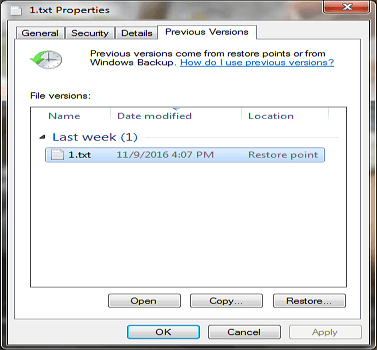
Previous versions of a file can be restored from File History or restore points, but for this to be possible, the file backup function must be enabled in advance.
Step 1. Right-click on the folder that contained the deleted XLSX/XLS file.
Step 2. Choose "Restore previous versions". Choose the correct version from the list.
Step 3. To recover an XLSX file, click on the "Restore" option, which can be accessed from any location on the system.
What's the Best Way to Recover Deleted XLSX File
You can recover an Excel XLS or XLSX file in three ways. Firstly, if you've saved the file recently, you can try opening it from the Recent Files list in Excel.
- If you haven't emptied the Recycle Bin, you can try to restore the deleted Excel file from it. To do this, follow these steps: Open the Recycle Bin, right-click on the Excel file you want to restore, and select "Restore" from the context menu.
- If you've lost or permanently deleted an Excel file, Qiling Excel recovery software can help you recover it. This software is designed to scan your computer's hard drive, memory, and other storage devices to find and recover lost or deleted Excel files.
- If you have enabled Windows File History, you can retrieve XLSX files from previous versions by following these steps: Go to the File History folder, navigate to the date and time when the file was last saved, and look for the XLSX file with the same name. You can then right-click on the file and select "Restore previous versions" to access the previous versions of the file.
Among the three solutions, the Excel file recovery tool is strongly recommended. However, for more complex data loss situations, Qiling data recovery software is a better option, capable of recovering lost or deleted photos, videos, audios, documents, emails, and other files at a high recovery rate.
Useful Tips to Prevent Excel Data Loss
To prevent Excel file loss issues, consider backing up your files regularly, using cloud storage services like OneDrive or Google Drive, and keeping multiple versions of your files. Additionally, you can use Excel's built-in autosave feature, set reminders to save your files, and consider using a third-party backup software for extra security.
1. Turn on the AutoRecover feature to automatically save Excel:
- Open an Excel file, click File at the left top corner > Options.
- In the Save category, check Save AutoRecover information every box under Save workbooks, and enter a number of minutes of how frequently you want to save Excel automatically. This will ensure your work is saved regularly and can be recovered in case of a power outage or other issues.
- In the AutoRecover file location box, enter the location where you want to save the recovery file.
- Uncheck Disable AutoRecover for this workbook only box.
2. Backup Excel regularly
Having an Excel file backup can be crucial in case of an accident or error, as it allows you to recover your work and avoid losing important data. This can be especially important if you've spent a significant amount of time working on a project or if the data is critical to your business or personal life.
3. Turn to the right solution to different Excel loss issues.
If you're facing Excel file deletion, take a deep breath and try the methods on this page to recover your .xlsx or .xls file.
Related Articles
- How to Restore Lost Data with Easy Recovery Essentials Free Alternative
- Recover Lost Files with Qiling Portable Data Recovery Software
- Ext4 File Recovery: How to Recover Deleted Files from Ext4 Linux
- Download Deep Scan Data Recovery Software
- Best Free Windows 10 Data Recovery Software
If you're looking for a free data recovery software for Windows 10 to rescue your data, Qiling software or Deep Data Recovery Free can assist you in recovering data lost due to deletion, formatting, or system upgrade/hard drive failure. - Recover Access Files with Access Database Recovery Software
Free Access database recovery software can recover lost Microsoft Office Access database files due to various reasons such as deletion, formatting, partition loss, or system crashes on your hard disk drive.
Products
Articles & Tutorials
- Data Recovery
- Data Backup
- File Recovery
- File Backup
- System Backup and Restore
- Disk and Partition Clone
- Technical articles
- Mobile articles
- Disk Master Help
- Windows Data Recovery Tutorials
- Windows Secure Delete Tutorials
- Windows Partition Management Tutorials
- Windows File Backup and Restore Tutorials
- Windows System Backup and Restore Tutorials
- Windows Disk Backup and Restore Tutorials
- Windows Clone Tutorials