How to Open a Corrupt Word File on Mac and Recover Deleted Word
The text recovery converter for Mac can be found in the "Tools" menu of Microsoft Word. To recover a corrupt .docx file, follow these steps: Open Microsoft Word on your Mac.
Unfortunately, the error message suggests that your Microsoft Word file 2011 may be corrupted or deleted. The "Text Recovery converter" is a feature within Microsoft Word that can attempt to recover a damaged file. To access it, open Word and go to "File" > "Open" > "Recent" and click on the file that is giving you the error. If the file is corrupted, Word will prompt you to open it with the Text Recovery converter. If it is deleted, you will not be able to recover it. If you are unable to access the file, you can try searching for it in the "Finder" on your Mac, or checking your "Recycle Bin" (if you have one). If all else fails, you may need to contact Microsoft support for further assistance.
Causes of Word File Loss or Corruption on Mac
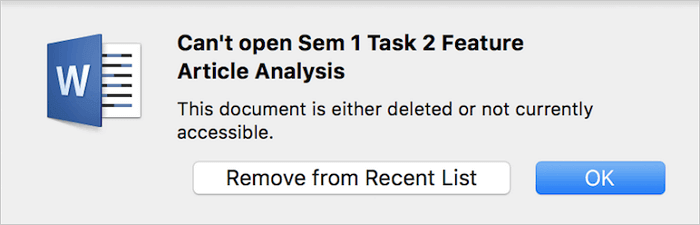
You might encounter issues like being unable to access or open a Word document due to corruption, or worse, not being able to find a specific Word document that's been deleted or lost. This can happen due to various factors, including corruption, deletion, or loss of the document, which can be frustrating. Understanding the common causes of the 'This document is either deleted or not currently accessible' error in Word on Mac can help you address the problem more effectively.
- If you've closed Word/Mac without saving your document, don't worry! You can try to recover the unsaved document by following these steps: Go to the "Recent" list in Word, click on the "File" menu, and select "Recent" to see if the document is listed.
- The file name is changed
- The file location is changed
- Word File has been deleted accidentally
- could be corruption in the document
- Word file gets infected by a virus
- Word file is corrupted
The error occurs when a Word file is deleted or corrupted, making it inaccessible. Solutions include recovering the file, reinstalling Office, checking for malware, or using a file recovery tool. Choose the appropriate solution based on the case.
How to Recover Word Document on Mac If 'This document Is Deleted'
You saved a Word document on your Mac, but when you tried to reopen it after closing, you couldn't find it, and it wasn't listed in the Recent documents. Instead, you got an error message saying "This document is either deleted or not currently accessible." This suggests that the document was likely accidentally deleted.
If you accidentally deleted a Word document, you can try to recover it from the Trash Bin. If that doesn't work, you can use professional Microsoft Office data recovery software to help you recover the document.
Deep Data Recovery for Mac is an ultimate Mac data recovery tool that allows users to recover deleted or lost documents from various storage devices in just three steps.
Step 1. Launch Qiling file recovery software on your computer, select file types, and click "Fast Scan" to initiate the recovery process.

Note: You can choose different search modes based on where and why the data was lost.
Step 2. Select the location where your important Word documents were lost and click Scan button.

Step 3. Deep Data Recovery for Mac starts a quick scan and a deep scan on the selected disk volume, displaying the scanning results in the left pane.

Step 4. By Path and Type, you can quickly filter the Word files you've lost earlier. Select the target files and click the Recover button to retrieve them instantly.
Note: If you want to recover lost word document on the Windows system, choose the Windows version for word recovery.
How to Open and Repair a Corrupted Word File on Mac
If your Word files on Mac have become damaged or corrupted and are no longer accessible, there are ways to fix the issues. You can try using the built-in repair feature in Word, or use third-party software specifically designed to repair corrupted Word files. Additionally, you can also try using the "Compact" feature in Word to reduce the file size and potentially fix any issues.
How to Open a Corrupt Word File on Mac with Text Recovery Converter
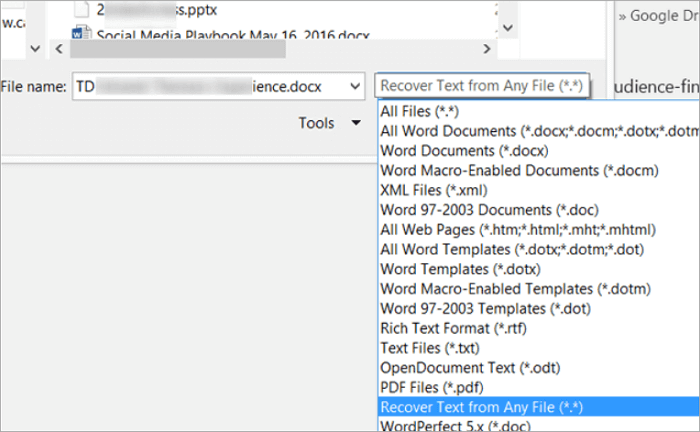
When your Word document on Mac is corrupted or damaged, you'll get an error message saying 'This file may be corrupted. Open the file with text recovery converter'. To recover the file, you can use Word's built-in 'Recover Text from Any File' feature.
Step 1.Launch the Word on Mac and click on "File" > "Open" in the main menu.
Step 2. To recover text from any file, go to the "Enable (Show)" drop-down menu and select the option "Recover Text from Any File".
Step 3. To recover a corrupted Word file, navigate to the file and follow the on-screen instructions to complete the recovery process.
How to Repair an Accessible Corrupted Word File
If the corrupted Word file can be opened on Mac, you can troubleshoot issues by saving it as RTF or storing content to a new file.
Option 1. Open and save the corrupted Word document as RTF
Step 1. Open the corrupted Word document, go to "File" and click "Save As" to attempt to recover it.
Step 2. Click the "Format" list, then select "Rich Text Format".

Step 3. To fix a corrupted Word document, try saving it with a different name and file format, such as .docx or .txt, to see if the issue persists. If the problem still exists, you may need to recover the document from a backup or use a third-party recovery tool.
Option 2. Copy and save Word document as a new file
Step 1.To resolve the issue, open the document with the corrupted error, then go to the "Edit" menu and select "Select All".
Step 2.Press the SHIFT key, hold it down, and press the LEFT ARROW key one time, then release the SHIFT key.
Step 3. On "Edit", select "Copy", then choose "New Black Document" on Edit.
Step 4.To create a new document, click on "File" in the top menu bar, then select "New" from the drop-down menu. In the new document, click "Paste" on the "Edit" menu. Finally, save the file.
Final Words
Losing an important Word document and getting the message 'This document is either deleted or not currently accessible' can be very troublesome. However, there are still chances to recover deleted Word files by using Qiling data recovery software for Mac. You can also try using a text recovery converter Mac to open and repair corrupt Word documents, or save corrupted Word documents as RTF or as a new file.
Regularly back up your important files, and consider enabling AutoSave in Word, Excel, or PPT to automatically save your work. In case of an accident, you can recover unsaved files from AutoRecovery. On Mac, use Time Machine or an automatic backup tool to keep your data safe.
Frequently Asked Questions on Text Recovery Converter on Mac
1. What is the text recovery converter?
The Recover Text Converter helps to open and repair damaged Microsoft Word documents and other documents, recovering as much information as possible, especially when a system or program crash causes Word document damage or corruption.
2. How do I open text recovery converter on Mac?
To recover text from a file on a Mac, open the file with the Text Recovery converter, which will allow you to access and edit the text as needed.
Step 1. In the main menu bar, select "File" > "Open".
Step 2. In the center, there is a drop-down menu titled "Enable:".
Step 3. To recover text from a file, click on the "Recover text from any file" option at the bottom of the page.
3. How do you use the text recovery converter on a Mac?
When encountering the "This document is either deleted or not currently accessible" issue, you can try opening and repairing a Word document on Mac by starting the Word application, clicking "File" > "Open", and then selecting the "Recover Text from Any File" option from the drop-down menu titled Enable. This may help recover the text from the inaccessible document.
4. How do I recover a corrupted Word document Mac?
If you have a corrupted Word document on Mac, you can try using the text recovery converter to recover it, or if it's truly lost, use a professional data recovery tool like Qiling Data Recovery for Mac.
Related Articles
- How to Recover Deleted Applications on Mac with Free and Proved Ways
- Fix Forgot MacBook Password and Reset Mac Password
- Qiling Free Mac Data Recovery Software for Mac OS X and macOS
- Follow Our Tips to Resolve A Collection of Mac No Startup Disk Issues
- How to Delete Windows.old Folder
The Windows.old folder is a temporary folder that contains files and settings from a previous Windows installation. While it's generally safe to delete the Windows.old folder, some users may be hesitant to do so. Here are three ways to delete Windows. - Free Disk Cloning Software for Windows 10 Download
Are you looking for a free disk cloning software for Windows 10? Look no further! We've got a list of the best free disk cloning software for Windows 10 that can help you clone your hard drive safely and securely.
Products
Articles & Tutorials
- Data Recovery
- Data Backup
- File Recovery
- File Backup
- System Backup and Restore
- Disk and Partition Clone
- Technical articles
- Mobile articles
- Disk Master Help
- Windows Data Recovery Tutorials
- Windows Secure Delete Tutorials
- Windows Partition Management Tutorials
- Windows File Backup and Restore Tutorials
- Windows System Backup and Restore Tutorials
- Windows Disk Backup and Restore Tutorials
- Windows Clone Tutorials