How to Recover Lost Data after Disk MBR to GPT Conversion
Can I Recover Lost Data After Disk MBR to GPT Conversion
You tried to install an app that needs GPT, but your system disk is MBR, so you installed it on a second hard drive that supports GPT instead.
I attempted to convert the MBR to GPT on my second disk using an online tutorial guide, but unfortunately, all the partitions on that disk disappeared from my computer. This has left me with a lot of concern as I have stored a significant amount of important data and files in that partition. My question is, is it possible to recover the lost data after the disk conversion?
Cause of partition and data loss due to disk conversion
Some users are puzzled when their partition and data disappear after converting a disk from MBR to GPT or vice versa. This is a common issue, and it's not because the conversion option is unavailable in Disk Management, as shown in the image, but rather due to a lack of understanding of the process.
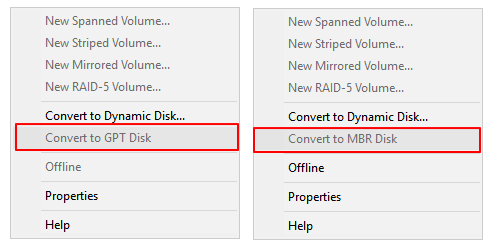
To recover lost data and partitions, you can try using a data recovery software that can scan your hard drive for deleted partitions and recover your data. Some popular options include Deep Data Recovery, Qiling file recovery software, and professional data recovery tools. These software can help you recover your lost data and partitions, even if they were deleted during the conversion process. Additionally, you can also try using a partition recovery software like Qiling Partition Recovery to recover your lost partitions. It's always a good idea to back up your data regularly to prevent data loss in the future.
Solution 1. Restore Lost Data and Create Partitions on Converted Disk
Stop using your computer's hard drive immediately after losing data during a disk conversion (e.g. from MBR to GPT or GPT to MBR) to prevent hidden partition data or lost data from being overwritten. Then, follow the guidelines provided to recover your disk partition and retrieve all your lost data.
# 1. Restore Lost Data due to Disk Conversion
A reliable hard drive recovery tool or software can help restore data from a deleted hard disk partition. Deep Data Recovery is a recommended option that can retrieve data from complex situations, such as unallocated hard drive recovery.
This software is fully compatible with Windows 10/8/7/XP and even Vista, making it accessible to all users. It allows users of all levels to easily fix data loss issues in just 3 simple steps.
Install this software on your PC and follow to recover lost data after disk MBR to GPT conversion:
Step 1. Run Deep Data Recovery. Select file types and click "Fast Scan" to start the recovery process.

Note: You can choose different search modes based on where and why the data was lost.
Step 2. Select the partition where the lost files are stored and click "Scan". The software supports recovery from FAT, exFAT, NTFS, NTFS5, ext2, ext3, HFS+, and ReFS file systems.

Step 3. To quickly find lost data from numerous scan results, use the filter or search function.

Step 4. Before recovering files, you can preview them first. Once you've selected all the desired data, click "Recover" to restore files from existing partitions, making sure not to save them to the same partition where the data was lost.
Save recoverable files and data to an external hard drive before making the converted disk available for use again.
# 2. Create New Partitions on Converted Disk
Your next move is to create new partitions on the hard disk. You have two ways: Disk Management or free partition management software. Here we'd like to guide you go through a manual way.
To create partitions on unallocated hard drive with Disk Management:
- Step 1: Right-click on This PC/My Computer > Manage > Disk Management.
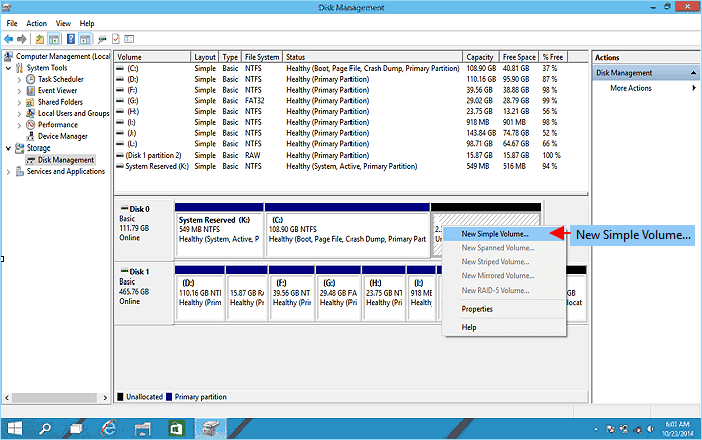
- Step 2:To create a new simple volume on the unallocated space of the converted hard drive, locate the unallocated space and right-click on it, then select "New Simple Volume" from the context menu.
-
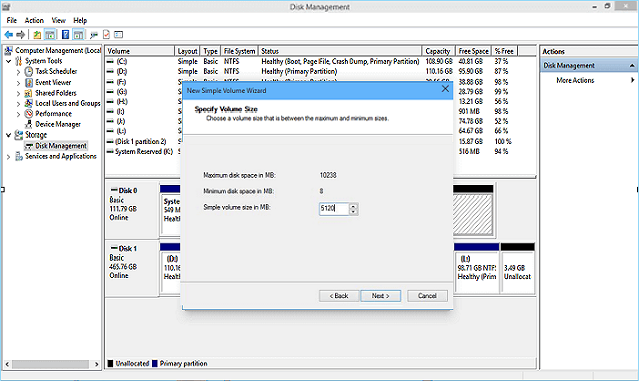
- Step 3: Set partition size, drive letter and file system (NTFS), etc.
-
- Step 4: Click "Finish" to complete the process.
-
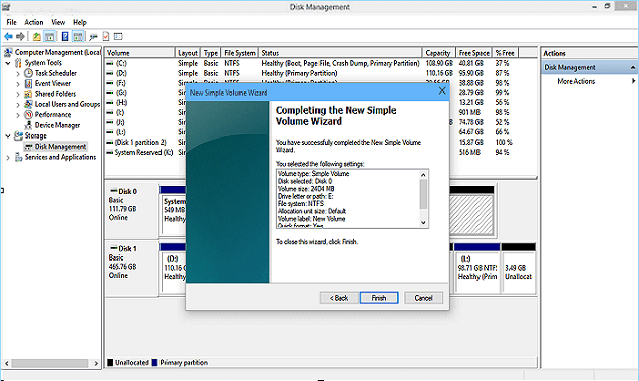
To restore files from a backup, follow the process of creating a partition on the disk, saving the restored files and data back to the hard drive, and reusing the files again. This process can be repeated multiple times to create multiple partitions on the disk.
Solution 2. Perform Partition Recovery on Converted Disk
If you're experiencing issues after converting a disk, you can try Qiling Partition Recovery to restore deleted partitions with data. You can also refer to Data Backup and Drive Clone Tutorials for related backup and disk management guidance. Qiling Partition Recovery can scan an unallocated disk and find deleted partitions with data without altering the disk's converted state - MBR/GPT.
This software is a trial edition, allowing you to proceed without payment until you're satisfied that it can find your partitions and data at step 3. The process involves going through the steps, which include checking if the software can locate your partitions and data. This ensures that you're not charged until you're confident in the software's capabilities.
Step 1. Run Qiling Partition Recovery on your PC.
Select the disk or device where you lost partition(s), click "Proceed" to continue. This step is crucial in identifying the correct location of the lost partition(s) to ensure accurate recovery.
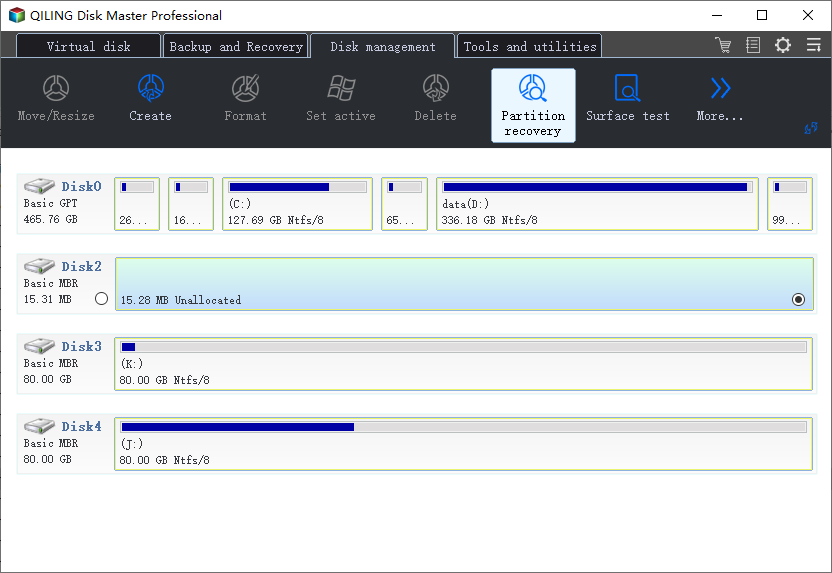
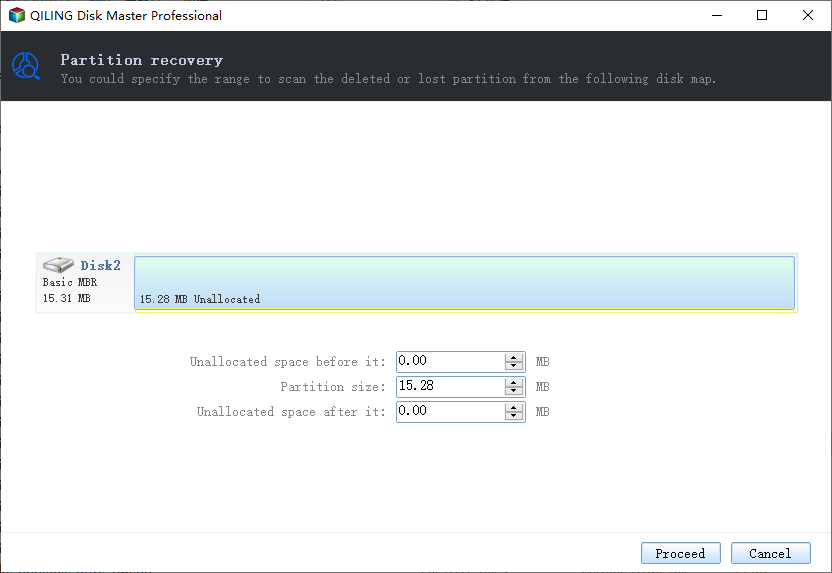
Step 2. Wait for the scanning process to complete.
Let the program scan the selected disk and find the lost partition(s) on it.
Step 3. Preview and restore the lost partition(s).
Double-click on the partition which is marked as "Lost" with "Good" recoverability.
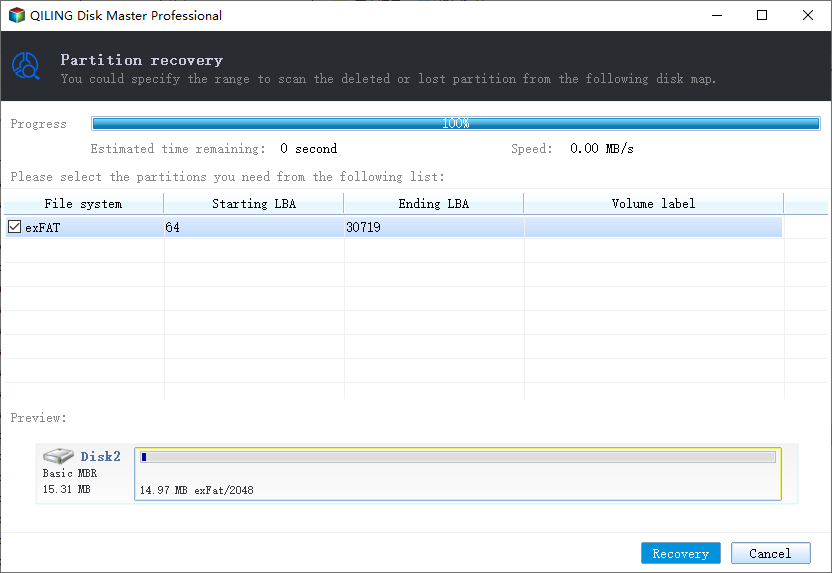
To restore a lost partition, click on the "Preview" button to view the contents of the partition. If the preview is satisfactory, click "OK" and then click "Proceed" to initiate the recovery process. This will start the restoration of the lost partition.
Step 4. Click "Recover" to finish the partition recovery process.
If the program warns you that there is a conflict, back up the listed partition with essential data to an external hard drive first, then execute the final operation to restore your lost partition.
Both solutions provided on this page can work to restore lost data and partitions due to disk conversion from MBR to PGT or vice versa.
To summarize, if you're experiencing difficulties with partition recovery or need further assistance, you can reach out to Qiling's data recovery experts for a customized manual data recovery service by emailing support@idiskhome.com.
Consult with Qiling Data Recovery Experts for one-on-one manual recovery service, which includes a FREE diagnosis and the following additional services.
- Repairing a corrupted RAID structure, an unbootable Windows OS, or a corrupted virtual disk file (.vmdk, .vhd, .vhdx, etc.) requires a comprehensive approach to ensure data recovery and system stability. This involves diagnosing the root cause of the issue, whether it's hardware failure, software corruption, or user error, and then implementing a solution tailored to the specific problem.
- Recover/repair lost partition and re-partitioned drive.
- Unformat hard drive and repair raw drive(Bitlocker encrypted drive)
- Fix disks that become GPT protected partitions
Related Articles
- How to Access User Folder on Old Hard Drive Windows 10/11
- How to Activate Windows 10/11 with Product Key/Digital License/CMD
- [Solved] Seagate External Hard Drive Beeping and Not Recognized? Get Complete Guide
- How to Fix Buffalo External Hard Drive Not Working/Recognized
- Lenovo Data Recovery - How to Recover Deleted Files on Lenovo Laptop/Tablet
To recover deleted files from your Lenovo laptop or tablet, use the Lenovo data recovery software to restore lost photos, videos, music, and documents. Follow these steps: the steps outlined below. - SSD Data Recovery – How to Recover Deleted Files from SSDs
Free download SSD data recovery software, allows you to recover deleted files from SSD drive easily and effectively. Check out the details to recover SSD on Windows or Mac now.
Products
Articles & Tutorials
- Data Recovery
- Data Backup
- File Recovery
- File Backup
- System Backup and Restore
- Disk and Partition Clone
- Technical articles
- Mobile articles
- Disk Master Help
- Windows Data Recovery Tutorials
- Windows Secure Delete Tutorials
- Windows Partition Management Tutorials
- Windows File Backup and Restore Tutorials
- Windows System Backup and Restore Tutorials
- Windows Disk Backup and Restore Tutorials
- Windows Clone Tutorials