3 Ways to Recover Permanently Deleted Files/Folders in Windows 11
When files are deleted, they are moved to the Recycle Bin, rather than being permanently erased. This allows users to recover the files if needed. However, if the files are permanently deleted from the Recycle Bin, they are no longer accessible through normal means and require specialized recovery methods to retrieve them.
Where Do Permanently Deleted Files/Folders Go?
In Windows 11, deleted files are stored in the Recycle Bin, where they can be recovered by right-clicking and selecting "Restore". A permanent deletion occurs when the Recycle Bin is emptied, in addition to using "Shift + Delete".
When a Windows 11 PC permanently deletes a file or empties the Recycle Bin, it removes the file's reference, making it invisible, but the space it occupied is freed up for new files.
Permanently deleting a file in Windows 11 removes its accessibility, but it doesn't erase it immediately, as it remains on the storage device until another file is saved to the same location.
If you want to restore permanently deleted files, you should act quickly, as the space they occupied will soon be overwritten with new data, making it impossible to recover them.
You can recover permanently deleted files in Windows 11 using three proven methods, and even if you've used the "Shift + Delete" command to remove a folder or file, you can still restore deleted files.
1 - Recover Permanently Deleted Files via Data Recovery Software
Emptying the recycle bin doesn't mean files are gone forever. Using Qiling data recovery software is the most effective way to retrieve permanently deleted files in Windows 11. This software can restore deleted files and even recover files from a partition that was formatted by mistake, making it a powerful tool for various data recovery situations.
Qiling Deleted File Recovery Windows 11
- Get Back lost or deleted files, documents, photos, videos, audio, music, and emails easily with a data recovery software or service.
- This device supports almost every storage device, including hard drives, memory cards, flash drives, digital cameras, and camcorders.
- Data recovery is possible after accidental deletion, formatting, virus attacks, system crashes, and Windows updates.
You can try the free version first to recover up to 2GB of data, then scan the drive in Windows 11 and see if it can find your files, and follow the steps to recover permanently deleted files and folders.
Step 1. Select file types and click "Fast Scan" to start
Launch the Deep Data Recovery software, choose the desired file types, and click "Fast Scan" to initiate the recovery process.

Note: You can choose different search modes based on where and why the data was lost.
Step 2. Select the location to scan
To recover permanently deleted files, select the device and drive where the files were deleted using Shift delete or emptied from the recycle bin. Click the "Scan" button to initiate the recovery process and locate the lost files.

Step 3. Check the results
The software will automatically scan the entire selected drive once started. After the scan completes, select the "Deleted Files" and "Other Lost Files" folders in the left panel. Then, use the "Filter" feature or click the "Search files or folders" button to quickly find the deleted files.

Step 4. Recover deleted files
To recover deleted files, select them and click "Preview". Then, click "Recover" to save them to another secure location or device.
2 - Recover Permanently Deleted Windows 11 Files with File History
To restore permanently deleted files in Windows 11, you can use the File History feature if it was enabled before deletion. File History allows you to recover files and folders to a previous version. If you had turned on File History, you can follow the steps to restore your deleted files.
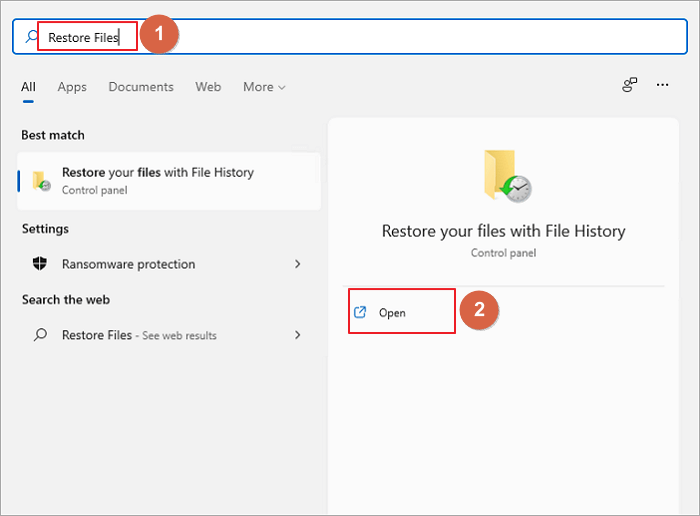
Step 1. At the Task Bar, click the search icon, type "Restore Files", and click "Open" to restore files.
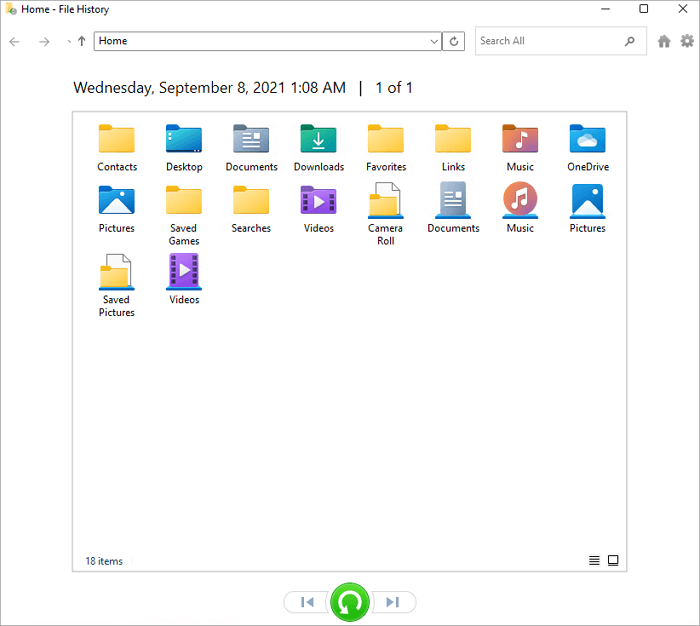
Step 2. Look for the folder that contains the old address of your deleted files, which might be labeled as "Recycle Bin" or "Trash".
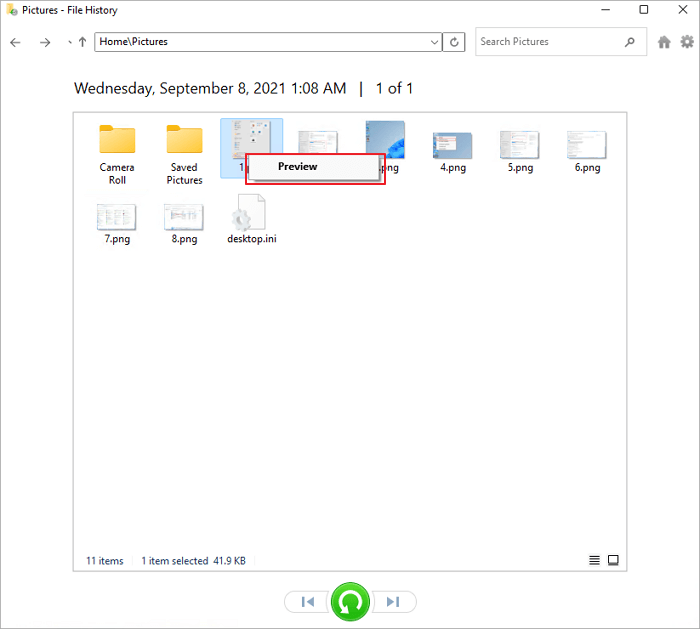
Step 3. You can right-click the files to preview them.
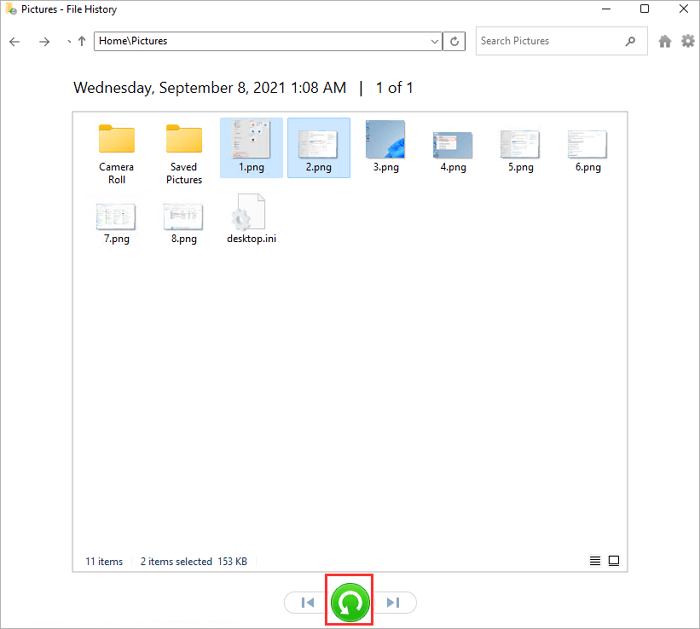
Step 4. To restore deleted files, select the files you want to recover and click the "Restore" button. This will relocate the deleted files back to their original location.
3 - Recover Permanently Deleted Files by Previous Versions in Windows 11
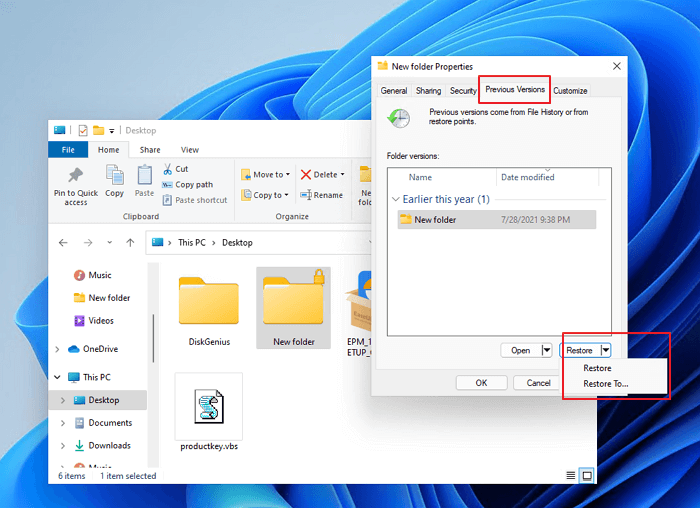
To recover permanently deleted files in Windows 11, you can use the Previous Versions feature, which requires you to have backed up your data using Windows 11 File History or created a restore point before deleting the files. This allows you to get back permanently deleted files.
Step 1. Go to the folder or location that has saved the deleted files you want to recover.
Step 2. Right-click the blank space on the folder and choose "Properties".
Step 3. To determine if a backup is effective for data restore, view the "Previous Versions" tab and note the date the backup was made, which can help you decide if it's a suitable source for restoring your data.
Step 4. You can restore files to their original location or another place by clicking "Restore To". Alternatively, you can select "Restore" to recover the files to their original location.
Bonus Tip - How to Protect Your Data and Files in Windows 11
To avoid accidental deletions and misoperation, it's essential to learn how to protect your files and folders in Windows 11. A straightforward way to do this is by password-protecting your folders, which can help prevent unauthorized access and ensure your data remains safe.
- To prevent data loss when multiple people use the same account on a computer, consider implementing a user-based approach. Each user can have their own set of files, settings, and applications, which can be easily switched between or restored if needed. This can be achieved through features like user profiles, virtual desktops, or even separate user accounts with their own login credentials.
- Protect your confidential or private folders on the computer.
- Protect a folder with a password for additional file security.
In addition to setting permissions, you can also protect your folder by making a file backup in Windows 11, which will allow you to restore your data in case of loss.
Conclusion
If you've accidentally deleted files and folders from your Windows PC, you can recover them from the recycle bin folder. However, if you delete them permanently, you can still try to retrieve them using certain methods, including one that's recommended for its ease of use and ability to recover all kinds of data, even if you have little technical expertise.
Related Articles
- Synology Data Recovery: How to Recover Deleted Files from Synology NAS Device
- Top 10 Best SD Card Repair Tool Download
- How to Repair a Corrupted Hard Disk Without Formatting It in Windows 10/8/7
- How to Recover Deleted Photos on Android, iPhone, PC, and Mac
- How to Recover Deleted Photos in Sony Xperia
This article walks you through the whole process of how to recover deleted photos from Sony Xperia under Windows or Mac. - How to Recover Deleted PowerPoint Files on Mac
No matter which PowerPoint version you are used. Qiling recover PPT file Mac tool can help you easy to recover deleted PowerPoint files on Mac, external hard disk, formatted drive, USB drive, SD card, etc.
Products
Articles & Tutorials
- Data Recovery
- Data Backup
- File Recovery
- File Backup
- System Backup and Restore
- Disk and Partition Clone
- Technical articles
- Mobile articles
- Disk Master Help
- Windows Data Recovery Tutorials
- Windows Secure Delete Tutorials
- Windows Partition Management Tutorials
- Windows File Backup and Restore Tutorials
- Windows System Backup and Restore Tutorials
- Windows Disk Backup and Restore Tutorials
- Windows Clone Tutorials