Synology Data Recovery: How to Recover Deleted Files from Synology NAS Device
User Case: How Can I Recover Data on my Synology NAS Using a PC
If you've accidentally deleted a crucial folder on your Synology NAS with RAID5 configuration and the Recycle Bin wasn't enabled, don't panic. You can try using the Synology Disk Utility to scan the disk for recoverable files. This might take some time, but it's worth a shot. Additionally, you can also use third-party data recovery software specifically designed for NAS devices, following the manufacturer's guidelines to ensure safe and effective recovery. However, it's essential to act quickly, as the longer you wait, the lower the chances of successful recovery.
NAS, or Network Attached Storage, is a dedicated data storage server that combines memory components and embedded system software to enable cross-platform file sharing.
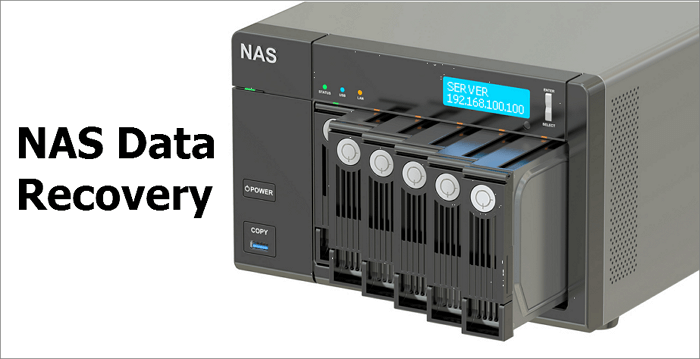
The Synology NAS drive is a popular choice among NAS users, offering features like automatic file synchronization between devices, multi-person collaborative cloud office capabilities, and seamless connection between home and company offices. Additionally, its photo management function is exceptional, providing a comprehensive set of tools to efficiently group, filter, organize, and share photos while keeping memories safe and secure.
Synology NAS Data Loss/Failure
Synology RAID-NAS devices may experience data loss due to various reasons, including hardware failures, software glitches, power outages, and human errors. These issues can lead to data corruption, incomplete backups, or even complete data loss, resulting in significant downtime and financial losses for organizations.
- Intentional or unintentional file deletion without recovery
- Disk initialization or formatting for using NAS RAID disks
- BTRFS or EXT4 file system corruption
- Improper configuration of RAID arrays can occur due to an abrupt power loss or incomplete repair, leading to data inconsistencies and potential system crashes.
- Virus attack or malware infection results in data loss
- Other user or system errors
If you experience data loss on your Synology NAS drive due to various causes, you can recover deleted or lost files using one of two methods:
Method 1. Super-Easy Synology NAS Recovery, No Need to Pull Disk Out
If you lose data stored on your Synology NAS, you can try to restore files using Qiling NAS data recovery software, which allows you to recover data from ext4 or btrfs file systems with simple steps, eliminating the need to physically remove disks.
Qiling file recovery software highlights:
- Recover deleted or formatted files from NAS hard drives efficiently
- Recover your NAS in just a few simple steps without having to physically remove the disks, making the process quick and hassle-free.
- The software supports all the major NAS disk brands, including Synology, QNAP, Buffalo, Western Digital, and NETGEAR, among others. This comprehensive compatibility ensures a seamless integration with various NAS systems, providing users with a wide range of options to choose from.
- Restore data on NAS using a PC running Windows 11/10/8/7
Step 1. Select a NAS server and start recovering.
Download and install Deep Data Recovery on your Windows 11/10 64-bit computer. When you open this software, select "NAS Recovery", and it will automatically list all NAS servers. Choose your target NAS device and click "Scan" to proceed.

Note: You can choose different search modes based on where and why the data was lost.
Step 2. Enable SSH service on the NAS server.
To enable SSH service, go to the "Control Panel > Terminal & SNMP" section, check the box that says "Enable SSH service", and note down the port number for remote access. After that, open Deep Data Recovery and click "Next".
Step 3. Connect to the NAS server remotely.
This software automatically detects your IP and Port, requiring only your username and password to be inputted. If the detected IP or Port is incorrect, you can manually correct it. Upon completion, click "Connect Now" to proceed.

Step 4. Recover lost/deleted NAS data
Qiling data recovery software will connect to your NAS and start a scanning process. After the scan, it will display all deleted, lost, or existing files on your NAS server.
To recover lost files from a NAS, you can use the "Filter" feature or search for specific files. Select the desired files and click "Recover" to save them to a new location.

Method 2. Recover Data from Synology NAS by Taking Out Disks and Rebuilding RAID (Complex)
Unlike Qiling NAS data recovery software, other NAS recovery products on the market are often complex and difficult for average users to navigate, requiring a cumbersome process to retrieve data.
The traditional procedures for Synology NAS data recovery involve a series of steps to restore data from a Synology NAS device. This includes turning off the NAS device, unplugging it from power, and then physically removing any storage drives.
Step 1. Power off the NAS service. Remove the RAID drives disks one by one.
- Important
- When removing NAS drives, label them by bay to ensure correct reassembly, and avoid violating the warranty.
Step 2. Connect the drives to your computer using SATA cables or USB-to-SATA adapters with power, but do not initialize or format the drives when prompted.
Step 3.To recover data from failed NAS drives, prepare an external or internal hard drive, or another network storage space that can hold at least the same volume of data as the recovered data. This will be used to store the restored data from the NAS.
Step 4. To recover data from a NAS, get a reliable NAS recovery software, such as Deep Data Recovery, and follow the on-screen instructions to scan and recover your files. This software can help you retrieve deleted or lost data from your NAS device. Just make sure to download and install the correct version for your NAS model, and follow the software's guidelines for data recovery.
Method 3. Recover Synology NAS Data With the Help of Experts
For complex data recovery situations like reformatting Synology drives, RAW disk, partition loss, system boot error, and virtual disk corruption, you may need further assistance. Qiling Data Recovery Experts offer a cost-efficient one-on-one manual recovery service, providing personalized help after a FREE diagnosis. They can assist with services such as data recovery, disk repair, and system restoration.
Consult with Qiling data recovery experts for a one-on-one manual recovery service, which includes repairing the damaged RAID structure and restoring data from all RAID levels, all offered after a FREE diagnosis. Our decades-experienced engineers are knowledgeable and skilled in this process.
- Data can be restored from various RAID levels, including RAID 0, RAID 1, RAID 5, RAID 6, RAID 10, and others, allowing users to recover information from different types of disk arrays.
- Recover data from enterprise RAIDs such as QNAP, Synology, WD, Buffalo, and more by utilizing specialized software and techniques. These tools can help extract data from faulty or failed RAID systems, allowing users to recover important files and information.
- Retrieve lost RAID data caused by any issues
- Fix disks that become GPT protected partitions
- Recover data from RAID remotely, no need to ship
Perform Synology Data recovery in a Few Clicks
After reading this tutorial, we believe that you have learned the two ways to recover data from Synology NAS drive. Qiling NAS data recovery software offers an exclusive and simple way to restore deleted or lost files from a NAS device configured as a single drive, RAID 0, RAID 1, or RAID, without needing to remove disks or rebuild the RAID, making data recovery efficient with just a few clicks.
Related Articles
- Top 10 Best Hard Drive Repair Software
- Best Forensic Data Recovery Software
- Fix Corrupt Master File Table. CHKDSK Aborted Error in Windows 10/8/7
- TXT File Recovery - Two Methods to Recover Lost Text Files
- Fix the Album Artwork Not Showing on iPhone Issue
Fix album artwork not showing on iPhone and learn how to restore missing music artwork or lost songs safely. - FIX 'Attempting data recovery' on iPhone X/8/7/6 After iOS 12 Update
This page covers everything you need to know about fixing the iPhone/iPad 'attempting data recovery' loop and recovering lost data after an iOS 12 update failed to recover data via iTunes.
Products
Articles & Tutorials
- Data Recovery
- Data Backup
- File Recovery
- File Backup
- System Backup and Restore
- Disk and Partition Clone
- Technical articles
- Mobile articles
- Disk Master Help
- Windows Data Recovery Tutorials
- Windows Secure Delete Tutorials
- Windows Partition Management Tutorials
- Windows File Backup and Restore Tutorials
- Windows System Backup and Restore Tutorials
- Windows Disk Backup and Restore Tutorials
- Windows Clone Tutorials