SQL Suspect Mode Fix | How to Recover SQL Database from Suspect Mode
What Is SQL Suspect Mode
The Suspect Mode is a SQL Server database state where the recovery process has initiated but not finished successfully, requiring users to fix the issue and repair corrupted files, making the database unavailable for user access.
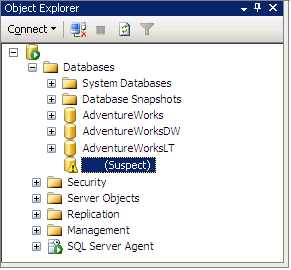
Why SQL Server Marks a Database As Suspect
Here are some reasons why your database states may become suspect:
- Database file corruption
- Unavailable database files
- Improper shutdown of the SQL database server
- The issue is that the device where the data or log file is located cannot be accessed or opened, resulting in an inability to retrieve or view the information.
- SQL server crash
A SQL database can be put into the Suspect state due to various reasons, but the process to repair it remains the same. To recover a SQL database from Suspect Mode, you can follow the steps outlined in the subsequent text.
How to Recover MS SQL Database from Suspect Mode
To recover MS SQL from Suspect Mode, administrators can use the following steps: run the DBCC CHECKDB command with the repair option, which can help identify and fix logical corruption issues. If the issue persists, try running the DBCC HDBCHECK command to check for hardware-related corruption. If the issue still persists, try running the DBCC DBREPAIR command to repair the database.
Step 1: Switch the database to the Emergency Mode.
To start the Microsoft SQL Server Management Studio and connect your database, follow these steps:
Choose "New Query"
Turn off the suspect flag on the database and switch it to EMERGENCY
EXEC sp_resetstatus 'db_name';
ALTER DATABASE db_name SET EMERGENCY
Step 2: Perform the function Consistency Check on the Master Database.
DBCC CHECKDB ('database_name')
Step 3:To resolve the issue, the database should be put into Single User Mode, which will prevent any other users from accessing it, and then the previous transactions should be rolled back. This will allow the database to be restored to a previous state, undoing any changes that were made.
ALTER DATABASE database_name SET SINGLE_USER WITH ROLLBACK IMMEDIATE
Step 4: The database will be backed up shortly. The next operation may cause data loss.
Step 5: Execute Database Repair allowing some data loss.
DBCC CHECKDB ('database_name', REPAIR_ALLOW_DATA_LOSS)
If you lost some database files after this operation and do not have any backup available, you can recover your files with professional hard drive recovery software.
Step 6: Change the database into Multi-User Mode.
ALTER DATABASE database_name SET MULTI_USER
Step 7: To refresh the SQL database server and check its connectivity, follow these steps: Run the command "sqlcmd -S
In most cases, users can resolve the issue by repairing the Suspect database and reaccessing it. However, if the SQL server device files are badly corrupt, the solution may not recover the database from Suspect Mode to Normal, requiring the use of a tool like Qiling MS SQL recovery to repair and recover lost records.
Feature Highlights:
- Repairs corrupted SQL database files (MDF/NDF files)
- The SQL Server database repair tool is designed to fix corrupted database components, including tables, triggers, indexes, keys, rules, and stored procedures. This tool can help recover and restore the integrity of a damaged SQL Server database, making it possible to access and utilize the data stored within.
- Recovers deleted/dropped records from SQL Database
- The tool allows you to save the database scan results, enabling you to resume data recovery at a later stage, which is useful for large databases or complex recovery processes.
If your MS SQL database is in the Suspect Mode and you're unable to recover it, this tool can help you repair it. It enables you to resolve common SQL database errors and regain access to your database.
Follow the steps to perform a database repair:
Step 1. Select file types and click "Fast Scan" to start.
- Launch Qiling MS SQL Recovery.
- Select the corrupted database file by clicking "Browse" (the two dots) or "Search".
- Run Qiling SQL Recovery, select file types and click "Fast Scan" to start the recovery process.

Note: You can choose different search modes based on where and why the data was lost.
Step 2. Select the corrupted database for recovery
- Once you've selected the file, click the "Scan" button to initiate the Analyzing process.

Note: To use this software, you need to stop the SQL Server service.
Step 3: Repair the corrupted database
- The software displays all the recoverable items in a tree-like structure, showing them in a left pane.
- To recover the desired component, select it from the window and click the "Export" button.

Step 4: Export to the database or as scripts
- To export database objects to a database or export items as scripts, you can use the Export Wizard in SQL Server Management Studio. The Export Wizard allows you to choose the type of export, such as schema and data, or schema only, and the format of the export, such as SQL Server 2005 or later, or SQL Server 2000.
- If you select "Export to database", enter the required information and select the target database.
- A window will appear, prompting you to enter credentials to connect to the server and select the destination to save the recovered items. To initiate the repair process, click "OK".
Note: You need to restart the SQL Server service before clicking "OK" to complete the process.
Related Articles
- How to Export Data from SQL Server to Excel Automatically
- [Fixed] SQL Error 945 | Database Cannot Be Opened due to Inaccessible Files
- How to Recover Deleted SQL Server Database without Backup
- How to Fix A Corrupted SQL Server Transaction Log File
- How to Use Recovery Disk in Windows 7 to Restore Sony Vaio
Need to download or use Sony Vaio recovery disk for Windows 7 to restore the PC? Here are the steps for how to do it. - 3 Ways for How to Retrieve Hidden Files in Flash Drive
If you're having trouble accessing hidden files on your flash drive, this guide will help you learn how to recover hidden files from your flash drive by following the steps outlined. By doing so, you'll be able to retrieve the files that were previously hidden from view.
Products
Articles & Tutorials
- Data Recovery
- Data Backup
- File Recovery
- File Backup
- System Backup and Restore
- Disk and Partition Clone
- Technical articles
- Mobile articles
- Disk Master Help
- Windows Data Recovery Tutorials
- Windows Secure Delete Tutorials
- Windows Partition Management Tutorials
- Windows File Backup and Restore Tutorials
- Windows System Backup and Restore Tutorials
- Windows Disk Backup and Restore Tutorials
- Windows Clone Tutorials