How to Recover Deleted Sticky Notes in Windows 10/8/7
Quick Accesses to Recover Deleted Sticky Notes
Follow the solutions below if you lost Sticky Notes on Windows 10/8.1/8/7.
| Workable Solutions | Step-by-step Troubleshooting |
|---|---|
| Fix 1. Use File Recovery Tool | Launch Qiling file recovery tool > Scan Sticky Notes drive > Recover lost Sticky Notes...Full steps |
| Fix 2. Recover from SNT File | Open Outlook web version. Click on "Notes" in the left sidebar. Recover all the wanted notes...Full steps |
| Fix 3. Recover from SNT File | Find the sticky notes' location on your PC > Right-click StickyNotes.snt > "Restore Previous Versions"...Full steps |
| Fix 4. Recover from All Notes | Right-click on Sticky Notes app on Taskbar > "All notes" > Double-click the note that you want to recover...Full steps |
Case 1: "Half of my sticky notes were missing. Just the other day, they were all present. How do I get my sticky notes back?"
If you're unable to find the Sticky Notes app on your Windows 10 computer after a major update, it's likely that the app was uninstalled or moved during the update process. To resolve this issue, you can try searching for the app in the Start menu or typing "sticky notes" in the search bar. If the app is still not found, you can try reinstalling it from the Microsoft Store or checking if it was moved to a different folder on your computer. Additionally, you can also try checking the Windows Update history to see if there were any known issues or updates that might have affected the app's functionality.
Sticky Notes is a convenient utility in Windows that allows users to write down notes, plans, and reminders, making their life and work more organized.
Fixes for Sticky Notes Disappeared on Windows 10/11
If you've accidentally uninstalled Sticky Notes or it's missing on Windows 10, you can reinstall the app from the Microsoft Store. If you had signed into Sticky Notes before it disappeared, your notes would be synced and will return after reinstalling and signing in with the same Microsoft account.
Losing or deleting Sticky Notes on your computer can be frustrating, especially if you've relied on them for important notes. In some cases, the notes may disappear entirely, like in the case of a Windows 10 update, leaving you without access to the application. To recover Sticky Notes in Windows 10, you can try searching for the app in the Start menu or checking the System Restore feature. If you've deleted sticky notes with essential content, you may be able to recover them by checking the Recycle Bin or using a data recovery software. In some cases, you may need to reinstall the Sticky Notes app or contact Microsoft support for further assistance. However, if you've lost notes that were not saved, it may be more challenging to recover them.
How to Recover Deleted Sticky Notes in Windows 10/11
You may accidentally delete or lose sticky notes due to careless handling, or intentionally remove them only to realize later that they were important. Additionally, system updates or crashes can also cause Windows 10 sticky notes to go missing. In any case, you can try the following three approaches to recover your sticky notes.
Method 1. Recover Deleted Sticky Notes with a File Recovery Tool
If you want to delete sticky notes in Windows 10, you can use Method 2, Method 3, or Method 4 directly. However, if you've already deleted them and want to recover the lost notes, these methods won't be helpful. But don't worry, there's still a chance to recover the disappeared sticky notes using Deep Data Recovery.
This powerful tool can recover deleted files, including sticky notes, documents, photos, audios, and videos, in Windows 10/8/7/XP/Vista. It's also capable of recovering lost data from any situation, such as accidental deletion, virus attacks, hard drive formatting, lost partitions, emptied recycle bins, and more.
Qiling Deleted File Recovery Software
- To restore data from various devices, follow these steps: For SD cards, hard drives, and USB flash drives, use a data recovery software like Deep Data Recovery or Qiling file recovery software to scan and recover deleted or lost files. For memory cards, use a memory card reader and the same data recovery software.
- Recover lost or deleted files, documents, photos, audio, music, and emails with ease and effectiveness.
- Data recovery services can be a lifesaver in various situations, including sudden deletion, formatting, hard drive corruption, virus attacks, and system crashes. These services are designed to help recover lost or inaccessible data, giving users a second chance to retrieve important files, documents, and memories.
Step 1. Select file types and click "Fast Scan" to start
Launch Deep Data Recovery. Select file types and click "Fast Scan" to begin the recovery process.

Note: You can choose different search modes based on where and why the data was lost.
Step 2. Select a location and start scanning
To recover deleted files, hover over the partition or drive where the files were stored. Then, click the "Scan" button to initiate the recovery process and locate the lost files.

Step 3. Select the files you want to recover
After the scanning process is complete, select the files you want to recover by clicking on them. You can filter the results to show only specific file types if needed. If you remember the file name, you can also search for it in the search bar, which can be the quickest way to find the desired file.

Step 4. Preview and recover deleted files
After previewing the recoverable files, select the desired files to restore and click "Recover" to save them to a new storage location, bypassing the original disk where the data was lost.
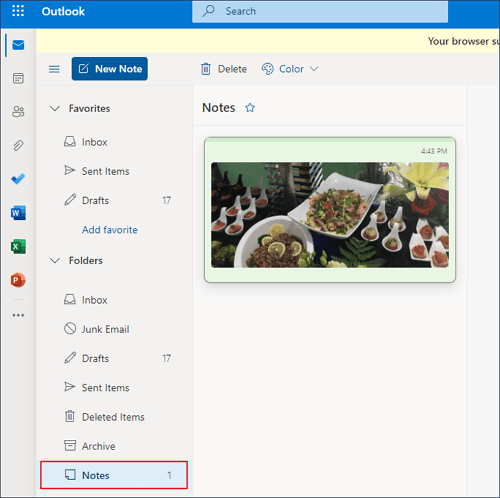
Method 2. Recover Sticky Notes from Outlook
You can find Sticky Notes in the Outlook web version and restore them from the Trash folder. Every time you delete a note, a copy is stored in the Trash folder, so you can retrieve them from there.
Step 1. Open Outlook web version.
Step 2. Click on "Notes" in the left sidebar.
Step 3. Recover all the wanted notes from Outlook.
Method 3. Recover Missing Sticky Notes from SNT File
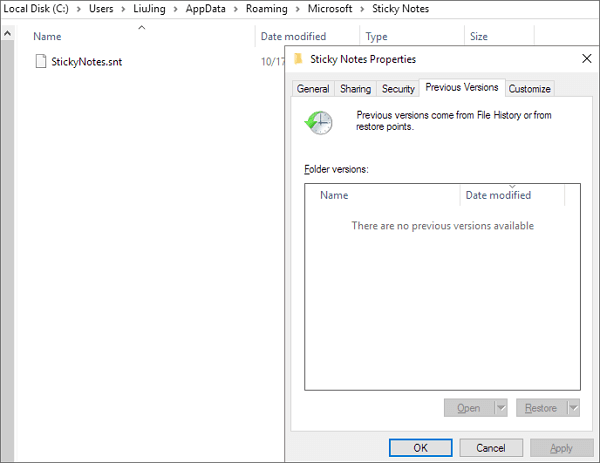
When you accidentally delete a sticky note, the app data is still stored, allowing you to recover deleted notes from a StickyNotes.snt file.
- To find the sticky notes' location in Windows 10, go to C:\Users\AppData\Roaming\Microsoft\Sticky Notes.
- Find and right-click on "StickyNotes.snt file".
- Select "Restore Previous Versions" to potentially replace your current sticky notes file with a previous version, with no option to undo this action.
Note: To recover lost sticky notes, you can try to restore them from previous versions if you have enabled file backup on your Windows 10. If not, you can move on to the next method.
Method 4. Recover/Reopen Closed Sticky Notes from All Notes
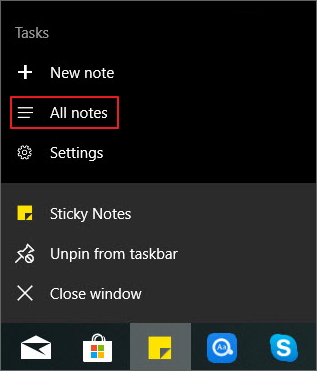
- Open Sticky Notes app.
- Right-To view all sticky notes, click on the Sticky Notes app on the Taskbar, then select the option that says "All notes".
- Then, a list of notes will pop up, including the one that you closed.
- To recover a deleted note, double-click on the note that you want to recover, and it will be displayed as a standalone note like all regular ones.
Conclusions
Sticky notes disappearance issues can be easily resolved using solutions on this page. To recover deleted sticky notes in Windows 10, using Qiling Data Recovery is a efficient way, allowing recovery of lost data from various devices. Alternatively, you can also recover sticky notes from the SNT file or from previous versions if available.
Additional Help - Sticky Notes FAQs
If you have other problems with Sticky Notes, you can read on to solve your problems with simple steps.
1. How to fix my sticky notes closed unexpectedly?
Windows 10 users may experience issues with opened notes closing unexpectedly, but can resolve the issue by simply reopening the note again.
Step 1. To view your list of notes in the Sticky Notes app, simply open the app on your device, and you will see a list of all your saved notes displayed on the screen.
If only a single note is displayed when you open the app, click or tap the ellipsis icon in the upper-right of the note and then click or tap Notes list.
Step 2. Scroll or search for your note in the notes list.
Step 3. To re-pin a note to the desktop, simply tap or double-click the note.
2. What to do if my list of notes disappeared?
Step 1. Open the Sticky Notes app.
Step 2. Click or tap the Notes list.
Step 3. Scroll or search for your note in the notes list.
3. How to fix My notes won't stay on top of other apps?
You can't have Sticky Notes stay on top of other applications, but you can pin it to the taskbar to see your notes instantly or create a new one quickly.
Related Articles
- Top 14 Best Free Video Repair Software for Windows/Mac
- How to Restore Lost AI Files After Adobe Illustrator CC Crashes
- Fix Word Document Is Blank When Opened
- How to Repair Damaged Outlook .pst Files
- 2 Ways for How to Recover Uninstalled Programs on Windows 10
To find uninstalled programs in Windows 10, you can try two methods. First, you can use Deep Data Recovery to retrieve uninstalled apps. Alternatively, you can restore the uninstalled programs using the built-in features of Windows 10. - Top 4 Alternatives to SanDisk RescuePro Recovery Software
Here are the top 4 alternatives to SanDisk RescuePro or SanDisk RescuePro deluxe: you can free download the alternatives Windows or Mac SanDisk RescuePro recovery software to help you recover deleted/lost files.
Products
Articles & Tutorials
- Data Recovery
- Data Backup
- File Recovery
- File Backup
- System Backup and Restore
- Disk and Partition Clone
- Technical articles
- Mobile articles
- Disk Master Help
- Windows Data Recovery Tutorials
- Windows Secure Delete Tutorials
- Windows Partition Management Tutorials
- Windows File Backup and Restore Tutorials
- Windows System Backup and Restore Tutorials
- Windows Disk Backup and Restore Tutorials
- Windows Clone Tutorials