Recover Video File When Power Off Before Stopping Recording
Videos Lost Due to Not Terminating Video Recording Before Turning Off
You've likely encountered the issue of the drone's file system becoming corrupted when powering off with the video still recording. This can result in a file that's not playable. You can try using a tool like DJI's Go app or a third-party software like Adobe Premiere or DaVinci Resolve to attempt to recover the footage. These tools may be able to salvage some of the data, but it's not always possible to recover the entire video. You can also try reformatting the drone's SD card and starting fresh.
In the old days when some computer data was 'unplayable', I was able to rescue it in those days with a marvelous program called "X-Copy". Anybody remember that?"

Videos are widely used for various purposes, including capturing special moments, recording lectures, and preserving memories, making them an essential tool for personal and professional use.
If you're worried about losing important videos, this article offers guidance on how to recover them.
Will the Video Being Saved If the Battery Drains Out
If the battery drains out or the memory card runs out while recording, the camera will stop recording and save the video. But if you pull out the battery or it powers off abnormally, the recorded video will not be saved.
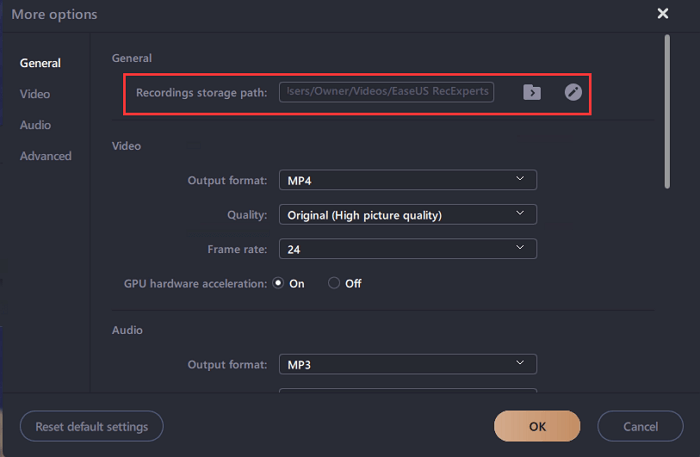
If your camera or phone dies while recording videos, the recordings will be saved. You can charge your device and start it up again, and the recordings will be found in the Recent File folder or Autosave folder. For example, with Qiling RecExperts, you can find the folder under the Settings option and access the lost recordings.
Recover/Repair Videos When Power Off Before Stopping Recording
You're talking about when your device automatically saves a video recording without you realizing it, but then you can't find it. That's frustrating, especially if it's a valuable clip that you wanted to keep. It's like losing a memory forever.
To make a video playable, you need video repair software. However, selecting the right tool can be challenging as many options can cause issues like non-synced audio and video. Deep Data Recovery is a reliable option that can fully recover and repair lost files, including videos, without causing further problems.
- Repair corrupted MP4/MOV files, JPEG/JPG files
- Repair corrupted Excel 2013 or Word document for various reasons
- Repair damaged files from various storage devices, including PCs, laptops, external hard drives, SD cards, and USB flash drives.
To repair your corrupted videos, download Qiling video repair tool and follow the step-by-step guide.
Step 1. Run Deep Data Recovery. Select file types and click "Fast Scan" to start.

Note: You can choose different search modes based on where and why the data was lost.
Step 2. The corrupted video recovery process involves selecting the drive containing the damaged videos, whether it's a removable disk or a local drive, and then initiating the scanning process by clicking the "Scan" button.

Step 3. This program scans the selected drive, displaying all files, including lost and existing ones, and allows users to filter by file type, such as videos, and even by camera brand, making it easier to find specific video files for repair.

Step 4. When you can preview the video, the software has already fixed it. To finalize the process, simply click "Recover" to save the fixed video to a different location, ensuring that your original data is preserved.
Conclusion
Even though you can recover video files if the power goes off before stopping recording, it's still a good idea to be aware of some common tricks that can help prevent video corruption in the first place.
- To prevent the video player from shutting down while the video file is still playing, you can use a loop to continuously check if the video is still playing and restart it if it's not. This can be achieved using a while loop in conjunction with the `is_playing()` method of the video player object.
- Save your recordings before powering off your device.
- Don't leave your computer or any other device unprotected against virus attacks or malware.
Related Articles
- [Solved] There Are No Previous Versions Available Windows 10/8/7
- Instant Solutions to Fix Word/Excel Is Locked for Editing
- How to Recover Data from Diskpart Cleaned Disk by Accident
- (The Ultimate Guide)How to Recover Deleted Files in Windows 10?
- Windows 7 End of Life: What Should You Do and How to Backup Your Files
Once Windows 7 support ends, consider upgrading to a newer version of Windows, such as Windows 10 or 11, to ensure continued security and feature updates. Alternatively, explore other operating systems like Linux or macOS, or consider a different device altogether. - Movie File Recovery | Recover Deleted Movie Files
Stop using your computer hard drive or external hard drive, USB once your lost movie files by deletion, formatting, or other reasons. The 2023 best movie file recovery software offered by Qiling is available here for you to download and apply to recover your lost movies in 3 simple steps.
Products
Articles & Tutorials
- Data Recovery
- Data Backup
- File Recovery
- File Backup
- System Backup and Restore
- Disk and Partition Clone
- Technical articles
- Mobile articles
- Disk Master Help
- Windows Data Recovery Tutorials
- Windows Secure Delete Tutorials
- Windows Partition Management Tutorials
- Windows File Backup and Restore Tutorials
- Windows System Backup and Restore Tutorials
- Windows Disk Backup and Restore Tutorials
- Windows Clone Tutorials