Instant Solutions to Fix Word/Excel Is Locked for Editing
Yes, this error occurs when you edit your word or excel files. When you open a word or excel file and edit it, the program may crash or freeze, or you may encounter an error message.
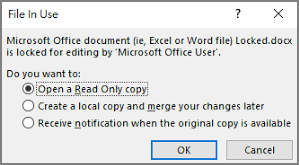
It's frustrating to encounter issues like being unable to edit .doc or .xlsx files in the middle of work. Fortunately, this problem is easily solvable. By reading on, you can find solutions to resolve the issues of a "Word document locked for editing" and "Microsoft excel is locked for editing", allowing you to continue working on your files without interruptions.
2 Ways to Unlock Microsoft Word Document That Is Locked for Editing
| Workable Solutions | Step-by-step Troubleshooting |
|---|---|
| 1. Quit All Instances of Word |
|
| 2. Uncheck "Encrypt content to secure data" |
|
Fix 1 - Quit All Instance of Word
Step 1. Save your work immediately and quit all running programs.
Step 2. Press Ctrl + Shift + Esc to open Task Manager directly. Alternatively, you can type "Task Manager" in the search box or press Ctrl + Alt + Delete to choose Task Manager in the list.
Step 3. Run Task Manager and select the Process tab.
Step 4. Find your Winword.exe, click it and choose End task in the bottom right corner.
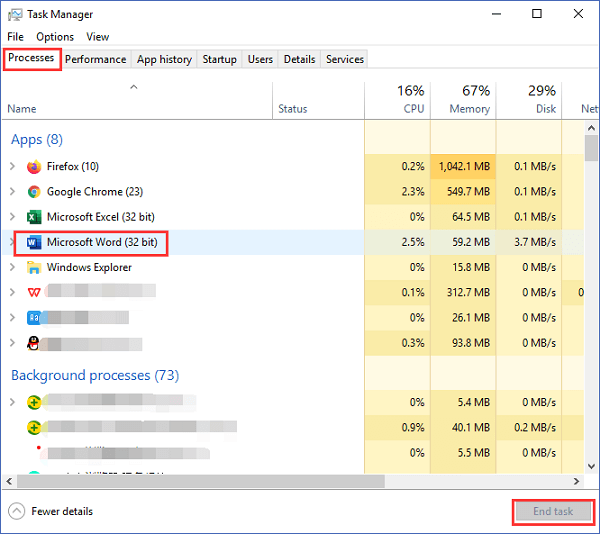
Step 5. End Winword.exe one by one.
Step 6. On the Task Manager page, choose the File tab and click Exit.
Fix 2 - Uncheck "Encrypt content to secure data"
Step 1. Close word file.
Step 2. Right-click file and choose Properties > Click Advanced...
Step 3. Under the Compress or Encrypt attributes, uncheck Encrypt contents to secure data.
How to Unlock Excel File Locked for Editing - 5 Ways
- 1. Quit All Instance of Excel
- 2. Use Windows Management Console
- 3. File Is Editing by Another User
- 4. Remove Unsupported Features
- 5. Check Your File Format
Solution 1 - Quit All Instance of Word
Step 1. Save your work first and quit all programs.
Step 2. To open the Windows Security Dialog box, press Ctrl + Alt + Delete.
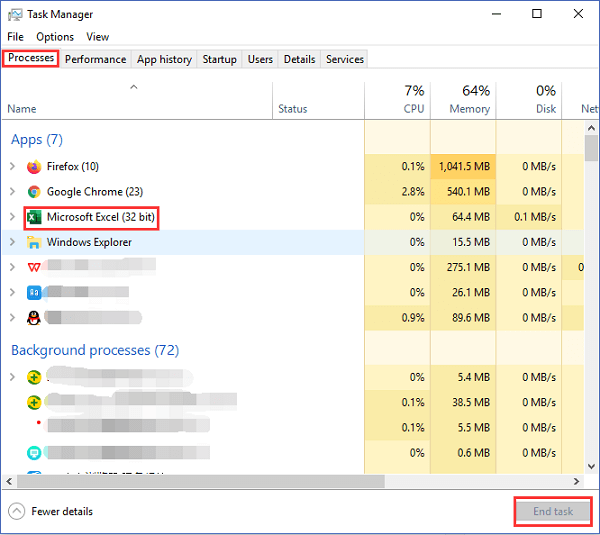
Step 3. Select Task Manager and go to the Process tab.
Step 4. To stop the Excel application, open the Task Manager, click on the "Processes" tab, find the Excel.EXE process, right-click on it, and select the "End Task" option. Alternatively, you can press Ctrl + Shift + Esc to open the Task Manager, click on the "Processes" tab, find the Excel.
Step 5. Repeat step 4 to end the process.
Step 6. To exit the program, click on the "File" tab located in the top left corner of the screen, and then select the "Exit" option from the dropdown menu.
Solution 2 - Use Windows Management Console
Step 1. Remember your file path and file name.
Step 2. Press Windows + R to open the Run window.
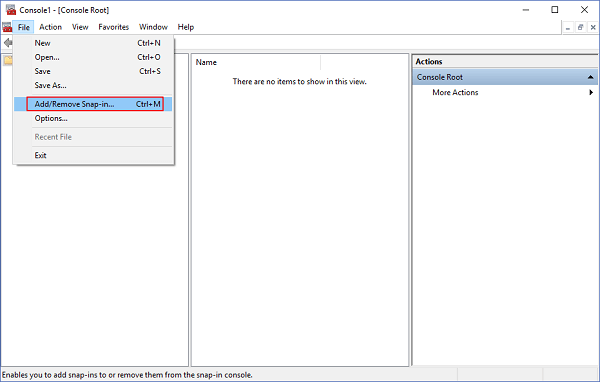
Step 3. Type `mmc` and press Enter. The Microsoft Management Console window will pop up.
Step 4. Click the "File" tab in the top left corner, then select "Add/Remove snap-in..." from the dropdown menu.
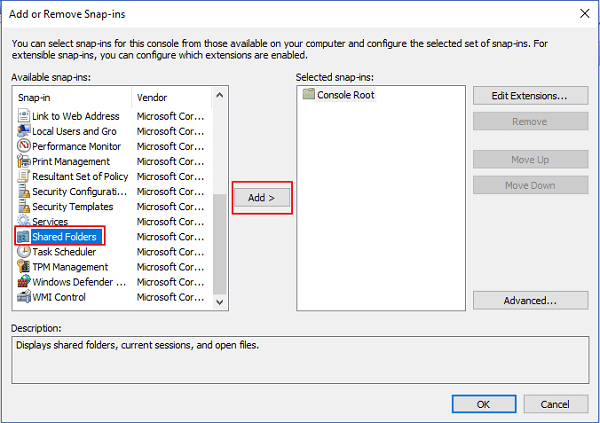
Step 5. On the Add or Remove Snap-ins window, you can view the list of Available snap-ins.
Step 6. Choose Shared Folders and then click Add.
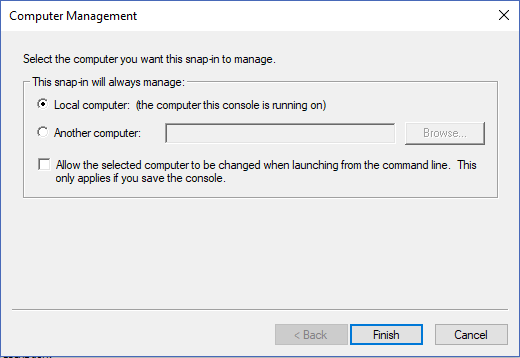
Step 7. Under the "Select the computer you want this snap-in to manage", you can choose Local computer if you're logged in to the local server, or Another computer if you're not.
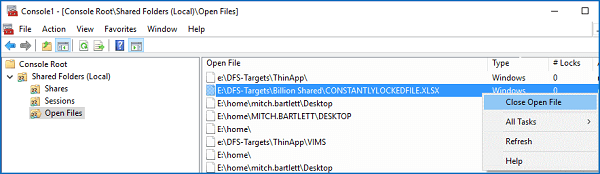
Step 8. To access the shared folder, click OK, then navigate to the Tree view section and select Shared Folder, after which click Open Files.
Step 9. To close a file without saving changes, right-click on the file in the list and select "Close Open File".
Solution 3 - File Is Editing by Another User
If multiple people are editing the same file, it can't be edited by you because it's being used by others. You can either choose to view it as read-only or, if urgent, ask the person who opened it to close it so you can edit it.
Solution 4 - Remove Unsupported Features (Encryption/Add-ins)
In this part, we gonna list several features that might hassle your operation. You can check whether these functions are set in the file.
Feature 1 - Excel File Encryption
We recommend removing password encryption from Excel files to ensure easy access and sharing. This will make it simpler to collaborate with others and prevent potential issues that may arise from forgotten passwords.
Step 1. Open Microsoft Excel.
Step 2. Go to the File tab in the top left corner.
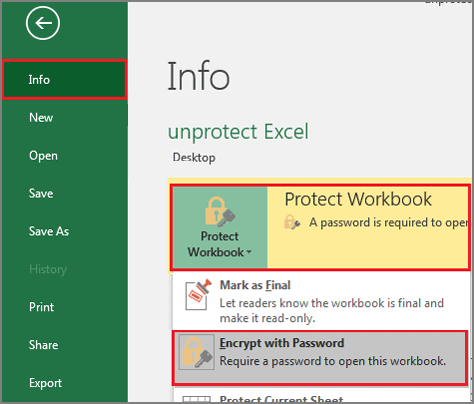
Step 3. To protect your workbook, go to the left panel and click on "Info", then select "Protect Workbook" and choose "Encrypt with Password" from the options.
Feature 2 - Add-ins
Some add-To avoid add-ins affecting your editing files, you can follow these simple steps to disable them:
Step 1. Click File > Options > Add-ins
Step 2. Choose COM Add-ins > Click Go
Step 3. Uncheck all add-ins in the list, and click OK.
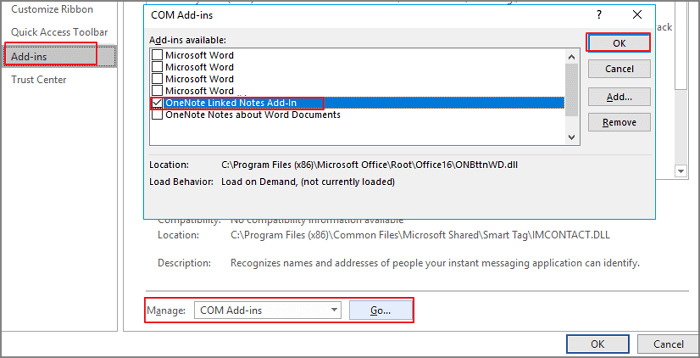
Step 4. Restart Excel.
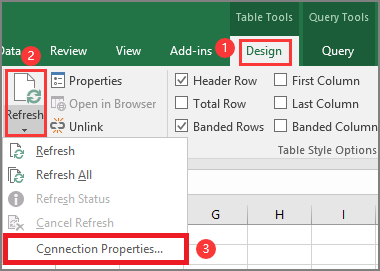
Feature 3. Refresh Data when opening files (Tables or Pivot Tables)
To update the data in your Excel table, go to Table Tools Design, then click on Refresh, followed by Connection Properties. Uncheck the box that says Refresh data when opening file.
Solution 5. Check Your File Format
If you and your partners collaborate on the same Excel workbooks, ensure your file name ends in .xlsx, .xlsm, or .xlsb to avoid issues.
If the file is not in the correct format, follow these steps to convert it: click on the "File" tab, then select "Save As", browse to the desired location, and finally select the file type as .xlsx, .xlsm or .xlsb.
Why is My Excel File Locked for Editing?
1. The Excel file was not closed properly the last time it was used, resulting in a potential issue with its current state.
2. Your colleague is opening the file.
3. You locked files by yourself.
Why Does Word Document Say Locked for Editing?
1. You're working on a shared word document that's been set to co-authoring mode, allowing multiple people to edit it simultaneously. However, another person is currently editing it, and you need to switch to "Read-only" mode to prevent any conflicts or changes to their work.
2. Improper quit.
3. Another instance of Word is running in the background.
Read more articles about Word: Microsoft Word Has Stopped Working
Related Articles
- How to Restore Files from Backup in Windows 10 Step by Step
- 2022 Alternative to Recuva Free Download Full Version with Crack
- [DIY Guide] Where Do I Find My Scanned Documents on Windows/Mac
- Fixed: Samsung SSD Not Showing Up in BIOS
- Download Microsoft Word Document Recovery Software to Recover Word Files
To recover lost Word documents, download Deep Data Recovery software, which can restore lost files due to deletion, formatting, hard drive errors, and other issues. - Free Download MySQL Recovery Tool to Recover MySQL Database
You can recover a MySQL database for free using two methods. Firstly, you can use Qiling MySQL database recovery software to recover MySQL database files after they have been deleted, formatted, or corrupted due to a system crash on your PC or server.
Products
Articles & Tutorials
- Data Recovery
- Data Backup
- File Recovery
- File Backup
- System Backup and Restore
- Disk and Partition Clone
- Technical articles
- Mobile articles
- Disk Master Help
- Windows Data Recovery Tutorials
- Windows Secure Delete Tutorials
- Windows Partition Management Tutorials
- Windows File Backup and Restore Tutorials
- Windows System Backup and Restore Tutorials
- Windows Disk Backup and Restore Tutorials
- Windows Clone Tutorials