How to Recover Unsaved/Lost/Deleted Pages Documents on Mac
Mac users often rely on Pages to process and edit documents, utilizing features like spelling and grammar checks, as well as style sheets. However, losing important documents on Mac is a common issue that can occur at any time, affecting any user.
If you've accidentally deleted or lost an important Pages document, We've can help with several practical methods to help you recover your Pages document on Mac, covering three common file loss situations: deleted documents, lost documents due to disk errors or formatting, and corrupted or damaged files.
| Workable Solutions | Step-by-step Troubleshooting |
|---|---|
| #1. Recover Unsaved Pages | Method 1. Run Qiling recovery tool, scan unsaved Pages Method 2. Restore unsaved Pages from Temp...Full steps |
| #2. Recover Lost/Deleted Pages | Method 1. Run Qiling file recovery, scan lost Pages Method 2. Recover deleted Pages from Trash...Full steps |
| #3. Recover Replaced Pages | Revert the replaced Pages to a previous version...Full steps |
YOUR QUICK GUIDE:
- If you closed a Pages document without clicking the "Save" button, you can try the solutions from Part 1 to recover your unsaved document.
- If you accidentally deleted a Pages file or formatted the Pages document folder, methods in Part 2 will help.
- If you replaced the Pages file with a new document with the same name, the method in Part 3 can help.
If you lost or closed a Pages document file by mistake, try searching for it in the Pages app, check the Recently Closed Documents section, or look for it in the Trash. If you closed a document by mistake, you can reopen it from the Pages app's Recently Closed Documents section.
Part 1. How to Recover Unsaved Pages Document on Mac
To restore an unsaved Pages document or a closed Pages file, click the "Don't Save" option when prompted to save the document. This will allow you to reopen the file and continue working on it.
If you've accidentally closed a Pages document and clicked "don't save", you may still be able to recover the lost content.
To recover unsaved Pages, don't save any new files to the folder or location where you stored the Pages file. Instead, follow the method to bring back your unsaved Pages.
- #1. Recover Unsaved Pages Document via Qiling File Recovery Tool
- #2. Recover Unsaved Pages via AutoSave
- #3. Recover Unsaved Pages from Temporary Folder
- #4. Find Unsaved Document in Finder
To recover an unsaved Pages document on your Mac, first, open Pages and go to File > Recent Documents. If the document is listed, you can open it from here.
Method 1. Recover Unsaved Pages Document via Qiling Recovery Tool
Qiling Mac file recovery software has been updated with a new feature that allows Mac users to recover unsaved documents, including Word, Pages, and Keynote files.
With Qiling Data Recovery for Mac, you can easily recover unsaved Pages documents in just a few clicks, allowing you to retrieve your lost file and get back to work with minimal hassle.
Step 1.Launch Deep Data Recovery, select the desired file types, and click "Fast Scan" to initiate the recovery process.

Note: You can choose different search modes based on where and why the data was lost.
Step 2. To recover an unsaved file, hover your mouse over the device where the file was last saved, and click "Scan" to initiate the file recovery process.

Step 3. After scanning, click "Type" and expand "Unsaved Documents" to find the file type you lost without saving, such as Word, Excel, PowerPoint, Keynote, Pages, or Numbers.

Step 4. Double-click to preview your unsaved file, select the right version and click "Recover" to save the file to another secure location.
Method 2. Recover Unsaved Pages Document via Auto-Save
The Auto-The Save feature is enabled by default, and once you've saved a document, you can recover unsaved content using the Auto-Save feature. This means that as long as your Pages document has been saved at least once, you can retrieve any unsaved changes made to it.
Here's what you should do:
#1. Confirm If AutoSave Is Enabled
Step 1. Go to System Preference > General.
Step 2. See if the box "Ask to keep changes when closing document" is unchecked. If it is, check it.
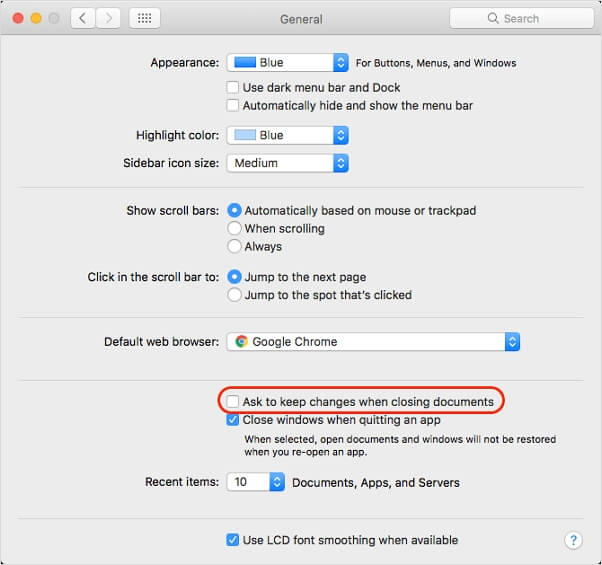
If it's unchecked, then Auto-Save is ON. If not, you can use Qiling file recovery software as recommended in Method 1 to help recover your files. Otherwise, you can continue with the steps below.
#2. Restore Unsaved Pages from AutoSave
Here are the steps to find your Pages document:
Step 1. Go to find a Pages document.
Step 2. Open it with Pages.
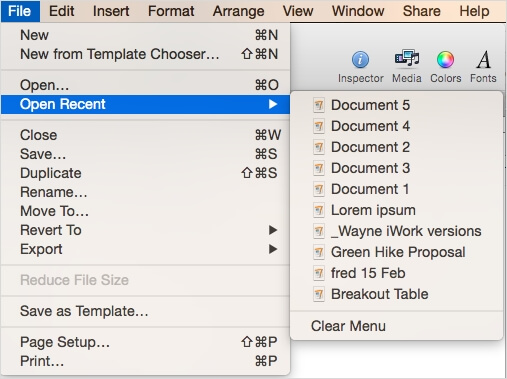
Step 3. To quickly open a recently opened Pages file, go to File > Open Recent and select the desired file from the list.
Step 4. Choose the one you need and save it as a new file.
Method 3. Restore Unsaved Pages from Temporary Folder
To recover unsaved Pages documents on a Mac, you can try looking for them in the Temporary folder. This folder stores files that were created but not saved, and it's possible that your unsaved Pages document may be found there. To access the Temporary folder, go to Finder, click "Go" in the top menu, select "Go to Folder," and type in the path "/tmp/" to open it.
Step 1. Go to "Applications" > "Utilities" and double-click "Terminal".
Step 2. You can quickly access the TMP folder in Terminal by typing `open $TMPDIR` and pressing enter. This will open the TMP folder in the default file viewer.
The TMP folder is used to keep files temporarily.
Step 3. In the TMP folder, find and open the folder named "TemporaryItems" to access its contents.
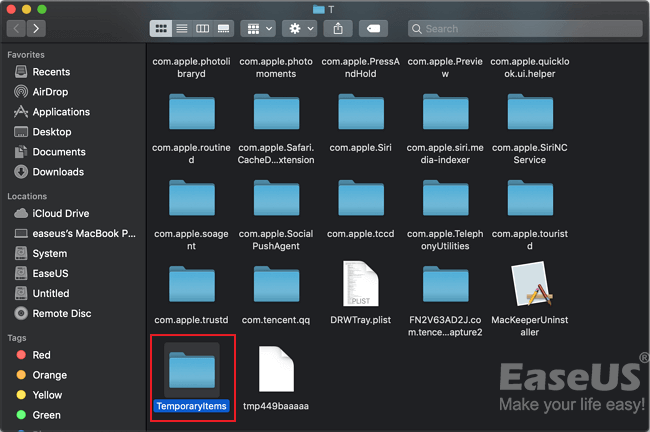
Step 4. To open an unsaved Pages file, locate the file, right-click on it, select "Open with...", and choose Pages from the list of available applications. This will allow you to open and edit the file using the Pages program.
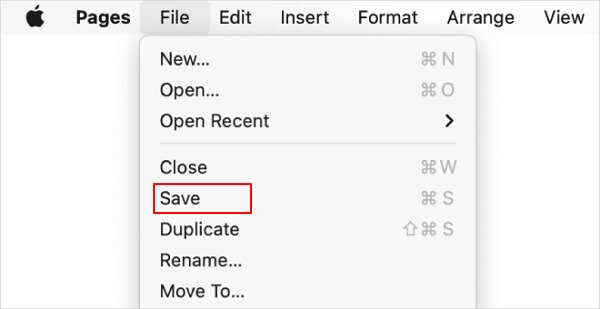
Step 5. To save the Pages file, click on "File" in the top left corner of the screen, then select "Save" from the dropdown menu, and finally choose a location to save the file to, such as your desktop or documents folder.
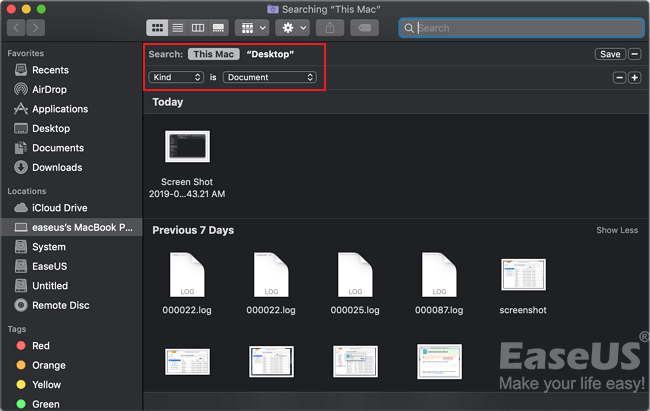
Method 4. Go to Finder to Look for the Unsaved Document
Step 1. To find a file on your Mac, go to the "Finder" and click on "File" in the top menu bar, then select "Find" from the drop-down menu.
Step 2. Search "This Mac" and confine the kind to "Document".
Step 3. To list the search results, click on the second tab in the View menu.
Step 4. Find your unsaved Pages document, then save it to your desktop or another location where you can easily access it.
Part 2. How to Recover Lost/Deleted Pages Documents on Mac
To restore a lost or deleted Pages document on a Mac, you can try the following methods: Check the Recently Deleted folder in the Pages app, which stores deleted documents for a certain period. If the document is not there, you can also try searching for it in Spotlight or using the Time Machine backup to recover it.
When you accidentally delete or lose a Pages file on your Mac, act quickly to recover it. Don't save any new documents, as this can overwrite the deleted file, making recovery more difficult. The sooner you take action, the better chance you'll have to recover your lost or deleted Pages document.
If you've mistakenly deleted a Pages file or erased the Pages folder on your Mac, Fortunately, there are three workable solutions to help you recover your lost Pages documents. These solutions can help you retrieve your deleted files, even if you've emptied the Trash or deleted the folder.
- #1. Recover Deleted or Lost Pages Document with Qiling Recovery Tool
- #2. Recover Deleted Pages from Trash
- #3. Restore Lost/Deleted Pages Document from Time Machine Backup
To recover a lost or deleted Pages document file on Mac, start by checking the "Recently Deleted" folder in the Pages app, as it may still be there. If it's not, try looking in the "Trash" folder.
Method 1. Recover Lost/Deleted Pages Documents with Qiling Recovery Tool
- Important
- To prevent data loss, stop using the hard drive where your saved files are stored once you've lost or deleted them. Additionally, avoid installing software on the same hard drive as where your Pages documents are saved.
Deep Data Recovery for Mac is a reliable software that helps recover deleted files, lost Photoshop files, and files from an SD card, providing a professional solution to retrieve lost data on Mac.
You can use a reliable data recovery software to recover lost or deleted Pages documents. This software can help you successfully recover your lost documents, so give it a try.
Follow these steps to retrieve lost or deleted Pages documents on Mac with Deep Data Recovery:
Step 1. Launch Deep Data Recovery, select the desired file types, and click "Fast Scan" to initiate the recovery process.
Note: You can choose different search modes based on where and why the data was lost.
Step 2. Select the disk location where you lost data and click the "Scan" button.
Step 3. Deep Data Recovery for Mac will immediately scan your selected disk volume and display the scanning results on the left pane.
Step 4. To recover the selected file(s) from the scan results, simply select them and click the "Recover" button. This will restore the files to their original state.
Method 2. Recover Deleted Pages from Trash
To recover a deleted Pages file on Mac, you can check the Trash Bin, which is located in the Dock. If the file is still there, you can simply drag it back to its original location. If it's not in the Trash Bin, you can try using a data recovery software to scan your Mac for deleted files and recover the Pages file.
Step 1. To locate the deleted Pages document, double-click on the Trash Bin icon, which will open it, and then search within it to find the specific document you're looking for.
Step 2. Right-click the Pages document, and select "Put Back".

After the recovery process, you can open and view the recovered Pages file at its original location again.
Method 3. Recover Pages Documents on Mac with Time Machine
If you've turned on Time Machine and backed up important Pages documents on your Mac, you can recover your documents using Time Machine. To do this, you'll need to connect your Mac to the same Time Machine backup drive, then select the date and time when your documents were last backed up.
Step 1. Launch Time Machine.
Step 2. Select "backups" and choose "Pages documents".
Step 3. Click "Restore" to recover your lost Pages documents.
Part 3. Recover Replaced Pages Document on Mac
To recover a replaced Pages document file from its previous version, you can use the "Revert to" feature in Pages. This feature allows you to go back to a previous version of your document, even after you've made changes and replaced the original file.
If you mistakenly replaced a Pages file with a new file in the same file name, you can try to recover it from a previous Time Machine backup.
If you didn't create the backup, you can try to find the replaced Pages document from a previous version by following these steps.
Step 1. Open the replaced Pages document in Pages.
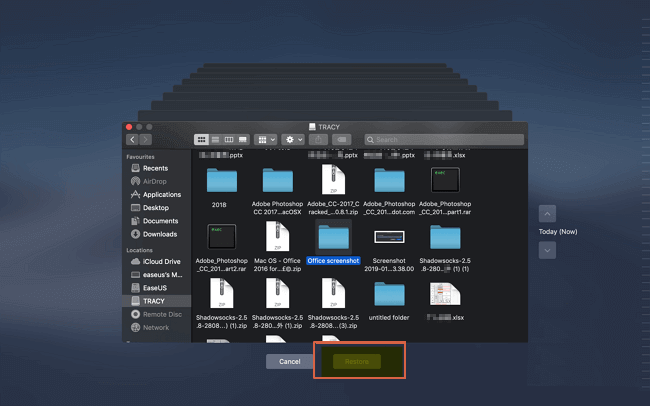
Step 2. To revert to a previous version of a file, go to the "File" menu, click on "Revert to", and then select "Browse All Versions" from the dropdown menu.
Step 3. To restore a replaced Pages document, navigate to the "File" menu and select "Revert to" or use the Up and Down buttons to browse through previous versions. Click "Restore" to save the replaced document.

Bring Back Your Lost Pages Document and Back-Up It Regularly
If you've lost a Pages document on your Mac, there are 8 reliable ways to help you recover it. Alternatively, you can try using Deep Data Recovery for Mac for an effective solution.
Pages files can be recovered with ease, even if they've been deleted, lost, or never saved, using a simple and efficient process that can be completed in just a few clicks.
To prevent losing your Pages document files, create a regular backup of them. This way, you can restore them if needed.
Related Articles
- 3 Steps to Clean Install macOS from USB Bootable Installer
- Formatted Recovery Mac: How to Recover Data from Formatted Mac Hard Drive
- MacBook Pro/Air Won't Turn on? 10 Fixes + Bootable Recovery Tips
- How to Recover Files Deleted by RM on Mac
- Accidentally Deleted Recovery Partition? Fixed!
Accidentally deleted recovery partition? Learn how to create recovery partition or another partition recovery software for partition recovery in this guide. - BitLocker Data Recovery: Recover Data from BitLocker Encrypted Drives
Learn how to recover data from a BitLocker encrypted drive with a recovery key, password, or recovery software, and what to do before formatting.
Products
Articles & Tutorials
- Data Recovery
- Data Backup
- File Recovery
- File Backup
- System Backup and Restore
- Disk and Partition Clone
- Technical articles
- Mobile articles
- Disk Master Help
- Windows Data Recovery Tutorials
- Windows Secure Delete Tutorials
- Windows Partition Management Tutorials
- Windows File Backup and Restore Tutorials
- Windows System Backup and Restore Tutorials
- Windows Disk Backup and Restore Tutorials
- Windows Clone Tutorials